Additional Rules(Display Rules)
Introduction
Conditional logic is the backbone of smart product customization in WooCommerce. WooCommerce display rules allow you to control exactly when and where your product addon fields appear, creating a streamlined, relevant shopping experience for every customer. Instead of showing all fields to all customers, WooCommerce display rules let you display the right options to the right customers at the right time.
Whether you want to show special fields for VIP customers, display product-specific options only on relevant items, or create dynamic forms that adapt based on customer selections, WooCommerce display rules provide the flexibility you need to build sophisticated product customization workflows.
In this comprehensive guide, we will explain what WooCommerce display rules are, explore why they’re essential for your store, show you how to configure them step-by-step, and provide best practices for creating effective conditional logic that improves customer experience and increases conversions.
What Are WooCommerce Display Rules?
WooCommerce display rules (also called conditional logic or display conditions) are settings that control when product addon fields, sections, or entire addons appear on product pages. These rules evaluate specific conditions—such as product type, category, user role, or quantity—and show or hide fields accordingly.
Key Characteristics:
- Conditional Display: Fields only appear when specified conditions are met
- Multiple Condition Types: Product, category, tag, user role, variation, quantity, and date/time conditions
- Flexible Logic: Combine multiple conditions with AND/OR logic
- Real-Time Evaluation: Rules are evaluated dynamically as customers interact with your store
- Admin-Friendly: Easy-to-use interface for setting up rules without coding
- Performance Optimized: Efficient rule evaluation that doesn’t slow down your store
WooCommerce display rules transform static product forms into intelligent, context-aware interfaces that adapt to each customer’s situation, showing only relevant options and reducing decision fatigue.
Why Display Rules Are Essential for Your Store
- Reduced Clutter and Decision Fatigue
- When customers see too many options, they can become overwhelmed and abandon their cart. WooCommerce display rules help you show only relevant fields, keeping the product page clean and focused on what matters most for each specific product or customer segment.
- WooCommerce display rules ensure customers see only the options that apply to them, making the purchasing process faster and less intimidating.
- Personalized Shopping Experience
- Different customers have different needs. VIP customers might need special options, while first-time visitors might need simpler choices. WooCommerce display rules let you tailor the shopping experience based on user roles, purchase history, or other criteria.
- WooCommerce display rules enable personalization at scale, showing relevant options to each customer segment automatically.
- Product-Specific Customization
- Not all products need the same addon fields. A t-shirt might need size and color options, while a custom cake might need flavor and decoration choices. WooCommerce display rules allow you to show different fields on different products, categories, or tags.
- WooCommerce display rules ensure each product displays only its relevant customization options, creating a cleaner, more professional shopping experience.
- Dynamic Form Interactions
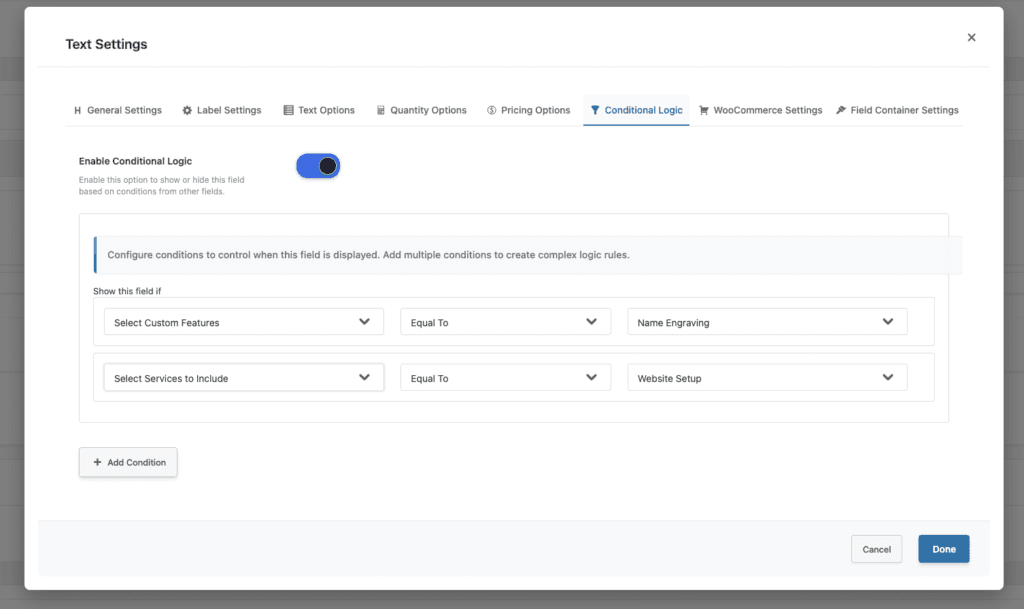
- Sometimes, one field’s value should determine what other fields appear. For example, if a customer selects “Express Shipping,” you might want to show additional shipping date options. WooCommerce display rules enable this kind of dynamic form behavior.
- WooCommerce display rules create interactive forms where fields appear and disappear based on customer selections, guiding customers through a logical customization flow.
- Improved Conversion Rates
- When customers see fewer, more relevant options, they make decisions faster and are more likely to complete purchases. WooCommerce display rules reduce friction in the buying process, leading to higher conversion rates.
- WooCommerce display rules streamline the checkout process by showing only necessary options, reducing abandonment and increasing sales.
- Better Mobile Experience
- Mobile screens have limited space, making it even more important to show only relevant fields. WooCommerce display rules ensure mobile customers see a clean, focused interface without scrolling through irrelevant options.
- WooCommerce display rules optimize the mobile shopping experience by displaying only essential fields on smaller screens.
Display Rules Use Cases
- Product-Specific Fields
- Show different fields on different products:
- T-Shirts: Display size, color, and design options
- Custom Cakes: Show flavor, decoration, and message options
- Print Products: Display paper type, finish, and quantity options
- Software Licenses: Show license type and subscription duration for digital products
- WooCommerce display rules let you tailor fields to each product’s unique requirements without creating separate addons for every product.
- Show different fields on different products:
- Category-Based Display
- Display fields based on product categories:
- Apparel Category: Show size charts and care instructions
- Electronics Category: Display warranty and insurance options
- Gift Category: Show gift wrapping and message options
- Subscription Category: Display recurring payment options
- WooCommerce display rules enable category-wide field configurations that apply consistently across related products.
- Display fields based on product categories:
- User Role Targeting
- Show special options for specific customer types:
- Wholesale Customers: Display bulk pricing and quantity discounts
- VIP Members: Show exclusive customization options
- Guest Customers: Display simplified fields with fewer options
- Subscribers: Show subscription-related fields
- WooCommerce display rules help you create tiered experiences that reward different customer segments with relevant options.
- Show special options for specific customer types:
- Quantity-Based Display
- Show fields based on product quantity:
- Bulk Orders: Display special options when quantity exceeds thresholds
- Minimum Orders: Show fields when minimum quantity is met
- Volume Discounts: Display discount options for larger quantities
- WooCommerce display rules enable quantity-based conditional display, allowing you to show different options based on order volume.
- Show fields based on product quantity:
- Variation-Based Display
- Show fields based on selected product variations:
- Size Variations: Display different customization options for different sizes
- Color Variations: Show color-specific design options
- Material Variations: Display material-specific care instructions
- WooCommerce display rules integrate with WooCommerce variations, allowing variation-specific field configurations.
- Show fields based on selected product variations:
Display Rules Features Overview (Free vs Premium)
| Feature | Free | Premium |
|---|---|---|
| Product Conditions | ✅ | ✅ |
| Category Conditions | ✅ | ✅ |
| Tag Conditions | ✅ | ✅ |
| Select All/Clear All Buttons | ✅ | ✅ |
| User Role Conditions | ❌ | ✅ |
| Product Variation Conditions | ❌ | ✅ |
| Product Quantity Conditions | ❌ | ✅ |
| Field Value Conditions | ❌ | ✅ |
| Date/Time Picker Conditions | ❌ | ✅ |
| AND Logic Between Conditions | ✅ | ✅ |
| OR Logic Between Groups | ✅ | ✅ |
| Multiple Rule Groups | ✅ | ✅ |
Free Version Features
The free version of WooCommerce display rules includes:
- Product Conditions: Show or hide fields on specific products
- Category Conditions: Display fields on products in specific categories
- Tag Conditions: Show fields on products with specific tags
- Select All/Clear All: Convenient buttons for bulk selection
- AND Logic Between Groups: All groups must be satisfied for fields to display
- OR Logic Between Groups: Any group can be satisfied for fields to display
- Multiple Rule Groups: Create complex conditional logic with multiple groups
Premium Version Additional Features
The premium version adds advanced conditional logic:
- User Role Conditions: Show fields based on customer user roles
- Variation Conditions: Display fields based on selected product variations
- Quantity Conditions: Show fields based on product quantity
- Field Value Conditions: Display fields based on other field values
- Date/Time Conditions: Show fields based on date or time selections
- OR Logic Between Groups: More flexible condition combinations
How to Set Up Display Rules (Step-by-Step)
- Step 1: Navigate to Addon Builder
- Go to WooCommerce → Product Addons in your WordPress admin dashboard
- Click on an existing addon or create a new one
- You’ll see the addon builder interface with fields and settings
- Step 2: Open Display Rules Section
- In the addon builder, scroll down to the Additional Rules section
- Click to expand the display rules configuration panel
- You’ll see options for setting up conditional display rules
- Step 3: Configure Product Conditions (Free)
- To show fields on specific products:
- Select Products from the condition type dropdown
- Click Select Products to open the product selector
- Search and select the products where you want the fields to display
- Use Select All to choose all products quickly
- Use Clear All to remove all selections
- Example: Show “Custom Engraving” field only on jewelry products (Product IDs: 123, 124, 125).
- To show fields on specific products:
- Step 4: Configure Category Conditions (Free)
- To show fields on products in specific categories:
- Select Categories from the condition type dropdown
- Click Select Categories to open the category selector
- Choose the categories where you want the fields to display
- Use Select All/Clear All for bulk operations
- Example: Show “Gift Wrapping” field on all products in the “Gifts” category.
- To show fields on products in specific categories:
- Step 5: Configure Tag Conditions (Free)
- To show fields on products with specific tags:
- Select Tags from the condition type dropdown
- Click Select Tags to open the tag selector
- Select the tags that should trigger field display
- Use bulk selection options as needed
- Example: Show “Size Guide” field on products tagged with “Clothing” or “Apparel”.
- To show fields on products with specific tags:
- Step 6: Configure AND/OR Logic Between Groups
- You can set logic between multiple rule groups:
- .AND Logic (All): All groups must be satisfied for fields to display
- Use when you need multiple conditions to all be true
- Example: (Product A OR Product B) AND (Category X OR Category Y)
- OR Logic (Any): At least one group must be satisfied for fields to display
- Use when you need any of multiple conditions to be true
- Example: (Product A AND Category X) OR (Product B AND Category Y)
- Select the logic type from the dropdown: All (AND) or Any (OR)
- .AND Logic (All): All groups must be satisfied for fields to display
- Example: Show “VIP Options” field when:
- (Product is in “Premium” category OR Product has “VIP” tag) AND
- User has “VIP” role
- You can set logic between multiple rule groups:
- Step 7: Configure Premium Conditions (Premium Only)
- For premium features like user roles and variations:
- User Role Conditions: Select user roles (Customer, Wholesale, VIP, etc.)
- Variation Conditions: Choose product variations that trigger field display
- Quantity Conditions: Set quantity ranges (e.g., show when quantity > 10)
- Field Value Conditions: Select other fields and their values that should trigger display
- For premium features like user roles and variations:
- Step 8: Save and Test
- Click Save Addon to save your display rules configuration
- Visit a product page that should match your conditions
- Verify that fields appear or hide as expected
- Test with different products, categories, and user roles to ensure rules work correctly
Display Rules Conditions Explained
- Product Conditions
- What it does: Shows or hides fields based on specific product IDs.
- When to use:
- Product-specific customizations
- Limited-time offers on specific products
- Special fields for featured products
- Example: Display “Engraving Options” only on Product ID 123 (a custom jewelry piece).
- Category Conditions
- What it does: Shows or hides fields based on product categories.
- When to use:
- Category-wide field configurations
- Category-specific options (e.g., gift wrapping for gift category)
- Consistent fields across related products
- Example: Show “Size Chart” on all products in the “Clothing” category.
- Tag Conditions
- What it does: Shows or hides fields based on product tags.
- When to use:
- Cross-category field grouping
- Tag-based promotions
- Flexible field organization
- Example: Display “Custom Design” field on products tagged with “Customizable”.
- User Role Conditions (Premium)
- What it does: Shows or hides fields based on customer user roles.
- When to use:
- VIP member exclusive options
- Wholesale customer pricing
- Admin-only testing fields
- Example: Show “Bulk Discount” field only for customers with “Wholesale” user role.
- Variation Conditions (Premium)
- What it does: Shows or hides fields based on selected product variations.
- When to use:
- Variation-specific customizations
- Size-based options
- Color-specific designs
- Example: Display “Custom Size Chart” when “Large” or “XL” variation is selected.
- Quantity Conditions (Premium)
- What it does: Shows or hides fields based on product quantity.
- When to use:
- Bulk order options
- Quantity-based discounts
- Minimum order requirements
- Example: Show “Bulk Pricing” field when quantity is greater than 10.
- Date/Time Conditions (Premium)
- What it does: Shows or hides fields based on date or time selections.
- When to use:
- Time-sensitive options
- Appointment scheduling
- Deadline-based fields
- Example: Display “Rush Order” field when selected date is within 3 days.
Advanced Display Rules Strategies
- Strategy 1: Tiered Customer Experience
- Create different experiences for different customer segments:
- Setup:
- Create separate addons for each customer tier
- Use User Role conditions to show appropriate addons
- VIP customers see premium options, regular customers see standard options
- Benefits:
- Personalized shopping experience
- Increased customer loyalty
- Higher conversion rates from premium segments
- Strategy 2: Complex Logic with AND/OR Groups
- Use multiple rule groups with AND/OR logic for sophisticated conditions:
- Setup:
- Create multiple rule groups with different condition combinations
- Use OR logic to show fields when any group matches
- Use AND logic to show fields only when all groups match
- Combine product, category, and tag conditions within groups
- Benefits:
- Flexible conditional logic
- Complex condition handling
- Precise field display control
- Strategy 3: Product-Specific Workflows
- Create tailored workflows for different product types:
- Setup:
- Use Category conditions to group products
- Configure category-specific fields
- Maintain consistent experience within categories
- Benefits:
- Relevant options for each product type
- Reduced field clutter
- Improved customer satisfaction
- Strategy 4: Seasonal and Promotional Rules
- Show special fields during promotions or seasons:
- Setup:
- Use Date/Time conditions for time-sensitive offers
- Create promotional addons with specific conditions
- Remove promotional rules when campaigns end
- Benefits:
- Easy campaign management
- Time-bound promotions
- Automated seasonal displays
Best Practices for Display Rules
- Keep Rules Simple and Clear
- Start with simple conditions and add complexity only when needed. Simple rules are easier to maintain and less prone to errors.
- Best Practice: Use single condition types (Product OR Category) when possible, rather than complex combinations.
- Test Rules Thoroughly
- Always test display rules on different products, categories, and user roles to ensure they work as expected.
- Best Practice: Create a test checklist covering all condition types and combinations before going live.
- Document Your Rules
- Keep notes on why specific rules were created and what they’re intended to accomplish. This helps with future maintenance.
- Best Practice: Add comments in addon names or descriptions explaining the rule logic.
- Use Bulk Selection Tools
- Leverage Select All/Clear All buttons to quickly configure rules for multiple products or categories.
- Best Practice: Use bulk selection for common configurations, then fine-tune individual exceptions.
- Consider User Experience
- Ensure rules create a logical, intuitive flow for customers. Avoid hiding critical information or creating confusing field dependencies.
- Best Practice: Test the customer experience from a user’s perspective, not just from an admin perspective.
- Monitor Performance
- Keep an eye on how rules affect page load times and customer behavior. Optimize rules that cause performance issues.
- Best Practice: Use browser developer tools to measure page load times with different rule configurations.
- Plan for Edge Cases
- Consider what happens when conditions aren’t met. Ensure important fields have fallback display options if needed.
- Best Practice: Test scenarios where no conditions are met and ensure critical fields still appear appropriately.
Common Mistakes to Avoid
- Mistake 1: Over-Complicating Rules
- Creating overly complex rules with many conditions can be difficult to maintain and debug.
- Solution: Start simple and add complexity only when necessary. Break complex rules into multiple simpler addons if needed.
- Mistake 2: Forgetting to Test
- Not testing rules can lead to fields appearing when they shouldn’t or not appearing when they should.
- Solution: Always test rules on actual product pages with different scenarios before deploying to production.
- Mistake 3: Ignoring Mobile Experience
- Complex rules might create issues on mobile devices where screen space is limited.
- Solution: Test display rules on mobile devices and ensure the experience is smooth and intuitive.
- Mistake 4: Not Updating Rules
- Rules created for specific products or categories might become outdated when inventory changes.
- Solution: Regularly review and update display rules to match current product catalog and business needs.
- Mistake 5: Confusing AND vs OR Logic
- Not understanding how multiple conditions interact can lead to unexpected field displays.
- Solution: Remember that in the free version, all conditions use AND logic (all must be satisfied). Plan your conditions accordingly.
- Mistake 6: Hiding Critical Fields
- Using rules to hide important fields might prevent customers from completing purchases.
- Solution: Ensure essential fields (like required options) are always visible or have appropriate fallback rules.
Troubleshooting Display Rules Issues
- Issue 1: Fields Not Appearing
- Symptoms: Fields should appear based on conditions but don’t show up.
- Possible Causes:
- Conditions not properly configured
- Product/category/tag IDs don’t match
- JavaScript conflicts preventing rule evaluation
- Cache issues
- Solutions:
- Double-check condition settings in addon builder
- Verify product, category, or tag IDs are correct
- Clear browser and WordPress cache
- Check browser console for JavaScript errors
- Test with different products/categories to isolate the issue
- Issue 2: Fields Appearing When They Shouldn’t
- Symptoms: Fields display on products where they shouldn’t appear.
- Possible Causes:
- Incorrect condition configuration
- Multiple addons with conflicting rules
- Cache showing outdated content
- Solutions:
- Review condition logic in addon builder
- Check for conflicting addons applying to same products
- Clear all caches (browser, WordPress, server)
- Verify condition types and values are correct
- Issue 3: User Role Conditions Not Working
- Symptoms: Fields don’t appear for users with specific roles (Premium feature).
- Possible Causes:
- User role not properly assigned
- Condition configuration error
- Role name mismatch
- Solutions:
- Verify user has the correct role assigned in WordPress
- Check role names match exactly (case-sensitive)
- Test with different user accounts and roles
- Review premium license activation status
- Issue 4: Performance Issues
- Symptoms: Page load times increase significantly with display rules enabled.
- Possible Causes:
- Too many rules evaluating simultaneously
- Inefficient rule logic
- Large product/category lists in conditions
- Solutions:
- Optimize rules to use fewer conditions when possible
- Use category/tag conditions instead of individual product IDs when applicable
- Enable caching to reduce rule evaluation overhead
- Consider splitting complex addons into multiple simpler ones
Conclusion
WooCommerce display rules are a powerful feature that transforms static product forms into intelligent, context-aware interfaces. By controlling when and where fields appear, you can create personalized shopping experiences, reduce decision fatigue, and improve conversion rates.
Whether you’re using the free version’s product, category, and tag conditions with AND/OR logic, or leveraging premium features like user roles, variations, and quantity conditions, WooCommerce display rules provide the flexibility you need to build sophisticated product customization workflows.
Remember to start simple, test thoroughly, and iterate based on customer feedback. With proper configuration and best practices, WooCommerce display rules can significantly enhance your store’s functionality and customer experience.
Related Resources
Frequently Asked Questions
Find answers to commonly asked questions about our products and services.
Still have a question?
If you have any other queries, feel free to reach out to us. Our knowledgeable team is here to help!