
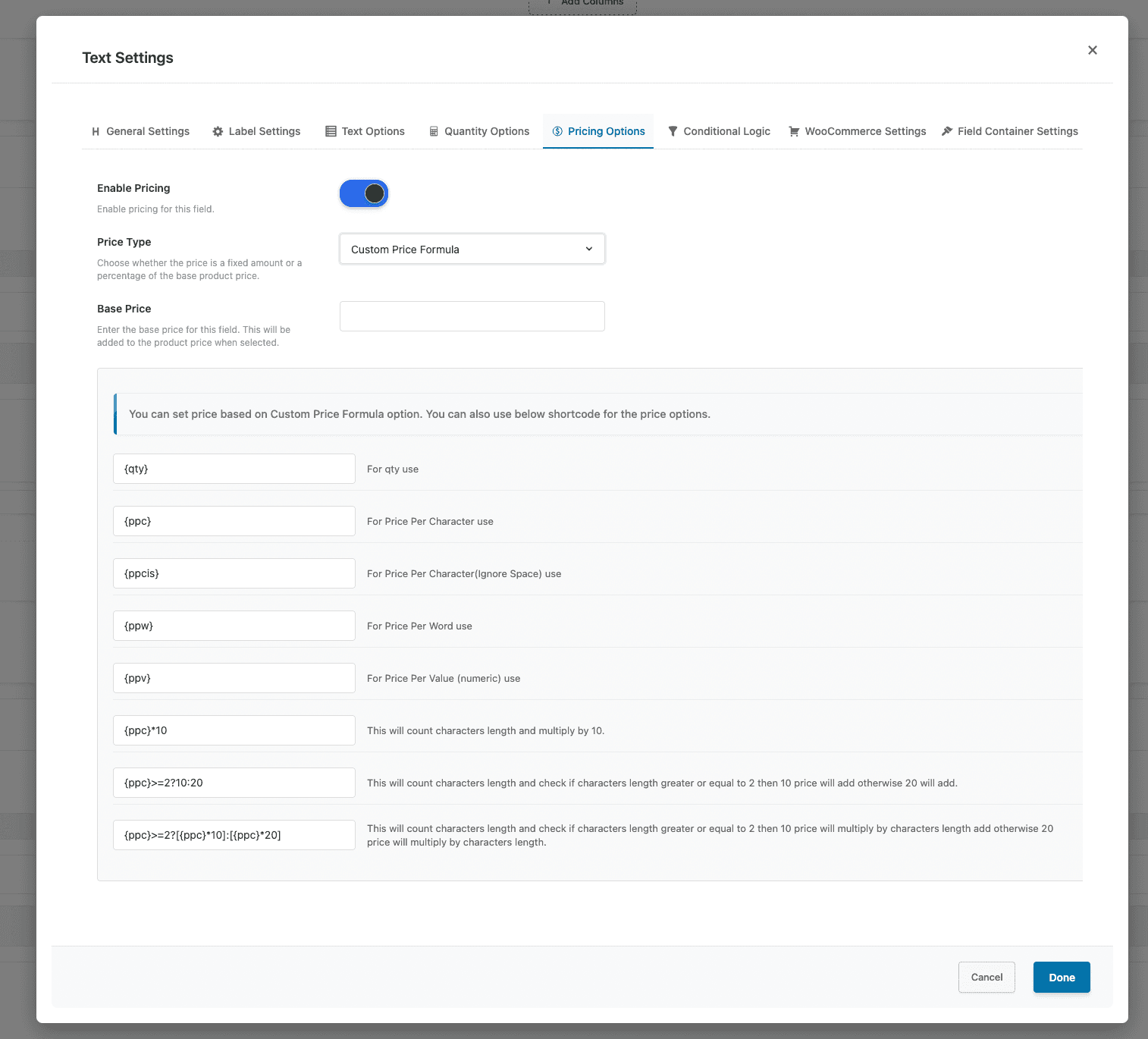
Pricing Options
Introduction
Flexible pricing is essential for WooCommerce stores offering customizable products. Whether you need to charge extra for premium materials, longer text engravings, or special delivery dates, WooCommerce product addon pricing provides the flexibility you need to price your products accurately and fairly.
The Extra Product Options for WooCommerce plugin offers a comprehensive pricing system that lets you add price adjustments to any product option. From simple fixed upcharges to complex formulas based on customer input, WooCommerce product addon pricing handles everything from basic price additions to sophisticated tiered calculations.
In this comprehensive guide, we will explain how WooCommerce product addon pricing works, explore different pricing approaches and types, show you practical examples, and provide best practices for implementing effective pricing strategies that maximize revenue while maintaining customer satisfaction.
Understanding Pricing Options
WooCommerce product addon pricing allows you to add price adjustments to any product option field. Whether you want to charge extra for premium materials, longer text engravings, or special delivery dates, the plugin handles it all with a flexible pricing system that supports multiple price calculation methods.
What Is Product Addon Pricing?
Product addon pricing is the ability to add or modify the price of a product based on customer selections or input in custom fields. Instead of selling products at a single fixed price, you can offer variations and customizations with associated price adjustments.
WooCommerce product addon pricing enables you to:
- Add fixed amounts for specific options (e.g., +$10 for premium material)
- Calculate percentage-based prices (e.g., +15% for premium upgrades)
- Create dynamic pricing based on customer input (e.g., $0.50 per character)
- Implement complex formulas for tiered or conditional pricing
- Set date-based pricing for time-sensitive options
Why Pricing Options Matter
Pricing options are essential for:
- Revenue Optimization: Capture value from premium options and customizations
- Fair Pricing: Charge appropriately for added features and customizations
- Product Variety: Offer multiple options without creating separate products
- Customer Experience: Transparent pricing helps customers understand costs
Why Product Addon Pricing Is Essential
- Revenue Optimization — Product addon pricing helps you capture the full value of premium options and customizations. Instead of offering everything at one price, you can charge appropriately for upgrades, customizations, and premium features.
- Fair Pricing Structure — Different options have different costs. Premium materials cost more than standard options. Longer engravings take more time and resources. Charge fairly based on actual costs and value.
- Product Variety Without Complexity — Instead of creating separate products for every variation, offer multiple options on a single product with appropriate pricing for each.
- Transparent Customer Experience — Clear pricing helps customers understand what they’re paying for and why. Price adjustments display alongside options, making the structure transparent.
- Competitive Advantage — Flexible pricing lets you offer more customization options than competitors while maintaining profitability.
- Cost Recovery — Customizations and premium options often require additional materials, labor, or time. Ensure you recover these costs while offering customers the customization they want.
Two Types of Pricing Approaches
WooCommerce product addon pricing uses two main approaches depending on the field type:
1. Per-Option Pricing — for fields that have multiple choices, pricing is set on each individual option.
| Field Type | Version | Pricing Method |
|---|---|---|
| Select (Dropdown) | Free | Each option has Label, Price Type, Price |
| Radio Group | Free | Each option has Label, Price Type, Price |
| Checkbox Group | Free | Each option has Label, Price Type, Price |
| Multiselect | Free | Each option has Label, Price Type, Price |
| Checkbox | Free | Each option has Label, Price Type, Price |
| Color Switcher | Premium | Each color option has Label, Price Type, Price |
| Text Switcher | Premium | Each text option has Label, Price Type, Price |
| Image Switcher | Premium | Each image option has Label, Price Type, Price |
How Per-Option Pricing Works: each option has its own pricing configuration; when a customer selects an option, its specific price is added to the product total. Options can have different price types (Fixed, Percentage) or no additional charge ($0).
Example — Material Selection (Select Field): Cotton: $0 (base), Polyester: +$5 (Fixed), Silk: +$15 (Fixed), Linen: +$10 (Fixed).
2. Direct Field Pricing — for single-value fields where customers enter or select a single value, pricing is set at the field level in the “Pricing Options” tab.
| Field Type | Version | Pricing Configuration |
|---|---|---|
| Text | Free | Field-level pricing in Pricing Options tab |
| Textarea | Free | Field-level pricing in Pricing Options tab |
| Number | Free | Field-level pricing in Pricing Options tab |
| Password | Free | Field-level pricing in Pricing Options tab |
| Slider | Premium | Field-level pricing in Pricing Options tab |
| Date Picker | Free | Field-level pricing + Date-based pricing |
| Time Picker | Premium | Field-level pricing in Pricing Options tab |
| Color Picker | Premium | Field-level pricing in Pricing Options tab |
| Switch | Premium | Field-level pricing in Pricing Options tab |
| File Upload | Premium | Field-level pricing in Pricing Options tab |
| Hidden | Free | Field-level pricing in Pricing Options tab |
How Direct Field Pricing Works: pricing is configured at the field level in the “Pricing Options” tab — enable pricing, select a price type, and enter pricing parameters. Supports Fixed, Percentage, Per Character, Per Word, Custom Formula, etc.
Example — Custom Engraving (Text Field): Price Type: Per Character, Price: $0.50/character. Customer enters “HAPPY BIRTHDAY” (14 characters) → Price added: $7.00.
Price Types Explained (Free vs Premium)
- Fixed Price (Free) — adds a specific amount to the product price. Available for all field types. Best for simple, consistent upcharges (gift wrapping +$5, express shipping +$15). Config: select “Fixed”, enter the amount. Simple and predictable, but doesn’t scale with product price.
- Percentage of Product Price (Premium) — adds a percentage of the base product price. Best for scaling proportionally with product value. Example: 10% on a $100 product = $10; on $500 = $50. Config: select “Percentage”, enter the percentage (e.g., 10 = 10%). Scales automatically, but is less predictable than fixed.
- Price Per Character (Premium) — charges by number of characters in a text field. Available for Text and Textarea. Best for engraving, embroidery, printing. Example: $0.50/char, “HAPPY BIRTHDAY” (14 chars) = $7.00. Config: select “Per Character”, enter price per character.
- Price Per Character – Ignore Space (Premium) — same as Per Character, but spaces are not counted. Available for Text and Textarea. Example: $0.50/char, “HAPPY BIRTHDAY” (13 letters) = $6.50. Config: select “Per Character (Ignore Space)”.
- Price Per Word (Premium) — charges by number of words. Available for Text and Textarea. Best for custom messages, poems. Example: $2/word, “Thank you for everything” (4 words) = $8.00. Config: select “Per Word”, enter price per word.
- Custom Price Formula (Premium) — complex pricing using math formulas with variables. Available for Text, Textarea, Number, Time Picker and Slider. Variables (Text/Textarea/Number):
{qty}product quantity,{ppc}character count,{ppcis}characters no spaces,{ppw}word count,{ppv}numeric value. Slider:{value},{base_price}. Operators:+-*/()and the ternary?:, plusMath.pow(). Examples:5 + {ppc} * 0.5(base + per char),{ppc}>=10 ? {ppc}*0.4 : {ppc}*0.5(tiered),{ppc}*0.5 < 5 ? 5 : {ppc}*0.5(minimum charge). - Price Per Step (Premium – Slider Only) — charges based on each slider step increment. Example: $5/step, slider at 7 = $35. Config: select “Per Step” (Slider only), enter price per step. Simple and linear, limited to slider fields.
Field-Specific Pricing Options
Text & Textarea Fields — support multiple pricing types for character and word-based pricing:
| Price Type | Description | Example | Best For |
|---|---|---|---|
| Fixed | Set amount when field has value | +$10 for custom text | Flat customization fee |
| Percentage | % of product price | +5% for personalization | Scaling with price |
| Per Character | Per letter/number | $0.50/char for engraving | Engraving, printing |
| Per Char (No Space) | Per letter (spaces free) | $0.50/char, spaces excluded | Fair text pricing |
| Per Word | Per word entered | $2/word for message | Custom messages |
| Custom Formula | Complex calculations | {ppc}*0.5+5 | Tiered, conditional |
Number Field — pricing based on numeric values:
| Price Type | Description | Example | Best For |
|---|---|---|---|
| Fixed | Set amount | +$10 when filled | Base customization fee |
| Percentage | % of product price | +10% | Scaling with price |
| Custom Formula | Based on value | {ppv}*2 (value × 2) | Multiplier pricing |
Slider Field — per-step and formula-based pricing:
| Price Type | Description | Example | Best For |
|---|---|---|---|
| Fixed | Set amount | +$15 regardless of slider | Base fee |
| Percentage | % of product price | +20% | Scaling with price |
| Per Step | Per slider increment | $5 per step | Linear quantity-based |
| Custom Formula | Complex calculation | {value}*2.5 | Tiered, exponential |
Date Picker Field — standard pricing plus advanced date-based pricing:
| Price Type | Description | Example | Best For |
|---|---|---|---|
| Fixed | Set amount | +$5 for date selection | Base date fee |
| Percentage | % of product price | +10% | Scaling with price |
| Date Range (Premium) | Different prices for date ranges | Holiday dates +$20 | Seasonal pricing |
| Weekdays (Premium) | Different prices per day | Weekends +$15 | Day-based pricing |
Select, Radio, Checkbox Group Fields — per-option pricing where each option has its own price. Each option has Label, Price Type (Fixed or Percentage) and Price; options can be $0, and different options can use different price types. Common: Material (Cotton $0, Polyester +$5, Silk +$15); Size (S-M-L $0, XL +$2, XXL +$4); Service Tiers (Basic $0, Standard +10%, Premium +25%).
Custom Price Formulas
Custom price formulas create complex pricing using variables and operators: + - * / (), the ternary operator ?: for conditional pricing, and Math.pow() for exponents.
Important: Math.pow() is the only Math function supported. Others such as Math.round(), Math.max() and Math.min() are rejected by the formula validator and will make the price evaluate to 0. Use the ternary operator instead — it covers minimums, maximums and tiers.
Text field examples:
Base fee + per-character:  5 + {ppc} * 0.5      (0 chars $5, 10 chars $10, 20 chars $15)
Tiered per-character:      {ppc}>=10 ? {ppc}*0.4 : {ppc}*0.5
Minimum charge:            {ppc}*0.75 < 5 ? 5 : {ppc}*0.75  (1 char $5, 10 chars $7.50)
Maximum cap:               {ppc}*0.5 > 50 ? 50 : {ppc}*0.5  (caps the charge at $50)
Slider examples:
Linear:            {value} * 5                    (value 10 = $50)
Base + variable:   {base_price} + ({value} * 10)  ($100 product, slider 5 = $150)
Percentage:        {base_price} * ({value} / 100) ($100 product, slider 15 = $15)
Exponential:       Math.pow({value}, 2) * 2       (value 5 = $50, value 10 = $200)
Advanced Date-Based Pricing
Date-based pricing sets different prices for specific dates, date ranges, or days of the week. Enable “Advance Datepicker Price” in the Date Picker field settings, then add rules.
- Date Range Pricing (Premium) — different prices for specific ranges. Rule fields: Rule Type = Date Range, Start Date, End Date, Price. Example: Dec 20–25 +$25 (Christmas rush), Feb 10–14 +$20 (Valentine’s).
- Weekday Pricing (Premium) — different prices by day of week. Rule fields: Rule Type = Weekdays, Select Days, Price. Example: Mon–Thu $0, Fri +$10, Sat +$20, Sun +$25.
- Combining Date Range and Weekday Pricing — both can apply together. Example: base +$5, holiday range +$25, weekend +$15 — a holiday weekend could total +$45.
Price Rules (Cross-Field Pricing)
Price Rules adjust a field’s price when another field has a specific value. Enable them in the Pricing Options tab, then add one or more rules.
- When [another field] = [value] then [operator] [amount].
- Operators: Add (+), Subtract (−), Multiply (×), Percentage (%), Replace.
- Example: a “Frame” select costs +€20; add a rule “When Country = India, Subtract 5” so the frame is €15 for Indian customers.
Volume / Tiered Pricing
Volume / Tiered Pricing changes a field’s price by quantity. The tier the quantity falls into sets the price for all units (volume pricing). Set the Tier basis (Product quantity or Field quantity) and add tiers with From, To, Price, and Type.
- Fixed – per unit: price × quantity.
- Fixed – flat: one flat charge for the whole tier.
- % of product – per unit: (percent × product price) × quantity.
- % of product – flat: percent × product price, once for the tier.
The per-unit or flat choice matters beyond the tier itself — it also decides how a Price Rule is applied to the field (see the next section).
Leave the last tier’s “To” empty to cover a quantity “and above”; quantities outside every tier keep the field’s normal price. On option fields the tier replaces the selected option’s price. See the dedicated Volume / Tiered Pricing guide for full examples.
How Prices Combine (Calculation Priority Order)
When a field uses several pricing methods together, they are combined in a fixed order. The product page and the cart use the same calculation, so what a customer sees is what they pay. The one thing that varies is how a Price Rule is applied — and that depends on the type of the tier the quantity matched.
When a flat tier matches:
- Base / option price — the field’s own price.
- Volume tier (replaces) — the flat amount replaces the price and stands as the whole field total.
- Price Rules — adjust the field total once. There is no separate quantity multiply; the flat amount already is the total.
- Clamp & Tax — never below 0, then WooCommerce tax.
When a per-unit tier matches, no tier matches, or Volume Pricing is off:
- Base / option price (per unit).
- Volume tier (replaces) — a matching per-unit tier replaces the per-unit price. Outside every tier, the base price is kept.
- Price Rules — adjust the per-unit price, so a fixed amount applies to every unit.
- × Quantity — gives the field total.
- Clamp & Tax.
Flat tier matched:     base -> tier (flat total) -> Price Rules (once, on the total) -> clamp, tax
Per-unit tier matched: base -> tier (per unit) -> Price Rules (per unit) -> x qty -> clamp, tax
No tier / Volume off:  base -> Price Rules (per unit) -> x qty -> clamp, tax
Worked totals (product €99, base field price €12/unit, rule “− €10 when Australia”; tiers 1–5 = €20/unit, 6–10 = €30 flat, Field-quantity basis):
| Qty | Tier | Rule applied | Calculation | Total |
|---|---|---|---|---|
| 5 | €20 / unit | Per unit | (€20 − €10) × 5 | €50 |
| 6 | €30 flat | Once, on the total | €30 − €10 | €20 |
| 11 (no tier) | base €12 / unit | Per unit | (€12 − €10) × 11 | €22 |
Only a flat tier makes a fixed Price Rule apply once to the whole field. Against a per-unit tier — or when the quantity matches no tier at all — “Subtract 10” comes off each unit, which is why qty 5 above comes to €50 and not €90. Percentage and Multiply rules give the same total either way, because they scale with the amount they are applied to; Add, Subtract and Replace do not.
Practical Examples and Use Cases
- Custom Engraving (Text Field) — $0.75/char with $5 minimum. Price Type: Custom Formula,
{ppc}*0.75 < 5 ? 5 : {ppc}*0.75. “HI” = $5 (min), “HAPPY BIRTHDAY” (14) = $10.50. - T-Shirt Printing (Radio Group) — Front Only +$8, Back Only +$8, Front & Back +$14, Sleeve +$5 (all Fixed).
- Area-Based Pricing (Slider) — 1–100 sq ft, Custom Formula
{value} * 2.50. 10 = $25, 50 = $125, 100 = $250. - Rush Delivery (Date Picker) — base +$5; weekends +$15; Dec 20–25 +$25. Regular weekday $5, weekend $20, holiday $30, holiday weekend $45.
- Premium Material Upcharge (Select) — Standard $0, Premium +10%, Organic +25%, Silk +50% (Percentage). On $100: $0/$10/$25/$50; on $500: $0/$50/$125/$250.
- Tiered Quantity Discount (Number Field) — Custom Formula
{ppv}>=50 ? {ppv}*8 : [{ppv}>=25 ? {ppv}*9 : {ppv}*10]. 1–24 = $10/unit, 25–49 = $9/unit, 50+ = $8/unit (10 units $100, 30 units $270, 60 units $480).
Best Practices for Product Addon Pricing
- Be transparent about pricing — show adjustments next to options (“+$5” / “+10%”), explain what the price covers, and show the running total as options are selected.
- Use appropriate price types — Fixed for standardized upcharges, Percentage for scaling with value, Per Character/Word for text customizations, Custom Formula for complex or tiered pricing.
- Set minimum charges when needed — e.g.
{ppc}*0.5 < 5 ? 5 : {ppc}*0.5guarantees a $5 minimum. - Test formulas thoroughly — check minimum, maximum, and edge-case inputs and confirm calculations match expectations. A formula that uses an unsupported function evaluates to 0, so always verify a real price appears.
- Keep pricing simple when possible — use fixed pricing for straightforward options and reserve custom formulas for complex scenarios.
- Consider customer psychology — price standard options competitively, make premium options justify their price, and keep pricing transparent to build trust.
Common Mistakes to Avoid
- Incorrect formula syntax — prices don’t update or totals are wrong. Double-check syntax, use proper variable names (
{ppc},{ppv},{value}), balance parentheses, and test with various inputs. - Using unsupported Math functions — only
Math.pow()is supported.Math.round(),Math.max()andMath.min()fail validation and the price becomes 0. Use the ternary operator for minimums, maximums and tiers instead. - Not setting minimum charges — small customizations become unprofitable. Use formula conditions like
{ppc}*0.5 < 5 ? 5 : {ppc}*0.5. - Overly complex formulas — hard to maintain and debug. Keep formulas simple, break complex ones into steps, and document the logic.
- Not testing edge cases — formulas fail on min/max/zero/empty/invalid inputs. Test them all before going live.
- Inconsistent pricing — similar options priced differently confuses customers. Establish consistent rules and explain differences clearly.
Troubleshooting Pricing Issues
- Prices not calculating — verify pricing is enabled on the field, check the browser console for JS errors, test with a default theme, clear browser and WordPress cache, and confirm formula syntax.
- A formula always returns 0 — the formula failed validation. The usual cause is an unsupported Math function; only
Math.pow()is allowed. Rewrite using+ - * / ()and the ternary operator. - Wrong prices displayed — verify price values in admin, test the formula manually, clear all caches, and re-test in a private window.
- Formula errors — check syntax, verify variable names, balance parentheses, and simplify to isolate the issue.
- A Price Rule discount looks too big or too small — check the matched volume tier. A flat tier applies a fixed rule once to the total; a per-unit tier (or no matching tier) applies it to every unit.
- Percentage pricing issues — confirm the value is entered as 10 (not 0.10), remember percentage is calculated on the current/sale price, and test with different product prices.
- Date-based pricing not working — enable “Advance Datepicker Price”, verify ranges, check timezone settings, and confirm the date format matches site settings.
Conclusion
WooCommerce product addon pricing provides a comprehensive, flexible system — from simple fixed upcharges to Price Rules, Volume / Tiered pricing, and formula-based calculations. Knowing the calculation priority order (base/option price → volume tier → Price Rules → quantity → tax) keeps every total predictable, and because the product page and cart use the same calculation, what customers see is what they pay.
Be transparent about pricing, test formulas thoroughly, and keep pricing simple when possible. With proper configuration and best practices, product addon pricing can significantly enhance your store’s profitability and customer satisfaction.
Frequently Asked Questions
Find answers to commonly asked questions about our products and services.
Still have a question?
If you have any other queries, feel free to reach out to us. Our knowledgeable team is here to help!
Try Extra Product Options
Free version on WordPress.org · 7-day money-back guarantee on Pro.

