Introduction
Section Layout helps organize addon fields into user‑friendly groups. You can choose how sections appear (Accordion, Tabs, or Step Wizard) and control behavior like animation, default open state, and validation.
This guide explains how to use both global and addon-level settings, so you can set defaults for the whole site while still customizing specific addons when needed.
What Is Section Layout?
Section Layout controls how addon sections are displayed on the product page. Instead of a long single form, sections can be:
- Collapsible (Accordion)
- Organized into Tabs
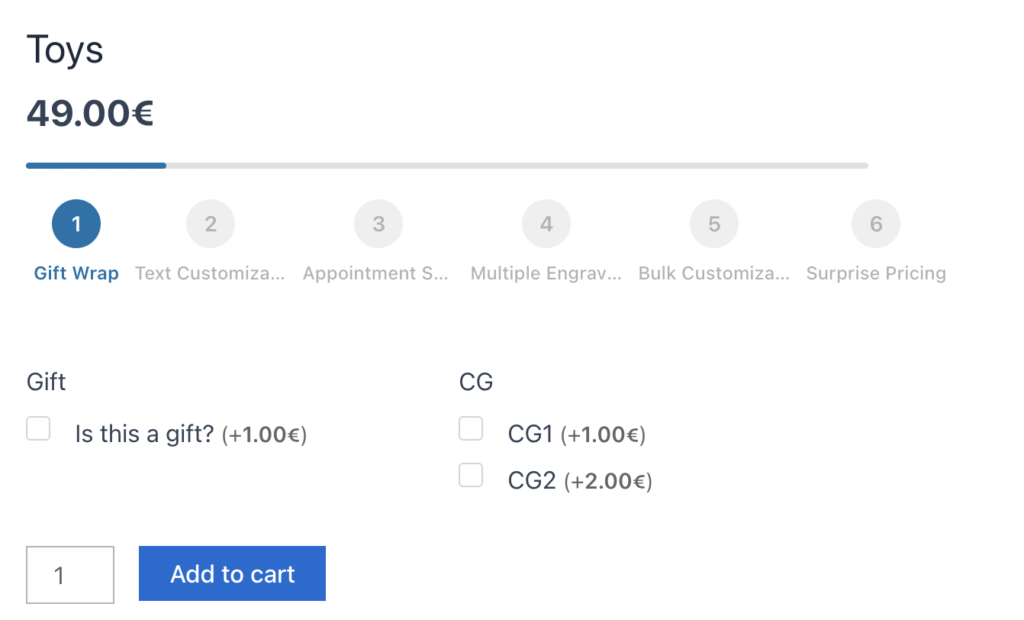
- Presented step‑by‑step (Step Wizard)
Availability (Premium)
Section Layout is available in the Premium version only.
Global vs Addon: How Overrides Work
Section Layout uses a simple override order:
- Addon-level setting (if set)
- Global setting (default fallback)
If an addon setting is set to Use Global, the global value applies.
Global Section Layout Settings
Go to:
WP Admin → WooCommerce → Extra Product Options → Global Settings
In Section Layout Global Settings, you can define defaults for all addons, including:
- Default layout (Accordion, Tabs, Step Wizard)
- Accordion mode and default expanded state
- Tabs style and position
- Wizard behavior (progress, validation, step numbers)
- General behavior (animation speed, deep linking, error highlights)
These values apply to all addons unless overridden at addon level.
Addon-Level Section Layout Settings
Each addon can override global defaults:
- Open an addon in Product Addons.
- Go to the Section Layout settings inside that addon.
- Select Use Global or choose a custom layout and behavior.
When you set a custom value, it overrides the global default only for that addon.
Layout Types Overview (Accordion, Tabs, Step Wizard)
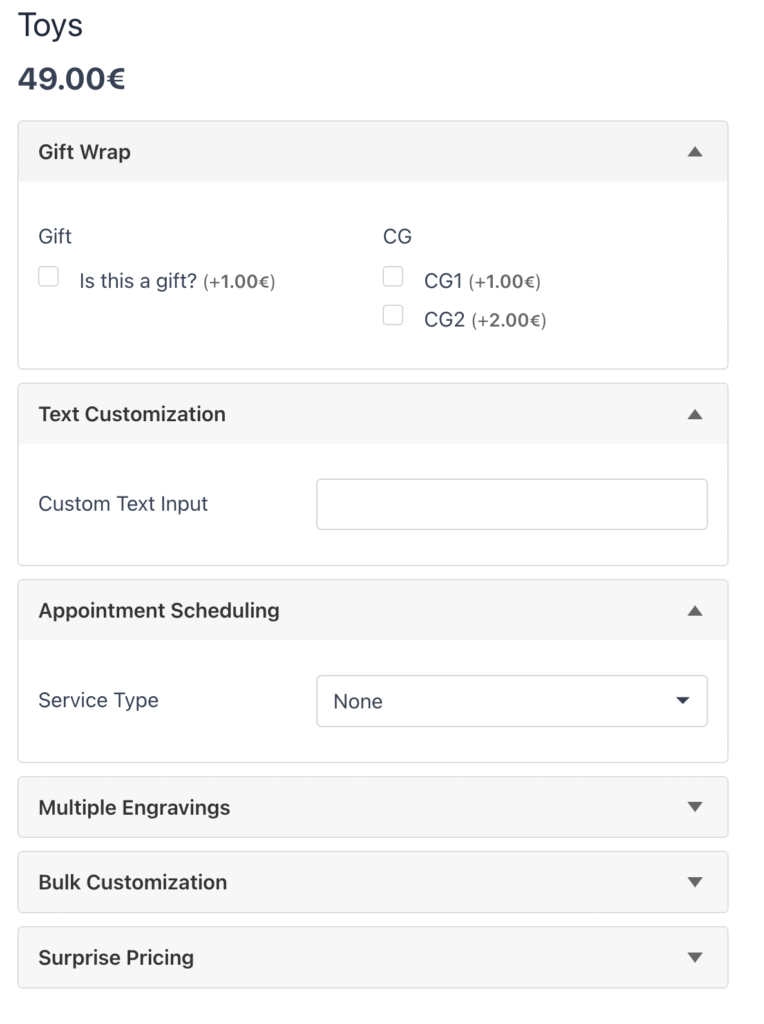
Accordion
- Best for long forms
- Supports single or multiple open sections
- Optional default expanded behavior
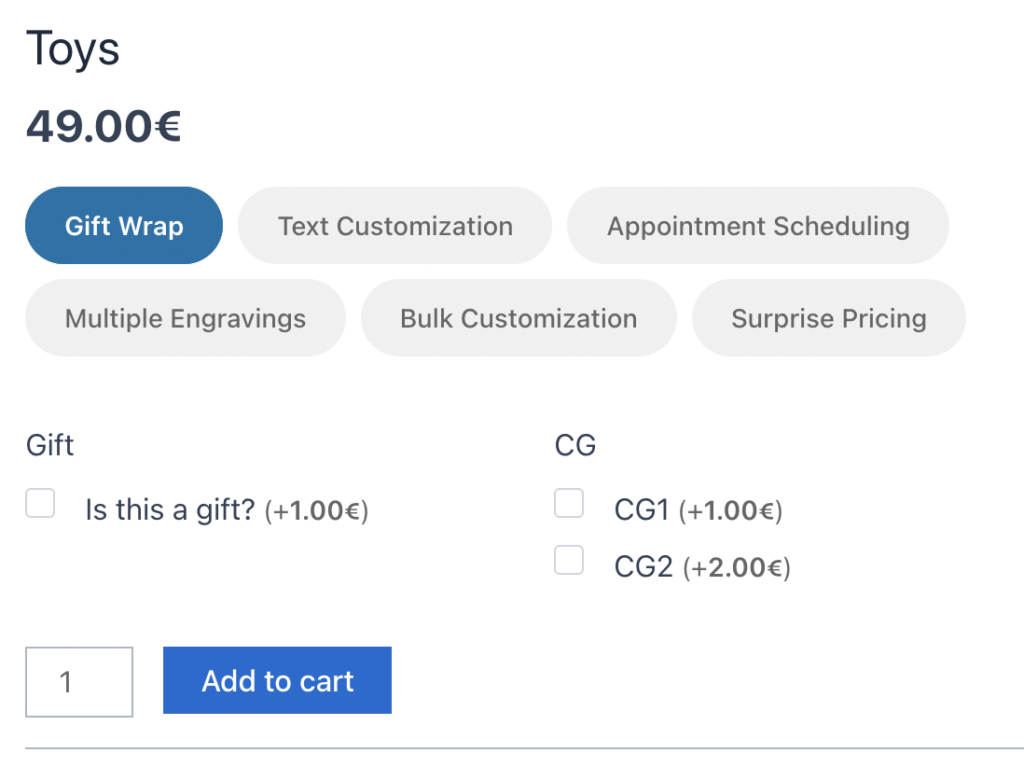
Tabs
- Good for clean grouping
- Supports horizontal, vertical, pills, or underline styles
- Optional left/right position for vertical tabs
Step Wizard
- Best for guided flows
- Supports progress indicators
- Can validate each step before moving forward
Best Practices
- Set global defaults first to keep a consistent experience.
- Override only when a specific addon needs a different layout.
- Use Accordion for long forms, Tabs for quick navigation, and Step Wizard for guided steps.
- Keep animation speeds consistent across the site.
Troubleshooting
Layout not changing on the frontend:
- Ensure the addon setting is not set to Use Global if you want custom behavior.
- Clear any caching plugins or regenerate CSS if required by your theme.
Wizard validation not working:
- Confirm required fields are set correctly in the addon.
- Check that the Step Wizard layout is selected for that addon.
Accordion
Tabs
Step Wizard
Conclusion
Section Layout gives you clear, structured addons on the product page while keeping configuration flexible. Set global defaults to stay consistent, then override only when a specific addon needs a different layout or behavior. This keeps complex forms easy to use on both desktop and mobile.
Frequently Asked Questions
Find answers to commonly asked questions about our products and services.
Still have a question?
If you have any other queries, feel free to reach out to us. Our knowledgeable team is here to help!