Introduction
Stock Management for addon options lets you control inventory per option value (for example, per color or per size). This keeps customization accurate and helps prevent overselling of specific option combinations.
This guide explains how the per-option stock system works, what fields are supported, and how stock is validated, deducted, and restored.
What Is Per-Option Stock?
Per-option stock means each option value has its own stock count. If an option is out of stock, customers cannot select it, and the add-to-cart validation blocks it.
This is useful when different option values represent limited inventory (for example, “Blue – 10 units” and “Red – 2 units”).
Availability (Premium)
Per-option stock management is available in the Premium version only.
Where to Configure Option Stock
- Go to WP Admin → WooCommerce → Extra Product Options → Global Settings
- Open or create an addon.
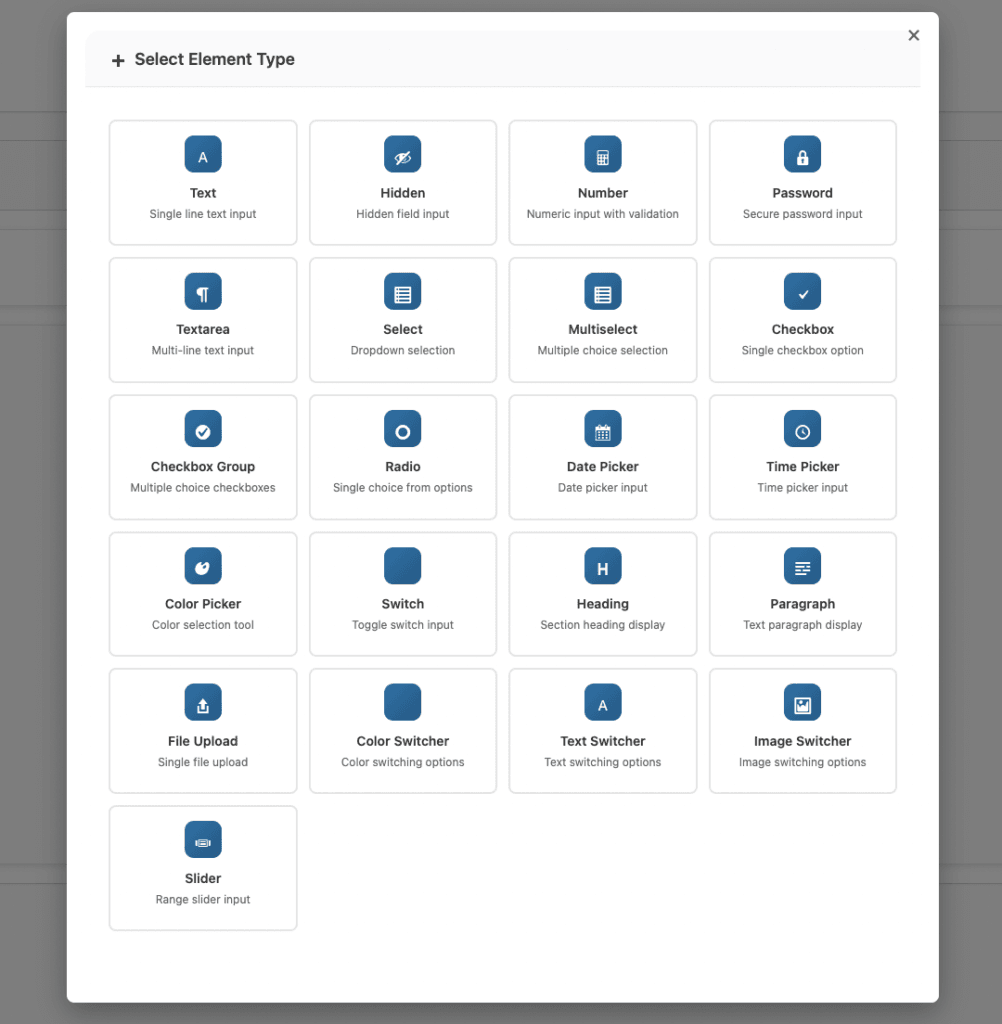
- Edit a field that supports options (Select, Radio, Checkbox Group, Switchers, etc.).
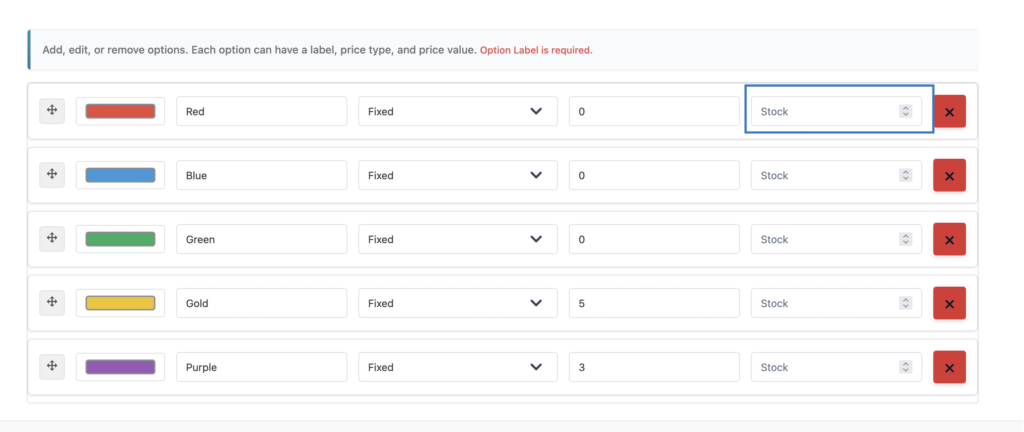
- In the option list, enter a stock value for each option.
Each option can have its own stock count. Leaving the stock empty means it is not stock-managed.
Supported Field Types
Per-option stock works for these option-based field types:
- Select
- Multi Select
- Radio Group
- Checkbox Group
- Checkbox
- Color Switcher
- Text Switcher
- Image Switcher
How Stock Is Validated
Stock is validated during add to cart:
- The system reads selected options from the request.
- It checks the current cart to avoid exceeding available stock.
- If stock is not enough, it blocks the action and shows an out-of-stock message.
This validation also runs for the Order Again flow to ensure reorders respect stock limits.
When Stock Is Deducted
Stock is deducted when the order line item is created at checkout.
This means stock is reduced when the order is created, not when the item is placed in the cart.
The deduction quantity defaults to 1 per selected option, and can be modified using the filter: epofw_option_stock_deduction_qty
When Stock Is Restored
- Cancelled
- Refunded
- Failed
Each line item tracks its deductions to ensure stock is restored only once.
Ordering More Than One Option
If a customer needs to order multiple quantities of the same option, you can use one of these supported methods:
1) Addon Option Quantity (Premium)
Enable quantity per field in the builder:
- Turn on Enable Quantity for the field
- Set Default Quantity, Min Quantity, and Max Quantity
Customers will see a quantity input next to the option, and the price is calculated as addon price × quantity.
2) Repeater (Premium)
If the field is inside a repeatable section, the customer can click + Add Another to duplicate the group. They can select the same option again in the new instance, effectively ordering it twice.
3) Product Quantity
If the customer sets the product quantity to 2, the addon is included twice. There is also a Product Quantity mode in the addon quantity settings to sync addon quantity with product quantity.
Display Behavior on the Frontend
When an option is out of stock:
- Optional stock labels can appear for low stock or out-of-stock states.
- The option is marked as out of stock.
- Selection can be blocked (for example, disabled in selects).
Best Practices
- Keep option stock values accurate for high‑demand items.
- Use per-option stock when option values represent real inventory.
- Avoid setting stock for options that are unlimited.
- Review stock after bulk order cancellations or refunds.
Troubleshooting
Option still selectable after stock runs out:
- Check if the option stock value is set.
- Make sure the field type is supported.
- Verify the addon is saved with the updated option stock values.
Stock not restoring after refund/cancel:
- Confirm the order reached Cancelled, Refunded, or Failed status.
- Check if the order item already has a stock-restored flag.
Admin Setting
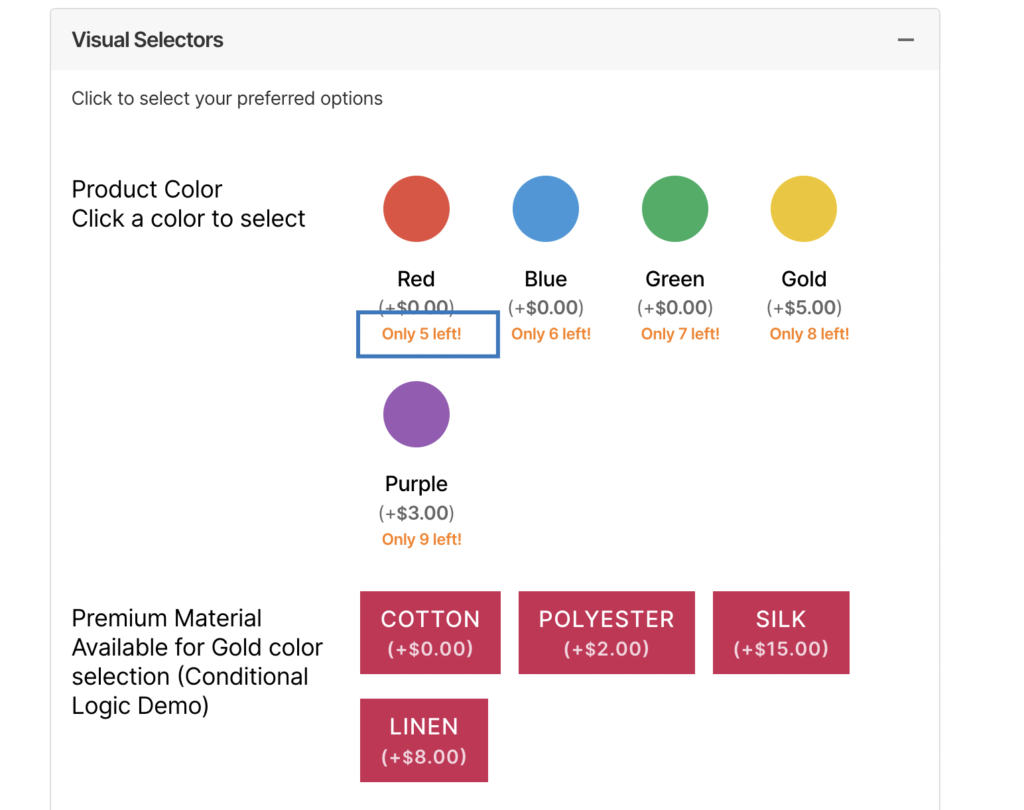
Front Behaviour
Conclusion
Per-option stock management gives you inventory control at the option level so you can avoid overselling specific choices (e.g. colours or sizes). Stock is validated at add-to-cart, deducted when the order is created at checkout, and restored when orders are cancelled, refunded, or failed. Use it for option-based fields (Select, Radio, Checkbox, Switchers, etc.) and rely on the `epofw_option_stock_deduction_qty` filter when you need custom deduction quantities. For 4.4.6+, this feature is available in the Premium version only.
Frequently Asked Questions
Find answers to commonly asked questions about our products and services.
Still have a question?
If you have any other queries, feel free to reach out to us. Our knowledgeable team is here to help!