


Number Field
Add powerful numeric input fields to your WooCommerce products with WPActPro’s Number Field option. Allow customers to specify quantities, dimensions, measurements, or any numerical value directly on your product pages.
What is the Number Field?
A Number Field is a custom product option that lets customers enter numeric values when purchasing products. Unlike standard quantity selectors, number fields can be used for custom measurements, personalization quantities, or any scenario where customers need to input specific numbers.
Whether you’re selling fabric by the meter, allowing customers to specify custom dimensions, or offering quantity-based pricing, the Number Field option gives you complete control over numeric inputs on your WooCommerce store.
The Number Field is a specialized input option that allows customers to enter precise numeric values on your WooCommerce product pages. It’s ideal for collecting quantities, measurements, dimensions, counts, or any data that requires strict numeric validation and range control.
Unlike standard text inputs, the Number Field provides built-in validation, range limits, and step increments that ensure customers enter only valid numeric values within your specified parameters. This makes it perfect for products where the numeric value directly affects pricing, quantity calculations, or product specifications.
The Number Field is one of the most powerful options in the Extra Product Options for WooCommerce plugin suite. It enables store owners to collect precise numerical data while maintaining complete control over input validation, ensuring data quality and accurate pricing calculations.
Key Features
- Minimum and Maximum Values -Set boundaries for customer inputs to ensure valid orders. Define minimum values to meet production requirements and maximum values to manage inventory or capacity limits.
- Step Increments – Control how numbers increase or decrease. Set step values like 0.5 for half-unit increments or 10 for bulk quantity steps. Perfect for products sold in specific increments.
- Default Values – Pre-populate the field with a suggested or common value. This guides customers toward typical order quantities while still allowing customization.
- Decimal Support – Enable decimal inputs for products requiring precise measurements. Ideal for fabric stores, food products sold by weight, or any product requiring fractional quantities.
- Price Calculations – Automatically calculate prices based on the entered number. Charge per unit, per meter, per kilogram, or any measurement unit your business requires.
- Input Validation – Ensure customers enter valid numbers before checkout. Display helpful error messages when inputs fall outside acceptable ranges.
Use Cases
- Custom Product Dimensions – Allow customers to specify exact measurements for made-to-order products like curtains, blinds, or custom furniture. Customers enter width and height values, and pricing adjusts automatically.
- Quantity-Based Products – Sell products in custom quantities beyond standard options. Let customers order exactly 37 business cards or 150 wedding invitations rather than forcing preset quantity choices.
- Material by Measurement – Perfect for fabric stores, lumber yards, or any business selling materials by length, area, or volume. Customers enter the exact amount they need.
- Age or Year Input – Collect customer age for age-restricted products or birth year for personalized items like anniversary gifts or milestone celebrations.
- Custom Pricing Calculations – Create dynamic pricing based on customer input. Multiply the base price by the entered number for per-unit pricing models.
How To Use
- Navigate to the Products – Extra Product Addons – Product Option – Addon Builder
- Add Section or Element
- Select “Number” from the Element Popup
- Configure your settings including min/max values, step increment, and default value in Number Options Tab
- Set pricing rules if the number affects the product price
- Click On Done in the popup and click on Save
Why Use a Number Field?
Number fields serve multiple purposes in e-commerce, making them essential for various business models:
- Numeric Validation: Ensures that customers enter only valid numbers, preventing incorrect or incompatible data that could cause order processing issues
- Range Control: You can define minimum and maximum values, which helps avoid unrealistic or unintended inputs that don’t match your product capabilities
- Step Increments: Step settings allow you to control exactly how values increase or decrease, ensuring consistency and preventing fractional values when whole numbers are required
- Precise Input: Perfect for capturing quantities, measurements, dimensions, weights, and similar numeric details that require accuracy
- Flexible Pricing: The Number Field supports multiple pricing models, including per-unit pricing, percentage-based pricing, and advanced formulas that calculate costs based on the entered value
- User-Friendly: Built-in number spinners make it easy for customers to adjust values quickly and accurately without manual typing
Common Use Cases:
Quantities and Units: Perfect for products where customers need to specify how many units they want, such as bulk orders, wholesale purchases, or quantity-based products. This is especially valuable for businesses selling items in multiples or offering volume discounts.
Measurements and Dimensions: Ideal for custom products where size matters – length, width, height, weight, volume, or any dimensional specification. This is essential for custom manufacturing, furniture, clothing, or any product that needs precise measurements.
Time-Based Services: Excellent for services charged by time units – hours, days, weeks, or months. This works perfectly for consulting services, rentals, subscriptions, or any time-based pricing model.
Weight and Volume: Perfect for products sold by weight or volume, such as food items, liquids, materials, or bulk goods. Customers can enter exact amounts needed for their order.
Distance and Area: Ideal for services or products based on distance (delivery charges, travel services) or area (flooring, painting, landscaping). This enables accurate pricing based on spatial measurements.
Counts and Quantities: Essential for any product where the number of items directly affects the price, such as additional features, add-ons, or quantity-based options.
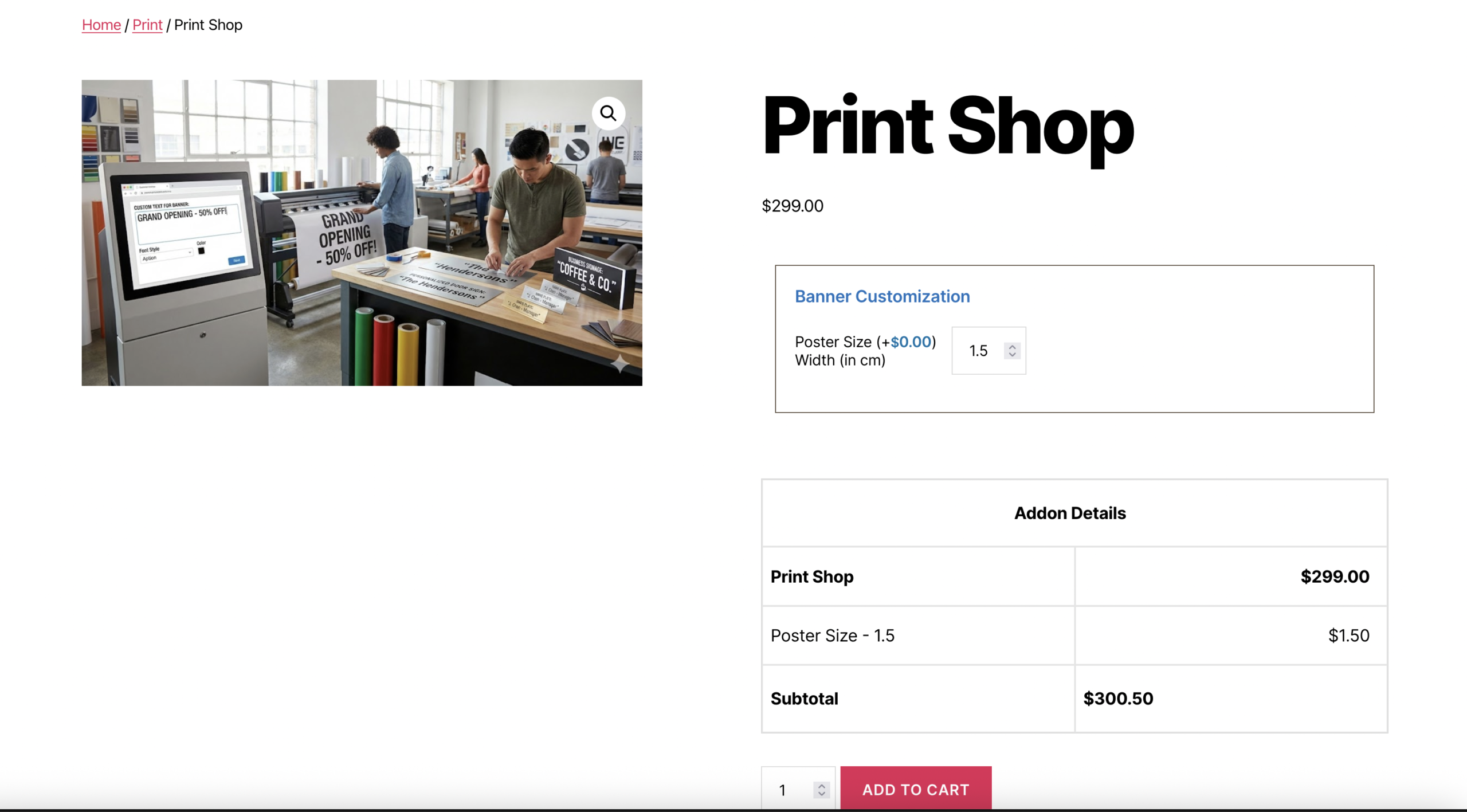
WPActPro makes it easy to collect number input and control how it impacts pricing, validation, and the final order..
- For numeric input such as quantities or measurements, try our Number Field
- When you want customers to choose a single option, use our Select Field
- For situations where multiple selections are needed, the Multiselect Field is the best choice.
- To offer simple yes/no or on/off choices, use our Checkbox Field
- And when paragraph-style input is required, try our Textarea Field
When to Use the Number Field
The Number Field is perfect for these product types and scenarios:
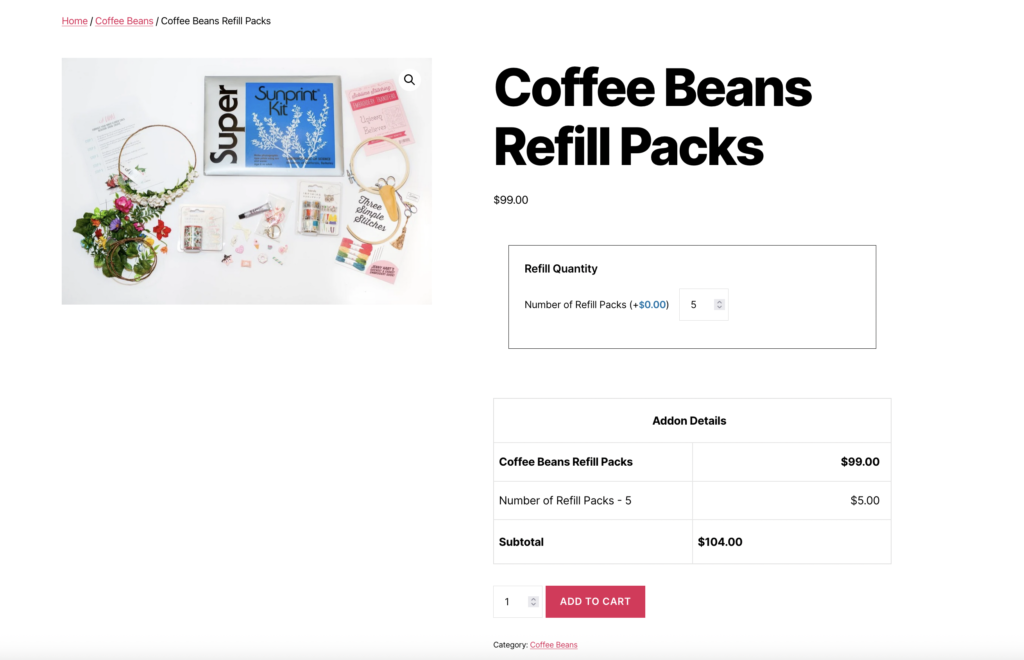
Quantity-Based Products
Number fields are essential for products where quantity directly affects pricing or availability. This includes bulk orders, wholesale purchases, and products sold in multiples.
- Bulk order quantities
- Wholesale minimums
- Multi-pack options
- Quantity discounts
Custom Manufacturing
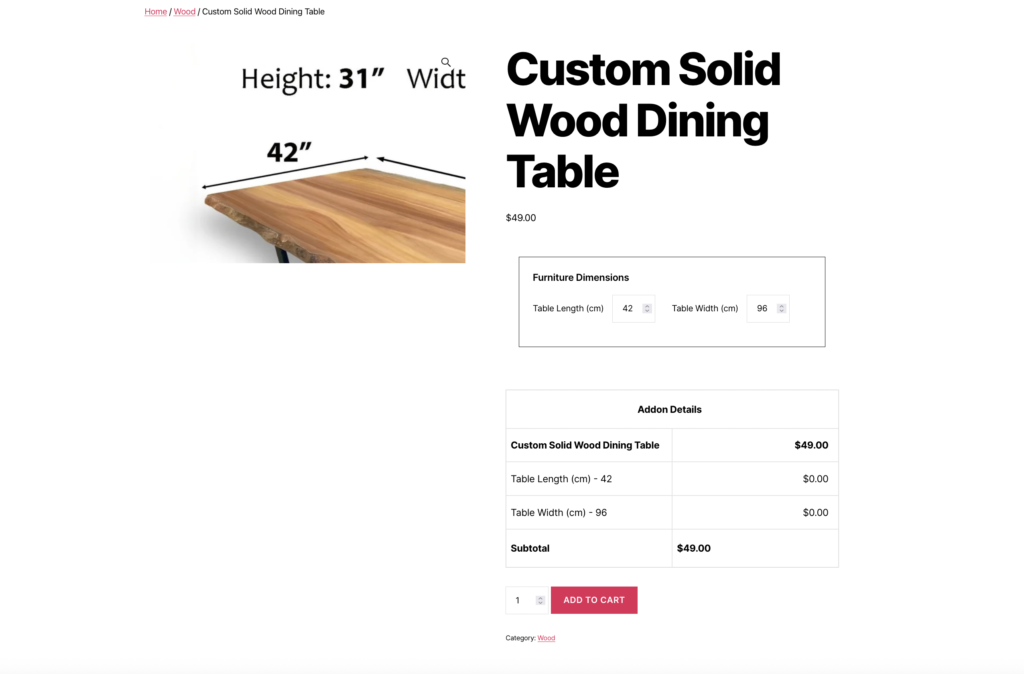
Manufacturing businesses use number fields to collect precise specifications that determine product dimensions, materials needed, or production requirements.
- Custom furniture dimensions
- Fabric length requirements
- Material quantities
- Production specifications

Time-Based Services
Service businesses use number fields to specify service duration, which directly affects pricing calculations.
- Consulting hours
- Rental periods
- Subscription durations
- Service time requirements
Measurement-Based Products
Products that require precise measurements benefit from number fields with appropriate step values and ranges.
- Weight-based pricing
- Volume measurements
- Distance calculations
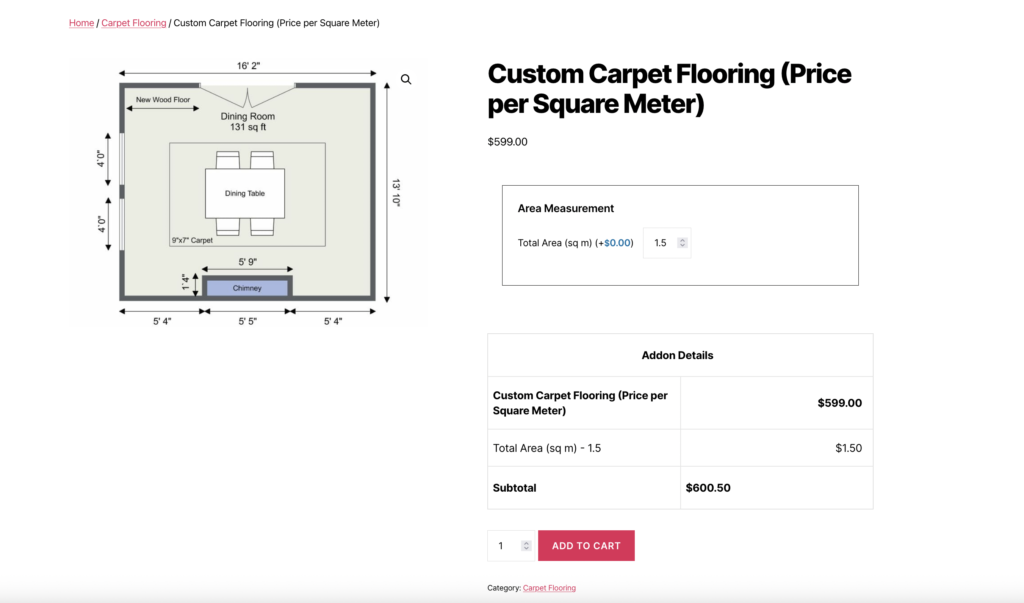
- Area specifications
How to Set Up the Number Field
Follow these comprehensive step-by-step instructions to add a Number Field to your WooCommerce products. This guide covers all essential settings organized into General Settings, Label Settings, and Number Options.
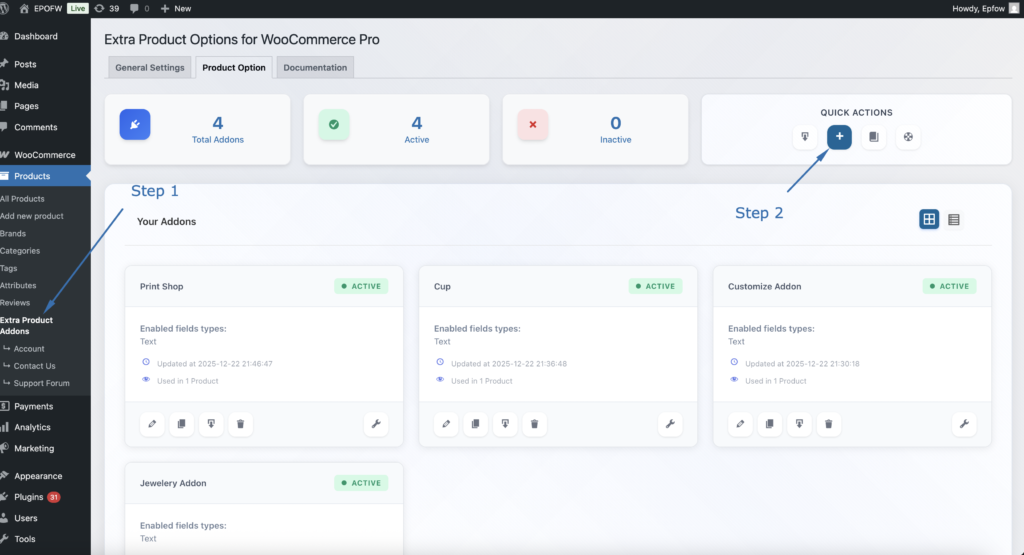
Step 1: Access the Field Builder
- In your WordPress admin, go to WooCommerce > Products > Extra Product Addons
- Click “Add Product Addon” or edit an existing addon
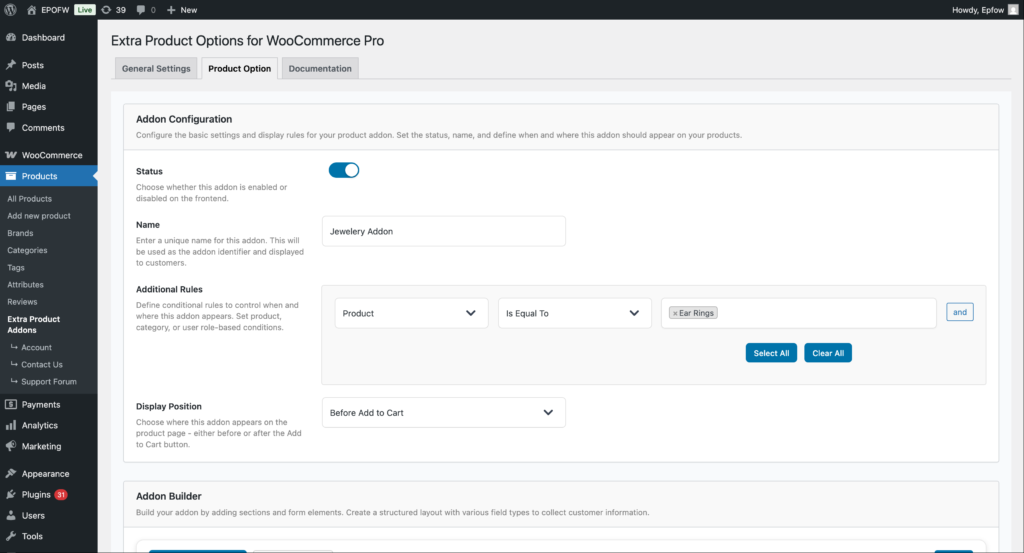
Addon Configuration:
- Status:
- Check the Status checkbox to enable the addon
- Unchecked addons are disabled and won’t appear on product pages
- Enable this to make your fields active
- Name:
- Enter a name for your addon (e.g., “Personalization Options”)
- This name helps you identify the addon in the admin area
- It’s not visible to customers on the frontend
- Additional Rules:
- Configure which products should display this addon
- Product: Select the condition type (Product, Category, Tag, etc.)
- Is Equal To: Choose the comparison operator
- Value: Select specific products, categories, or other criteria
- Use “Select All” or “Clear All” for bulk selection
- Click “and” to add multiple conditions
- Example: Apply to “Product” “Is Equal To” “Silver Ring” to show only on that product
- Display Position:
- Select where the addon fields appear on the product page
- Options include:
- Before Add to Cart (most common)
- After Add to Cart
- Choose the position that works best with your theme layout
Product addons help you organize your extra product options and apply them consistently across your store. Think of them as containers that hold multiple fields for specific products or product types.
Step 2: Add the Number Field
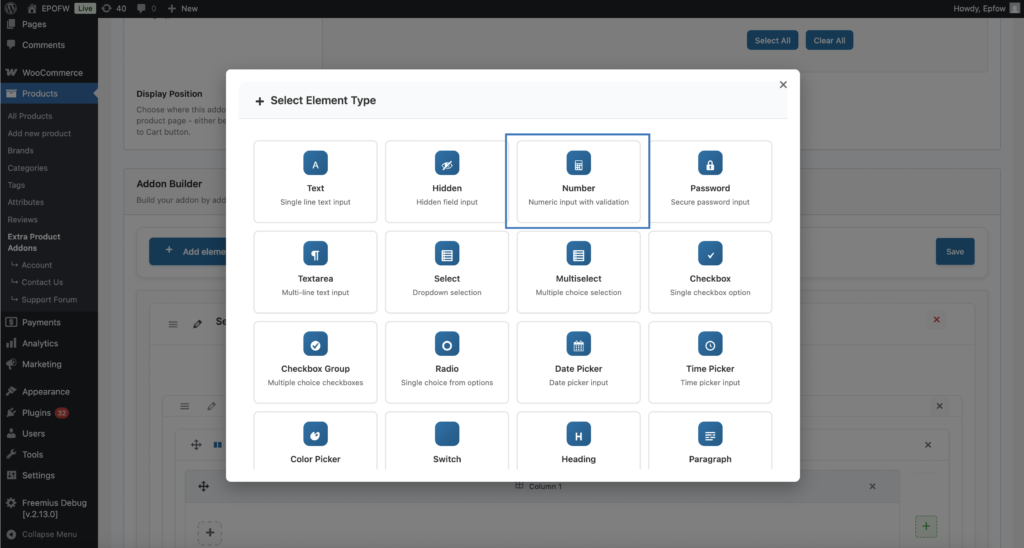
- In your Addon Builder, click “Add Element/Add Section -> ( + ) Add Element” button
- Select Number from Select Element Type modal popup
Step 3: Configure General Settings
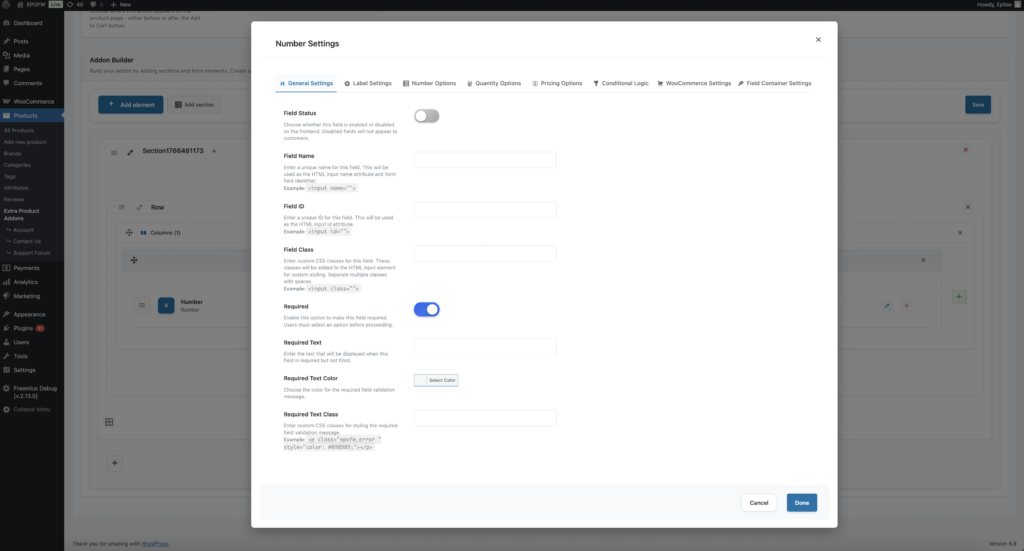
The General Settings tab contains basic field configuration options that control the field’s core functionality and behavior.
The field title is crucial because it’s the first thing customers see. Make it clear and specific to avoid confusion during checkout.
General Settings:
- Field Status:
- Controls whether the field is enabled or disabled on the frontend. Disabled fields won’t appear to customers.
- Field Name:
- The Field Name setting allows you to set a unique HTML name attribute for the number field. This name is used as the HTML name attribute on the input element and serves as the form field identifier when the form is submitted. The field name is essential for form processing, data collection, and identifying which field the submitted data belongs to.
- By default, the plugin generates a unique field name automatically based on the field type and a unique identifier. This ensures that every field has a unique name without any manual configuration required. The auto-generated name typically follows a pattern like
epofw_field_1234567890where the number is a unique timestamp-based identifier. - The field name is used in the HTML output as:
<input type="number" name="your_field_name" id="...">. When the form is submitted, the data is sent as your_field_name=entered_number. This name is also used internally by the plugin for field identification, validation, and data processing. The field name must be unique within the form to prevent conflicts and ensure proper data handling.
- Field ID:
- The Field ID is a unique HTML identifier for the number field. This ID is used in the HTML
idattribute and can be referenced in CSS or JavaScript for custom styling and functionality. - The plugin automatically generates a unique ID (e.g.,
epofw_field_1234567890) - You can customize this ID to match your naming conventions
- Ensure the ID is unique and follows HTML naming rules (letters, numbers, hyphens, underscores)
- The Field ID appears in the HTML as:
<input type="number" id="your_field_id" name="...">. This allows you to target the field with CSS selectors like#your_field_idor JavaScript like `document.getElementById(your_field_id').
- The Field ID is a unique HTML identifier for the number field. This ID is used in the HTML
- Field Class:
- The Field Class setting allows you to add custom CSS classes to the number field input element. These classes can be used for styling, JavaScript targeting, or integration with third-party tools.
- Enter one or more CSS class names separated by spaces
- Use descriptive class names that indicate their purpose (e.g.,
custom-number-field,personalization-input) - Classes can be shared across multiple fields for consistent styling
- Adding the class
personalization-fieldallows you to style all personalization fields consistently with CSS like.personalization-field { border: 2px solid #0073aa; }.
- Required:
- The Required setting determines whether customers must fill out the number field before they can add the product to their cart. When enabled, the field becomes mandatory and validation will prevent submission if the field is empty.
- Field Options (Premium):
- Text: Enter custom validation message that appears when the field is empty (e.g., “Please enter your personalization text”)
- Color For Required Text: Choose the color for the validation message (typically red or orange for errors)
- Required Text Class: Add custom CSS classes to the validation message for additional styling
- Only mark fields as required when the information is truly necessary for order fulfillment. Too many required fields can frustrate customers and reduce conversion rates.
Step 4: Configure Label Settings
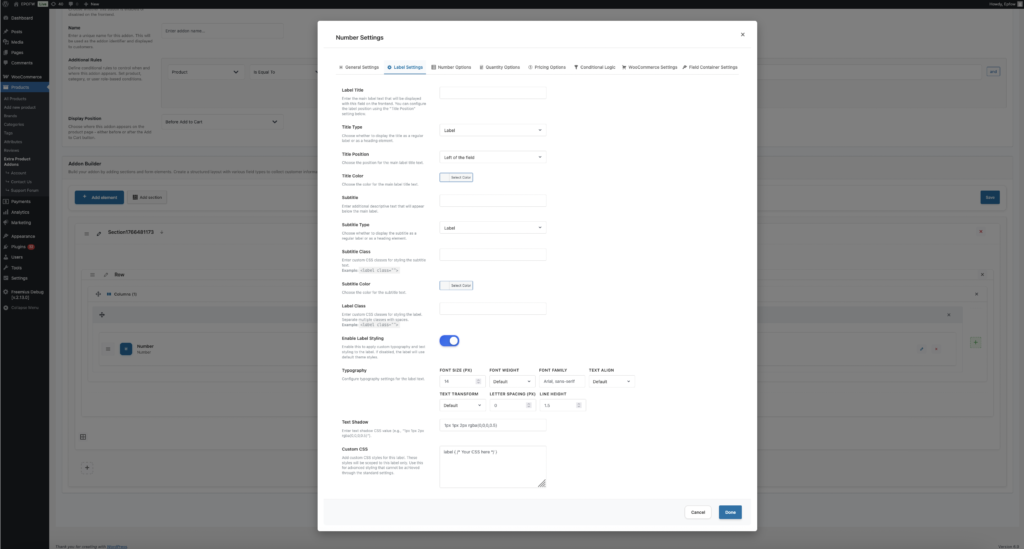
The Label Settings tab controls how the field label (title and subtitle) appears to customers. These settings help you create clear, professional field labels that guide customers effectively.
Label Settings
- Label Title:
- The Label Title is the main text that appears next to or above the number field. This is the primary identifier that tells customers what information they should enter.
- Examples of Effective Titles:
- Quantity
- Length (meters)
- Weight (kg)
- Hours Required
- The label title is required and is one of the most important elements for user experience. Make it immediately clear what information is expected.
- Title Type (Premium)
- Determines which HTML element is used to render the label title, affecting semantic structure and default styling.
- Available Options:
- Label (Default): Standard HTML `<label>` element – semantically correct for form fields
- H1-H6: Heading elements for semantic hierarchy
- Span: Generic inline element for purely visual styling
- Use “Label” for most number fields as it’s semantically correct and provides proper accessibility support.
- Title Position (Premium)
- Controls where the label title appears relative to the number input field.
- Available Options:
- Left: Label appears to the left of the input (common for desktop forms)
- Right: Label appears to the right of the input
- Top: Label appears above the input (preferred for mobile-responsive designs)
- Bottom: Label appears below the input
- Use “Top” position for mobile-responsive designs, “Left” for desktop forms with adequate horizontal space.
- Title Color (Premium)
- Customizes the text color of the label title to match your brand or create visual distinction.
- Use the color picker to select a color
- Enter hex codes for precise color matching
- Ensure sufficient contrast with background for accessibility (minimum 4.5:1 ratio)
- Subtitle
- The Subtitle field allows you to add additional descriptive text that appears below the main label title. This provides extra context, instructions, or examples.
- Enter helpful text that clarifies the field’s purpose
- Provide format examples or instructions
- Keep subtitles concise – typically one sentence
- Only add subtitles when they provide value
- Examples:
- Enter the text exactly as you want it to appear
- Maximum 50 characters
- Subtitle Type (Premium)
- Determines which HTML element is used to render the subtitle text.
- Available Options: Label (default), H1-H6, Span
- Subtitle Class
- Allows you to add custom CSS classes to the subtitle element for additional styling.
- Subtitle Color (Premium)
- Customizes the text color of the subtitle to create visual hierarchy.
- Label Class
- Add custom CSS classes to the label container element for styling the entire label area.
- Enable Label Styling (Premium)
- Activates advanced typography and styling options for the label, including font size, weight, family, text alignment, text transform, letter spacing, line height, text shadow, and custom CSS.
- When enabled, you can customize:
- Font Size: Control label text size in pixels
- Weight Of Font: Choose from 100 (thin) to 900 (black)
- Font Family: Specify custom font families
- Text Align: Left, center, right, justify, or default
- Text Transform: Uppercase, lowercase, capitalize, or none
- Letter Spacing: Control spacing between characters
- Line Height: Adjust vertical spacing between lines
- Text Shadow: Add shadow effects to text
- Custom CSS: Add advanced styling with custom CSS code
Step 5: Configure Number Options
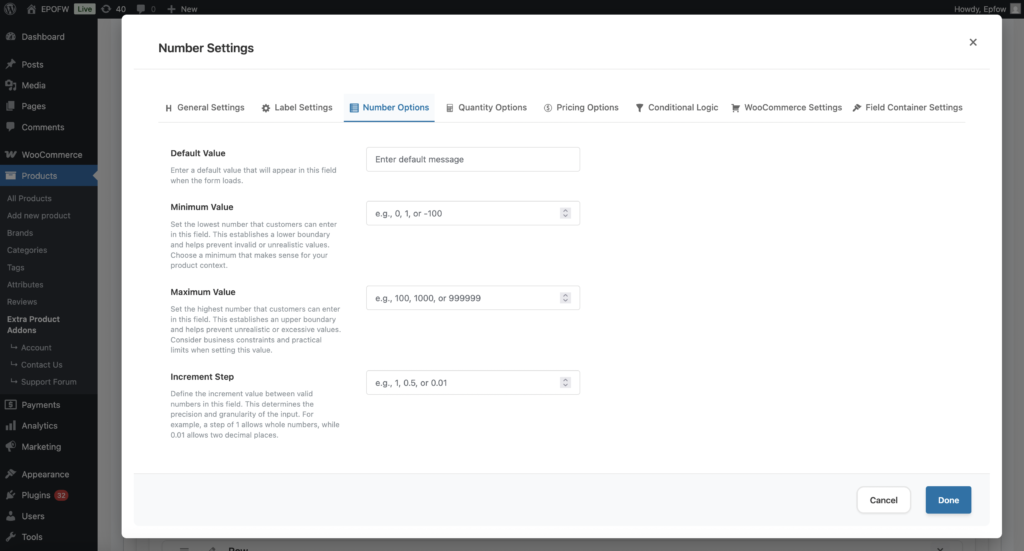
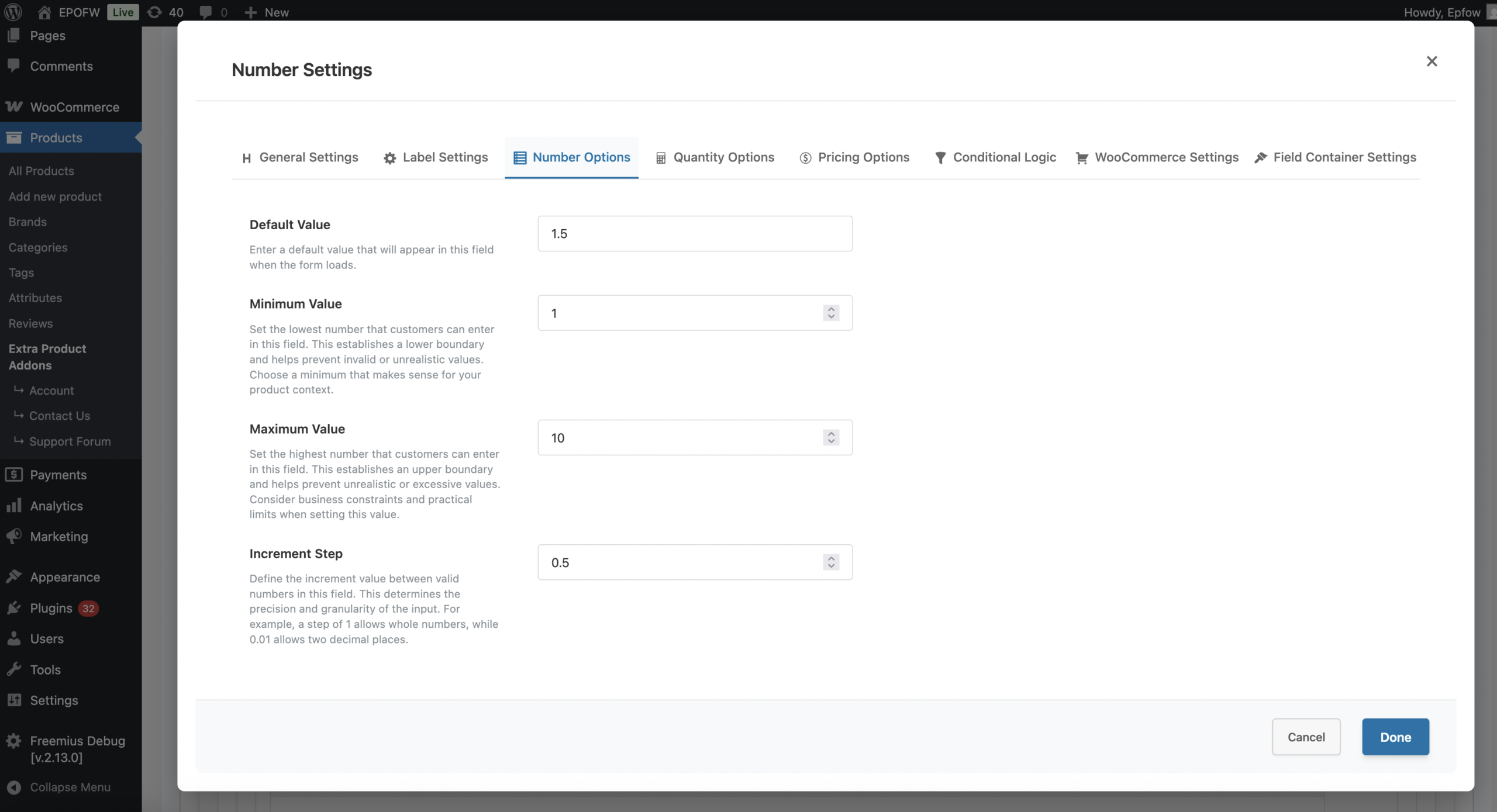
The Number Options tab contains settings specific to number input fields, including default values, range limits, and step increments.
Number Options
- Default Value
- What it does:
- The Default Value setting allows you to pre-fill the number field with a specific value when the form loads. This value appears in the field before the customer makes any changes, and they can either keep it, modify it, or delete it entirely.
- How to use:
- Enter the exact numeric value you want to appear by default
- Use defaults to provide starting values, common quantities, or suggested amounts
- Defaults are editable – customers can change or delete them
- The value must be within the min/max range and match the step increment
- Use Cases:
- Common Quantities: Pre-fill with the most frequently ordered quantity
- Starting Points: Provide a reasonable starting value for measurements
- Minimum Orders: Set default to minimum required quantity
- Suggested Values: Guide customers toward typical or recommended amounts
- Example Default Values:
- Quantity field: `1` (single unit)
- Weight field: `1.0` (1 kg)
- Hours field: `2` (2 hours)
- Measurement field: `10.5` (10.5 cm)
- Best Practice:
- Use defaults that are helpful and realistic. Choose values that most customers will use or that serve as good starting points. Avoid defaults that might mislead customers or cause them to overlook the field.
- Technical Details:
- Default values must be valid numbers
- They must fall within the min/max range if specified
- They should match the step increment (e.g., if step is 0.5, default should be 0.5, 1.0, 1.5, etc.)
- Empty defaults are allowed – the field will start empty
- What it does:
- Minimum Value
- What it does:
- The Minimum Value setting establishes the lowest number that customers can enter in the field. This creates a lower boundary that prevents invalid or unrealistic values and helps ensure data quality.
- How to use:
- Enter the lowest acceptable numeric value
- Consider your product constraints and business rules
- Leave empty to allow any negative or zero values (if applicable)
- The minimum must be less than the maximum value
- Use Cases:
- Quantity Limits: Set minimum order quantities (e.g., minimum 10 units)
- Measurement Constraints: Define smallest acceptable measurements (e.g., minimum 1 cm)
- Business Rules: Enforce minimum purchase requirements
- Physical Limits: Prevent values that are physically impossible
- Example Minimum Values:
- Quantity: `1` (at least one unit)
- Weight: `0.1` (minimum 0.1 kg)
- Hours: `0.5` (minimum 30 minutes)
- Distance: `0` (allow zero or positive values)
- Best Practice:
- Set realistic minimums based on your product capabilities and business requirements. Consider both technical constraints and customer expectations. For, Quantities 1 is usually appropriate. For measurements, consider the smallest practical value.
- Technical Details:
- Minimum values can be negative, zero, or positive
- They work in combination with step increments
- Values below the minimum are automatically adjusted or rejected
- Empty minimum allows any value (including negative numbers)
- Common Minimum Values by Use Case:
- Quantities: 1 (single unit minimum)
- Measurements: 0.1 or 0.01 (smallest practical unit)
- Time: 0.5 (30 minutes minimum)
- Weight: 0.1 (100 grams minimum)
- Distance: 0 (zero or positive)
- What it does:
- Maximum Value
- What it does:
- The Maximum Value setting establishes the highest number that customers can enter in the field. This creates an upper boundary that prevents unrealistic or excessive values and helps maintain data quality and business constraints.
- How to use:
- Enter the highest acceptable numeric value
- Consider your product constraints, inventory limits, and business rules
- Leave empty to allow unlimited values (use with caution)
- The maximum must be greater than the minimum value
- Use Cases:
- Quantity Limits: Set maximum order quantities (e.g., maximum 1000 units)
- Measurement Constraints: Define largest acceptable measurements (e.g., maximum 100 cm)
- Business Rules: Enforce maximum purchase limits
- Physical Limits: Prevent values that exceed physical capabilities
- Example Maximum Values:
- Quantity: `1000` (maximum 1000 units)
- Weight: `50` (maximum 50 kg)
- Hours: `24` (maximum 24 hours)
- Distance: `100` (maximum 100 km)
- Best Practice:
- Set realistic maximums based on your product capabilities, inventory availability, and business requirements. Consider both technical constraints and practical limits. For quantities, consider inventory levels. For measurements, consider physical constraints.
- Technical Details:
- Maximum values must be greater than minimum values
- They work in combination with step increments
- Values above the maximum are automatically adjusted or rejected
- Empty maximum allows unlimited values (use carefully)
- Common Maximum Values by Use Case:
- Quantities: 1000 or 10000 (based on inventory)
- Measurements: 100 or 1000 (based on product size)
- Time: 24 or 168 (hours in day/week)
- Weight: 50 or 100 (kg, based on shipping limits)
- Distance: 100 or 1000 (km, based on service area)
- What it does:
- Increment Step
- What it does:
- The Increment Step setting defines the increment value between valid numbers in the field. This determines the precision and granularity of the input, controlling how values increase or decrease when customers use the spinner buttons or enter values manually.
- How to use:
- Enter the step increment value (e.g., 1 for whole numbers, 0.5 for half increments, 0.01 for two decimal places)
- Consider the precision needed for your use case
- The step must be a positive number
- Step values determine what increments are valid (e.g., step of 0.5 allows 0.5, 1.0, 1.5, 2.0, etc.)
- Use Cases:
- Whole Numbers: Step of 1 for quantities, counts, or whole units
- Half Increments: Step of 0.5 for measurements that allow half units
- Decimal Precision: Step of 0.1 or 0.01 for precise measurements, weights, or financial values
- Custom Increments: Step of 5 or 10 for bulk quantities or rounded values
- Example Step Values:
- Quantity: `1` (whole numbers only)
- Weight: `0.1` (0.1 kg increments)
- Hours: `0.5` (30-minute increments)
- Price: `0.01` (cent precision)
- Bulk orders: `10` (10-unit increments)
- Best Practice:
- Choose step values that match your product requirements and customer needs. For, quantities 1 is usually appropriate. Related to measurements, consider the smallest practical increment. For financial values, use 0.01 for cent precision.
- Technical Details:
- Step values must be positive numbers
- They determine valid increments (values must be multiples of the step from the minimum)
- Step works in combination with min/max values
- Smaller steps allow more precision but may be harder to use
- Common Step Values by Use Case:
- Quantities: 1 (whole numbers)
- Measurements: 0.1 or 0.01 (decimal precision)
- Time: 0.5 or 1 (30-minute or hourly increments)
- Weight: 0.1 or 0.01 (100g or 10g increments)
- Financial: 0.01 (cent precision)
- Bulk: 5 or 10 (rounded increments)
- Step Value Examples:
- Step 1: Allows 1, 2, 3, 4, 5… (whole numbers)
- Step 0.5: Allows 0.5, 1.0, 1.5, 2.0, 2.5… (half increments)
- Step 0.1: Allows 0.1, 0.2, 0.3, 0.4, 0.5… (one decimal place)
- Step 0.01: Allows 0.01, 0.02, 0.03, 0.04, 0.05… (two decimal places)
- Step 5: Allows 5, 10, 15, 20, 25… (five-unit increments)
- What it does:
Real-World Pricing Examples
See how real businesses use the Number Field in their WooCommerce stores:
Fabric Store – Price Per Meter
Set up a Number Field with:
- Label: “Length (meters)”
- Minimum: 0.5
- Maximum: 100
- Step: 0.5
- Price Type: Custom Price Formula
- Formula:
{ppv}
This means:
- Customer enters 2.5 meters → Price would be $2.5
- User enters 5 meters → Price would be $5
- Customer enters 10 meters → Price would be $10
Set up a number field with:
- Label: “Hours Required”
- Minimum: 1
- Maximum: 40
- Step: 0.5
- Price Type: Custom Price Formula
- Formula:
{ppv}*10
This means:
- Customer enters 2 hours → Price would be $2 * 10 = $20
- User enters 5.5 hours → Price would be $5.5 * 10 = $55
- Customer enters 10 hours → Price would be $10 * 10 = $100
Consulting Service – Hourly Rate
Bulk Orders – Tiered Quantity Pricing (Premium)
Set up a number field with:
- Label: “Quantity”
- Minimum: 10
- Maximum: 1000
- Step: 1
- Price Type: Custom Price Formula
- Formula:
{ppv}>=2?[{ppv}*10]:[{ppv}*20]
This means:
- If quantity is 2 or more: Price = quantity × $10
- If quantity is 1: Price = quantity × $20
- Customer enters 1 unit → $20.00 (1 × $20)
- User enters 5 units → $50.00 (5 × $10)
- Customer enters 100 units → $1000.00 (100 × $10))
What Your Customers See
When customers interact with your number field, they experience a clean and intuitive interface designed for precise numeric input. Specifically:
Frontend Experience:
Number Input Box: They’ll see a number input field with up/down spinner buttons on the right side (in most browsers)
Default Value: If you’ve set a default value, customers see it pre-filled in the field. They can keep it, modify it, or delete it entirely
Range Enforcement: Min/max values are enforced automatically – customers cannot enter values outside the specified range
Step Increments: The spinner buttons and validation ensure customers can only enter values that match the step increment
Real-Time Validation: As customers type or use the spinners, the field validates input and shows errors if values are invalid
Price Updates: If pricing is enabled, the product price updates automatically as the numeric value changes
Required Field Indicators: If the field is required, customers typically see an asterisk (*) or “required” text next to the label
Validation Messages: If customers try to enter invalid values or leave a required field empty, they’ll see validation messages
Tips for Creating Effective Number Fields
Creating an effective Number Field involves balancing flexibility with control. Consider these best practices to ensure your number fields provide excellent user experience while collecting high-quality data.
- Range Configuration
- Set Appropriate Ranges:
- Define realistic minimum and maximum values based on your product capabilities
- Consider inventory levels, physical constraints, and business rules
- Test ranges to ensure they work correctly with your pricing formulas
- Use Logical Step Values
- Choose increments that match the type of measurement or quantity
- For quantities, use step 1 (whole numbers)
- Use 0.1 or 0.01 for precision for measurements,
- For time, consider 0.5 (30 minutes) or 1 (hourly)
- Set Appropriate Ranges:
- Clear Instructions
- Use descriptive labels that include units when relevant (e.g., “Weight (kg)”, “Hours”)
- Add helpful descriptions that explain ranges, units, or special requirements
- Make instructions concise and easy to understand
- For number fields, consider providing examples of typical values in the description
- Reasonable Configuration
- Set ranges that are neither too restrictive nor too permissive
- Consider typical customer needs when setting defaults
- Use step values that provide appropriate precision without being overly complex
- Balance required vs optional fields based on actual business needs
- Default Values
- Pre-fill fields with common values that most customers will use
- Use defaults that serve as good starting points for measurements
- Consider minimum order quantities as defaults
- Avoid defaults that might mislead customers
- Custom CSS Classes
- Use custom CSS classes to style number fields to match your theme
- Apply classes that describe the field’s purpose or appearance
- Test styling across different browsers and devices
Advanced Features
- Custom CSS Classes: Style fields to match your theme perfectly. Add custom CSS classes to field inputs, labels, and containers for complete design control. This allows you to create branded, professional forms that integrate seamlessly with your store’s design.
- Conditional Logic: Show or hide number fields based on other selections or conditions. Use conditional logic to create dynamic forms that adapt to customer choices, showing relevant fields only when needed. This keeps forms clean and focused while providing comprehensive options.
- Integration with Other Fields: Number fields work seamlessly with other field types. Combine number fields with file uploads for complete customization, use them alongside select fields for comprehensive product options, or integrate them with conditional logic for dynamic form behavior.
Free vs Premium
Free Version Includes:
- Field Status control
- Field Name, ID and Class customization
- Required field option
- Label Title and Subtitle
- Label Class
- Default Value
- Minimum Value
- Maximum Value
- Increment Step
Premium Version Adds:
- Advanced pricing options (Price Per Value, Custom Formulas)
- Conditional logic
- Quantity settings
- WooCommerce integration settings
- Row and column layouts
- Field container styling
- Advanced validation options
Troubleshooting
Min/max values not working
- Verify Minimum and Maximum values are set correctly
- Ensure minimum is less than maximum
- Check that step increment is compatible with the range
- Test validation on the frontend
- Check browser console for JavaScript errors
Validation not working
- Verify Input Validation setting is configured correctly
- Check browser console for JavaScript errors
- Test validation on different browsers (some browsers handle HTML5 validation differently)
- Ensure field is not disabled or hidden
- Clear browser cache and test again
Step increment not applying
- Verify Step value is entered correctly
- Ensure step is a positive number
- Check that values match step increments from the minimum
- Test spinner buttons and manual input
- Verify step is compatible with min/max values
Default value not appearing
- Verify Default Value is entered correctly in the field settings
- Check that field is enabled (Field Status is ON)
- Test on different browsers – some browsers may handle defaults differently
- Clear browser cache and test again
- Check that no JavaScript is clearing the field value on page load
Values outside range still accepted
- Check that min/max values are set correctly
- Verify validation is working on the frontend
- Test with different browsers
- Check for JavaScript errors in browser console
- Ensure field is not bypassing validation
Frequently Asked Questions
Find answers to commonly asked questions about our products and services.
Still have a question?
If you have any other queries, feel free to reach out to us. Our knowledgeable team is here to help!
Conclusion
Number Fields provide powerful control for collecting precise numeric input on product pages. Their versatility makes them ideal for quantities, measurements, weights, dimensions, time-based services, and any scenario requiring accurate numerical data. Range limits, step increments, and validation make the Number Field suitable for simple to highly complex pricing models, improving calculation accuracy, enhancing customer clarity, and ensuring seamless customization across your WooCommerce store.
WPActPro enables merchants to offer advanced, accurate, and fully customizable number-based input options with ease.