
Partly. You can decide which rate applies at a given cart weight, and that covers most of what people mean. What you cannot do is make shipping unavailable above a weight — and it is worth knowing which of those you actually need before you build anything.
Charging by weight band
Use a Cart weight condition. It is a numeric condition, so it takes the full set of operators:
| Operator | Means | Use it for |
|---|---|---|
is at most | up to and including | A light-parcel rate. |
is at least | that number and above | A heavy-goods surcharge. |
is between | inclusive at both ends | A middle band. |
is under / is over | exclusive | When the boundary itself belongs to the other band. |
So a rule with Cart weight — is at most — 2 offers its rate only to carts of 2kg or less, and a second rule at is over 2 takes everything above it.
✓ Note
Weight is in your store’s unit, from WooCommerce → Settings → Products. Products with no weight set count as zero, so a cart of unweighted products weighs nothing and lands in your lightest band. Worth checking before you rely on this.
Tip
If the bands only differ by price, tiers are tidier than a rule each — see Costs and tiers.
Why you cannot block shipping above a weight
This is the part worth reading, because the obvious approach looks like it should work and does not.
The reasoning goes: build one rule for acceptable weights, tick hide other shipping methods, and anything heavier will match nothing and be left with no options. It does not play out that way, for two separate reasons.
⚠ Warning
Hiding never empties the list. If suppressing the other methods would leave a customer with no shipping at all, the original rates are put back. The guard exists precisely so a misconfigured rule cannot strand someone at checkout.
And a rule that does not match hides nothing. Hiding is an instruction carried by a rule that applied. An over-weight cart does not match your rule, so nothing asks for anything to be hidden, and WooCommerce shows whatever else the zone offers — its own flat rate, free shipping, local pickup.
The outcome is the opposite of the intent: instead of no shipping, the customer gets your fallback rate on a parcel you did not want to accept.
What to use instead
Refusing an order is a cart problem, not a rate problem, so it belongs upstream of shipping:
- WooCommerce’s own zone configuration. A zone with no methods offers nothing. Heavy-handed, but it is the built-in answer.
- A cart-validation plugin. Blocks checkout with a message that explains the limit — far better for the customer than an empty shipping list they cannot interpret.
- A quote-on-request rate. Often the best of the three commercially. Add a high-weight rule with a flat £0 rate labelled Over 30 kg — we will contact you with a quote. The order completes, you keep the customer, and you price the freight yourself.
Tip
The third option turns a refusal into a conversation. A shopper who cannot check out leaves; a shopper told you will quote them usually waits.
Checking a weight rule
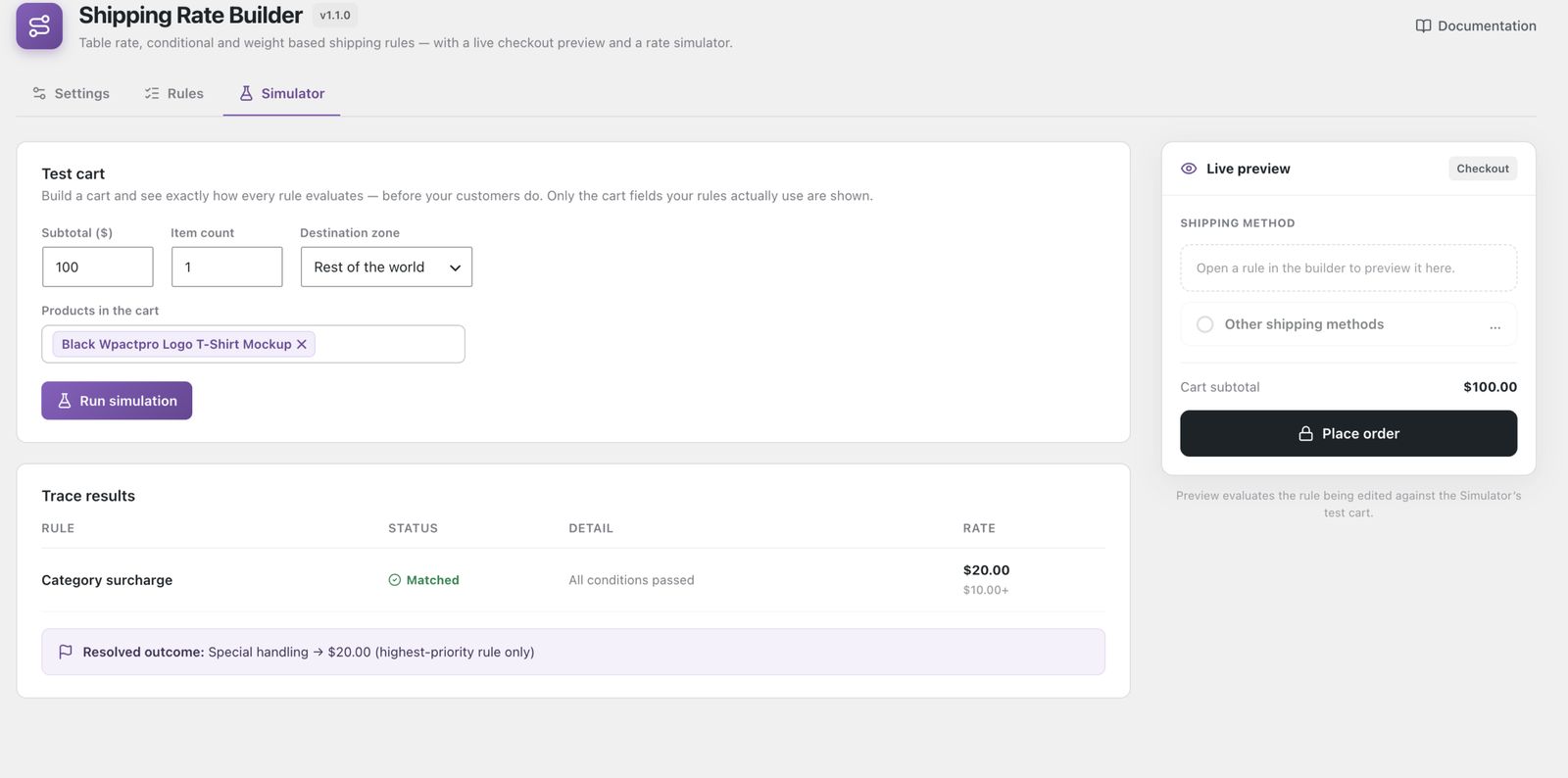
The Simulator takes a weight directly, so you can test either side of a boundary without touching a real product.
✓ Note
The weight box only appears once a rule actually uses weight. If it is not there, no rule mentionsCart weightyet — add the condition and it appears.