
Complete, working setups for the things merchants ask for most. Each one is a few minutes of clicking, and every step names exactly what you should see.
Two things worth knowing before you start:
- There is nothing to set up in WooCommerce first. The plugin runs on every shipping calculation and works out the zone itself, so a rule is live as soon as you save it. You will not find it in a zone’s Add shipping method dialog, and it does not need to be there.
- Every rule reads as a sentence. Step 1 WHERE (which zones), 2 WHEN (conditions), 3 THEN (what to charge), 4 SHOW AS (the checkout label). The builder restates the whole rule in plain English as you edit, so you can check it says what you meant.
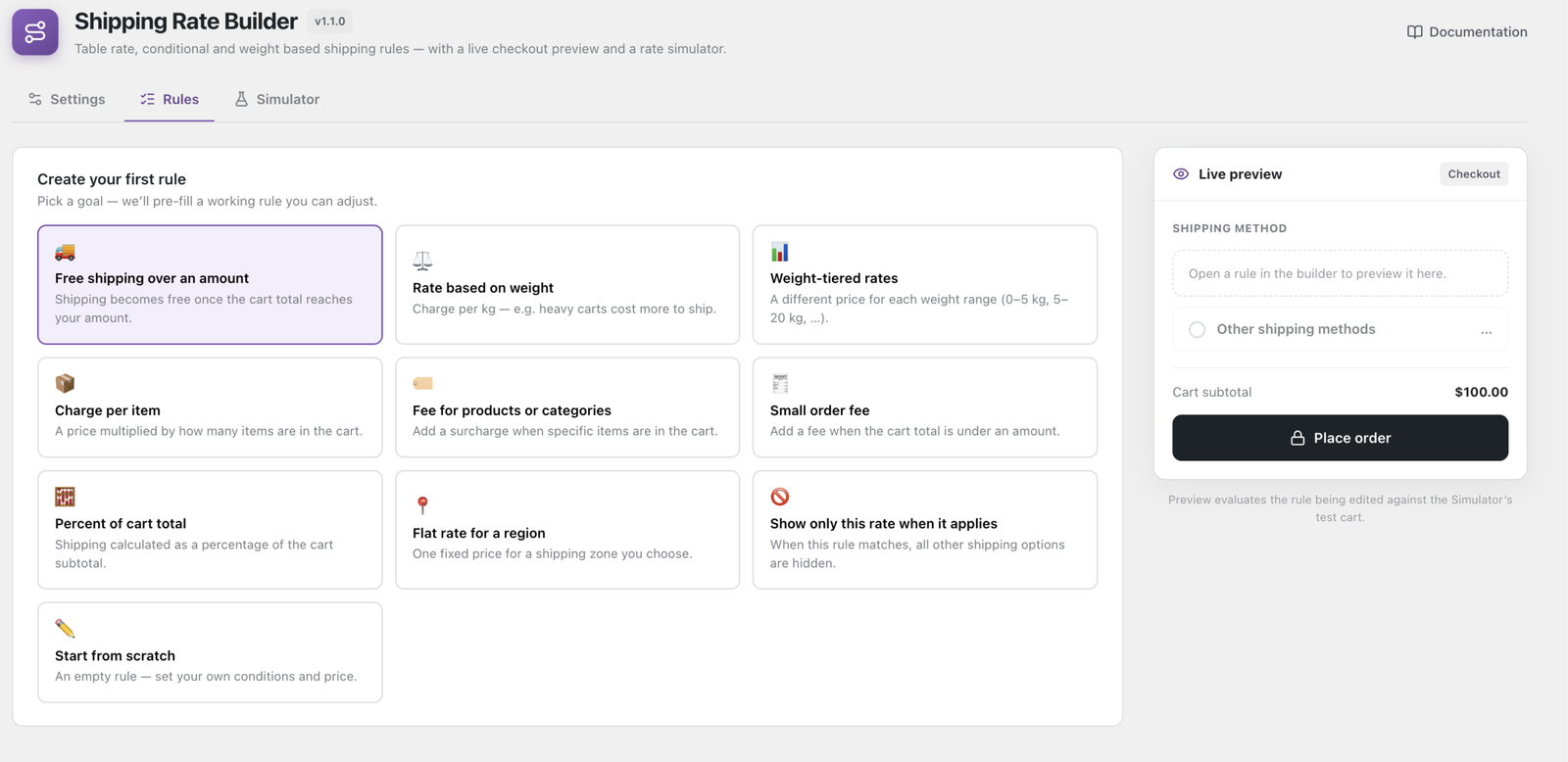
1. Free shipping over an amount
The most-requested setup. There are two ways to build it, and the simpler one is right for most stores.
The one-rule version. Any rule can become free above an amount: on the rule that already carries your standard rate, tick Free when cart total ≥ in step 3 and set the figure. One rule, nothing to order, nothing to keep in sync.
The two-rule version is worth the extra work only when you want the free rate to carry a different label at checkout — “Free shipping” reads better than “Standard delivery — £0.00”.
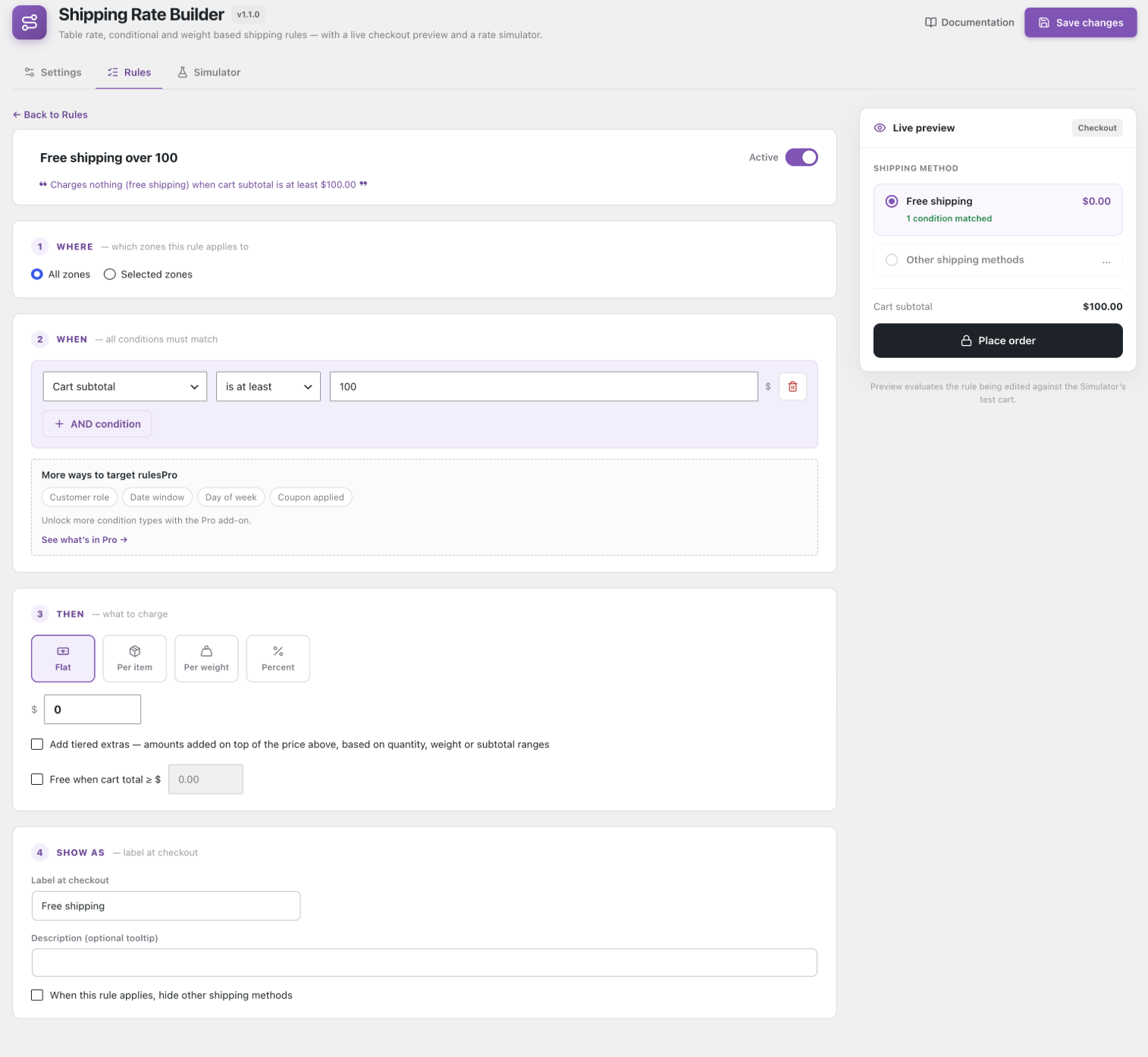
Rule 1 — the free rate
- Add rule, and pick the goal Free shipping over an amount if offered.
- WHERE: All zones.
- WHEN:
Cart subtotal—is at least—100. - THEN: Flat, amount
0. - SHOW AS: label
Free shipping.
Rule 2 — the fallback
- Add rule.
- WHEN: leave it empty. A rule with no conditions matches every cart, which is exactly what a fallback is.
- THEN: Flat, amount
4.95. - SHOW AS: label
Standard delivery.
Then order them. On the Rules screen, drag Free shipping over 100 above Standard delivery, and set Settings → Rule evaluation to Only the highest rule applies. Without that, a £120 cart is offered both rates and the customer chooses — which usually means they choose the free one, but it looks untidy and invites questions.
Tip
Useis at leastrather thanis overif a cart of exactly £100 should qualify.is at leastandis at mostinclude the number;is overandis underdo not.
2. A progress bar that nudges people to the threshold
Once you have a free-shipping threshold, tell shoppers how close they are. It is the single highest-return thing in this plugin for average order value.
Settings → Free-shipping progress bar is a single on/off switch. There is no message or amount to fill in — the bar reads the threshold from your rules.
⚠ Warning
The bar shows nothing until an active rule actually offers free shipping over an amount, either through a Free when cart total ≥ threshold or by charging0above aCart subtotalcondition. If you have enabled the bar and it does not appear, that is almost always why.
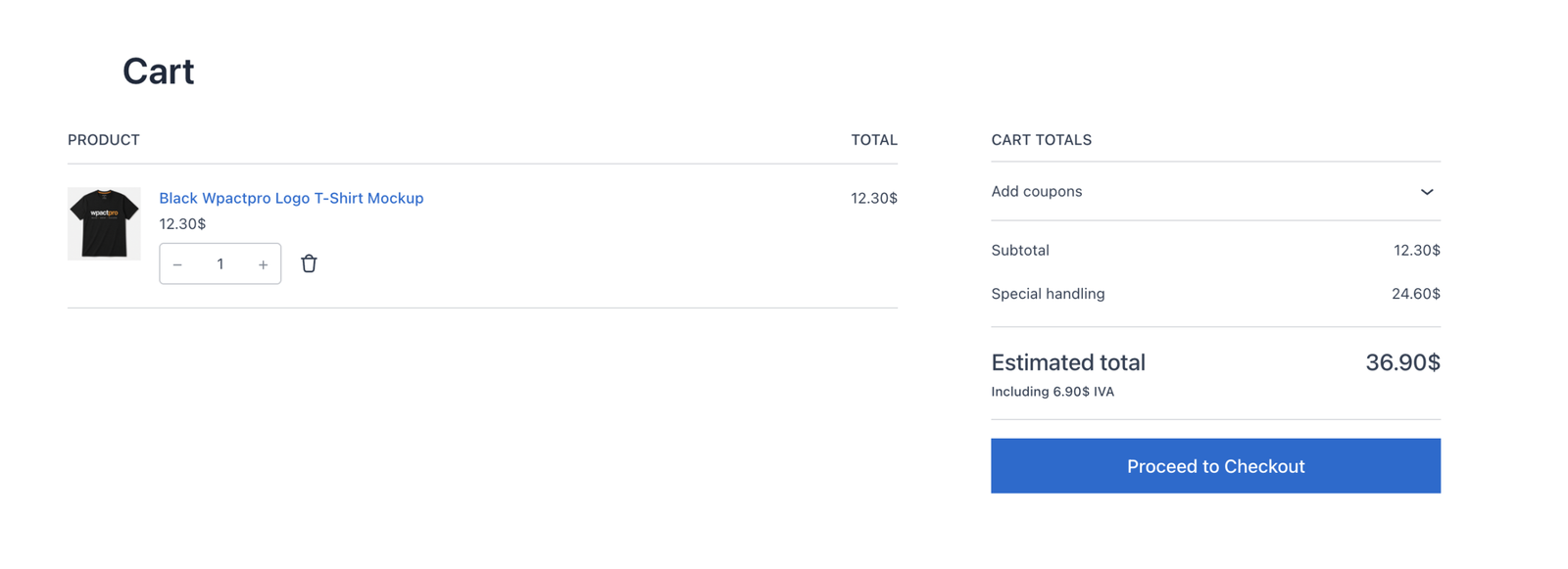
It appears on the cart and checkout automatically, on both the classic and Block versions. To place it anywhere else — a product page, a sidebar — use the shortcode:
[wpactpro_sr_progress_bar]On cart and checkout, nothing is loaded unless there is a threshold to show. The shortcode always loads its stylesheet on the page you put it on, so place it where you mean to use it.
3. Weight-based shipping
Charge per kilogram, with a minimum.
- WHEN: leave empty, so it applies to every cart in the zone.
- THEN: Per weight, amount
2.50. That is £2.50 per unit of your store’s weight unit. - To set a floor, add a second rule for light carts: WHEN
Cart weight—is under—1, THEN Flat3.00, and drag it above the per-weight rule with Only the highest rule applies on.
Your store’s weight unit comes from WooCommerce → Settings → Products, and products need weights set or they count as zero.
4. Table rate — different prices by cart total
The classic table rate, built with tiers rather than a rule per band.
- THEN: Flat, amount
5.00— your base rate. - Tick Add tiered extras.
- Choose the metric Cart subtotal, and add bands that do not share boundaries:
0to49.99adds0;50to149.99adds3;150and up adds6. Leave the to box blank on the last band — its placeholder reads no limit.
Up to five tiers per rule, keyed on Item quantity, Cart weight or Cart subtotal.
⚠ Warning
Ranges are inclusive at both ends, and every matching tier adds. If two bands share a boundary, a cart sitting on it is charged by both — bands of0–50and50–150charge a £50 cart twice. Write0–49.99,50–149.99,150+ instead.
✓ Note
A per-unit tier multiplies by the whole metric, not by the part above the band’s start. There is no “after the first N”: a per-unit tier of £1 starting at 5 items charges £8 on an 8-item cart, not £3.
5. Charge extra for one category
A surcharge for fragile, oversized or hazardous goods.
- WHEN:
Cart contains category—includes— pick your category. - THEN: Flat, amount
15.00. - SHOW AS: label
Special handling— say why the price is higher, or it reads as an unexplained fee.
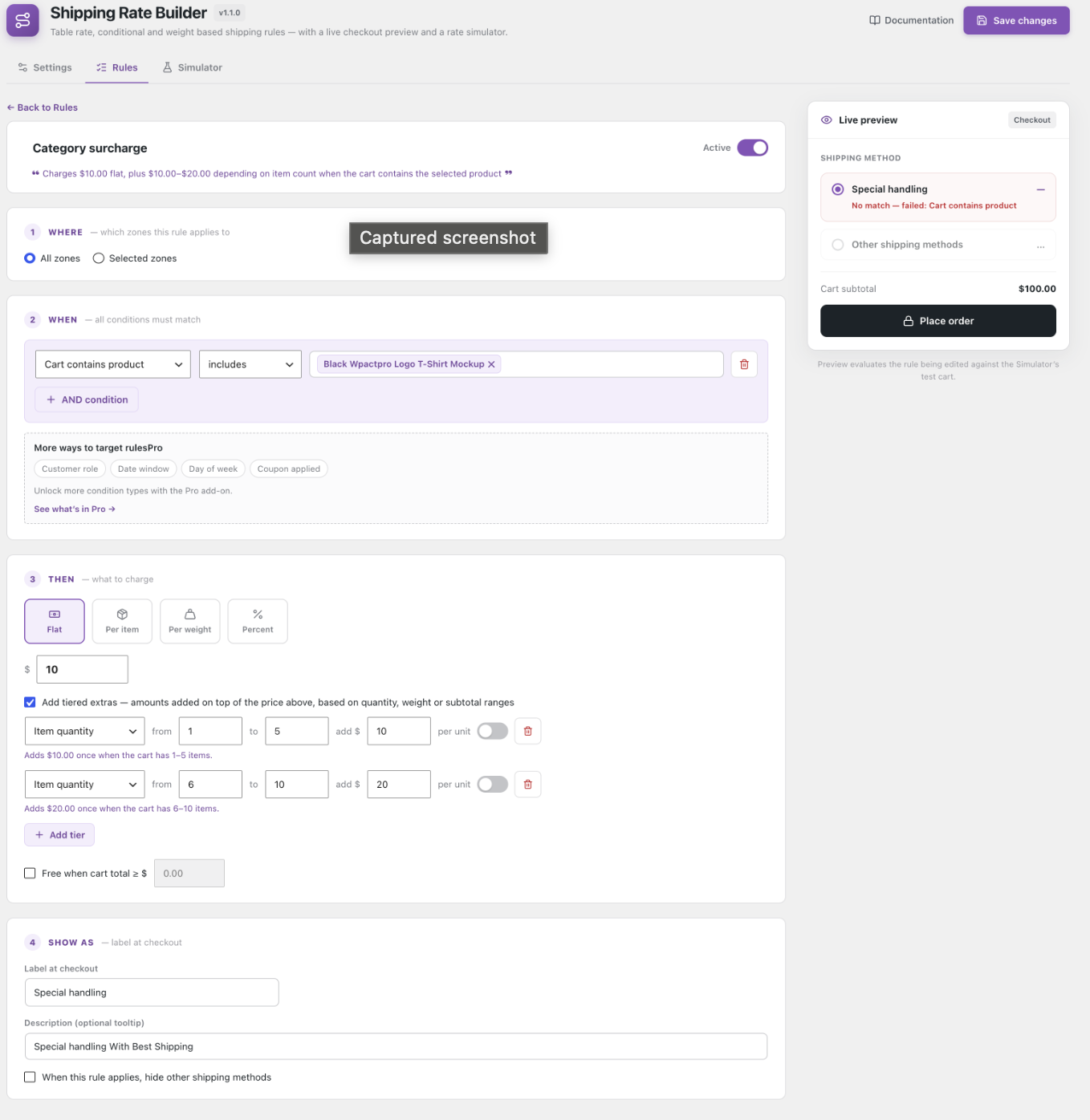
The same shape works with Cart contains product for individual items, or Cart contains shipping class if you already group products that way. Shipping class is usually the better choice once more than a handful of products are involved, because you maintain the grouping in one place.
6. Charge more for remote postcodes Pro
The “£5 to mainland UK, £15 to the Highlands” problem — without building a second shipping zone for it.
- WHEN:
Destination postcode—includes—IV*, HS*, KA27, KA28, PA20...PA78 - THEN: Flat, amount
15.00. - SHOW AS: label
Highlands & Islands delivery. - Drag it above your standard rate, with Only the highest rule applies.
The syntax is WooCommerce’s own — the same one the zone settings use, because this uses WooCommerce’s own matching functions:
| Form | Example | Matches |
|---|---|---|
| Exact | CB23 6DH | That postcode. Spacing and case do not matter. |
| Wildcard | CB2* | Everything starting CB2. |
| Range | 90210...99000 | Everything numerically between, inclusive. |
Separate several with commas.
✓ Note
Until the shopper has entered an address, a destination rule matches nothing — including “does not include” rules. Rates settle once there is an address.
Destination city works the same way and is case-insensitive, so münchen matches München.
7. Offer Standard and Express side by side
Let the customer choose instead of choosing for them.
- Build two rules with different costs and labels —
Standard delivery£4.95 andExpress delivery£9.95. - Set Settings → Rule evaluation to Show all matching rates.
Both appear at checkout as options.
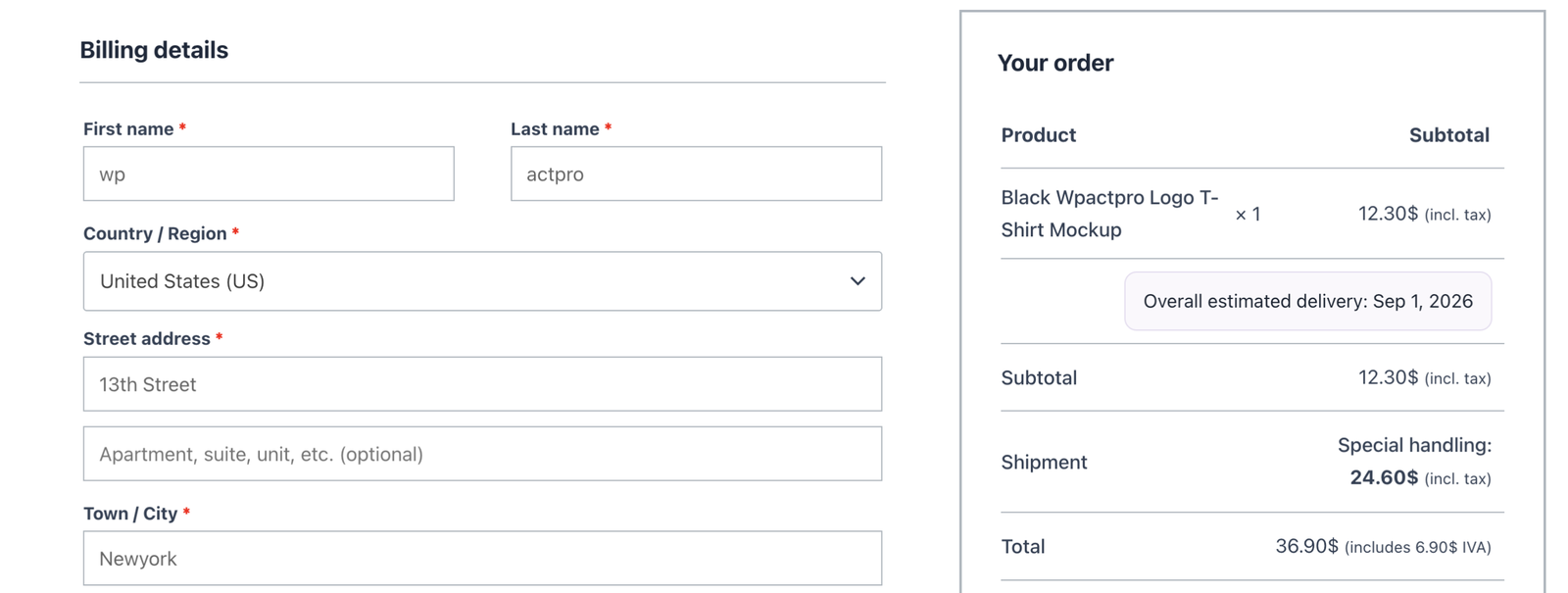
Add conditions to either one to control when it is offered — an Express rule with a Time of day condition Pro can disappear after the afternoon cut-off, so you never promise next-day on an order you cannot pack.
8. Replace WooCommerce’s own rates entirely
When your rule applies, you may not want WooCommerce’s built-in flat rate showing alongside it. In step 4 SHOW AS, tick When this rule applies, hide other shipping methods.
⚠ Warning
It hides all other methods, including local pickup and any other plugin’s rates — which is occasionally a surprise. If you only meant to replace the built-in flat rate, it is usually cleaner to disable that method in the zone.
9. Free shipping for wholesale customers only Pro
- WHEN:
Customer role—includes—Wholesale Customer. - THEN: Flat,
0. - SHOW AS:
Free wholesale delivery. - Drag it above your retail rates, with Only the highest rule applies.
Roles come from WordPress, so this works with whatever plugin creates your wholesale role.
Before you go live
Whatever you build, put it through the Simulator before your customers do. Build the cart you expect, and one you do not — a cart just under a threshold, a different country, an empty basket.
It runs your real rules through the real engine and tells you which matched, which did not, and why. It is faster than placing test orders, and it is the difference between finding a problem yourself and hearing about it from a customer.