
Worth ten minutes if you are building more than two or three rules. Most confusing behaviour comes from ordering and resolution, not from conditions.
A rule is a sentence
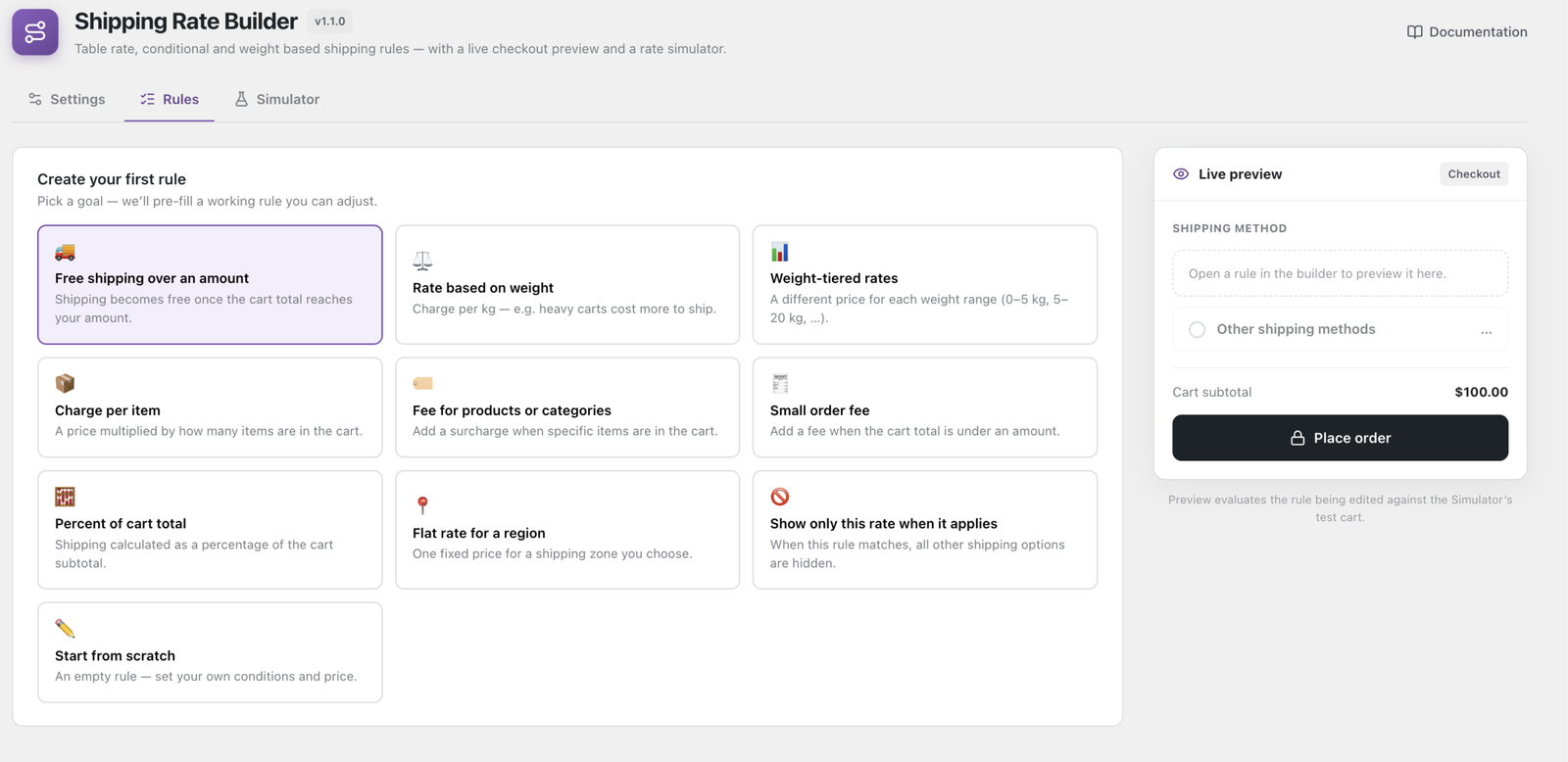
WHERE → WHEN → THEN → SHOW AS.
- WHERE — the WooCommerce zones this rule applies in. All zones, or a selection. Geography stays in WooCommerce; you never re-enter countries here.
- WHEN — the conditions. All conditions must match. An empty WHEN matches every cart, which is how a fallback rate is built.
- THEN — the cost. Flat, per item, per weight or percent, with optional tiers and a free-shipping threshold.
- SHOW AS — the label and description at checkout, and whether this rule hides other shipping methods.
AND versus OR
Conditions inside a group are joined with AND — every one must be true.
To express OR, add a second condition group. Pro A rule with two groups matches when any group is fully true, so (cart weight over 10 kg) OR (contains the Fragile category) is one rule with two groups, not two rules.
Tip
Use groups when the outcome is the same and only the trigger differs; use separate rules when the price or label should differ too.
Priority: order is the rule
Rules are evaluated top to bottom in the order shown on the Rules screen. Drag to reorder. That order is the priority — there is no separate priority number to keep in sync.
This matters most when a broad rule sits above a narrow one. The broad rule matches first, and depending on your resolution mode the narrow one may never be reached. If a rule “never fires”, check what is above it before checking the rule itself.
Resolution: what happens when several rules match
Settings → Rule evaluation
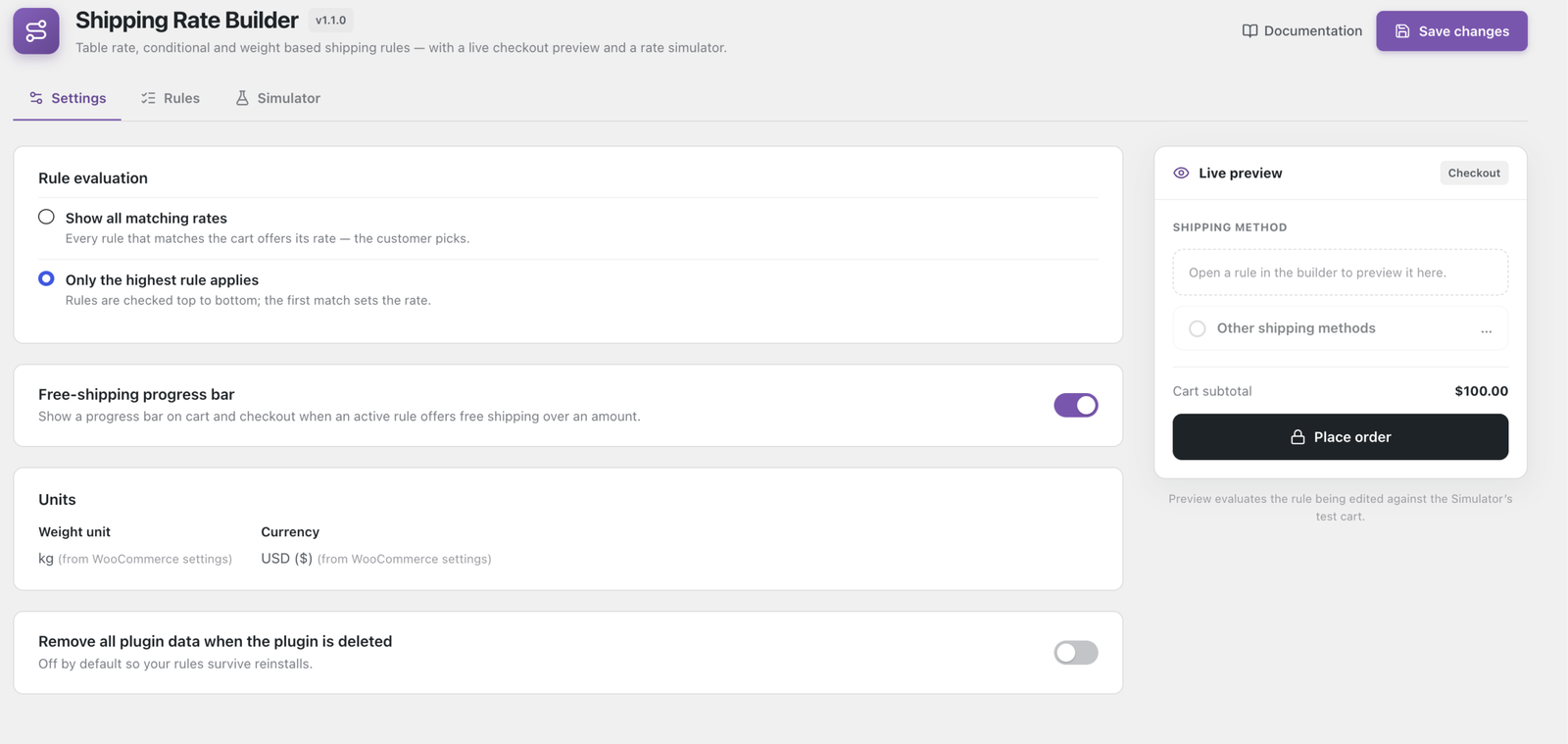
| Mode | Behaviour | Use it when |
|---|---|---|
| Show all matching rates | Every matching rule offers its rate and the customer picks. | You want Standard and Express side by side. |
| Only the highest rule applies | Rules are checked top to bottom; the first match sets the rate and the rest are discarded. | You want one definitive rate. |
This is a store-wide setting, not per rule. If you need one rule to win unconditionally, put it at the top and use Only the highest rule applies.
Hiding WooCommerce’s own methods
Any rule can carry When this rule applies, hide other shipping methods (step 4).
⚠ Warning
It hides all other methods, including local pickup and any other plugin’s rates. If you only meant to replace WooCommerce’s built-in flat rate, disabling that method in the zone is cleaner and easier to reason about later.
✓ Note
It never leaves a customer with no shipping option at all. If hiding would remove every rate, the original list is left alone.
What happens at checkout
- WooCommerce works out which zone the address falls in.
- It calls every shipping method in that zone — including this one.
- This plugin evaluates its rules, top to bottom, against the cart.
- Matching rules become rates, filtered by your resolution mode.
- WooCommerce shows the result.
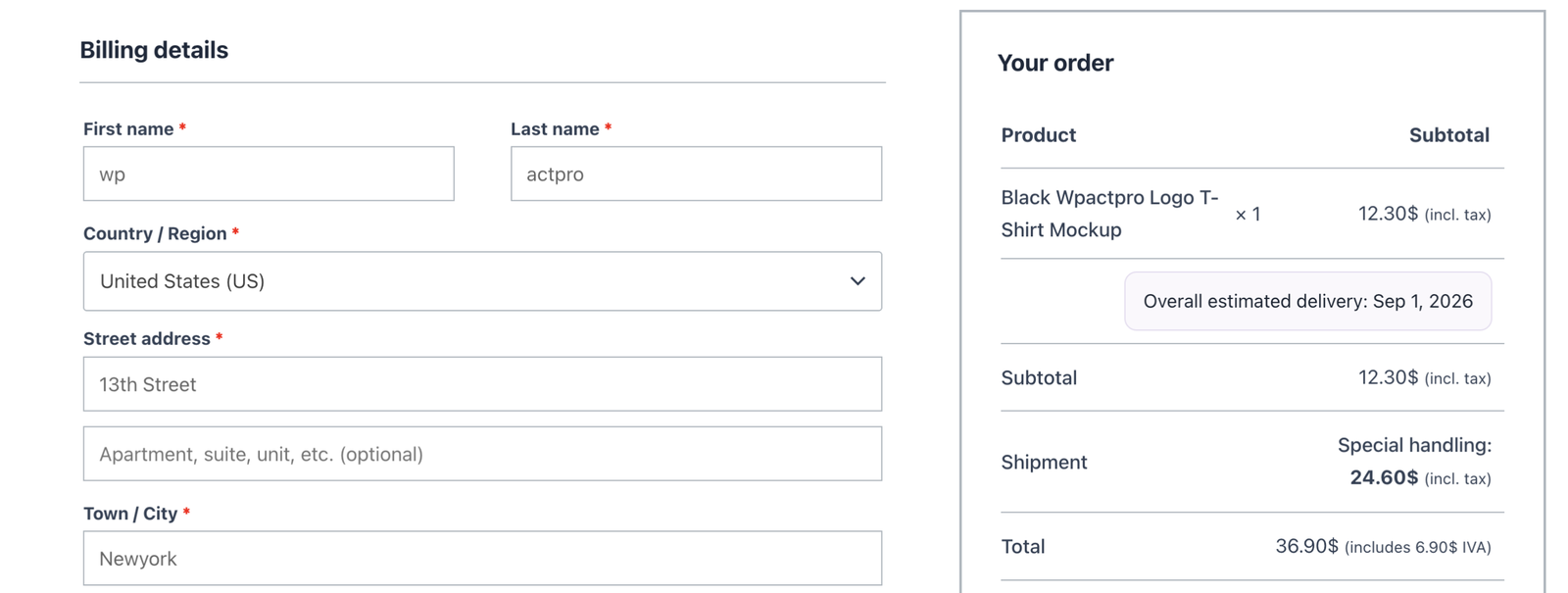
A misconfigured rule is skipped and flagged, never fatal. A bad rule cannot take checkout down — the worst it does is not appear.
Performance
Rules live in one indexed table, not in post meta, and a checkout calculation is a single query. On the cart and checkout, no frontend CSS or JavaScript is loaded unless the free-shipping progress bar is being shown.
✓ Note
The one exception is the[wpactpro_sr_progress_bar]shortcode: it loads its small stylesheet on whatever page you place it on, even when there is no threshold to display.
See also