
Your thank you page is an ordinary WordPress page. The plugin adds two things to it: the customer’s order, and WooCommerce’s thank-you events — payment instructions and purchase tracking.
Showing the order
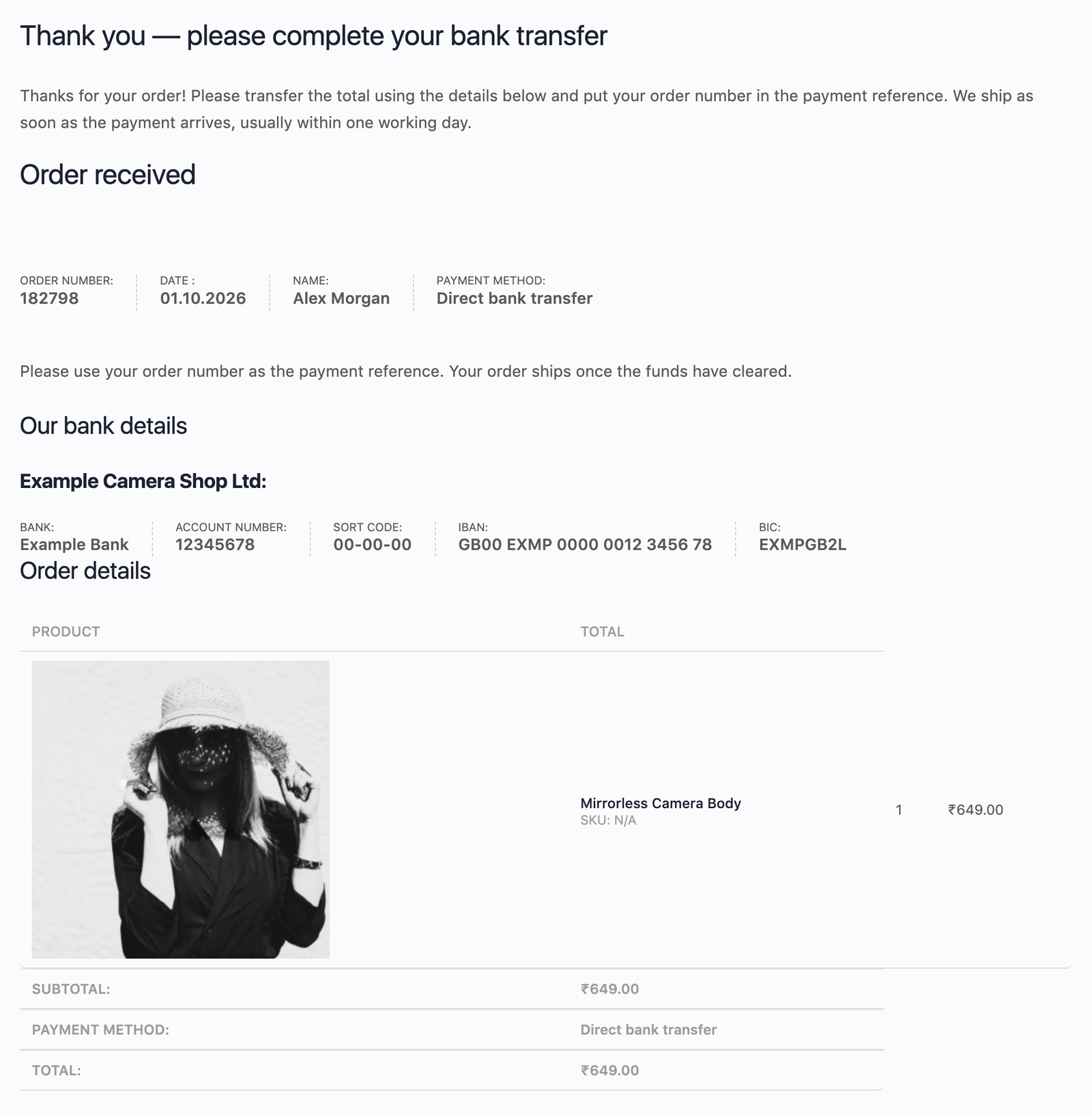
Use either one; they show the same thing.
- Order Details block — in the block editor, add the block called Order Details (WooCommerce category). In the editor it shows a sample; the real order appears when a customer arrives after checkout.
- Shortcode —
[rtyp_order_details], for page builders and the classic editor.
The page shows, from top to bottom:
| Section | Contents |
|---|---|
downloads | Download links, when the order has downloadable products and downloads are allowed |
overview | “Order received”, order number, date, customer name, payment method, then the payment method’s instructions — bank details, for example |
items | The products, quantities and totals, and the customer’s order note |
customer | Billing and shipping addresses — only to a logged-in customer viewing their own order |
To show only some sections, list them in the shortcode:
[rtyp_order_details sections="overview,items"]✓ Note
The block has no setting for sections in the editor and shows all four; use the shortcode when you want fewer. Payment instructions are shown even when you leave outoverview.
Pages from version 1.x use [wmprty_order_detail]. It keeps working and shows every section, with the same markup and CSS classes as before, so your existing styling still applies.
Who can see the order
The address a customer is sent to carries the order number and the order’s secret key (?order=…&key=…). Without the right key, the block shows nothing. On top of that, the plugin follows WooCommerce’s own rules for its “Order received” page:
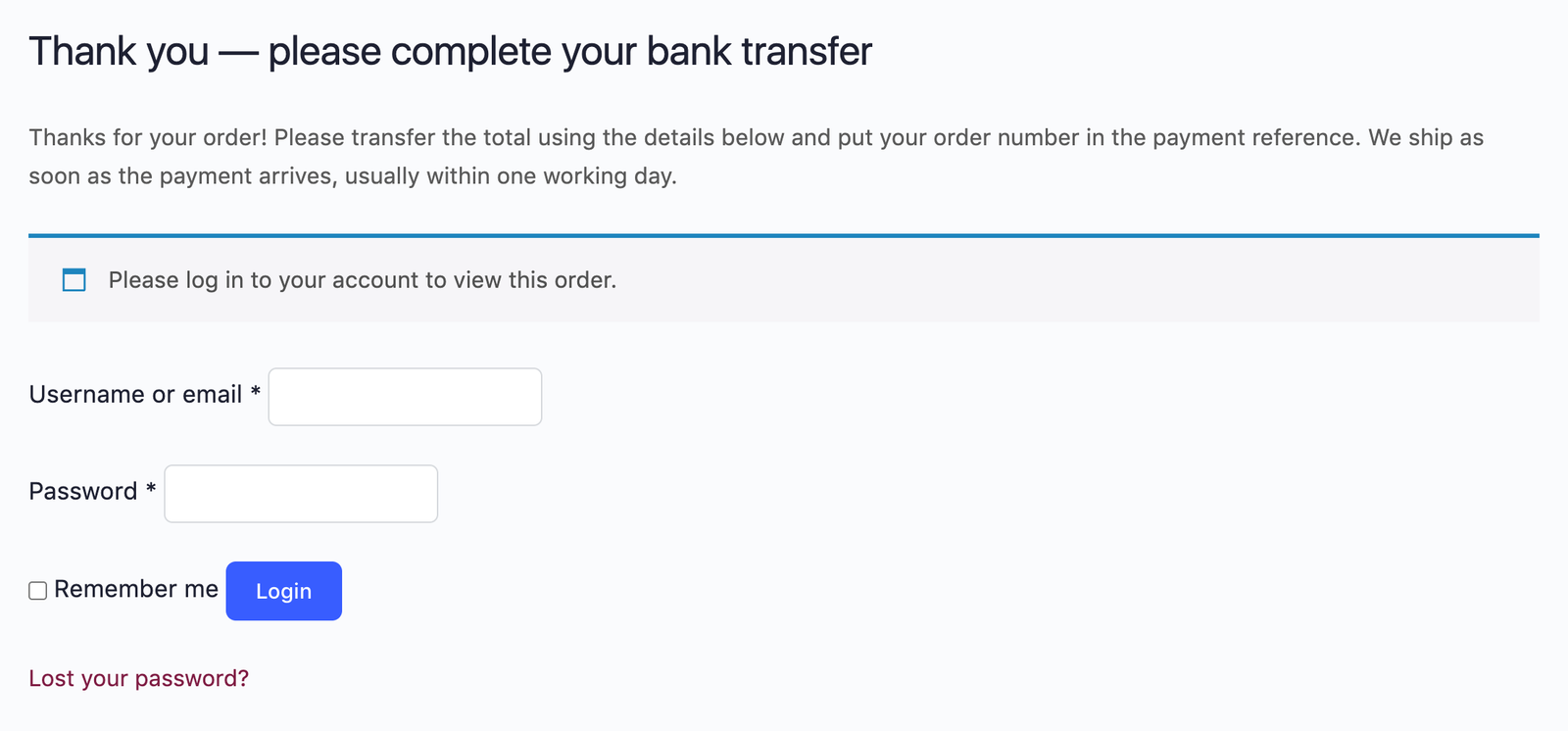
- Orders placed from a customer account are only shown to that customer when logged in. Anyone else is asked to log in.
- Guest orders are shown straight away for 10 minutes after the order is placed, in any browser. After that, the visitor is asked to confirm the billing email address, unless they are still in the browser session they checked out in — exactly as WooCommerce does.
- Shop managers and administrators can always see the order through the link. WooCommerce’s own page would ask them to log in as the customer, so the plugin is looser than core here.
✓ Note
A customer who forwards their thank-you link does not expose their order to whoever opens it later.
Payment instructions
Payment methods such as Direct bank transfer print their instructions — your bank details — on the thank you page. They appear right after the order overview: order number, date, name, payment method.
If the page has no Order Details block or shortcode, the instructions are still shown, at the bottom of the page. The rule editor warns you when the page you chose does not show the order.
Purchase tracking
Analytics and marketing plugins — Google Analytics, Meta Pixel, conversion tracking — usually record a sale on WooCommerce’s own “Order received” page. When customers land on your page instead, the plugin runs WooCommerce’s thank-you events on your page, once per order, so most of these tools keep recording the sale.
- Reloading the page, or the customer coming back to it later, does not record the sale twice.
- A shop manager opening a customer’s thank-you link does not record a sale.
- Tools that only look at WooCommerce’s own page address may need their own setting. Check your tracking tool after setting up the redirect.
Tip
You can turn this off with Purchase tracking in Global settings, but leave it on unless a tracking plugin records sales twice. Payment instructions are shown either way.
Privacy, caching and search engines
With Protect order pages ticked, which is the default:
- Pages showing an order are never stored by page caches, so one customer’s order is never shown to the next visitor.
- Thank you pages that show order details are hidden from search engines and left out of the WordPress and Yoast SEO sitemaps. Your front page is never hidden, even if a rule points to it.
- Browsers are told not to pass the address, with its key, to other sites the page loads images or scripts from.
✓ Note
Pages without the Order Details block are treated as your own public pages and left to your SEO settings.
Custom designs (themes)
A theme can replace the order markup completely. Copy the plugin’s layout into yourtheme/redirect-thank-you-page/order-details.php; it receives $order, $sections and $gateway_html. The template replaces everything, including downloads and customer details.