
Advanced Redirect Thank You for WooCommerce sends customers to a thank you page you built yourself after they check out: one page for everyone, or a different page per product, product category or payment method.
◷ 10 min
● Beginner
Requires: WooCommerce 8.0+
WordPress 6.5+
✓ Note
Nothing changes on activation. Until you create a rule or turn on the global thank you page, customers keep seeing WooCommerce’s normal “Order received” page. A plugin should never move your customers somewhere you have not chosen.
Install
- Go to Plugins → Add Plugin (Add New Plugin on older WordPress), search for “Advanced Redirect Thank You for WooCommerce”, click Install Now, then Activate.
- The plugin’s screen is WooCommerce → Redirect Thank You. It has three tabs: Rules, Getting Started and Global settings.
Requires WordPress 6.5, WooCommerce 8.0 and PHP 7.4 or newer. WooCommerce must be active; the plugin will not activate without it.
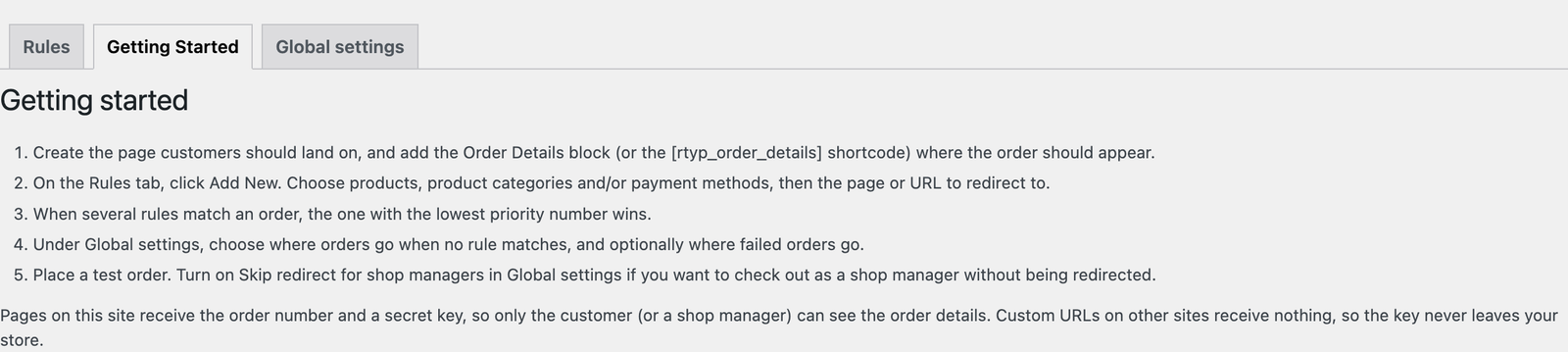
1. Build the page customers land on
Create a normal WordPress page (Pages → Add Page, or Add New Page on older WordPress). Write whatever you want the customer to see: a thank you message, next steps, a video, a coupon for the next order.
Then add the order itself, so the customer can see what they bought:
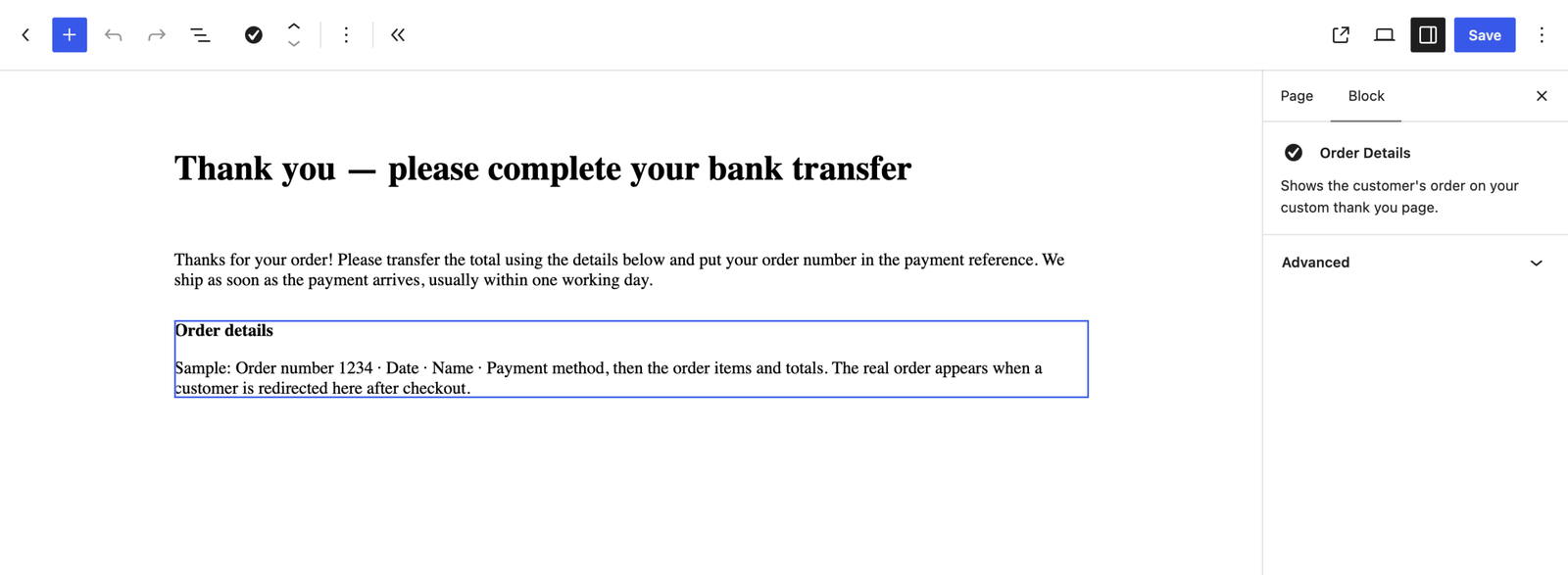
- In the block editor, add the Order Details block (it is in the WooCommerce block category). In the editor it shows sample text; the real order appears when a customer is redirected to the page.
- With a page builder or the classic editor, add the shortcode
[rtyp_order_details].
⚠ Warning
Publish the page. Unpublished pages are skipped, so a draft never becomes a dead end for a paying customer.
Tip
The block is also where payment instructions appear. A bank transfer customer who lands on a page without it still gets your bank details, but at the bottom of the page instead of next to their order.
2. Send everyone there (the simplest setup)
If you want one thank you page for every order:
- Click the Global settings tab (it opens WooCommerce → Settings → Global Redirect Thank You Page).
- Tick Global thank you page (“Send successful orders that match no rule to a page or URL”).
- Leave Redirect to on A page on this site and choose your page under Page.
- Click Save changes.

That is a complete setup. Rules are only needed when different orders should go to different pages.
3. Or send some orders somewhere else (a rule)
- Go to WooCommerce → Redirect Thank You, Rules tab, and click Add New.
- Give it a Name you will recognise in the list.
- Fill in one or more conditions: Products, Product categories, Payment methods.
- Under Redirect to, choose A page on this site and pick the page, or A custom URL for any address, including other sites.
- Click Create rule.
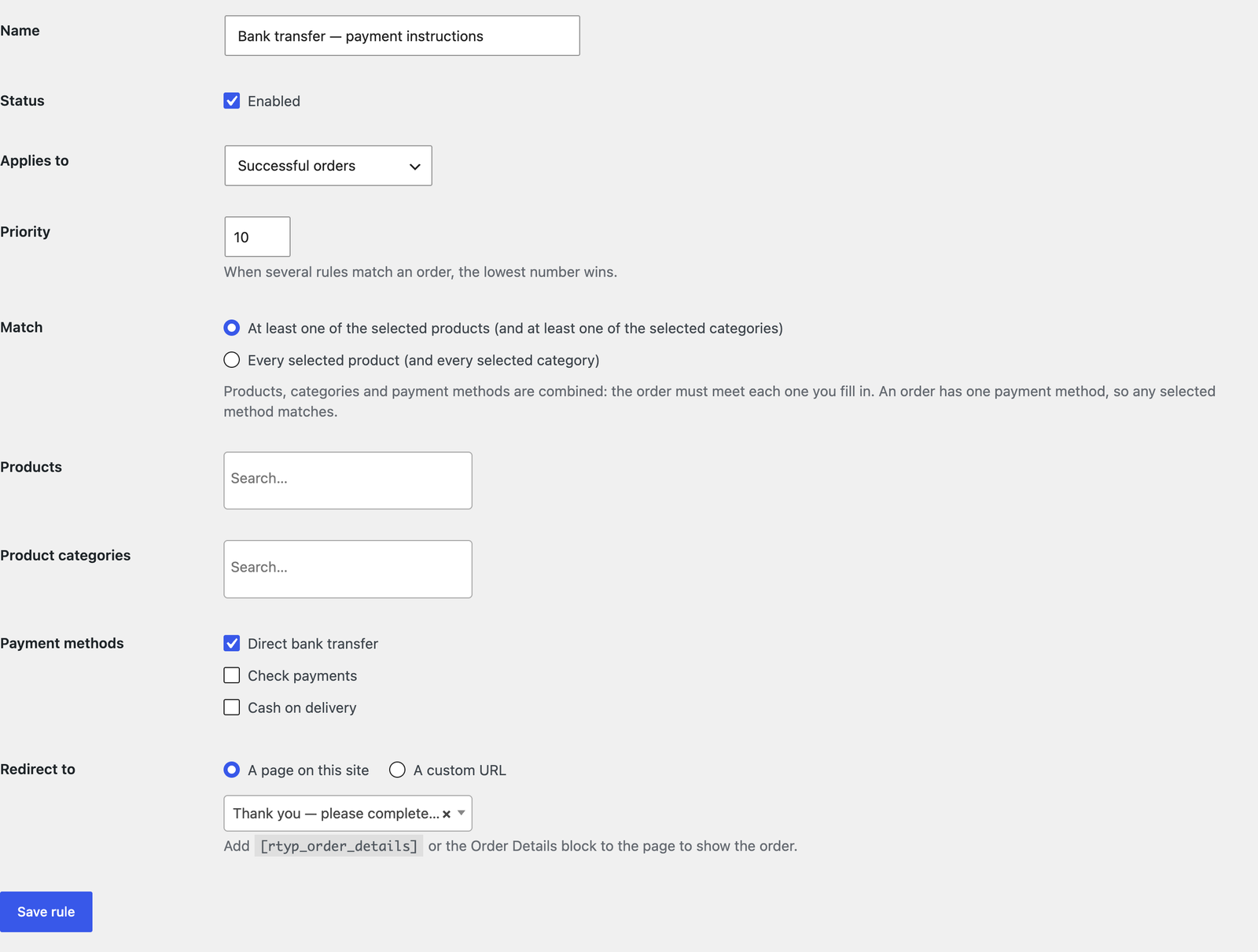
Orders that match the rule go to its page. Orders that match no rule go to the global page, if you turned it on, otherwise to WooCommerce’s normal page.
4. Place a test order
Check out on your store the way a customer would, ideally in a private browser window as a guest, with the product and payment method your rule targets.
You should land on your page with the order showing.
✓ Note
If you are logged in as a shop manager and have ticked Skip redirect for shop managers in Global settings, you will stay on WooCommerce’s page instead — that setting exists so you can test checkout without being redirected. Untick it, or test as a guest.
Upgrading from 1.x
Your existing product and payment method redirects are copied into the new Rules list automatically, and your global and failed-order pages are carried over to Global settings. Redirects keep working while that happens, and your old data is kept.
When at least one rule was moved, a notice appears once with a Review rules link. Check the list: rules now have a priority, which follows the order 1.x checked them in — product redirects first, then payment methods.
The [wmprty_order_detail] shortcode on your existing pages keeps working.