
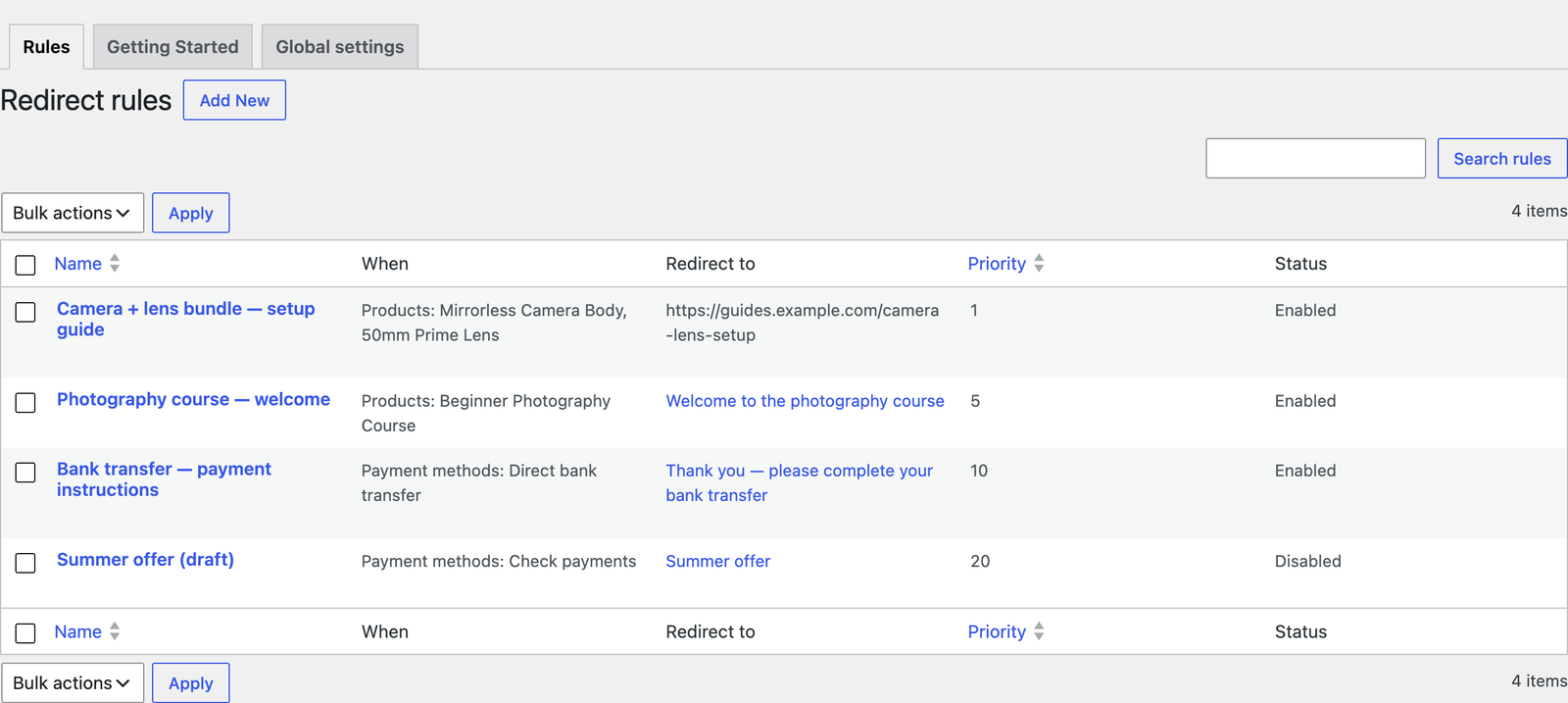
A rule says: when an order looks like this, send the customer to that page. Rules live under WooCommerce → Redirect Thank You → Rules.
What happens when an order is placed
- The plugin looks at the order’s products, their categories, its payment method, and whether the order succeeded or failed.
- It checks your enabled rules for that kind of order, lowest Priority number first.
- The first rule whose conditions the order meets and whose page is published wins. A rule pointing at a draft or deleted page is skipped, and the next rule gets its turn.
- If no rule wins, the global target from Global settings is used, if you turned it on.
- If nothing applies, the customer sees WooCommerce’s normal “Order received” page.
✓ Note
Nothing is ever redirected by accident. An unconfigured store behaves exactly as it did before the plugin was installed.
The fields of a rule
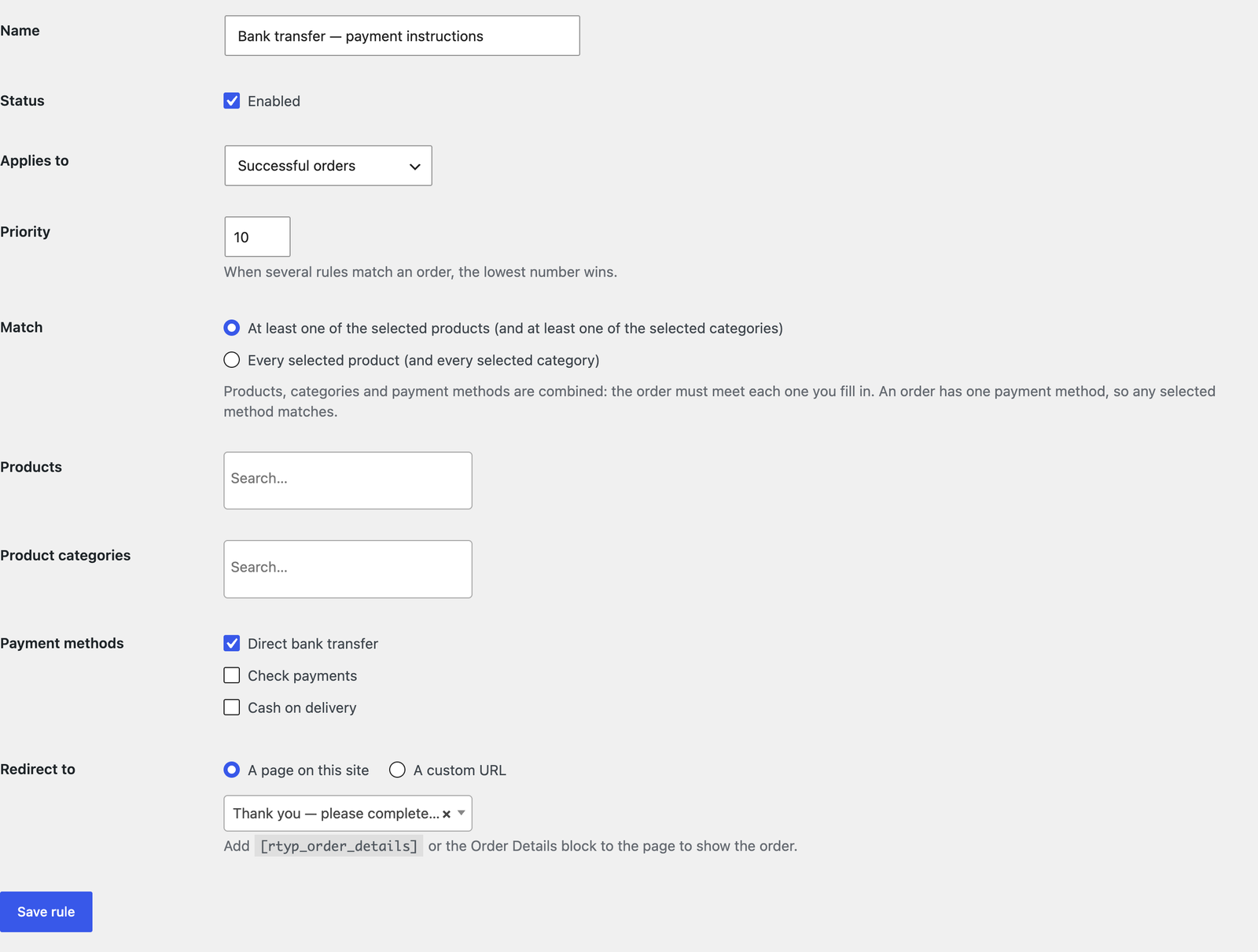
| Field | What it does |
|---|---|
| Name | Only for you, in the rules list. |
| Status → Enabled | Unticked rules are ignored. New rules start ticked. |
| Applies to | Successful orders or Failed or cancelled orders. |
| Priority | When several rules match, the lowest number wins. Default 10. From -9999 to 9999. |
| Match | How the product and category lists are read. |
| Products, Product categories, Payment methods | The conditions. Fill in at least one. |
| Redirect to | A page on this site or A custom URL. |
Conditions
- Products. Search by product name; only published products are listed. Variations are not listed separately: choose the variable product and every variation matches.
- Product categories. A category also matches products in its sub-categories, so “Clothing” catches an order for something in “Clothing → T-shirts”.
- Payment methods. The list shows the payment methods enabled in WooCommerce, by their checkout title. An order has exactly one payment method, so the rule matches if the order used any of the ticked ones. Free orders have no payment method, so they never match a payment method rule.
Different conditions are combined. If you fill in Products and Payment methods, the order must meet both: “bought the course and paid by bank transfer”. Leave a condition empty and it does not count.
⚠ Warning
A rule with no conditions at all never fires. The list shows it as “No conditions — never fires”, and saving it shows a warning. To send every order to one page, use the global thank you page instead of an empty rule.
Match: at least one, or every
The Match setting decides how the Products and Product categories lists are read:
- At least one of the selected products (and at least one of the selected categories) — the order needs one of the listed products. Use this for “anyone who bought any of my courses”.
- Every selected product (and every selected category) — the order must contain all of them. Use this for bundles: “bought both the camera and the lens”.
It does not change how payment methods are read, since an order only has one.
Priority: which rule wins
When one order matches several rules, the rule with the lowest Priority number wins. If two matching rules have the same number, the older rule — the one created first — wins.
A practical pattern: give specific rules low numbers and broad rules high ones.
| Priority | Rule |
|---|---|
| 1 | Product “Masterclass” → Masterclass onboarding page |
| 5 | Category “Courses” → general course welcome page |
| 10 | Payment method “Direct bank transfer” → bank details page |
A Masterclass buyer paying by bank transfer goes to the Masterclass page; any other course buyer goes to the course page.
Successful versus failed orders
Each rule applies to one kind of order:
- Successful orders: everything except failed and cancelled orders. This includes orders On hold (bank transfer, cheque) and Processing.
- Failed or cancelled orders: orders whose status is Failed or Cancelled.
Failed orders only ever use Failed or cancelled rules and the Failed orders global setting. A failed-payment customer is never sent to a “thanks for your purchase” page.
✓ Note
By default failed orders are not redirected at all: WooCommerce’s own page lets the customer retry the payment. Only redirect them if your page offers another way to pay or to get help.
⚠ Warning
A failed-order redirect happens only when the customer reaches WooCommerce’s “Order received” page with a failed or cancelled order. Many declined card payments keep the customer on the checkout page with an error instead, and a cancelled PayPal payment usually returns them to the cart; those customers are not redirected.
Where customers are sent
- A page on this site: the customer lands on it with the order number and the order’s secret key added to the address, so the Order Details block can show them their order and nobody else can.
- A custom URL: any address starting with
https://orhttp://. If it is a single page, post or product on your own site, the order number and key are added just as above. Anything else — another site, or an address on your site that is not a page — gets the URL exactly as you entered it, and the order key never leaves your store.
What is never redirected
- Orders still waiting for payment at checkout. Card payments that send the customer to their bank (3-D Secure) or to the payment provider’s site finish first; the customer is redirected when they come back to your store’s “Order received” page.
- Orders you create in the admin (WooCommerce → Orders → Add order), even when the customer pays them through the payment link, and subscription renewals.
- Refunds and anything that is not a normal shop order.
- Shop managers, when Skip redirect for shop managers is ticked in Global settings.
✓ Note
If the payment provider has not confirmed the payment by the time the customer returns — the order is still Pending — the customer still goes to the successful-orders page.
Managing rules
In the rules list, hover a rule for Edit, Enable/Disable, Duplicate and Delete. Duplicated rules start disabled, so a copy never goes live before you have edited it. Delete asks for confirmation — “Delete this redirect rule? This cannot be undone.” — and cannot be undone. Tick several rules to enable, disable or delete them together.
The Redirect to column shows “(not published — skipped)” next to a page that is not published, and “No page selected” when the rule has no target.