
Complete setups for what store owners ask for most. Each one assumes you have built the page first: a published WordPress page with the Order Details block, or [rtyp_order_details], on it.
One custom thank you page for every order
No rule needed.
- Global settings → tick Global thank you page.
- Redirect to: A page on this site, Page: your page.
- Save changes.
Show bank details only to bank transfer customers
Bank transfer customers need your account details and a reminder that the order ships after payment; card customers do not.
- Build a page: “Thanks! Please transfer the total below. We ship as soon as it arrives.” plus the Order Details block. Your bank details appear right after the order overview automatically — they come from WooCommerce → Settings → Payments → Direct bank transfer.
- Rules → Add New. Name: “Bank transfer”. Payment methods: tick Direct bank transfer. Redirect to: your page. Create rule.

The same two orders, side by side — one paid by bank transfer, one by cash on delivery:
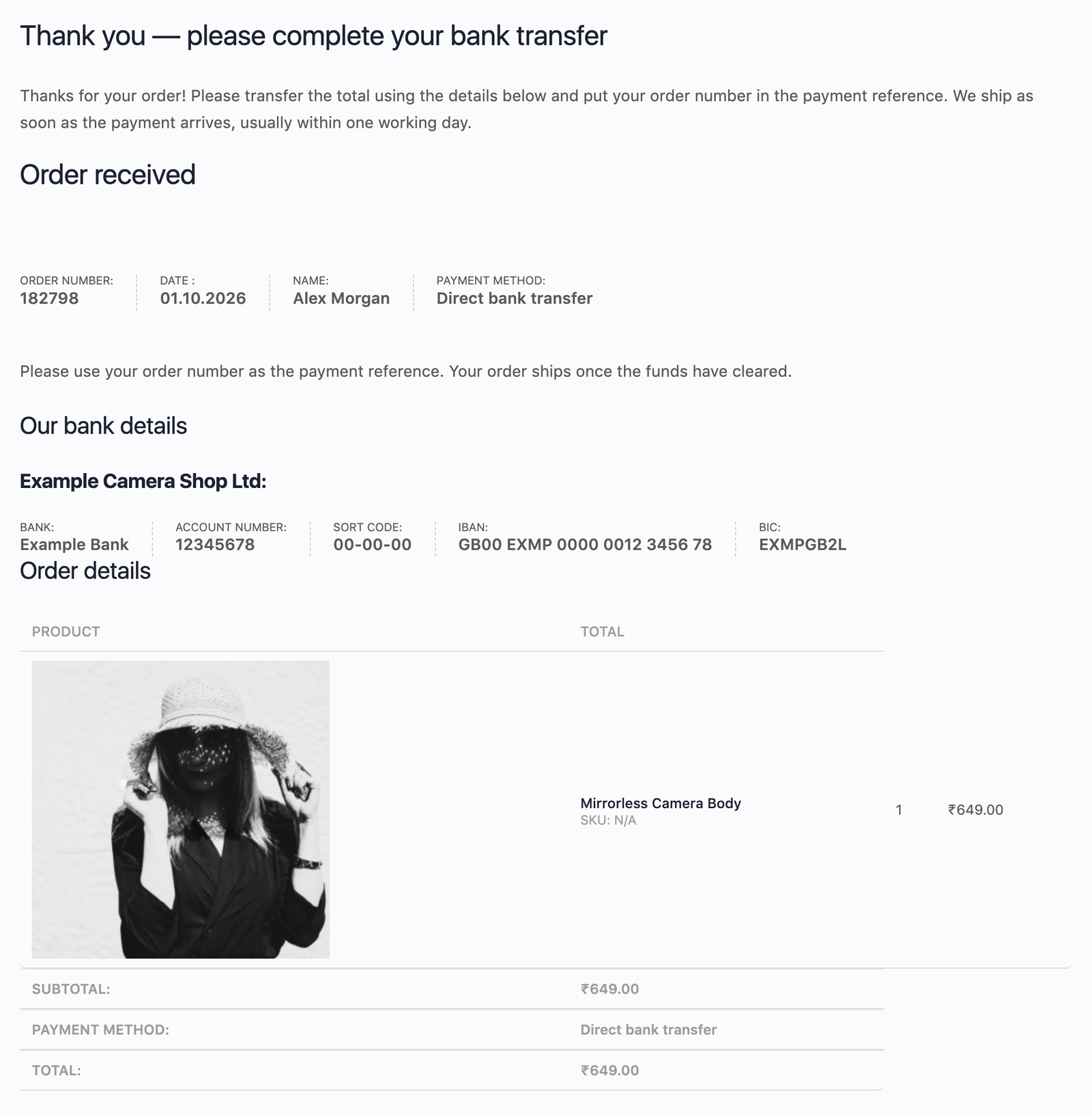
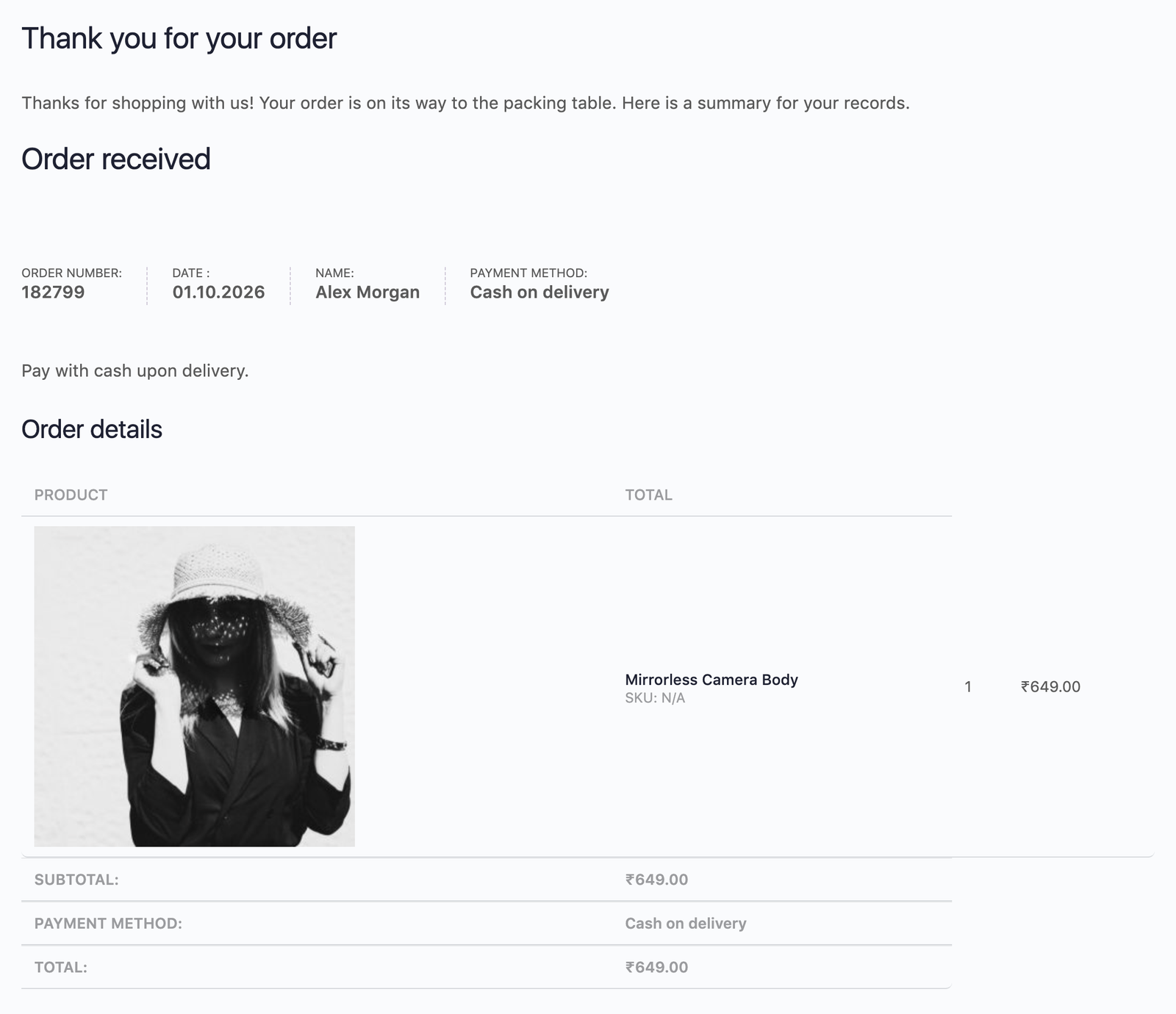
Everyone else keeps the global page, or WooCommerce’s page. The same recipe works for Check payments and Cash on delivery — “Pay the courier on delivery; have the exact amount ready”.
Next steps for course, membership or coaching buyers
- Build a page with the login link, the first lesson and how to get help.
- Rules → Add New. Products: the course products, or Product categories: “Courses”. Match: At least one of the selected products…. Redirect to: your page. Priority: 5.
Tip
Give it a lower priority number than any payment method rule, so a course buyer who pays by bank transfer still gets the course page. Better still, add the course information to the bank transfer page as well.
A different page per product category
One rule per category, each with its own page: “Clothing” → size guide and returns, “Electronics” → setup videos and warranty registration.
✓ Note
Categories include their sub-categories, so one “Clothing” rule covers “Clothing → T-shirts” too. When an order mixes both categories, the rule with the lower Priority number wins — decide which page matters more.
A page for bundle buyers only
“Bought both the camera and the lens” → a page with the combined setup guide.
Products: camera and lens. Match: Every selected product (and every selected category). Give it priority 1 so it wins over single-product rules.
A help page when payment fails
WooCommerce’s own page already lets the customer retry the payment, which is usually best. Redirect only if your page adds something: other ways to pay, phone support, a discount to come back.
- Build the page. Do not say “thank you for your order”.
- Global settings → tick Failed orders, choose the page under Failed order page. Or make a rule with Applies to: Failed or cancelled orders, to use different pages per product or payment method.
Send customers to a funnel, survey or another site
Redirect to → A custom URL → https://survey.example.com/post-purchase.
✓ Note
The address is used exactly as entered. Your order key is never sent to another site, so the other site cannot show the order. If your custom URL is a page on your own store, the order is added to it like any page.
A coupon or offer for the next order
Put the offer on the thank you page itself: a coupon code in a paragraph, a few product blocks, a “share and get 10% off” note. The customer has just paid and is still paying attention. Use the global page for everyone, or a category rule to match the offer to what they bought.
Test your checkout without being redirected
Global settings → tick Skip redirect for shop managers. While you are logged in as a shop manager or administrator, you stay on WooCommerce’s page. To check the redirect itself, use a private window and check out as a guest.