
This is the question every shipping plugin generates and almost none of them answer. This one can, and you should almost never have to guess.
Work down this page in order. The first two checks are quick, and the Simulator settles nearly all of the rest.
✓ Note
You do not need to add anything to a shipping zone. Unlike most shipping plugins, this one runs automatically and works out the zone itself. If you have been looking for Shipping Rate Builder in a zone’s Add shipping method dialog, it is not there and does not need to be.
1. Is the rule active?
On WooCommerce → Shipping Rate Builder → Rules, an inactive rule is skipped entirely. In the builder it is the Active toggle at the top of the rule.
2. Does the rule’s zone actually cover the customer?
A rule set to Selected zones only runs in those zones. It is easy to build a rule against “Europe” and then test with a US address.
Open the rule and check step 1. WHERE. If in doubt, set it to All zones while you are testing, and narrow it again once it works.
3. Run the cart through the Simulator
If the first two checks pass, stop guessing and let the plugin tell you.
Go to WooCommerce → Shipping Rate Builder → Simulator, build the cart that misbehaved, and press Run simulation. It runs your real rules through the real engine — not an approximation — and reports what happened to every one of them.
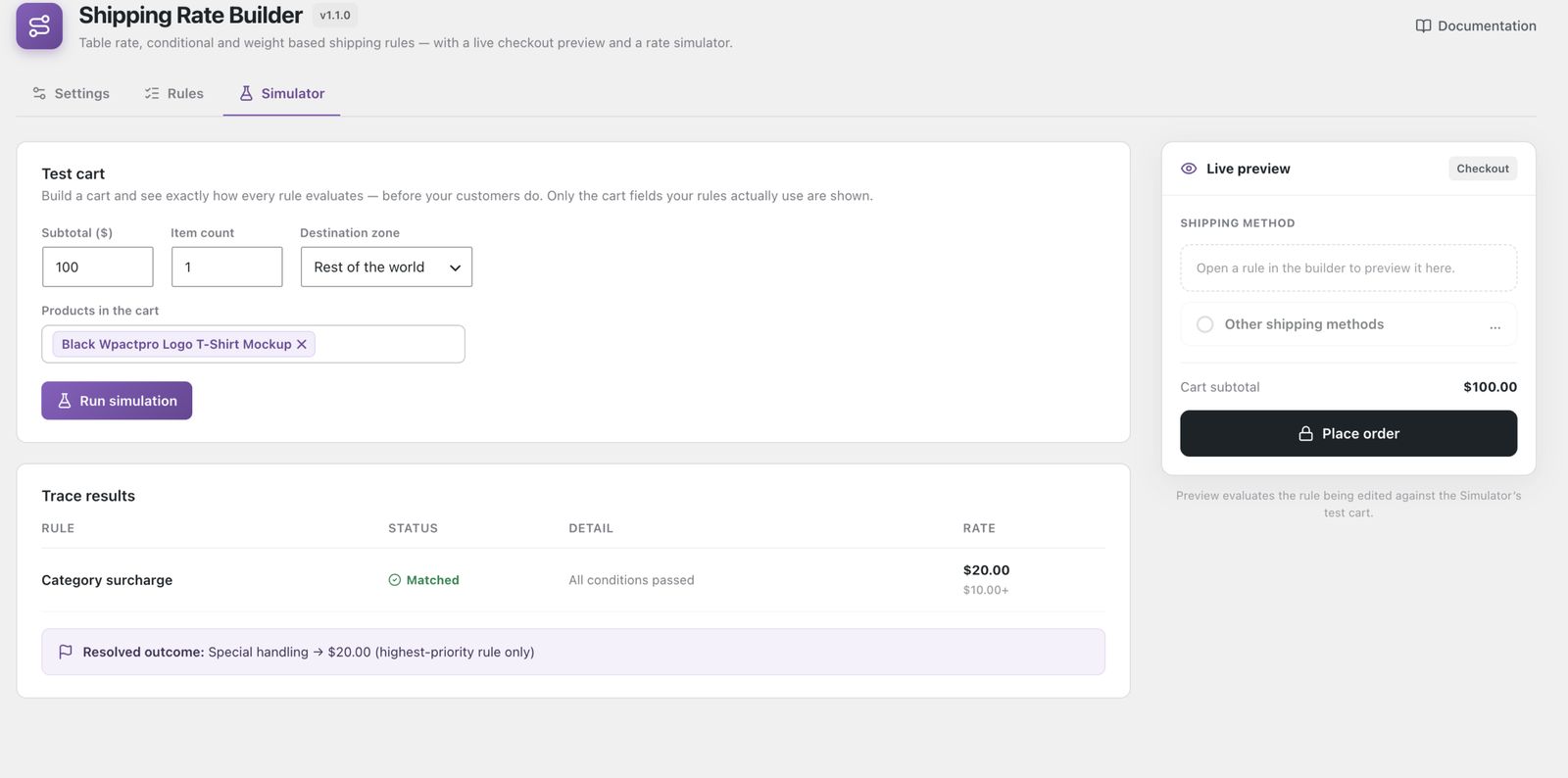
The Trace results table gives you one row per rule:
| Status | What it means | What to do |
|---|---|---|
| Matched | Every condition passed. The rule produced a rate. | Nothing — this rule is working. |
| No match | One condition failed. The Detail column names which one. | Open the rule and check that condition against your test cart. |
| Rule is disabled | The rule’s Active toggle is off, so it was never evaluated. | See check 1 above. |
| Not targeted at this zone | The rule’s WHERE step does not include the zone this address falls in. | See check 2 above. |
| Invalid configuration | The rule is saved but incomplete — a condition with no value, for example. | Open it; the builder marks the field. |
| Rule errored and was skipped | Something threw while evaluating it. Most often a condition type that is no longer available, after a Pro licence lapsed. | See “If your Pro licence lapsed” below. |
The Resolved outcome line at the bottom is the part people miss. It tells you what the customer would actually be offered after your resolution mode is applied — which is not always every rule that matched. See the next section.
✓ Note
The Simulator only shows the fields your rules use. If your rules never mention weight, there is no weight box. Add a weight condition to a rule and the box appears. This is deliberate: a form with fifteen irrelevant boxes is harder to reason about, not easier.
4. The rule matched, but the customer didn’t see it
This is a different problem from a rule that didn’t match, and it has a different cause. Two settings decide what happens when more than one rule matches.
WooCommerce → Shipping Rate Builder → Settings → Rule evaluation
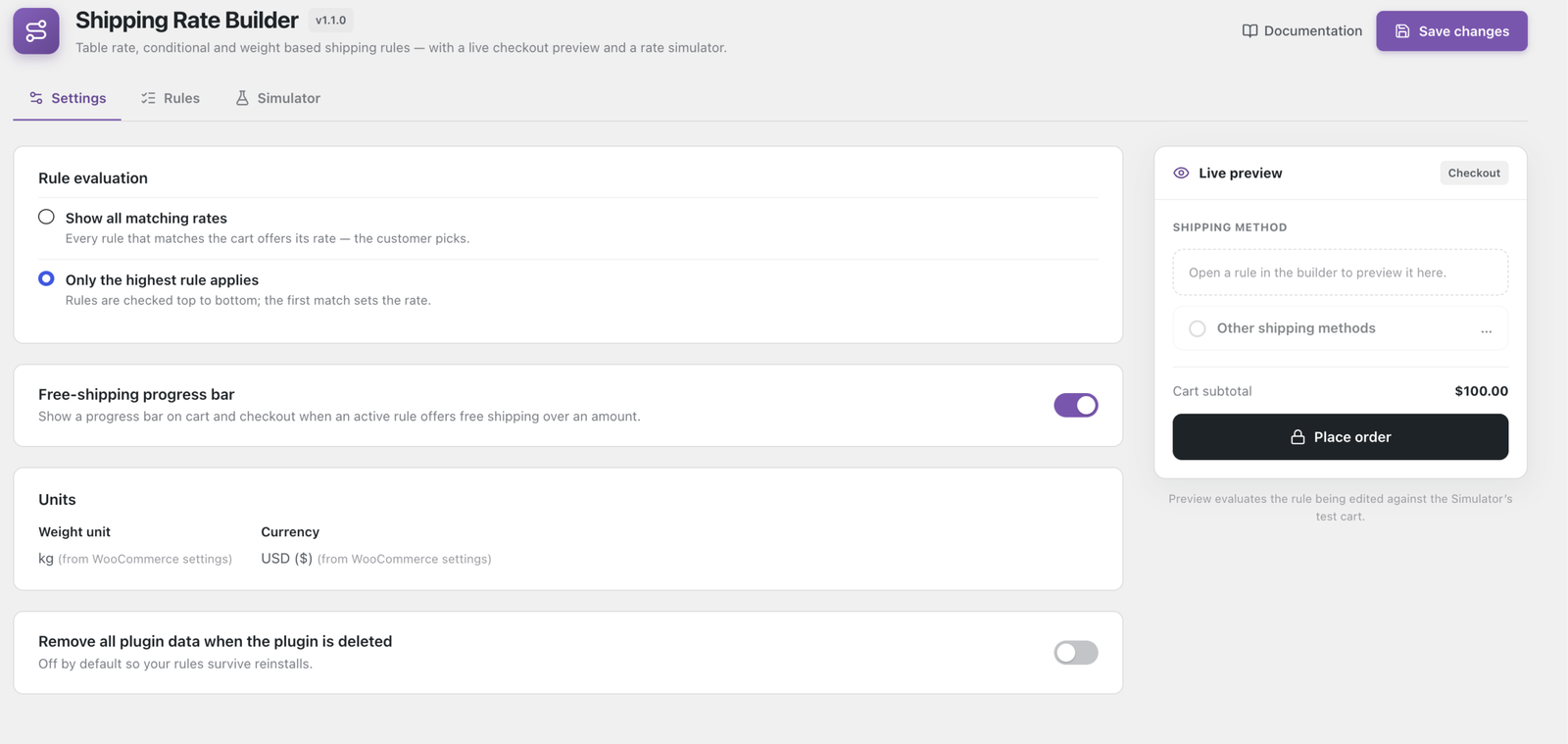
- Show all matching rates — every matching rule becomes a choice at checkout and the customer picks. Use this to offer Standard and Express side by side.
- Only the highest rule applies — rules are checked top to bottom and the first match wins; the rest are discarded even though they matched.
If you are on Only the highest rule applies and the wrong rate is showing, the cause is almost always order, not conditions. Rules are evaluated top to bottom on the Rules screen, and you reorder them by dragging. A broad rule sitting above a narrow one will win every time and the narrow one will never be reached.
The other setting to check is hide other shipping methods on the rule itself (step 4, SHOW AS). A rule with that enabled suppresses WooCommerce’s own flat rate and free shipping — including, sometimes, the one you were expecting to see.
5. Dimensional rules: are the products measured? Pro
If your rule uses Cart volume, Longest side in cart or Dimensional weight, every product in the cart needs length, width and height set.
When any item is unmeasured, those rules decline to match rather than pricing an order on incomplete measurements — charging by a volume you cannot calculate is worse than not charging. The Simulator names the product that needs dimensions, and from 1.4.0 so does the order screen.
⚠ Warning
Dimensional weight additionally needs the divisor set under Settings → Units. Take it from your courier contract — commonly 5000 for cm/kg or 139 for in/lb. Left blank, dimensional weight rules cannot match at all.
6. Destination rules: has the customer entered an address? Pro
Postcode and city conditions match nothing until the shopper has entered or estimated a destination — including “does not include” rules.
That is deliberate. If an “everywhere except London” rule fired for every visitor before they typed an address, it would quote the wrong price to everyone who hasn’t reached checkout yet. Rates settle once there is an address to match against.
Tip
If you are testing in the Simulator, set the destination country as well as the postcode. Postcode formats are country-specific, soCB23 6*behaves differently under GB than under no country at all.
7. Look at what actually happened on the order Pro
From version 1.4.0. Everything above helps you reproduce a problem. This tells you what genuinely happened on a real order, which is what you need when a customer is asking about a charge from last Tuesday.
Open the order in WooCommerce → Orders and find the Shipping rule decision panel. It shows which rule set the rate and what it cost, and for every rule that did not apply, exactly which condition failed — recorded at the moment that order was placed, not recomputed from today’s rules.
This matters because carts change and rules change. Reproducing an old order in the Simulator gives you today’s answer to yesterday’s question; the order record gives you yesterday’s.
✓ Note
The panel only appears on orders that have a decision recorded, so orders placed before you upgraded will not show it.
8. If your Pro licence lapsed
A rule that uses a premium condition — postcode, customer role, dimensional weight and the rest — cannot be evaluated once those conditions are no longer registered. The rule is skipped with Rule errored and was skipped and stops producing a rate.
It is not lost. Remove or replace the premium condition and the rule works again on the free conditions that remain. Rules using OR condition groups are the exception: they keep evaluating exactly as before, and you can still simplify one by deleting a group.
Still stuck?
Send us these three things and we can usually answer immediately:
- Your WordPress, WooCommerce and PHP versions.
- What you are trying to build, in a sentence.
- A screenshot of the Simulator’s trace results for a cart that behaves unexpectedly — or, better, the Shipping rule decision panel from a real order.
That third item is the one that saves the most time. It states which condition failed and why, so it usually turns a long back-and-forth into a single reply.