
A Complete Guide for Store Owners
Introduction
WooCommerce is the most popular e-commerce platform for WordPress, powering millions of online stores worldwide. While WooCommerce provides essential product management features out of the box, many store owners quickly realize they need more flexibility when it comes to collecting customer information. WooCommerce custom fields allow you to gather specific details from customers before they complete a purchase. Whether you run a print shop that needs customer text for personalization, a bakery that requires delivery dates, or a clothing store that offers monogramming services, WooCommerce custom fields are essential for collecting the information you need to fulfill orders accurately.
In this guide, we will explain what WooCommerce custom fields are, why they matter for your WooCommerce store, and how you can add them to your products step by step.
What Are WooCommerce Custom Fields?
WooCommerce custom fields are additional input options that appear on your product pages, allowing customers to provide specific information beyond the standard product options. Unlike default WooCommerce variations (like size or color), WooCommerce custom fields can collect unique data for each order.
Examples of custom fields include:
- Text inputs for names, messages, or engraving text
- Date pickers for delivery or appointment scheduling
- File upload fields for customer artwork or documents
- Dropdown menus for service options or add-ons
- Checkboxes for optional extras or gift wrapping
- Number fields for quantity-based customizations
- Color pickers for design preferences
- Text areas for special instructions or notes
These WooCommerce custom fields help bridge the gap between what WooCommerce offers by default and what your specific business actually needs.
Why Your Store Needs WooCommerce Custom Fields
Adding WooCommerce custom fields to your products offers several important benefits:
- Improved Order Accuracy – When customers provide all necessary details upfront, you receive complete information with every order. This eliminates the need to contact customers after purchase to clarify requirements, reducing delays and potential misunderstandings.
- Better Customer Experience – Clear, well-organized input fields guide customers through the ordering process. When shoppers understand exactly what information is needed, they feel more confident completing their purchase.
- Reduced Support Requests – Gathering required details at checkout means fewer follow-up emails asking customers for missing information. Your support team spends less time on order clarification and more time on meaningful customer interactions.
- Increased Revenue Opportunities – Custom fields enable you to offer paid add-ons, upgrades, and personalization options. Customers can choose extras like gift wrapping, rush processing, or premium materials, increasing your average order value.
- Streamlined Operations – When orders arrive with all necessary details formatted consistently, your fulfillment process becomes more efficient. Staff can process orders faster without searching for information scattered across emails.
Types of WooCommerce Custom Fields You Can Add
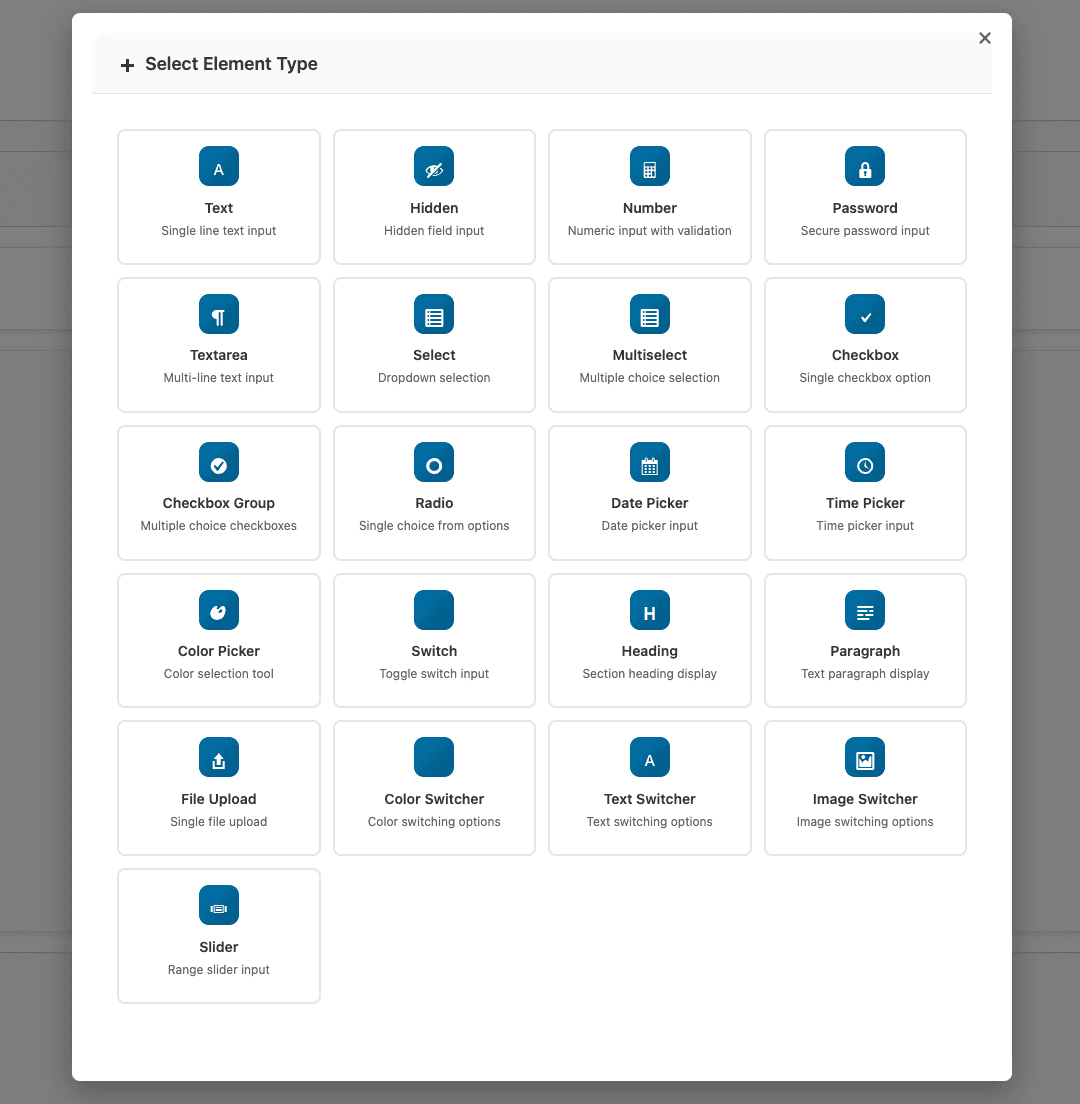
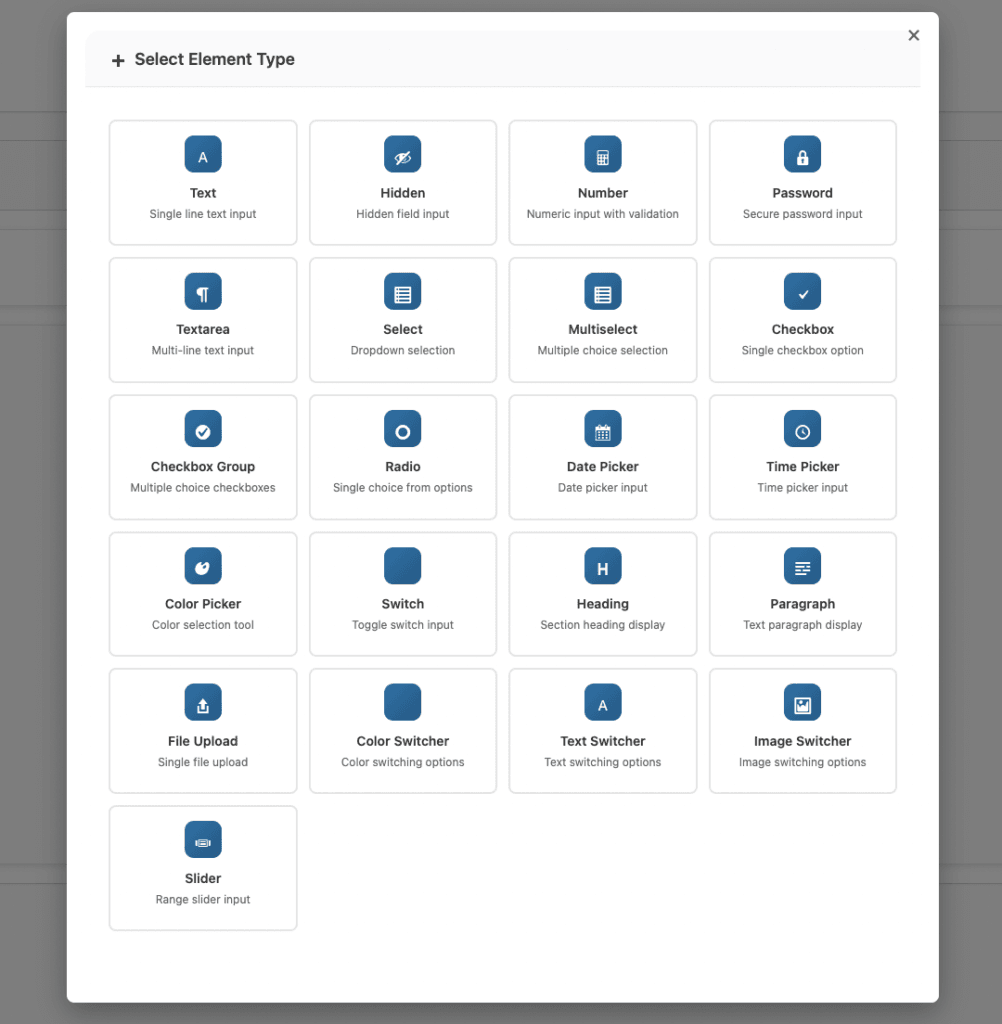
Depending on your business needs, different WooCommerce custom field types serve different purposes. Here are the most commonly used WooCommerce custom fields:
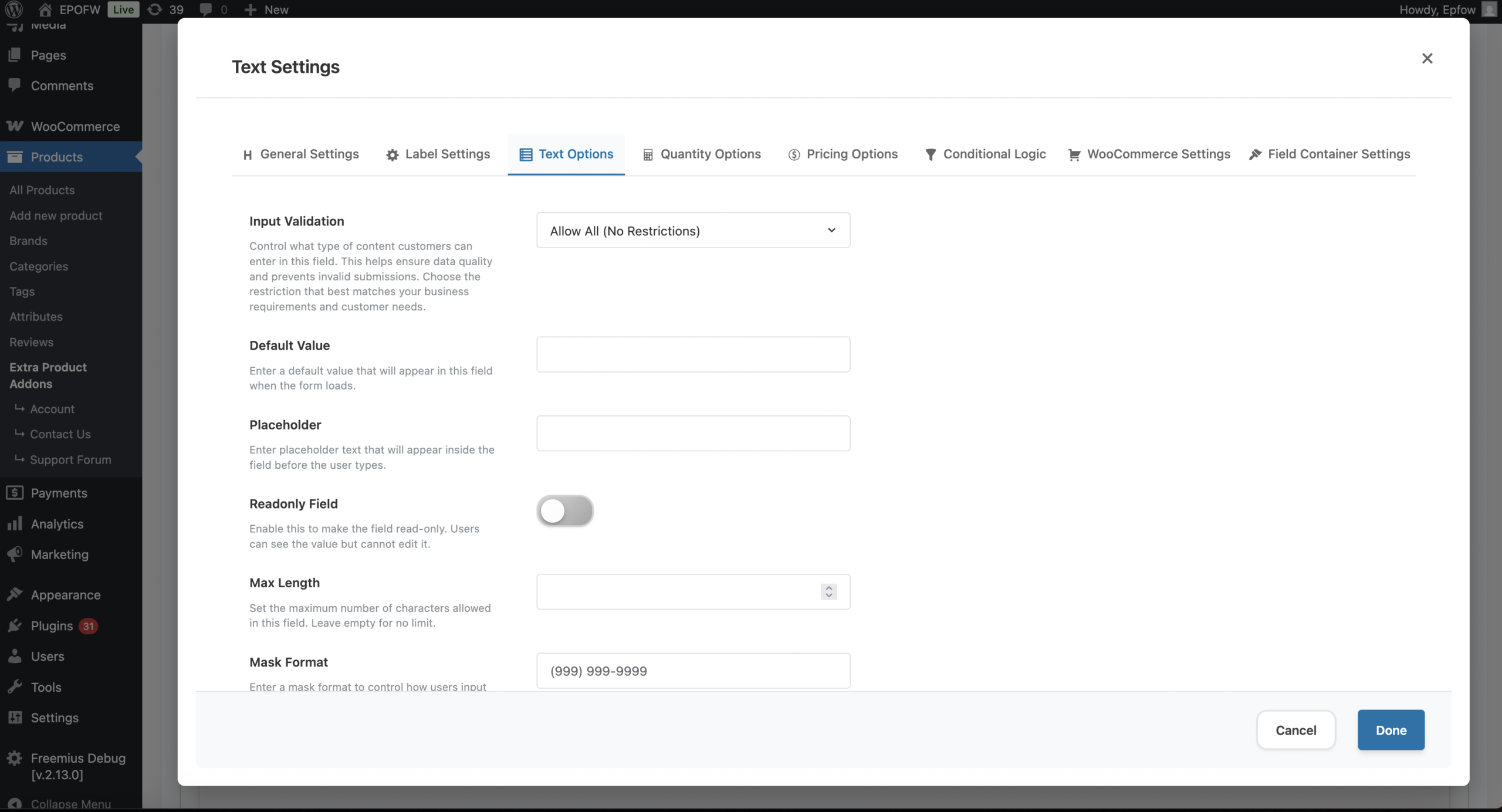
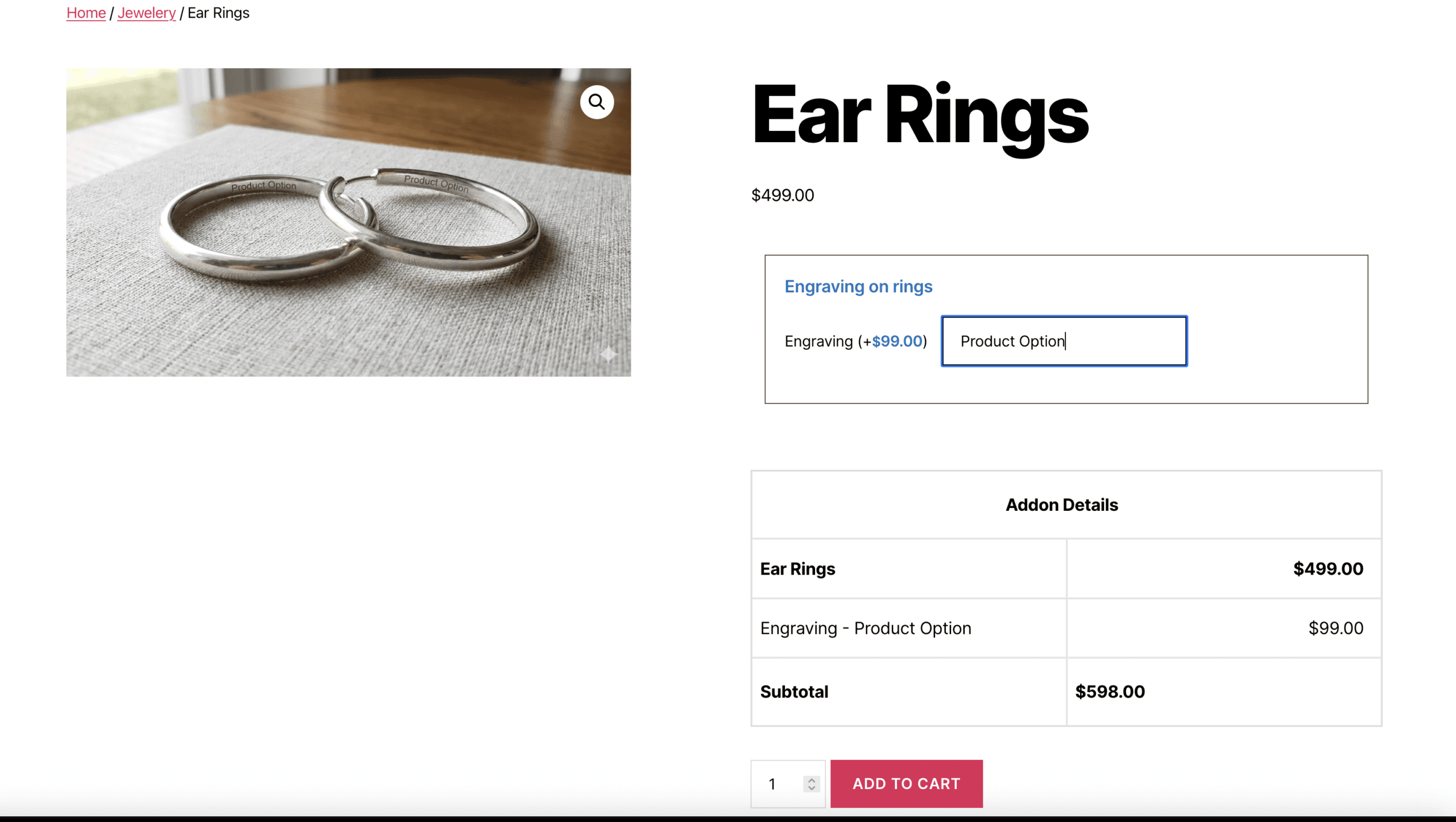
- Text Field – Single-line text input ideal for names, short messages, or simple customization text. Best for collecting brief information like initials or single words.
- Text Area – Multi-line text input for longer messages, detailed instructions, or special requests. Useful when customers need to provide paragraphs of information.
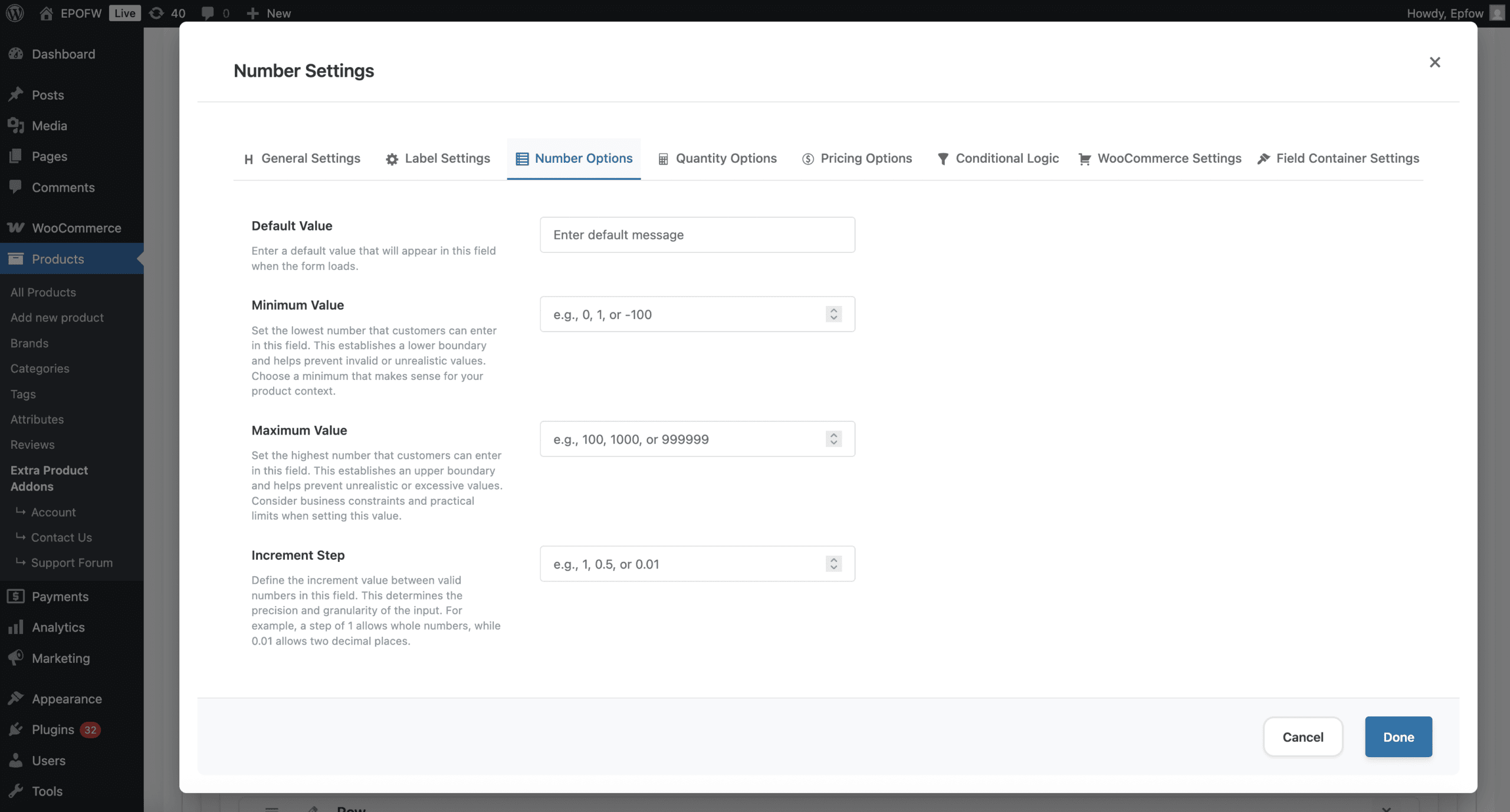
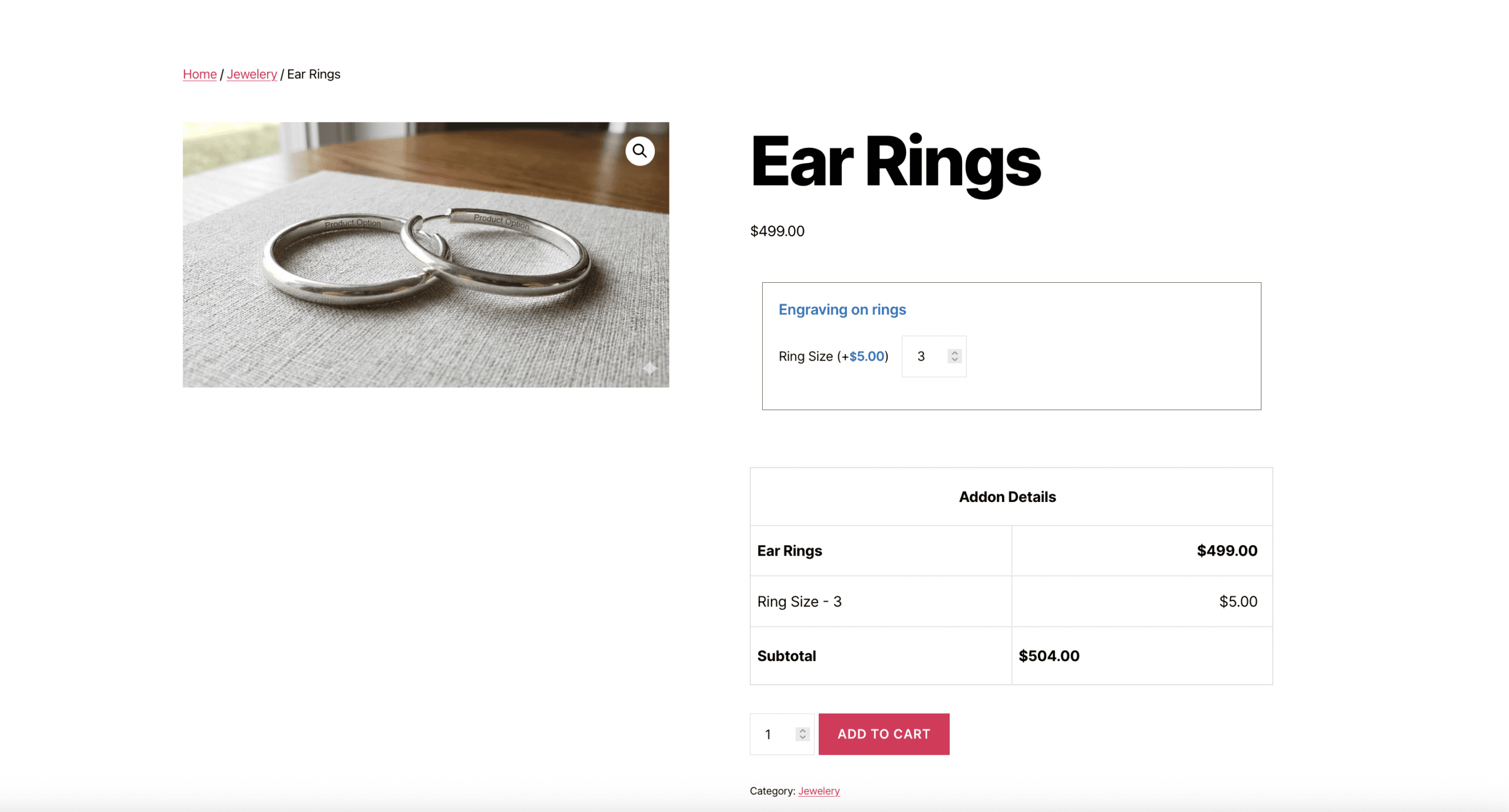
- Number Field – Allows customers to enter numeric values. Perfect for specifying quantities, measurements, or dimensions for custom products.
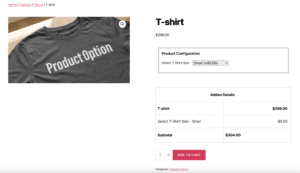
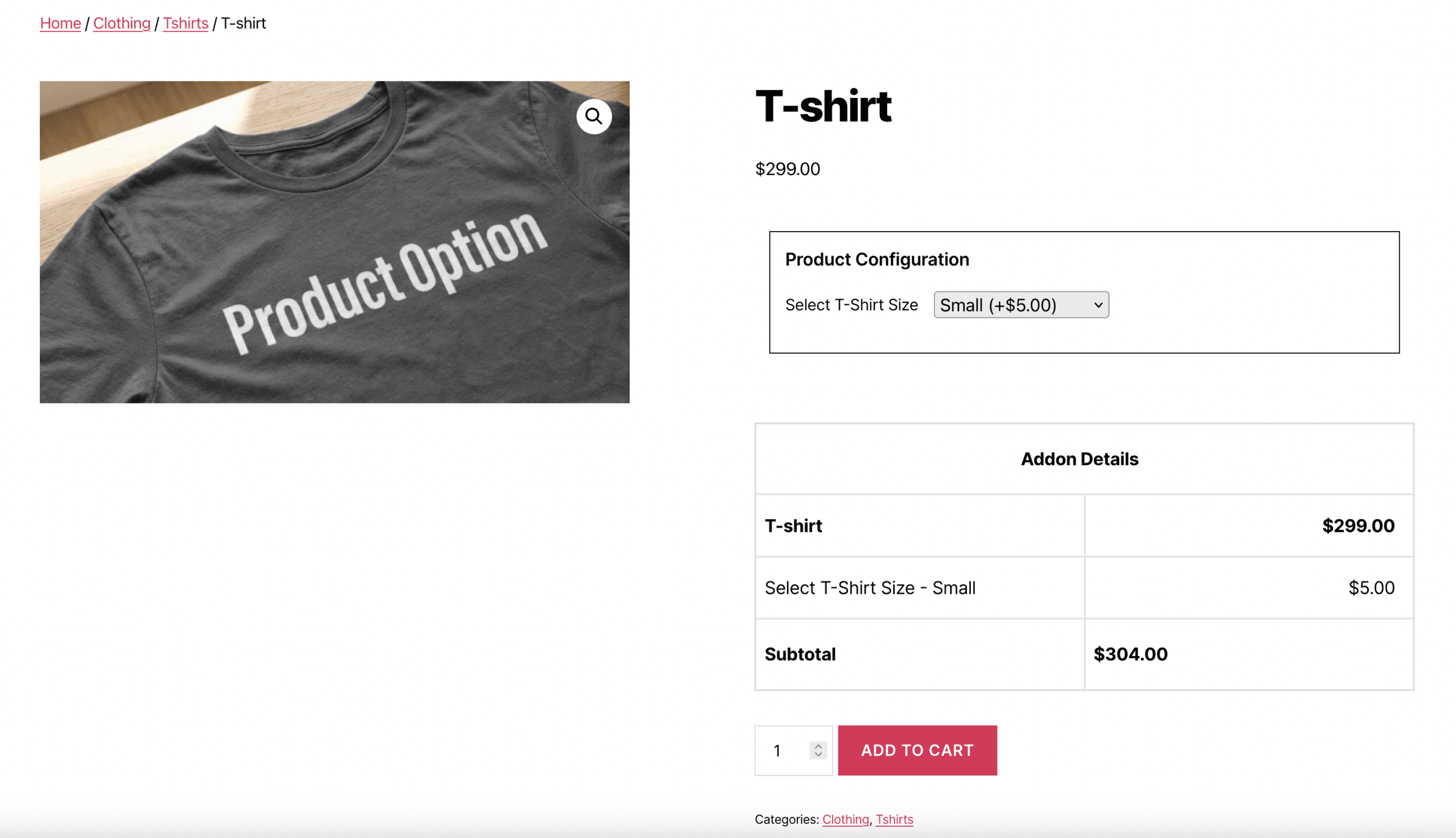
- Select Dropdown – Presents a list of predefined options in a dropdown menu. Ideal when customers must choose one option from several choices.
- Radio Buttons – Displays all options visibly with selection circles. Works well when you have a small number of choices and want customers to see all options at once.
- Checkboxes – Allows customers to select multiple options simultaneously. Perfect for add-ons, extras, or optional features that can be combined.
- Date Picker – Calendar interface for selecting specific dates. Essential for delivery scheduling, appointment booking, or event-related products.
- File Upload – Enables customers to upload images, documents, or other files. Necessary for print shops, custom product manufacturers, or any business requiring customer-provided artwork.
- Color Picker – Visual color selection tool for design-related products. Allows customers to choose exact colors for personalized items.
- Image Swatches – Visual selection using images instead of text. Great for showing material options, design variations, or style choices.
Methods to Add WooCommerce Custom Fields
There are several approaches to adding WooCommerce custom fields to your products:
- Method 1: Custom Code – Developers can add WooCommerce custom fields using WooCommerce hooks and filters. This involves writing PHP code to create fields, validate input, save data, and display information in orders.
- Pros: Complete control, no additional plugins
- Cons: Requires coding knowledge, time-consuming, difficult to maintain
- Method 2: Theme Customization -Some WooCommerce themes include built-in options for basic custom fields. Check your theme settings to see if this functionality exists.
- Pros: No additional plugins needed
- Cons: Limited options, depends on theme, not portable if you change themes
- Method 3: Using a Plugin – The most practical solution for most store owners is using a dedicated plugin. Product options plugins provide user-friendly interfaces for creating and managing WooCommerce custom fields without writing code.
- Pros: Easy to use, feature-rich, no coding required, regular updates
- Cons: Adds another plugin to your site
How to Add WooCommerce Custom Fields Using a Plugin
For most WooCommerce store owners, using a plugin is the most efficient way to add WooCommerce custom fields. Here is a general process for adding WooCommerce custom fields with a product options plugin:
- Step 1: Install and Activate the Plugin
- Choose a reputable product options plugin from the WordPress repository or a trusted developer. Install and activate it through your WordPress dashboard.
- Step 2: Access the Field Builder
- Navigate to the plugin settings, usually found in the WooCommerce menu or as a separate menu item. Look for options to create new fields or field groups.
- Step 3: Create Your WooCommerce Custom Field
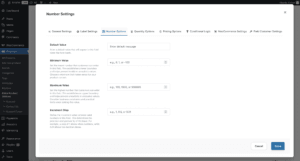
- Select the field type you need (text, dropdown, checkbox, etc.) and configure your WooCommerce custom field settings:
- Field label (what customers see)
- Placeholder text (hint text inside the field)
- Required or optional status
- Default value if applicable
- Help text or description
- Select the field type you need (text, dropdown, checkbox, etc.) and configure your WooCommerce custom field settings:
- Step 4: Configure Field Options
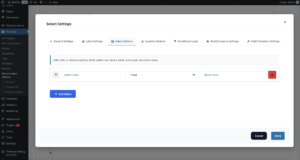
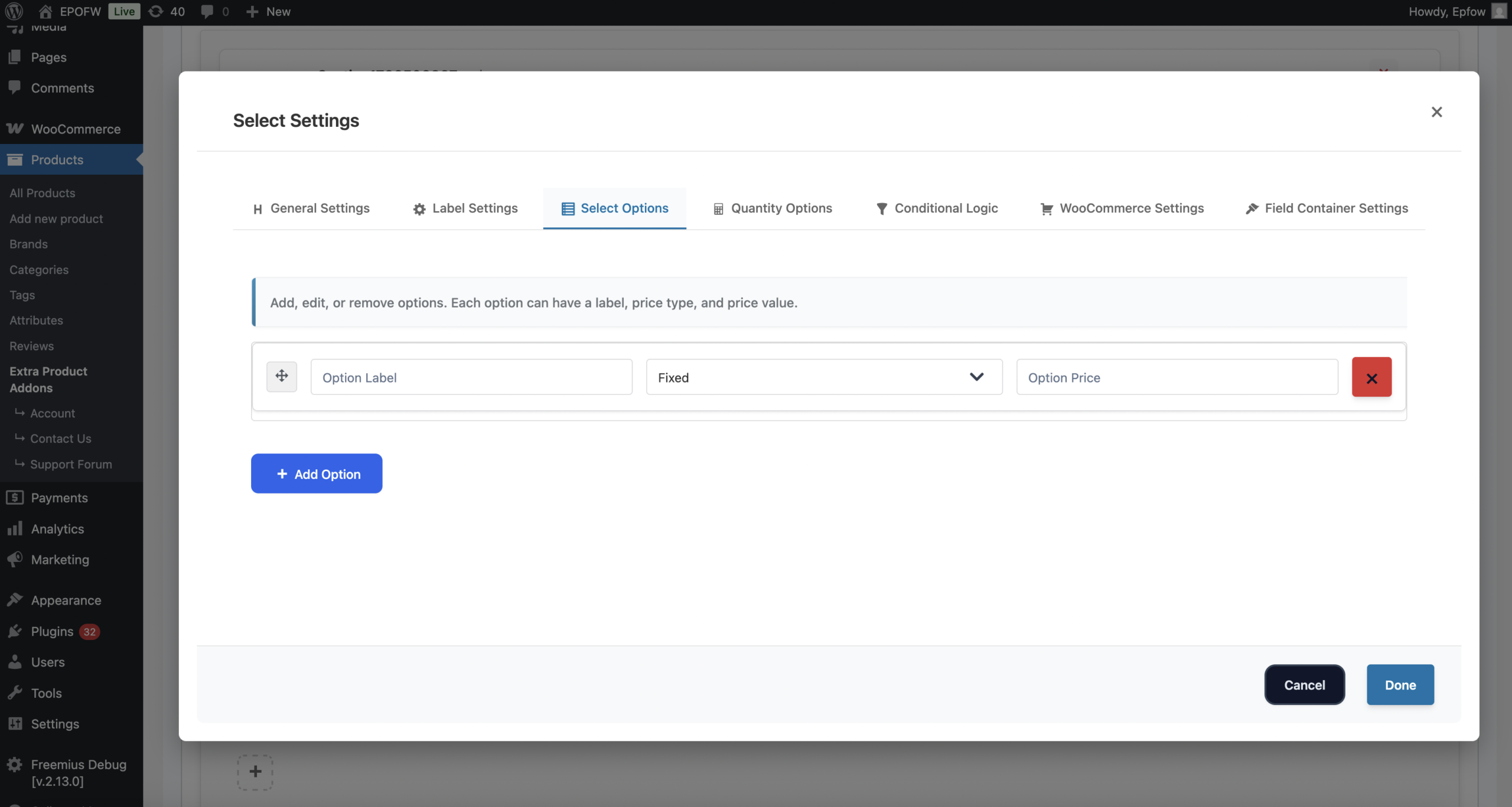
- For fields with multiple choices (dropdowns, radio buttons, checkboxes), add your options:
- Option labels
- Option values
- Price adjustments if applicable
- Default selections
- For fields with multiple choices (dropdowns, radio buttons, checkboxes), add your options:
- Step 5: Set Display Conditions
- If needed, configure when the field should appear:
- Specific products or categories
- Based on other field selections (conditional logic)
- Customer roles or user status
- If needed, configure when the field should appear:
- Step 6: Assign WooCommerce Custom Fields to Products
- Apply the WooCommerce custom fields to specific products, product categories, or your entire store depending on your needs.
- Step 7: Test the Fields
- Visit your product page as a customer would. Test the fields to ensure they display correctly, validate properly, and save data as expected.
Best Practices for WooCommerce Custom Fields
Follow these guidelines to create effective WooCommerce custom fields that improve rather than hinder the shopping experience:
- Keep It Simple – Only ask for information you truly need. Every additional field adds friction to the checkout process. Remove unnecessary fields to maintain conversion rates.
- Use Clear Labels – Write field labels that clearly explain what information is needed. Avoid jargon or ambiguous terms that might confuse customers.
- Provide Examples – Use placeholder text or help descriptions to show customers the expected format. For example, “Enter text exactly as it should appear” or “Maximum 20 characters.”
- Mark Required Fields – Clearly indicate which fields are mandatory and which are optional. Use asterisks or explicit labels so customers know what they must complete.
- Set Appropriate Limits – Configure character limits, file size restrictions, and valid date ranges to prevent errors and ensure you receive usable data.
- Use Conditional Logic – Show fields only when relevant. If a customer selects “No gift wrapping,” hide the gift message field. This keeps forms clean and focused.
- Test on Mobile Devices – Ensure your custom fields work properly on smartphones and tablets. Many customers shop on mobile devices, and poorly formatted fields can kill conversions.
- Display Prices Clearly – If custom options affect pricing, show the price change immediately. Customers should never be surprised by costs at checkout.
Common Use Cases for WooCommerce Custom Fields
- Print and Personalization Shops – Collect customer text, upload artwork files, choose fonts and colors, specify positioning preferences.
- Food and Bakery Businesses – Gather allergy information, cake messages, delivery dates, special dietary requirements.
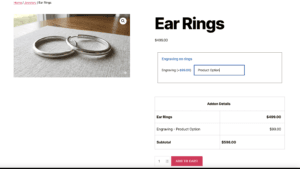
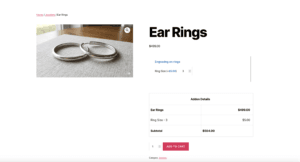
- Jewelry and Accessories – Collect engraving text, ring sizes, chain lengths, personalization details.
- Service-Based Products – Schedule appointments, select service durations, specify locations, choose add-on services.
- Gift Shops – Offer gift wrapping options, collect gift messages, schedule delivery dates.
- Custom Manufacturing – Gather measurements, material preferences, quantity specifications, design requirements.
Conclusion
WooCommerce custom fields transform your WooCommerce store from a basic product catalog into a flexible platform capable of handling personalized orders and complex customer requirements. By collecting the right information at the right time, you improve order accuracy, enhance customer satisfaction, and streamline your fulfillment process.
Whether you choose to implement WooCommerce custom fields through code or use a dedicated plugin, the investment in proper product customization options pays dividends through reduced support requests, fewer order errors, and increased revenue from personalization services.
Start by identifying what information your business needs from customers, then implement fields that collect that data clearly and efficiently. Your customers will appreciate the professional ordering experience, and your team will benefit from complete, well-organized order details.
Related Resources
Frequently Asked Questions
Find answers to commonly asked questions about our products and services.
Still have a question?
If you have any other queries, feel free to reach out to us. Our knowledgeable team is here to help!
Try Extra Product Options
Free version on WordPress.org · 7-day money-back guarantee on Pro.

