


Multiselect Field
Create powerful multi-selection dropdown fields for your WooCommerce products with WPActPro’s Multiselect Field option. Allow customers to choose multiple options simultaneously like software features, service components, insurance coverage, or any combination of add-ons directly on your product pages.
What is the Multiselect Field?
The Multiselect Field provides customers with a dropdown interface that allows them to select multiple options simultaneously. It combines the compact design of a dropdown with the flexibility of multiple selections, making it ideal for space-efficient product customization where customers need to choose several options from a predefined list.
Each selected option can have its own pricing rules, making this field extremely flexible for both simple and advanced product setups. You gain full control over pricing while ensuring customers select only valid and structured choices. The Multiselect Field is a scalable and user-friendly solution for any WooCommerce store that needs customers to build custom packages, select multiple add-ons, or choose various features simultaneously.
Unlike standard WooCommerce product fields, Extra Product Options for WooCommerce’s Multiselect Field includes advanced features that give you complete control over customer selections:
How To Use
- Navigate to the Products – Extra Product Addons – Product Option – Addon Builder
- Add Section or Element
- Select “Multiselect” from the Element Popup
- Configure your settings including min/max values, step increment, and default value in Multiselect Options Tab
- Set pricing rules if the number affects the product price
- Click On Done in the popup and click on Save
Why Use a Multiselect Field?
Multiselect fields serve multiple purposes in e-commerce, making them essential for various business models:
- Space Efficient: Compact dropdown design saves valuable screen real estate while offering multiple choices
- Multiple Selections: Customers can choose several options from one field, perfect for building custom packages
- Organized Display: Options are neatly contained within a dropdown interface, keeping the product page clean
- Flexible Pricing: Each selected option can have its own price, making it perfect for add-on features and bundles
- User-Friendly: Familiar dropdown interface with multi-selection capability – intuitive for customers
- Scalable: Can handle many options without cluttering the interface – perfect for extensive feature lists
- Mobile-Friendly: Works well on all devices with touch-optimized selection interface
Common Use Cases:
Software Feature Selection: Perfect for digital products where customers can select multiple features or modules. Each feature can have its own price, allowing customers to build custom software packages tailored to their needs.
Service Package Components: Ideal for service-based businesses where customers build custom service packages by selecting multiple components. This is especially useful for agencies, consultants, and service providers offering modular services.
Insurance Coverage Options: Enable customers to select multiple coverage types for insurance products. Each coverage option can have its own price, allowing customers to customize their insurance package.
Product Add-ons: Let customers select multiple add-on features, accessories, or enhancements for their products. Perfect for products that can be customized with various optional components.
Bundle Creation: Allow customers to create custom bundles by selecting multiple items from a list. Each item adds to the total price, giving customers flexibility in building their ideal package.
Feature Add-ons: Perfect for products where customers can add multiple features or enhancements. Each feature can be priced independently, making it easy to upsell and customize products.
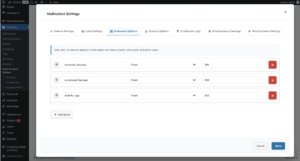
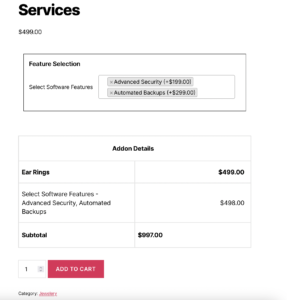
WPActPro makes it simple to build advanced product configurations where customers can select multiple options at once. The Multiselect Field works seamlessly with other field types, allowing you to design flexible, highly personalized product experiences.
- For numeric input such as quantities or measurements, try our Number Field
- When you want customers to choose a single option, use our Select Field
- For situations where multiple selections are needed, the Multiselect Field is the best choice.
- To offer simple yes/no or on/off choices, use our Checkbox Field
- And when paragraph-style input is required, try our Textarea Field
When to Use the Multiselect Field
The Multiselect Field is perfect for these product types and scenarios:
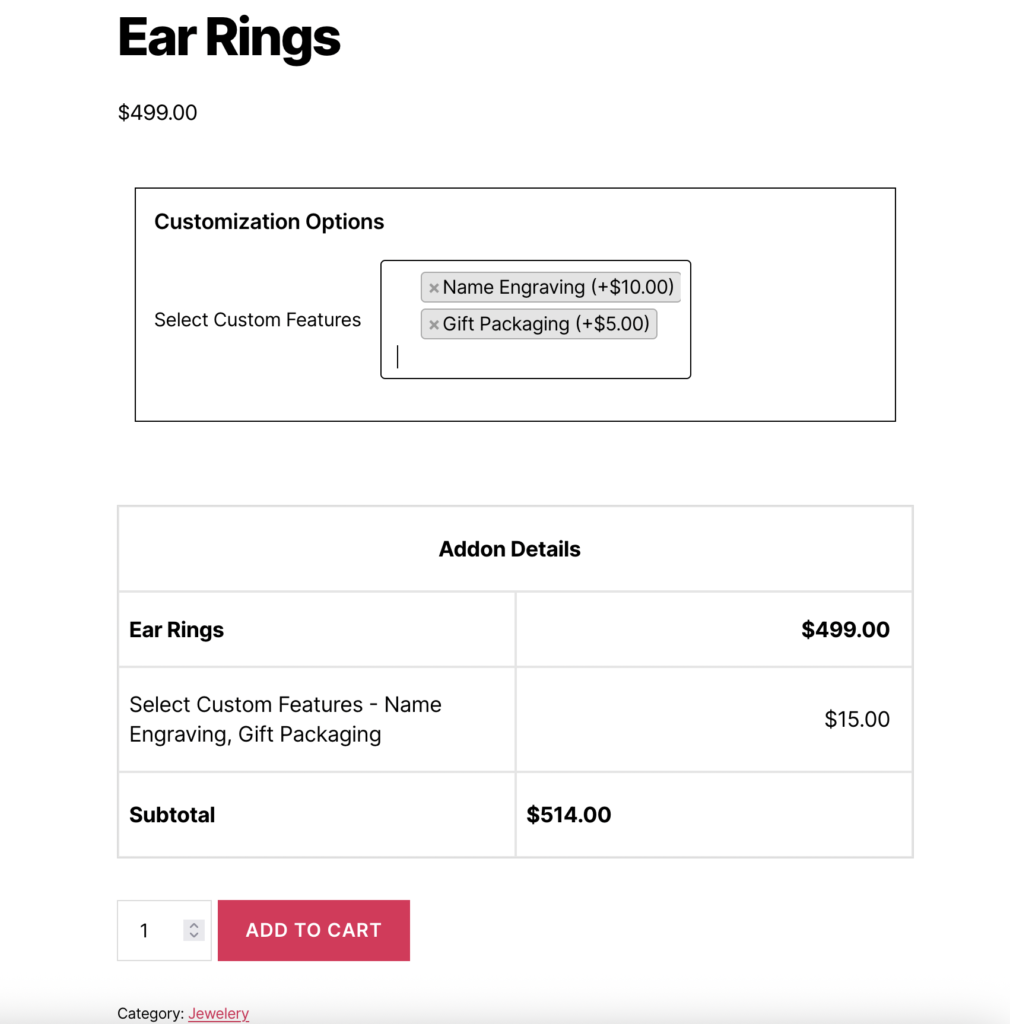
Multiple Add-on Features
Multiselect fields are ideal when customers need to select multiple add-on features, and each selection affects pricing or product configuration.
- Software modules or features
- Product accessories or enhancements
- Service components or add-ons
- Insurance coverage options
- Product customization options
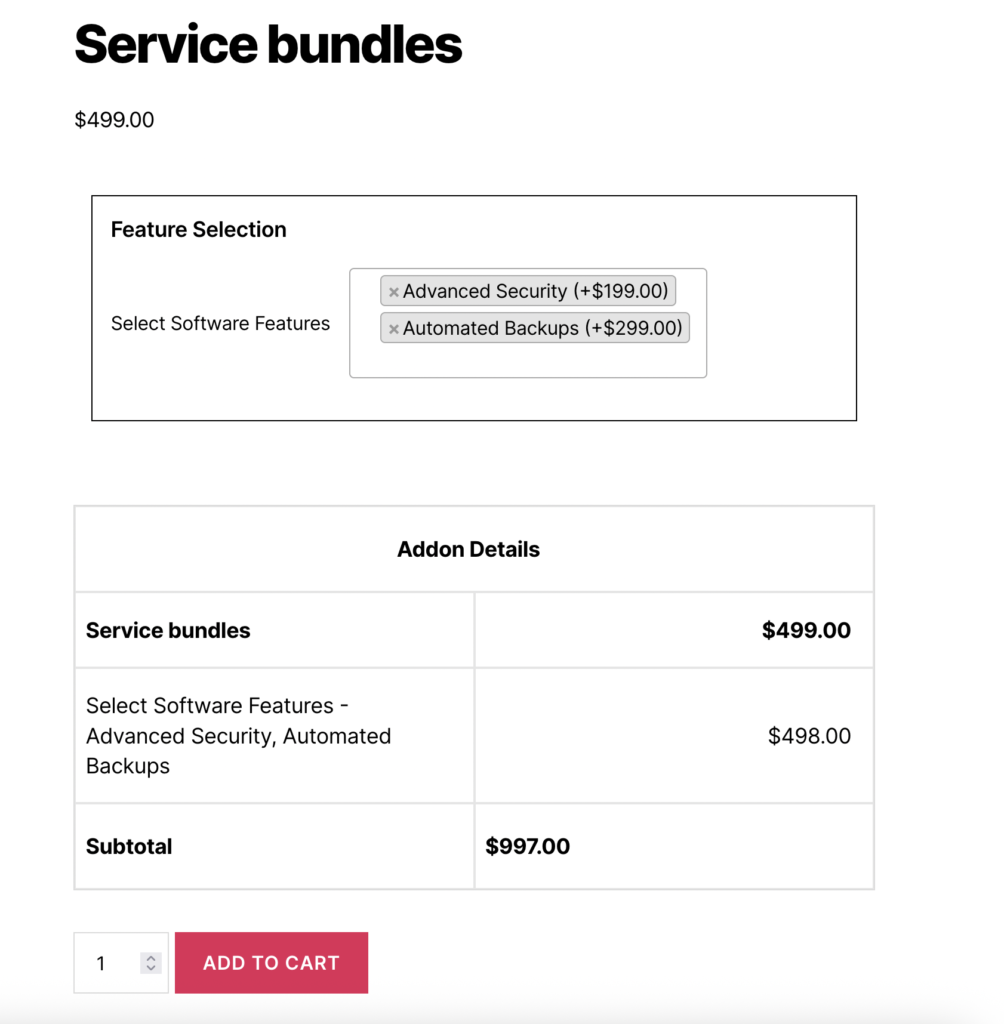
Custom Package Building
When you want customers to build their own custom packages by selecting multiple components, multiselect fields provide the perfect interface.
- Service bundles with multiple components
- Product packages with various add-ons
- Training programs with multiple modules
- Subscription packages with feature selection
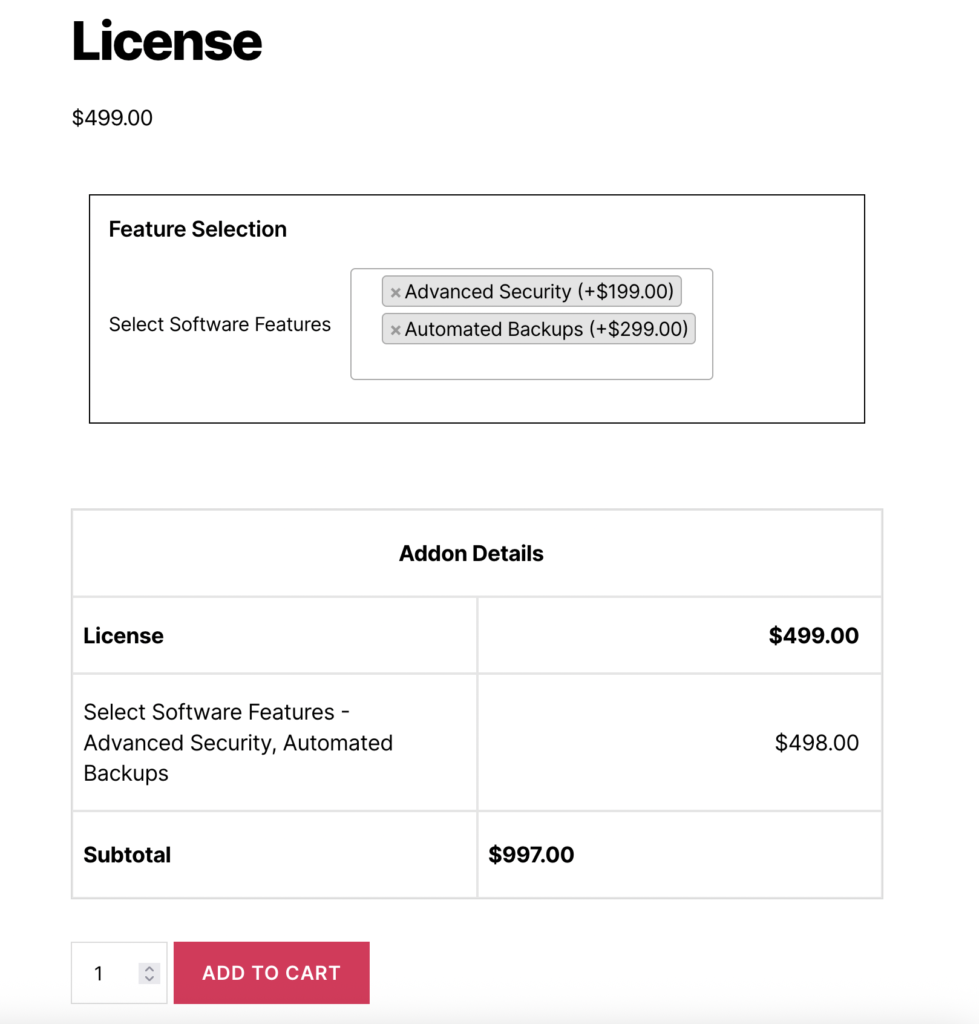
Feature Selection Products
For products where customers can select multiple features or options, multiselect fields offer a clean, organized way to present choices.
- Software feature selection
- Product customization options
- Service level combinations
- Add-on service selection
How to Set Up the Multiselect Field
Follow these comprehensive step-by-step instructions to add a Multiselect Field to your WooCommerce products. This guide covers all essential settings organized into General Settings, Label Settings, and Multiselect Options.
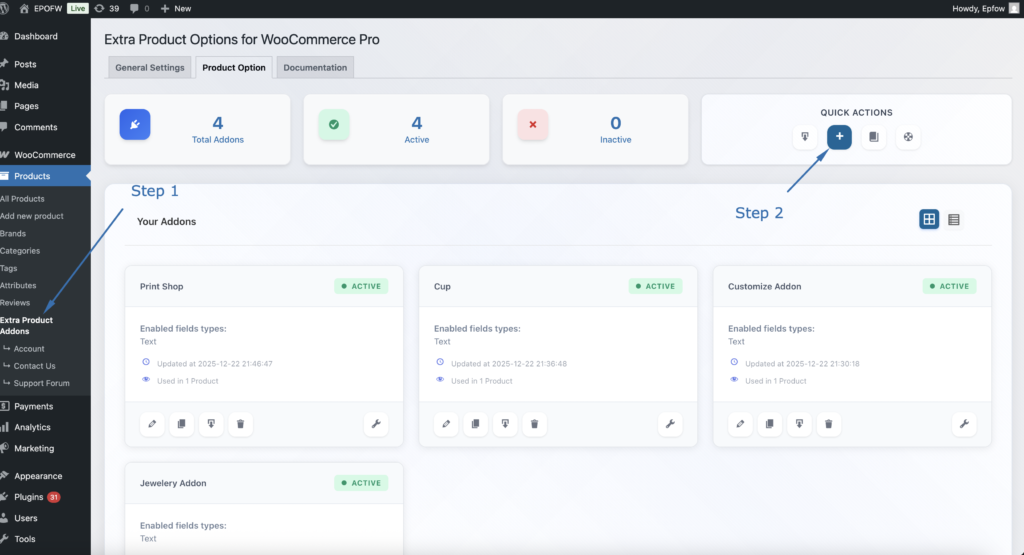
Step 1: Access the Field Builder
- In your WordPress admin, go to WooCommerce > Products > Extra Product Addons
- Click “Add Product Addon” or edit an existing addon
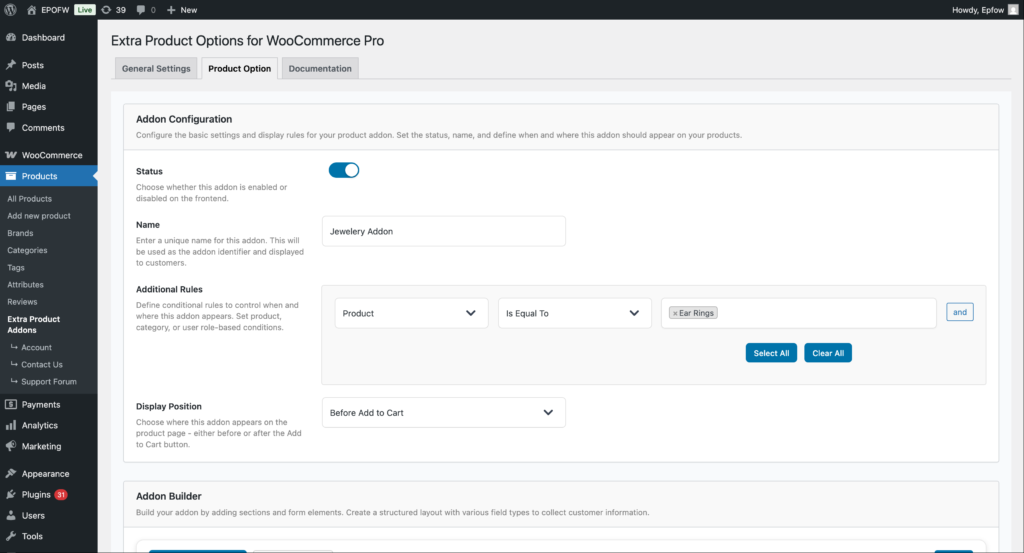
Addon Configuration:
- Status:
- Check the Status checkbox to enable the addon
- Unchecked addons are disabled and won’t appear on product pages
- Enable this to make your fields active
- Name:
- Enter a name for your addon (e.g., “Software Features”)
- This name helps you identify the addon in the admin area
- It’s not visible to customers on the frontend
- Additional Rules:
- Configure which products should display this addon
- Product: Select the condition type (Product, Category, Tag, etc.)
- Is Equal To: Choose the comparison operator
- Value: Select specific products, categories, or other criteria
- Use “Select All” or “Clear All” for bulk selection
- Click “and” to add multiple conditions
- Example: Apply to “Product” “Is Equal To” “Silver Ring” to show only on that product
- Display Position:
- Select where the addon fields appear on the product page
- Options include:
- Before Add to Cart (most common)
- After Add to Cart
- Choose the position that works best with your theme layout
Product addons help you organize your extra product options and apply them consistently across your store. Think of them as containers that hold multiple fields for specific products or product types.
Step 2: Add the Multiselect Field

- In your Addon Builder, click “Add Element/Add Section -> ( + ) Add Element” button
- Select Multiselect from Select Element Type modal popup
Step 3: Configure General Settings
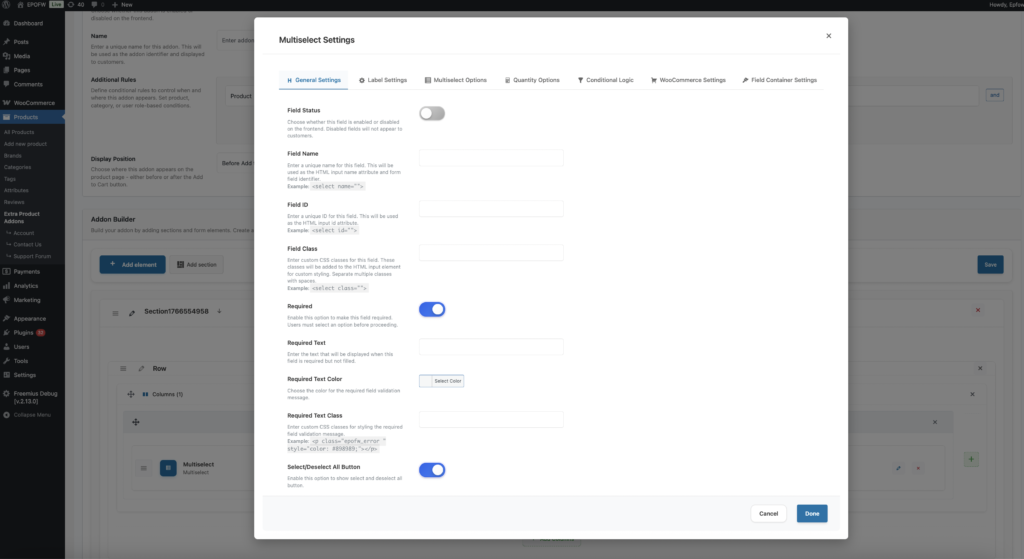
The General Settings tab contains basic field configuration options that control the field’s core functionality and behavior.
The field title is crucial because it’s the first thing customers see. Make it clear and specific to avoid confusion during checkout.
General Settings:
- Field Status:
- What it does
- Controls whether the field is enabled or disabled on the frontend.
- How to use:
- Enabled (ON): The field will be displayed to customers on the product page
- Disabled (OFF): The field will be hidden from customers but remains in your configuration
- Best practices:
- Keep fields enabled during testing to see how they appear to customers
- Disable fields temporarily if you need to make changes without affecting live products
- Use this setting to A/B test different field configurations
- What it does
- Field Name:
- What it does:
- Sets the HTML name attribute for the multiselect field. This is used for form submission and data processing.
- How to use:
- Enter a unique name for the field (e.g.,
software_features,service_components,coverage_options) - The name will be automatically prefixed with
epofw_field_if not already present - Use descriptive names that indicate the field’s purpose
- Enter a unique name for the field (e.g.,
- Example:
- Field Name:
software_features - HTML Output:
<select name="epofw_field_software_features[value][]" multiple>
- Field Name:
- Technical Details:
- Must be unique within the addon
- The
[]in the name indicates it accepts multiple values - Used in form data processing and cart item meta
- What it does:
- Field ID:
- What it does:
- Sets the HTML id attribute for the multiselect field. Used for CSS styling and JavaScript targeting.
- How to use:
- Enter a unique ID for the field
- The ID will be automatically prefixed with
epofw_field_if not already present - Use descriptive IDs that match your naming conventions
- Example:
- Field ID:
software_features - HTML Output:
<select id="epofw_field_software_features" multiple>
- Field ID:
- Best practices:
- Keep IDs consistent with field names for easier maintenance
- Use kebab-case or snake_case for multi-word IDs
- Ensure IDs are unique across all fields on the page
- What it does:
- Field Class:
- What it does:
- Adds custom CSS classes to the select field for styling purposes.
- How to use:
- Enter one or more CSS classes separated by spaces
- These classes will be added to the
<select>element - Use classes that match your theme’s styling conventions
- Example:
- Field Class:
custom-select premium-field - HTML Output:
<select class="custom-select premium-field">
- Field Class:
- Best practices:
- Use semantic class names that describe the field’s purpose or style
- Follow your theme’s CSS naming conventions
- Test classes to ensure they don’t conflict with existing styles
- What it does:
- Required:
- The Required setting determines whether customers must fill out the multiselect field before they can add the product to their cart. When enabled, the field becomes mandatory and validation will prevent submission if the field is empty.
- Field Options (Premium):
- Text: Enter custom validation message that appears when the field is empty (e.g., “Please select at least one feature to continue”)
- Color For Required Text: Choose the color for the validation message (typically red or orange for errors)
- Required Text Class: Add custom CSS classes to the validation message for additional styling
- Only mark fields as required when the information is truly necessary for order fulfillment. Too many required fields can frustrate customers and reduce conversion rates.
Step 4: Configure Label Settings

The Label Settings tab controls how the field label (title and subtitle) appears to customers. These settings help you create clear, professional field labels that guide customers effectively.
Label Settings
- Label Title:
- What it does:
- Sets the main label text displayed with the multiselect field on the frontend.
- How to use:
- Enter descriptive text that clearly explains what the field is for
- Keep labels concise but informative
- Use language that matches your product descriptions
- Examples of Effective Titles:
- Label Title: “Select Software Features”
- Label Title: “Choose Service Components”
- Label Title: “Pick Coverage Options”
- Best practices:
- Use action words like “Select”, “Choose”, or “Pick” to guide customers
- Make labels specific to avoid confusion
- Match the tone and style of your product descriptions
- What it does:
- Title Type (Premium)
- What it does:
- Determines the HTML element used for the label title (label, h1-h6, span, div, p).
- How to use:
- Label: Standard label element (recommended for most cases)
- Heading (h1-h6): Use for prominent labels that need heading semantics
- Span/Div/P: Use for inline or block-level labels with custom styling
- Best practices:
- Use “label” for standard form fields (most common)
- Use heading elements only if the label serves as a section heading
- Consider SEO implications when choosing heading elements
- What it does:
- Title Position (Premium)
- What it does:
- Controls where the label appears relative to the select field.
- How to use:
- Left: Label appears to the left of the field (default)
- Right: Label appears to the right of the field
- Top: Label appears above the field
- Bottom: Label appears below the field
- Best practices:
- Use “Top” for better mobile responsiveness
- Use “Left” for compact desktop layouts
- Test different positions to see what works best for your design
- What it does:
- Title Color (Premium)
- What it does:
- Sets the text color of the label title.
- How to use:
- Choose a color that matches your theme’s typography
- Ensure sufficient contrast for readability (WCAG AA compliance)
- Use colors that guide attention without being distracting
- Best practices:
- Test color choices on different backgrounds
- Consider dark mode compatibility if your theme supports it
- Maintain consistency across all field labels
- What it does:
- Subtitle
- What it does:
- Adds additional descriptive text below the main label to provide more context.
- How to use:
- Enter helpful information that clarifies the field’s purpose
- Use subtitles to explain pricing, features, or important details
- Keep subtitles concise to avoid overwhelming customers
- Example:
- Subtitle: “Each license includes 1 year of updates and support”
- Subtitle: “Express shipping arrives within 2-3 business days”
- Subtitle: “Premium package includes priority support and advanced features”
- Best practices:
- Use subtitles to highlight value propositions
- Include pricing information when relevant
- Keep text short and scannable
- What it does:
- Subtitle Type (Premium)
- What it does:
- Determines the HTML element used for the subtitle (label, h1-h6, span, div, p).
- How to use:
- Label: Standard label element (recommended)
- Heading (h1-h6): Rarely used for subtitles
- Span/Div/P: Use for inline or block-level subtitles
- Best practices:
- Use “label” or “p” for most subtitles
- Match the subtitle type to your theme’s styling
- Ensure proper semantic HTML structure
- What it does:
- Subtitle Class
- What it does:
- Adds custom CSS classes to the subtitle for styling.
- How to use:
- Enter CSS classes separated by spaces
- Use classes that match your theme’s styling
- Test to ensure proper display
- What it does:
- Subtitle Color (Premium)
- What it does:
- Sets the text color of the subtitle.
- How to use:
- Choose a color that’s slightly muted compared to the main label
- Ensure readability while maintaining visual hierarchy
- Match your theme’s secondary text color
- What it does:
- Label Class
- What it does:
- Adds custom CSS classes to the entire label container.
- How to use:
- Enter CSS classes for styling the label wrapper
- Use classes that match your theme’s form styling
- Apply classes that affect both title and subtitle
- What it does:
- Enable Label Styling (Premium)
- What it does:
- Provides advanced typography and styling options for the label.
- Available Options:
- Font Size: Set the label text size in pixels
- Font Weight: Control text boldness (100-900)
- Font Family: Specify custom font families
- Text Align: Control text alignment (left, center, right, justify)
- Text Transform: Control text case (uppercase, lowercase, capitalize, none)
- Letter Spacing: Adjust spacing between characters
- Line Height: Control line spacing for multi-line labels
- Text Shadow: Add text shadow effects
- Custom CSS: Add advanced custom styles
- How to use:
- Enable “Enable Label Styling” to access these options
- Configure typography settings to match your brand
- Use custom CSS for advanced styling needs
- Best practices:
- Maintain readability with appropriate font sizes
- Use consistent typography across all fields
- Test on different devices and screen sizes
- What it does:
Step 5: Configure Multiselect Options
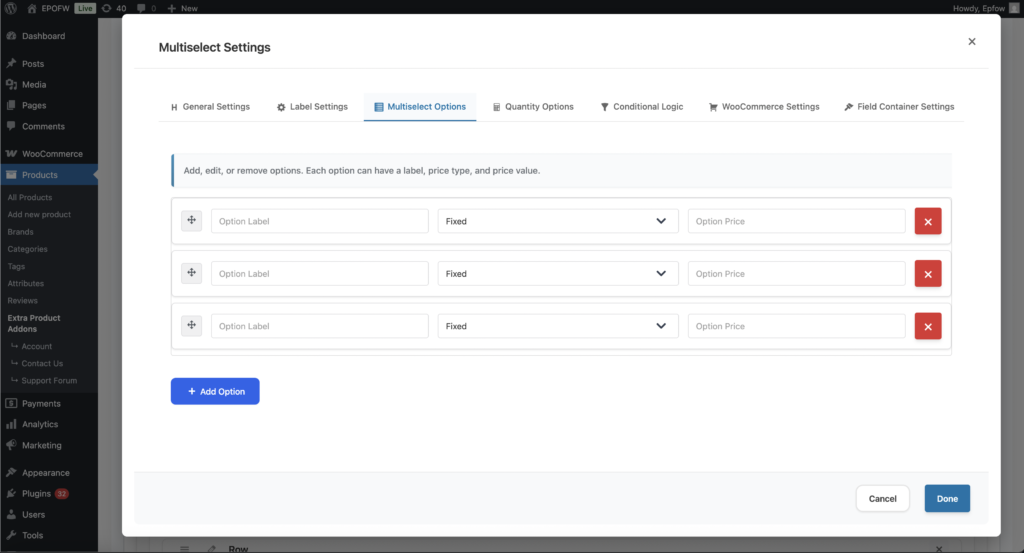
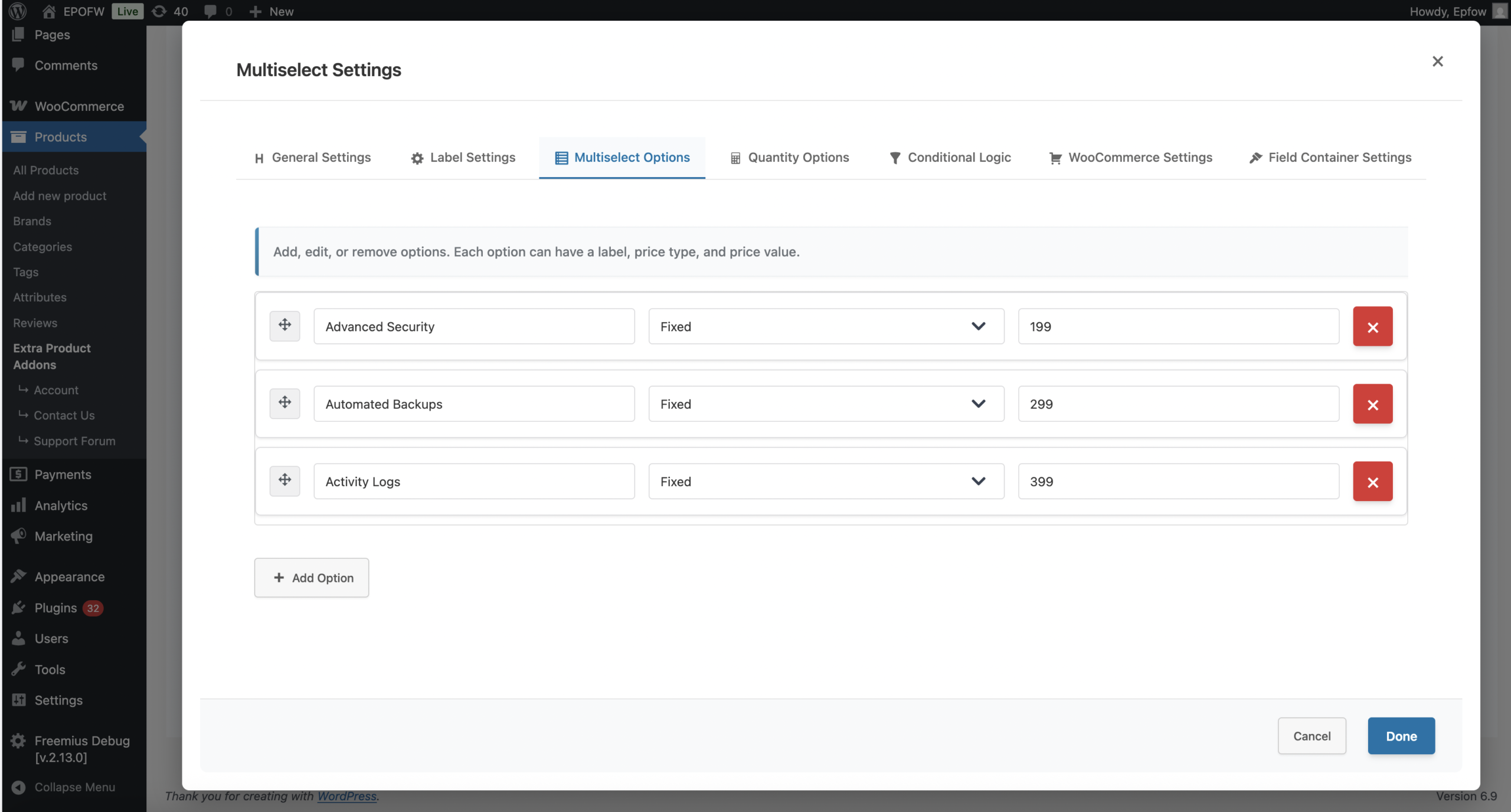
The Multiselect Field’s most important feature is its options configuration. Each option can have its own label and pricing, and customers can select multiple options simultaneously.
Multiselect Options
- Adding Options
- How to use:
- Click **“Add Option”** button in the Options Settings tab
- 2. Enter the option label (what customers will see)
- 3. Select the price type for this option
- 4. Enter the price value
- 5. Repeat for all options you want to offer
- Example Options Setup:
- Software Features Example:
- Option 1: Label: “Advanced Analytics”, Price Type: Fixed, Price: $29
- Option 2: Label: “API Access”, Price Type: Fixed, Price: $49
- Option 3: Label: “Premium Support”, Price Type: Fixed, Price: $19
- Service Components Example:
- Option 1: Label: “Content Writing”, Price Type: Fixed, Price: $200
- Option 2: Label: “SEO Optimization”, Price Type: Fixed, Price: $150
- Option 3: Label: “Social Media Setup”, Price Type: Fixed, Price: $100
- Insurance Coverage Example:
- Option 1: Label: “Basic Coverage”, Price Type: Percentage, Price: 3
- Option 2: Label: “Extended Coverage”, Price Type: Percentage, Price: 7
- Option 3: Label: “Premium Coverage”, Price Type: Percentage, Price: 12
- Software Features Example:
- Option Label
- What it does:
- The text that customers see in the dropdown for each option.
- How to use:
- Enter clear, descriptive labels that customers will understand
- Include important information like pricing, features, or delivery times
- Keep labels concise to fit within the dropdown width
- Best practices:
- Use consistent formatting across all options
- Include pricing information in the label when helpful
- Make labels scannable and easy to compare
- Example Labels:
- “Advanced Analytics – $29”
- “Content Writing – $200”
- “Basic Coverage – 3% of product price”
- What it does:
- Option Price Type : Each option can have its own price type, giving you maximum flexibility:
- Fixed Price
- What it does:
- Adds a fixed amount to the product price when this option is selected.
- How it works:
- Each option has a fixed price that gets added to the product when selected
- The price is added regardless of the base product price
- Perfect for options with set prices
- Example:
- Advanced Analytics: Fixed price of $29
- API Access: Fixed price of $49
- Premium Support: Fixed price of $19
- When a customer selects “Advanced Analytics”, “API Access”, and “Premium Support”, $97 ($29 + $49 + $19) will be added to the base price.
- Use cases:
- Software feature add-ons
- Product accessories
- Service components with fixed rates
- Add-on features with set prices
- What it does:
- Percentage of Product Price
- What it does:
- Adds a percentage of the product’s base price when this option is selected.
- How it works:
- Each option adds a percentage of the product’s base price
- The percentage is calculated from the current product price
- Perfect for options that scale with product value
- Example:
- Basic Coverage: 3% of product price
- Extended Coverage: 7% of product price
- Premium Coverage: 12% of product price
- For a $1000 product, selecting “Basic Coverage” and “Extended Coverage” adds $100 ($30 + $70) to the price.
- Use cases:
- Insurance coverage options
- Service packages that scale with product value
- Warranty extensions based on product price
- Support tiers as percentage of purchase
- What it does:
- Fixed Price
- Option Price
- What it does:
- The price value for the selected price type.
- How to use:
- For Fixed: Enter the dollar amount (e.g., 25 for $25)
- For Percentage: Enter the percentage value (e.g., 15 for 15%)
- Best practices:
- Use clear, round numbers when possible for better customer experience
- Test pricing calculations to ensure accuracy
- Display prices clearly in option labels when helpful
- What it does:
- How to use:
- Reordering Options
- How to use:
- Drag and drop options using the move icon (⋮⋮) to reorder them
- Place most popular or recommended options at the top
- Organize options logically (e.g., cheapest to most expensive)
- Best practices:
- Put the most popular option first for better conversion
- Group similar options together
- Consider placing premium options last to encourage upsells
- How to use:
- Removing Options
- How to use:
- Click the remove button (×) next to any option to delete it
- Removed options are immediately deleted from the configuration
- Changes are saved when you save the addon
- Best practices:
- Review options before removing to avoid data loss
- Consider disabling options instead of removing if you might need them later
- Test the field after removing options to ensure proper functionality
- How to use:
Real-World Pricing Examples
See how real businesses use the Multiselect Field in their WooCommerce stores:
Software Feature Selection
Set up a Multiselect Field with:
- Field Type: Multiselect
- Options:
- User Management: Fixed price $25
- Advanced Reporting: Fixed price $35
- API Integration: Fixed price $50
- White Label: Fixed price $75
Result:
- Customers can select multiple software features
- Each selected feature adds its fixed price to the total
- Selecting “User Management”, “Advanced Reporting”, and “API Integration” adds $110 ($25 + $35 + $50) to the base price
Set up a Multiselect field with:
- Field Type: Multiselect
- Options:
- Content Writing: Fixed price $200
- SEO Optimization: Fixed price $150
- Social Media Setup: Fixed price $100
- Analytics Integration: Fixed price $80
Result:
- Perfect for service-based businesses where customers can build custom packages
- Customers select multiple service components based on their needs
- Prices accumulate for each selected component
Service Package Components
Insurance Coverage Options
Set up a Multiselect field with:
- Field Type: Multiselect
- Options:
- Basic Coverage: 3% of product price
- Extended Coverage: 7% of product price
- Premium Coverage: 12% of product price
- Comprehensive Coverage: 20% of product price
Result:
- For a $1000 product, selecting “Basic Coverage” and “Extended Coverage” adds $100 ($30 + $70) to the price
- Pricing scales automatically with product price
- Coverage levels are included in order details
What Your Customers See
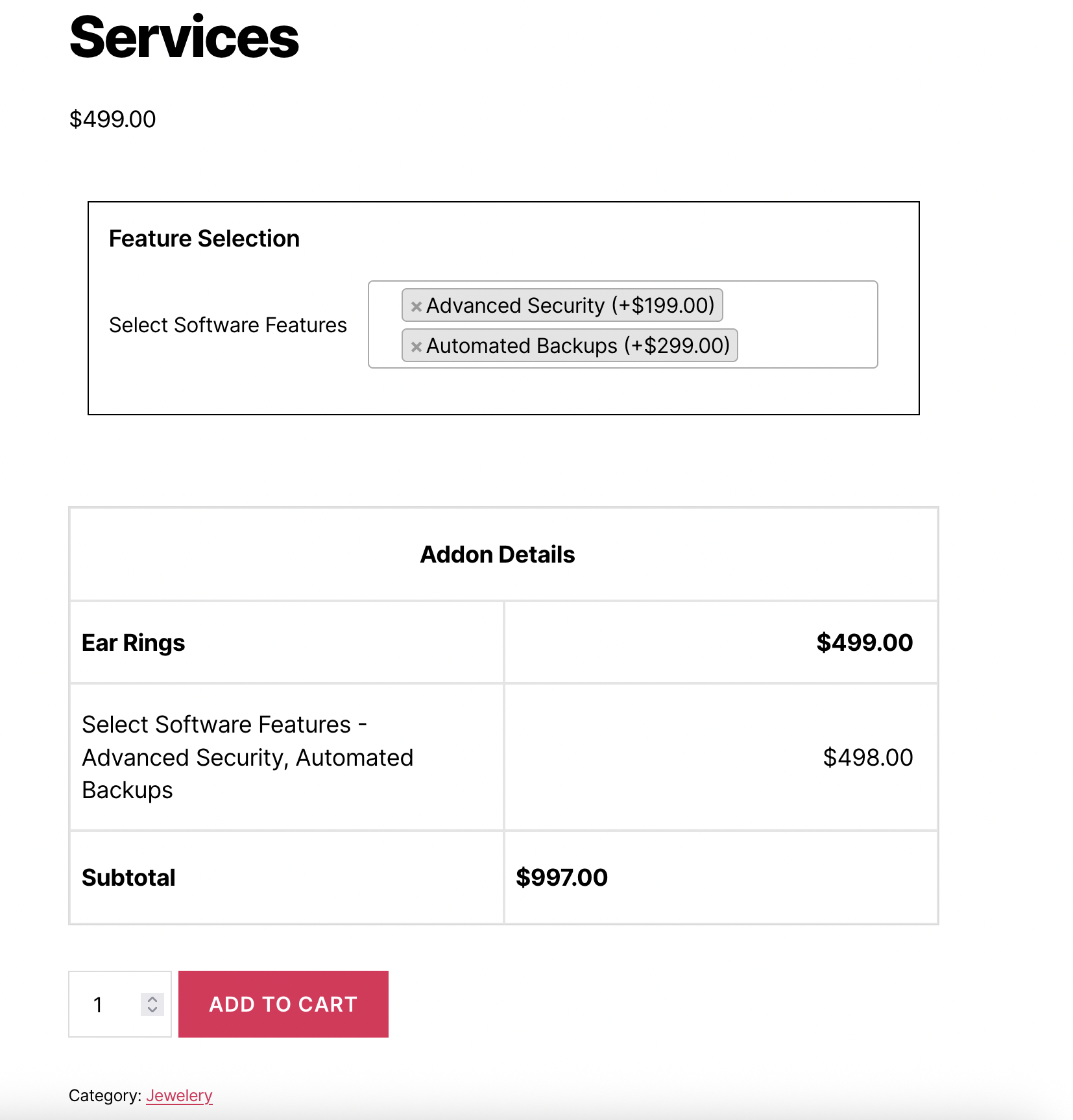
When a customer interacts with your Multiselect Field:
- Dropdown Menu: They’ll see a dropdown menu with a placeholder text
- Option Display: Clicking opens the dropdown showing all available options with prices
- Multiple Selection: They can select multiple options by clicking checkboxes next to each option
- Selected Tags: Selected options appear as tags or badges above the dropdown
- Price Updates: The product price updates in real-time as options are selected/deselected
- Cart Integration: All selected options and their combined price are included in the cart
Frontend Display:
The Multiselect Field appears as an enhanced HTML <select> dropdown with:
- Multiple selection capability (using `multiple` attribute)
- Select2 library integration for enhanced UI (search, tagging, better mobile experience)
- Selected options displayed as removable tags
- Prices displayed next to each option (if enabled)
- Automatic price calculation when options are selected or deselected
Tips for Creating Effective Multiselect Fields
Creating an effective Multiselect Field involves balancing flexibility with control. Consider these best practices to ensure your Multiselect fields provide excellent user experience while collecting high-quality data.
- Option Configuration
- Clear Labels : Use descriptive, easy-to-understand option names that clearly communicate what each option includes
- Logical Ordering: Arrange options from least to most expensive, or most to least popular, to guide customer decisions
- Reasonable Pricing: Set prices that reflect the value of each option and are competitive in your market
- Consistent Formatting: Use consistent formatting across all options (e.g., always include pricing, always include delivery times)
- Manageable Count: While there’s no strict limit, keep options to 5-20 choices for best user experience
- Label and Display
- Descriptive Titles: Use clear, action-oriented labels like “Choose Your License” or “Select Shipping Method”
- Helpful Subtitles: Add subtitles to explain pricing, features, or important details about each option
- Visual Hierarchy: Use title colors and styling to create clear visual hierarchy
- Mobile Optimization: Test labels on mobile devices to ensure they’re readable and not cut off
- Pricing Strategy
- Transparent Pricing: Make pricing clear and easy to understand
- Value Communication: Use labels and subtitles to communicate the value of each option
- Strategic Positioning: Place premium options strategically to encourage upsells
- Test Pricing: A/B test different pricing structures to find what works best
- User Experience
- Select All Button: Enable Select All/Deselect All buttons when you have many options (10+)
- Required vs Optional: Only make fields required when at least one selection is critical
- Error Messages: Provide clear, helpful error messages for required fields
- Loading States: Ensure price updates happen smoothly without jarring transitions
- Visual Feedback: Selected options should be clearly visible as tags
- Performance
- Option Count: While there’s no strict limit, keep options manageable (typically 5-20 options work best)
- Loading Speed: Test with many options to ensure dropdown performance remains good
- Caching: Consider caching for fields with many options on high-traffic products
Advanced Features
- Select All/Deselect All Button
- What it does:
- Adds convenient buttons that allow customers to quickly select or deselect all options at once.
- How to use:
- Enable “Select/Deselect All Button” in General Settings
- “Select All” button appears above the multiselect field
- “Deselect All” button appears when options are selected
- Customers can quickly manage their selections
- Best practices:
- Enable when you have 10+ options
- Useful for fields where customers often want to select all or most options
- Improves user experience for extensive option lists
- What it does:
- Conditional Logic
- What it does:
- Show or hide the Multiselect Field based on other field selections.
- How to use:
- Enable conditional logic for the Multiselect Field
- Set conditions based on other field values
- Configure when the field should be visible
- Example:
- Show “Software Features” field if “Software Product” is selected in another field
- Display “Service Components” field if service-based products is selected in another field
- Best practices:
- Use conditional logic to create dynamic, personalized experiences
- Test all condition combinations to ensure proper behavior
- Provide fallback options when fields are hidden
- What it does:
- WooCommerce Integration
- What it does:
- Integrates the Multiselect Field with WooCommerce features like cart, checkout, and order management.
- Features:
- Cart item meta displays all selected options
- Order details include all selected options
- Email notifications show selected options
- Admin order view displays all option choices
- Best practices:
- Ensure option labels are clear in order details
- Test email notifications to verify option display
- Use descriptive option names for better order management
- What it does:
Free vs Premium
Free Version Includes:
- Basic Multiselect Field functionality
- Multiple options configuration
- Fixed and Percentage pricing per option
- Basic label settings
- Required field validation
- Standard multiselect dropdown interface
Premium Version Adds:
- Advanced label styling (Typography, Colors, Custom CSS)
- Conditional logic
- Quantity settings
- WooCommerce integration settings
- Row and column layouts
- Field container styling
- Advanced validation options
Troubleshooting
Options Not Displaying
- Check that at least one option is configured in Options Settings
- Verify option labels are not empty
- Ensure the field is enabled (Field Status is ON)
- Clear cache if using caching plugins
- Check browser console for JavaScript errors
- Verify Select2 library is loading correctly
Prices Not Calculating
- Verify “Enable Pricing” is enabled in Pricing Settings
- Check that price values are entered correctly (numbers only, no currency symbols)
- Ensure price types are selected for each option
- Test with different price types to isolate the issue
- Check for JavaScript errors in browser console
- Verify that multiple selections are being processed correctly
Field Not Appearing on Frontend
- Verify Field Status is enabled (ON)
- Check that the addon is assigned to the product
- Ensure the addon status is “Published” or “Enabled”
- Verify product rules match (if conditional rules are set)
- Clear all caches (browser, plugin, server)
- Check for JavaScript conflicts with other plugins
Selected Option Not Saving
- Verify the field name is unique and valid
- Check that the field is not disabled
- Ensure form submission is working correctly
- Test with different browsers to rule out browser-specific issues
- Check WooCommerce order meta to see if data is being saved
- Verify the `multiple` attribute is present in the HTML
Select All Button Not Working
- Verify the feature is enabled in General Settings
- Check that Select2 library is loading correctly
- Ensure JavaScript is not being blocked
- Test in different browsers
- Check for JavaScript conflicts with other plugins
- Verify the field has options configured
Price Calculation Errors
- Verify each option’s price type and value are correct
- Check that percentage calculations are working (test with known values)
- Ensure custom formulas (if used) are syntactically correct
- Test with different combinations of selections
- Verify field-level pricing (if enabled) is being added correctly
- Check for JavaScript errors in browser console
Frequently Asked Questions
Find answers to commonly asked questions about our products and services.
Still have a question?
If you have any other queries, feel free to reach out to us. Our knowledgeable team is here to help!
Conclusion
Multiselect Fields offer a powerful and flexible way to allow customers to select multiple options within a compact dropdown interface. They support fixed pricing, percentage-based pricing, and repeatable option groups, making them ideal for software features, service bundles, insurance packages, and any customizable product with multiple selectable components. Advanced settings such as conditional logic, Select All/Deselect All buttons, and flexible pricing make the Multiselect Field suitable for both simple and highly complex product configurations, enhancing customer choice, improving customization flexibility, and contributing to a more engaging shopping experience.
With WPActPro’s Extra Product Options for WooCommerce, creating dynamic, flexible, and professional multiselect-based customizations becomes effortless for your WooCommerce store. Whether you’re selling digital products, physical goods, or services, the Multiselect Field gives you the tools you need to offer structured multiple-choice options with flexible pricing.