
Every setting, tab by tab. WooCommerce → Estimated Delivery Date.
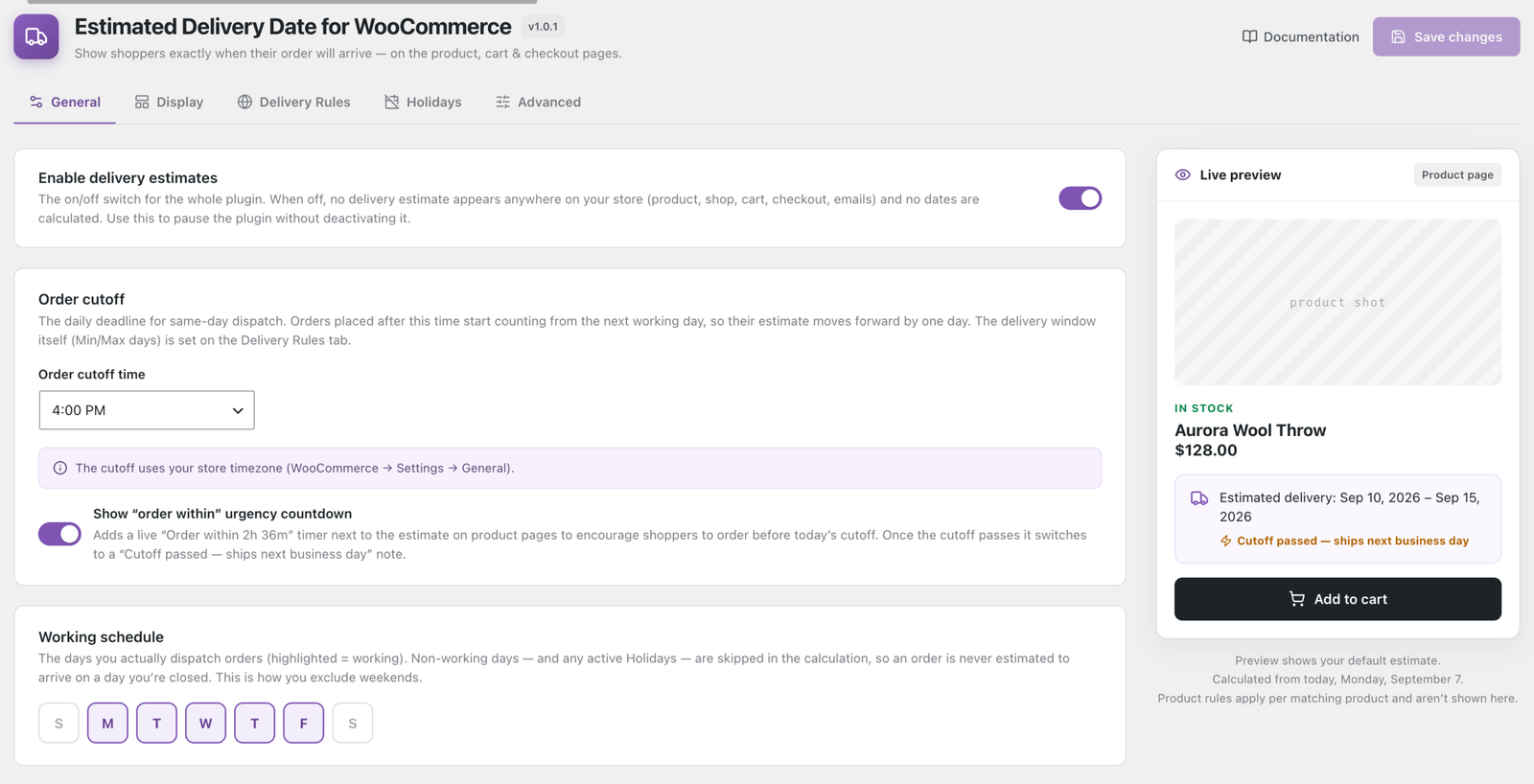
The Live preview on the right updates as you type and shows the product-page badge exactly as your storefront renders it. It previews your default estimate; rules targeting particular products apply per product and are not shown there.
✓ Note
Save changes is at the top right. Nothing is written until you press it, which also clears the calculated-date cache.
General
| Setting | What it does |
|---|---|
| Enable delivery estimates | The on/off switch for the whole plugin. Off means no estimate anywhere — product, shop, cart, checkout, emails — and no dates calculated. Use it to pause the plugin without deactivating it. |
| Order cutoff time | Your daily deadline for same-day dispatch. Orders after it count from the next working day, moving the estimate forward by one. Uses your store’s timezone, from WooCommerce → Settings → General. |
| Show “order within” urgency countdown | Adds the live timer beside the estimate on product pages. After the cutoff it becomes Cutoff passed — ships next business day. |
| Working schedule | The day pills, S M T W T F S. Highlighted days are days you dispatch. Non-working days are skipped when counting, so an estimate never lands on one. This is how you exclude weekends. |
Display
Covered in full in Display and wording. In brief:
| Setting | Does |
|---|---|
| Where to show the estimate | A switch per location: product, shop, cart, checkout, emails |
| Position on product page | Where in the product summary the badge sits |
| Message template | The sentence, with {start} {end} {days} |
| Date format | How dates are written |
| Icon | Truck, Calendar, Clock or Box |
| Accent color | Tints the icon and countdown on the storefront only |
Wording per location Pro also appears here.
Delivery Rules
Covered in full in Delivery rules.
Each rule is one or more conditions plus Min days, Max days and an optional Scheduled start. The most specific matching rule wins automatically; the ↑ / ↓ arrows only break ties between equally specific rules.
⚠ Warning
Keep one Product is Any rule as your store-wide default — a product matching no rule shows nothing at all.
Holidays
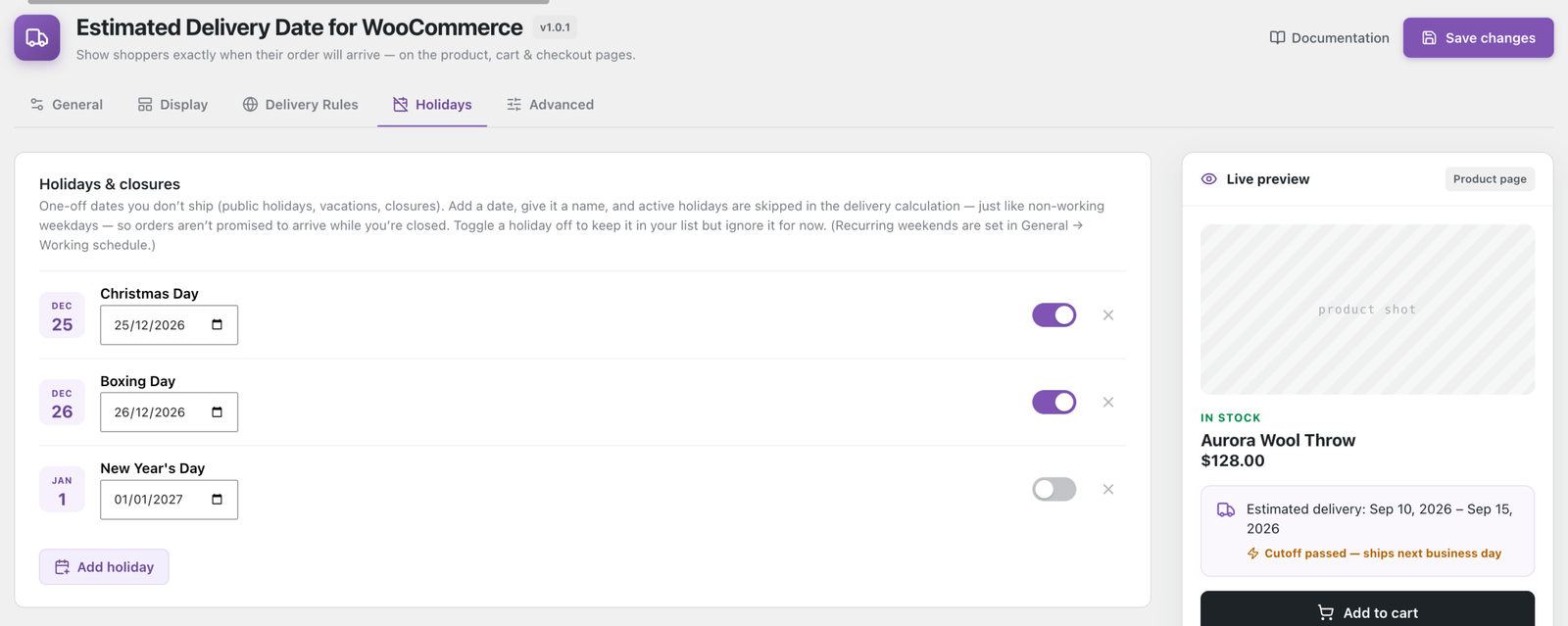
One-off dates you do not dispatch on. Each has a date, a name, and a switch. Active holidays are skipped in the calculation exactly like non-working weekdays. Switch one off to keep it in the list but ignore it — useful for a date that moves each year.
✓ Note
Recurring weekends belong in General → Working schedule, not here.
Import public holidays Pro fills the list from a country’s national holidays for this year and next, generated on your own site with no external service. Imported dates behave like any other: rename, switch off or delete them individually, and your own entries are never touched.
Advanced
| Setting | What it does |
|---|---|
| Cache calculated dates | Stores each calculated date for up to an hour so busy shops do less work per page load. The cache clears whenever you save settings, so your changes always show immediately. Leave it on unless you are troubleshooting. |
| When uninstalling | What happens to your data if you delete the plugin from the Plugins screen. Keep all data leaves settings and dates in place for a reinstall; Remove everything deletes them. Neither applies when you merely deactivate. |
Import & export settings moves a configuration to another site, or keeps a copy before a big change.
- Export settings downloads a JSON file of your settings and delivery rules.
- Import settings loads one back — it fills the screen but changes nothing until you press Save changes, so you can look before committing. Reload the page to discard.
✓ Note
Per-product overrides are not included: they live on individual products and would not mean anything on a site with different product IDs.
Per-product settings
Not on this screen. Each product carries its own control under Product data → Estimated Delivery Date — see Delivery rules.
Settings without a screen
A few values are read by the plugin but have no field in the admin, because they predate the current settings screen. They can only be changed with a filter, by a developer:
| Setting | Controls |
|---|---|
cart_item | A per-line estimate on each cart row. Off by default |
cart_overall_format | Whether the cart’s overall estimate uses the latest item (default) or the earliest |
text, text_min, text_max | Legacy message wording, used only when the message template is empty |
text_cart_item, text_cart_overall | The labels on cart and order lines |
position_archive | Where the badge sits in shop listings |
position_single | A numeric fallback position, used only if position is not one of the five named ones |
date_format, reload_dates | Legacy keys, no longer read by anything |
Tip
If you are looking for one of these on screen, that is why you cannot find it.
WP-CLI
Four commands, useful for support and for checking a live site quickly:
wp edfw estimate 42     # which rule matched, and the dates, for product 42
wp edfw rules           # list configured rules
wp edfw settings        # print current values
wp edfw flush           # clear the calculated-date cache