
Complete setups for the things merchants actually ask for. Each is a few minutes’ work, and each ends with what a shopper will see.
All of them live under WooCommerce → Estimated Delivery Date.
One delivery window for the whole shop
The simplest setup, and the one you already have.
- Delivery Rules → the rule reading Product is Any.
- Set Min days and Max days to your real dispatch window.
- Save changes.
Every shippable product now shows the same estimate.
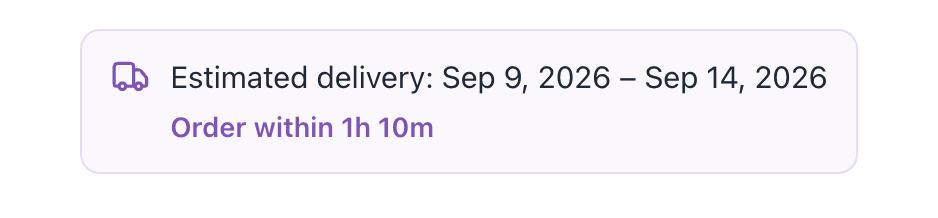
Slower delivery for one category
Furniture, framed prints, anything bulky.
- Delivery Rules → Add rule.
- Set the condition to Product category is your category.
- Give it a longer Min/Max.
- Keep the Product is Any rule as your default.
✓ Note
You do not need to order the rules. A category rule automatically beats the catch-all, so products in that category use the longer window and everything else keeps the default.
A different window for one product only
A made-to-order item, or something you drop-ship.
- Delivery Rules → Add rule.
- Condition: Product is → pick the product.
- Set its window.
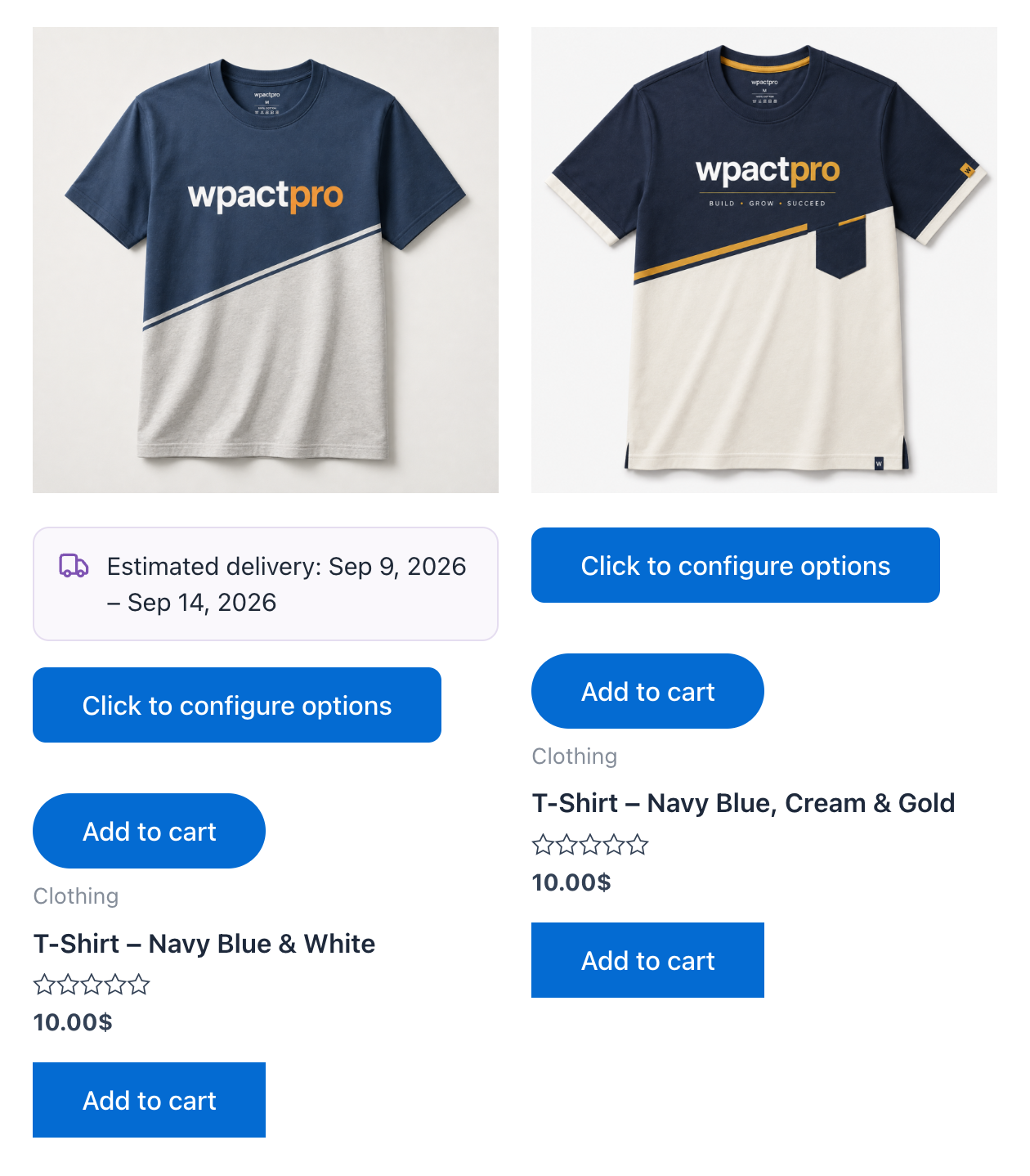
That rule beats every other rule for that product, because Product is the most specific condition there is.
What a shopper sees — the targeted product carries the estimate, and its neighbour on the same shop page does not:
Tip
This is also the quickest way to sanity-check any rule: put two products side by side in the shop listing and confirm only the intended one changed.
Closed for two weeks at Christmas
- Holidays → Add holiday for each day you are shut.
- Name each one so you recognise it next year.
- Save changes.
Closed days are skipped exactly like weekends, so nothing is promised while nobody is there to pack it.
What a shopper sees — the same product, before and after adding three closure days that fell inside its window:
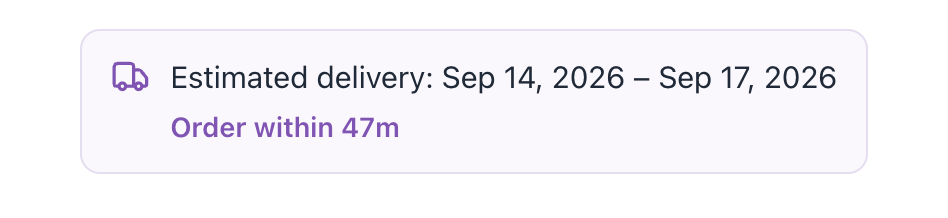
The window moved from Sep 9 – Sep 14 to Sep 14 – Sep 17: the closed days were skipped and the count continued past them. No product, rule or setting other than the holidays changed between those two screenshots.
Pro can fill a whole country’s public holidays in for you — Holidays → Import public holidays.
Stop promising Saturday delivery
- General → Working schedule.
- Click S (Saturday) so it is no longer highlighted.
Estimates now skip Saturdays entirely. The day pills are the single source of truth for which days count — a date can never land on an unhighlighted day.
Move the cutoff so afternoon orders still ship today
- General → Order cutoff time → set your real dispatch deadline.
- Check it against WooCommerce → Settings → General, which is where your store’s timezone lives.
Orders placed after the cutoff count from the next working day. The countdown on the product page shows shoppers how long they have left, which is the point.
A pre-order that ships from a launch date
For something not in the warehouse yet.
- Delivery Rules → Add rule targeting the product.
- Set Scheduled start (optional) to the date stock arrives.
- Set Min/Max as your normal dispatch time after that date.
Counting begins from the launch date instead of today, so the estimate stays honest before launch and behaves normally after it.
⚠ Warning
Remember to clear the scheduled date once the product is in stock. A window that seems stuck in the future is almost always a scheduled start left behind.
Hide the estimate on one product
For a product with genuinely unknown timing.
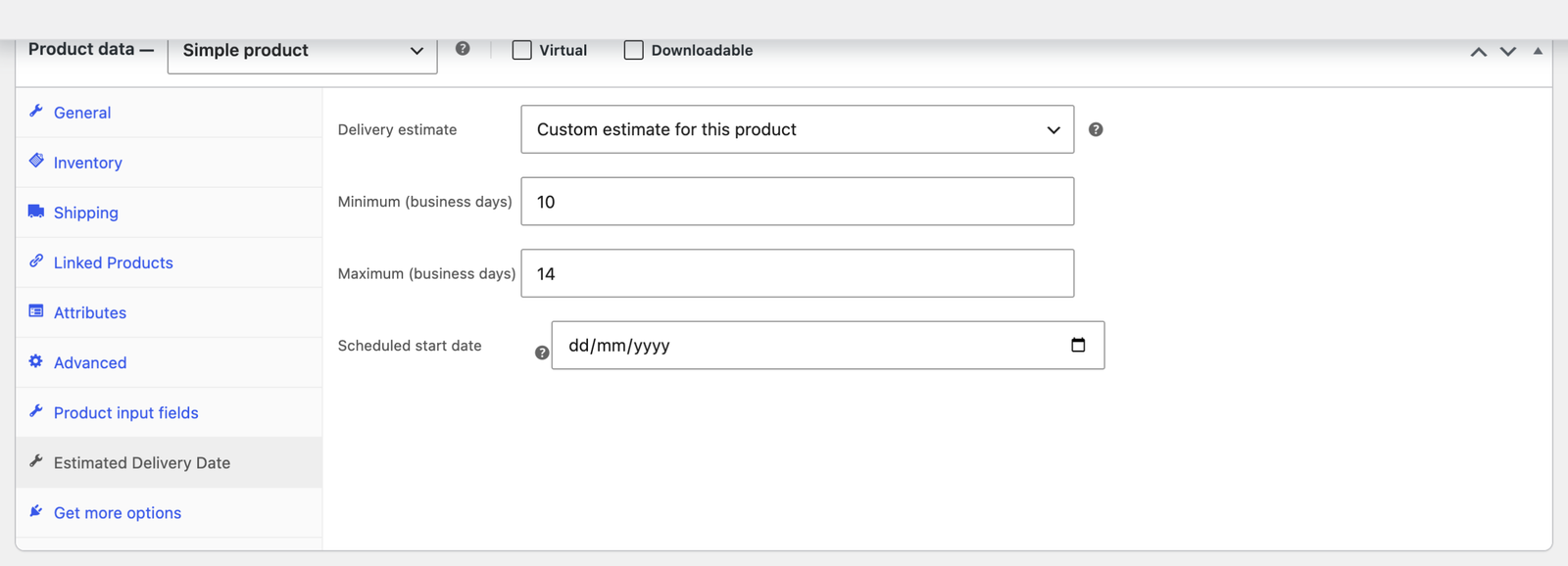
- Edit the product.
- Product data → Estimated Delivery Date.
- Set Delivery estimate to Hide for this product.
Give one product its own window without a rule
Same panel, but choose Custom estimate for this product and fill in the Minimum and Maximum. That product ignores your rules entirely.
Useful when a handful of products are exceptions and you would rather not carry a rule for each.
Change the wording shoppers read
- Display → Message template.
- Write your own sentence, using the tags
{start}(earliest date),{end}(latest date) and{days}(the window in days).
“Get it by {end}” and “Arrives in {days}” both work. Click a tag to insert it.
Pro can word each location differently — product page, shop listings, and cart — under Display → Wording per location.
Show the estimate somewhere your theme does not
Use the shortcode:
[edfw_estimated_delivery]It renders the estimate for the current product, so it belongs on a product template or in a product-specific block.