
A rule says which products get which delivery window.
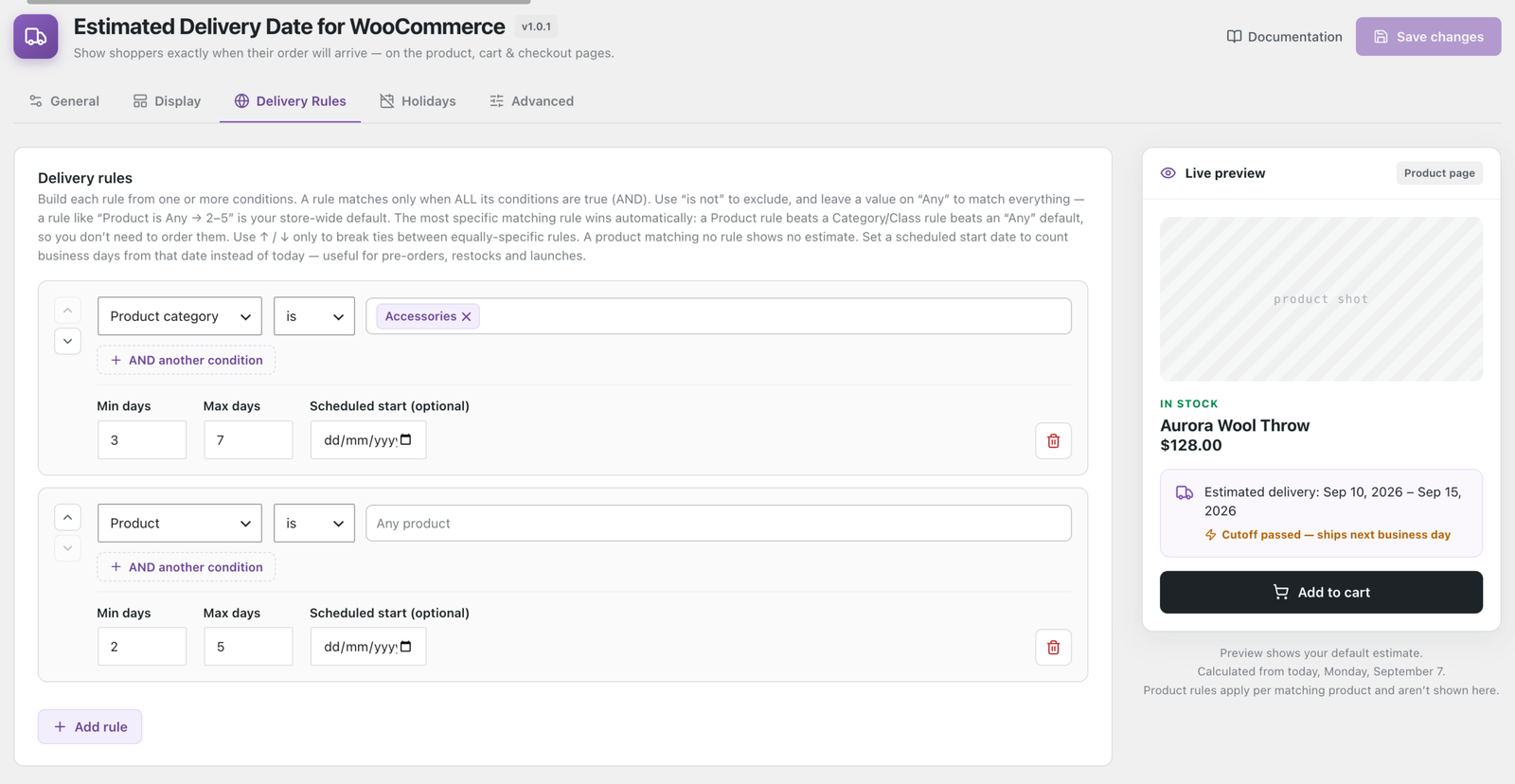
Anatomy of a rule
Each rule is one or more conditions, plus a Min and Max in business days, plus an optional scheduled start.
✓ Note
A rule matches a product only when all of its conditions are true. Adding a second condition narrows a rule; it never widens it.
Conditions
| Condition | Matches on | |
|---|---|---|
| Product | a specific product | |
| Product category | a category | |
| Shipping class | a WooCommerce shipping class | |
| Shipping zone | the customer’s shipping zone | |
| Shipping method | the method chosen at checkout | |
| Country | the customer’s shipping country | Pro |
| Postcode | postcode, with wildcards and ranges | Pro |
| Stock status | in stock / out of stock / on backorder | Pro |
Each has an is / is not operator. Leave a value on Any to match everything of that kind.
The catch-all default
A rule reading Product is Any matches every product. That is your store-wide default, and it is the rule the plugin creates on activation.
⚠ Warning
Keep one. A product matching no rule shows no estimate at all — which is the most common cause of “it stopped working on some products”.
The most specific rule wins
Several rules can match the same product. You do not order them by hand; the most specific one wins automatically.
| Condition | Beats |
|---|---|
| Product | everything below |
| Product category | class, zone, method, Any |
| Shipping class | zone, method, Any |
| Shipping zone / Shipping method | Any |
| Any | nothing |
So a product rule always beats a category rule, which always beats your default. Add the exception and leave the default alone.
The ↑ / ↓ arrows only break ties between rules of equal specificity. If a product is picking up the wrong window, look for a more specific rule rather than reaching for the arrows.
✓ Note
Premium conditions score between a category and a shipping class. An is not condition scores lowest of all, because an exclusion matches broadly.
Seeing it work
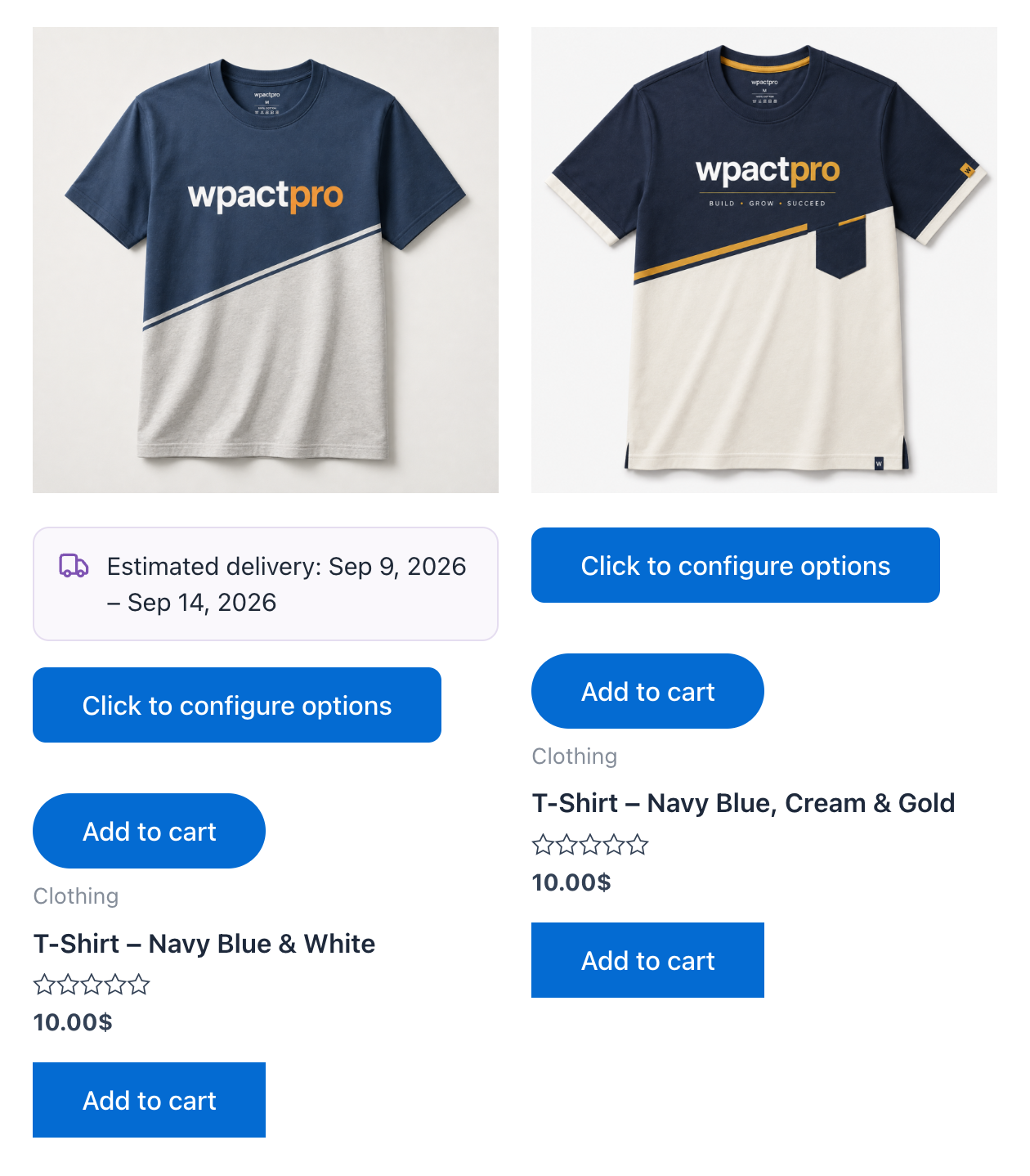
A rule targeting one product affects that product and nothing else. Here the left item is targeted and the right one is not, on the same shop page:
Per-product overrides
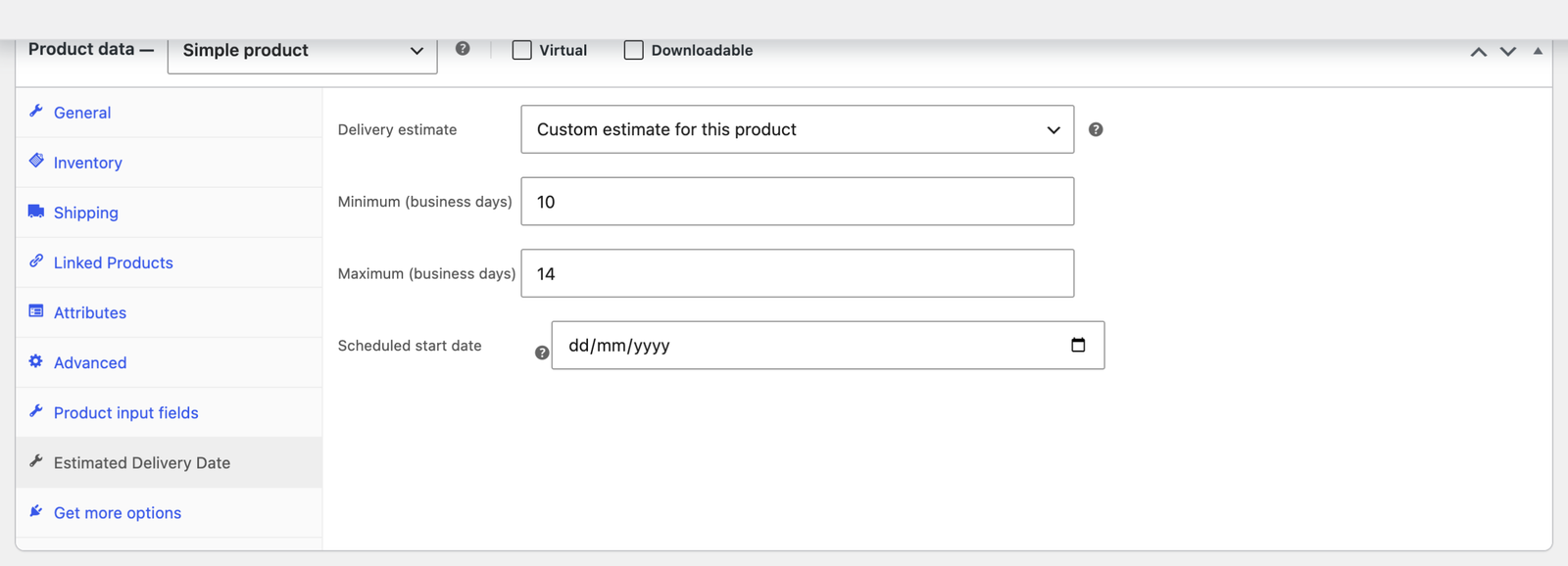
Sometimes a rule is more machinery than you need. Every product has its own control, under Product data → Estimated Delivery Date:
| Choice | Effect |
|---|---|
| Use store settings | Follow your rules. The default. |
| Hide for this product | No estimate at all, whatever your rules say. |
| Custom estimate for this product | Use this product’s own Min/Max and ignore your rules. |
Custom estimate also offers its own scheduled start date, which is the tidiest way to handle a single pre-order.
An override always beats every rule, because it is set on the product itself.
Tip
Prefer a Product rule where you can. An override is invisible from the settings screen, so months later the only way to discover why one product differs is to open it.
Scheduled start dates
Set one and counting begins from that date instead of today, for as long as it is in the future. Use it for pre-orders, restocks and launches.
⚠ Warning
Clear it once the stock lands. A window that seems stuck far ahead is almost always a scheduled start nobody removed.
Products that never match
No rule applies to:
- Virtual products — nothing is being delivered. It is the Virtual checkbox that matters, not Downloadable.
- External / affiliate products — you are not fulfilling the order.
- Products that are not purchasable, such as one with no price.
Checking a rule without guessing
If you have WP-CLI, this reports which rule actually won:
wp edfw estimate 42It prints the matched rule and the resulting dates, which distinguishes “no rule matched” from “the wrong rule matched” — two problems that look identical on the storefront.