
The most common support question, in the order worth checking. The early checks take seconds; the later ones are rarer. Work down the list rather than starting at the bottom.
1. Is anything shown at all?
If the product page shows no estimate whatsoever, it is almost always one of these — and none of them is a bug.
The product is virtual, external, or has no price. Nothing is being shipped, so nothing is promised. This is the single most common cause of “it works on some products but not others”.
⚠ Warning
It is the Virtual checkbox that matters, not Downloadable. A downloadable product that also ships something physical still gets an estimate.
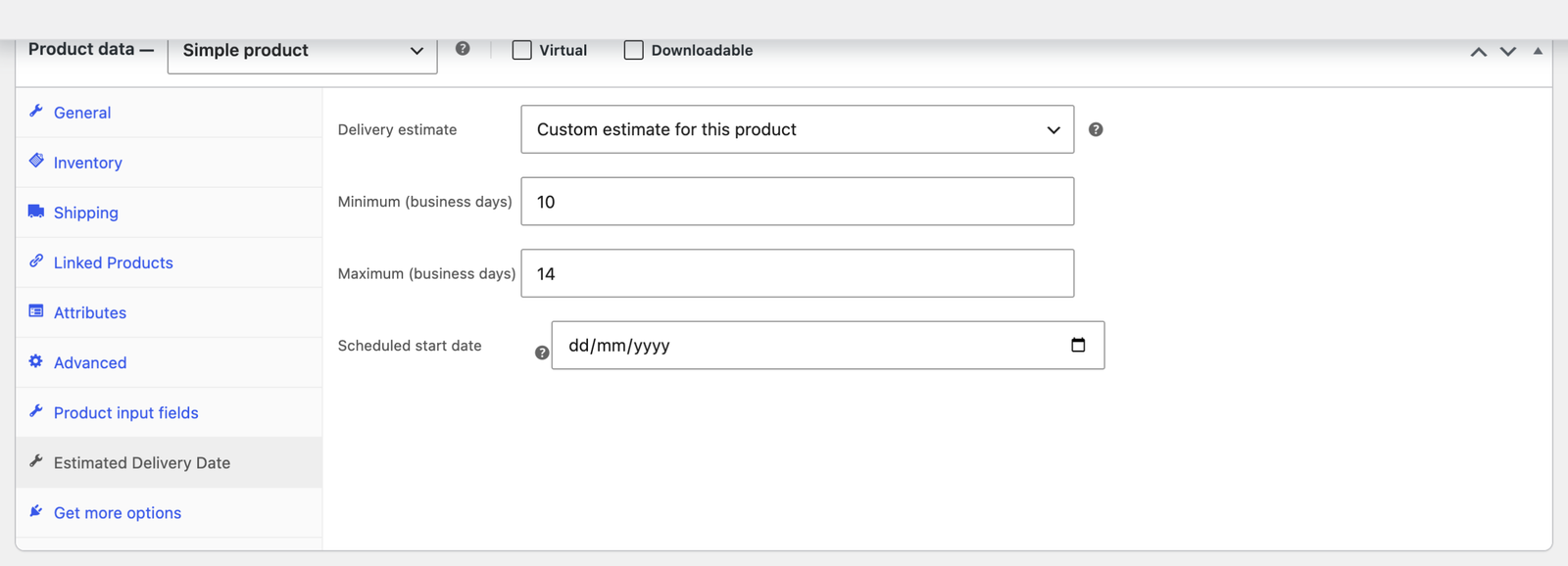
The product is set to hide it. Open the product, find the Estimated Delivery Date tab in the Product data panel, and check Delivery estimate. If it reads Hide for this product, that is your answer.
No rule matches it. A product that matches no rule shows nothing at all. If you deleted or narrowed the original Product is Any rule, products outside your remaining rules now show nothing. Add a catch-all rule — one condition, Product is Any, with your normal window — as a safety net.
The whole plugin is switched off. General → Enable delivery estimates.
It is switched off for that location. Display → Where to show the estimate has a separate toggle for the product page, shop listings, cart, checkout and order emails. A shopper reporting “it’s gone from the cart” usually means this one.
2. The date is one day out
Nearly always the order cutoff time.
Orders placed after the cutoff start counting from the next working day, so the estimate moves forward by exactly one day the moment the clock passes it. Check the storefront before and after your cutoff and you will see it shift.
- The cutoff uses your store’s timezone, set under WooCommerce → Settings → General — not the shopper’s, and not your laptop’s.
- The countdown on the product page shows the time remaining until that cutoff. If the countdown disagrees with your own clock, the timezone is the reason.
3. The date skips a day you expected, or lands on a day you are closed
Three settings decide which days count.
- General → Working schedule. The highlighted day pills are the days you dispatch. A date will never land on an unhighlighted day.
- Holidays. Any holiday switched on is skipped. A holiday switched off is ignored, so check the toggle, not just the list.
- The rule’s own scheduled start date. If the matched rule has one set and still in the future, counting begins from that date instead of today.
⚠ Warning
A scheduled start is intended for pre-orders and restocks, and it is easy to leave behind after a launch. A date that seems stuck far in the future is usually this.
4. The wrong window is being used
More than one rule can match a product. The most specific one wins, and you do not order them by hand.
| Condition | Beats |
|---|---|
| Product | everything below |
| Product category | class, zone, method, Any |
| Shipping class | zone, method, Any |
| Shipping zone / Shipping method | Any |
| Any (the catch-all default) | nothing |
So a rule targeting a single product always beats a category rule, which always beats your store-wide default. If a product is picking up the wrong window, look for a more specific rule you forgot about rather than reordering.
✓ Note
The ↑ / ↓ arrows only break ties between rules of equal specificity. An is not condition scores lowest of all, because an exclusion matches broadly.
Two more places a window can come from:
- A per-product override. Product data → Estimated Delivery Date → Custom estimate for this product uses that product’s own Min/Max and ignores your rules entirely.
- Pro Stock status adds extra days for backordered or out-of-stock items, so the same product can legitimately show a longer window than its rule states.
5. You changed a setting and the storefront did not change
Calculated dates are cached for up to an hour.
Saving on the settings screen clears that cache automatically, so this only bites when the change came from somewhere else — a migration, WP-CLI, an import, or another plugin writing the option directly.
- Press Save changes on the settings screen once. That is enough.
- Or, if you have WP-CLI:
wp edfw flush
If you are testing repeatedly, turn caching off while you work: Advanced → Cache calculated dates.
Tip
Also rule out a page cache in front of WordPress. If a caching plugin serves a stored copy of a product page, the estimate in it is as old as that copy. The countdown is drawn in the browser, so it stays live regardless.
6. It looks wrong only in the cart or on the order
The cart shows an overall estimate for the whole order, taken from the slowest item — so a cart showing a later date than one of its products is working correctly. A date by which only part of the order has arrived is not a promise worth making.
It can be switched to the earliest date, but there is no setting for it on the admin screen — it needs a one-line snippet from a developer:
add_filter( 'edfw_cart_overall_format', fn() => 'earliest' );Order emails, the thank-you page and My Account show the estimate frozen at checkout — what the customer was promised at the time. It does not update when you later change your settings, and it should not.
Still stuck? Ask the plugin
If you have WP-CLI, this prints the answer directly, on the customer’s own site:
wp edfw estimate 42It reports which rule matched, the window, and the resulting dates — which separates “no rule matched” from “the wrong rule matched”, two problems that look identical on the storefront and have completely different fixes.
wp edfw rules lists your configured rules; wp edfw settings prints the current values.