
Introduction
The Country Selector field adds a WooCommerce country dropdown to your product page and can optionally charge a different price per country.
It is ideal for regional surcharges, country-based shipping fees, customs handling, or simply collecting the customer’s country.
This guide is customer-focused and explains each setting in simple language, with practical examples.
What Is the Country Selector?
Country Selector is a field type in Extra Product Options for WooCommerce that shows the official WooCommerce country list as a dropdown. You can add a price to any country you choose.
Customers can:
- pick their country from a familiar dropdown
- see any country-based surcharge added to the total instantly
Common use cases:
- regional surcharges or taxes
- country-based shipping or handling fees
- customs / import fee collection
- delivery destination capture
Where to Configure the Country Field
Go to: WP Admin -> WooCommerce -> Extra Product Options -> Addons Builder
Then open/create an addon and add a Country field.
Quick Setup (Step by Step)
- Open your addon in the builder.
- Add a Country field.
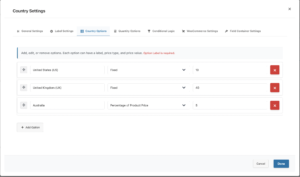
- In General Settings, set the Label (e.g. “Ship to country”) and mark it Required if needed.
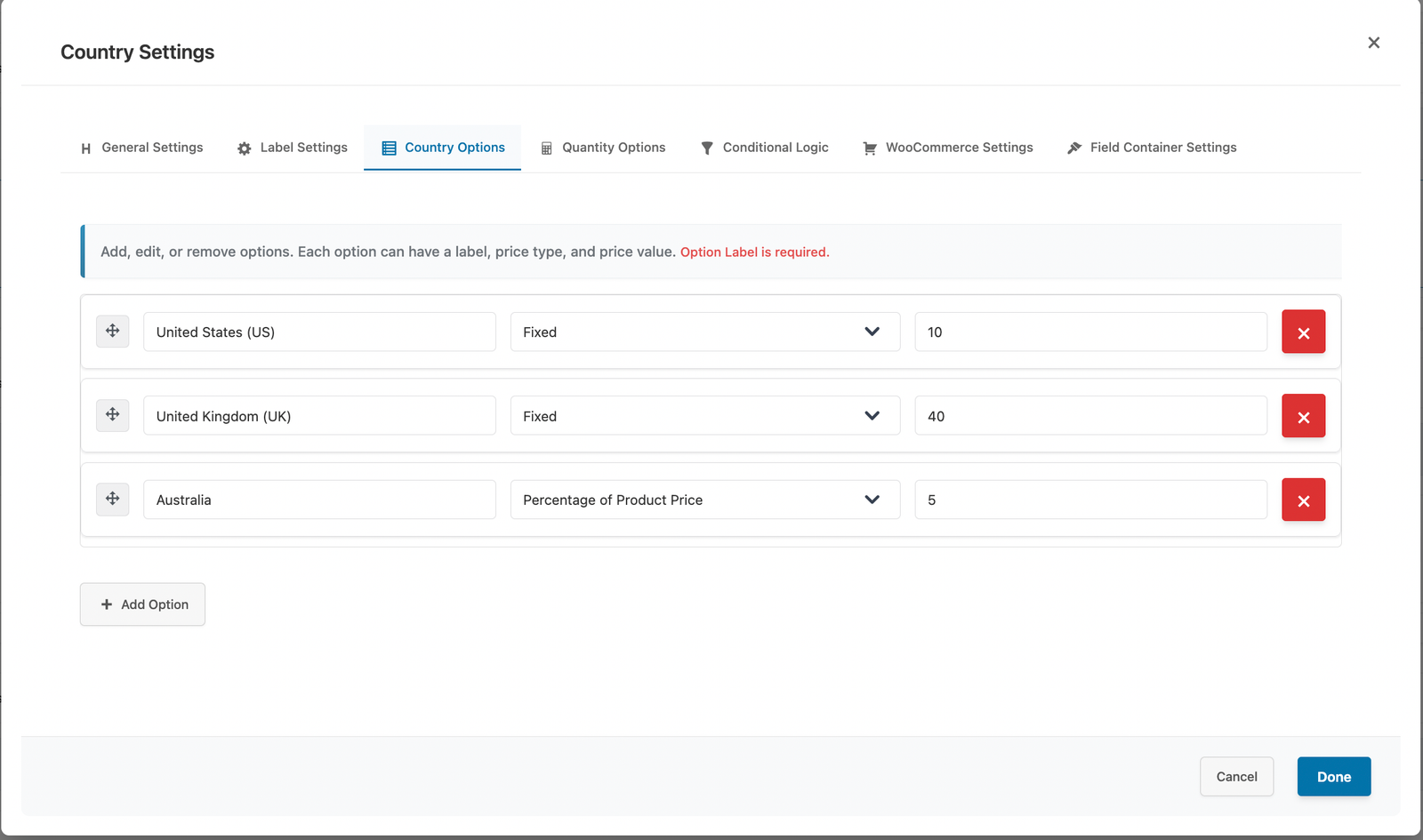
- Open Pricing Options and enable pricing if you want to charge per country.
- Add a row for each country you want to price (Country → Price).
- Save addon and test on frontend.
Pricing Explained
- Priced countries: each row adds its amount when that country is selected.
- Unlisted countries: countries you do not add a row for are free (no surcharge).
- Price Rules: the country field can also be used as a trigger in other fields’ Price Rules (e.g. “When Country = US, add 10 to Engraving”).
Real Examples
Example 1: Regional surcharge
- US = 200
- Australia = 100
Selecting US adds 200; selecting a country with no row adds 0.
Example 2: Country as a Price Rule trigger
On an Engraving field add a rule: When Country = US, Add 10. Now choosing US increases the Engraving price by 10. See the Price Rules guide for details.
Frontend Customer Experience
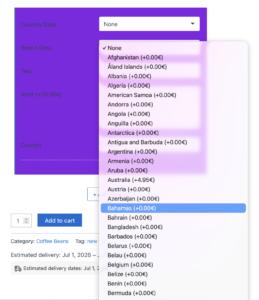
- a country dropdown with the full WooCommerce country list
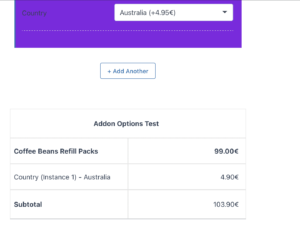
- the per-country price added to the Addon Details table and subtotal instantly
- multiple Country fields can be used on the same product without interfering with each other
Admin Setting
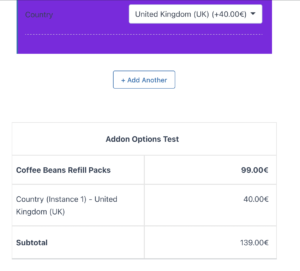
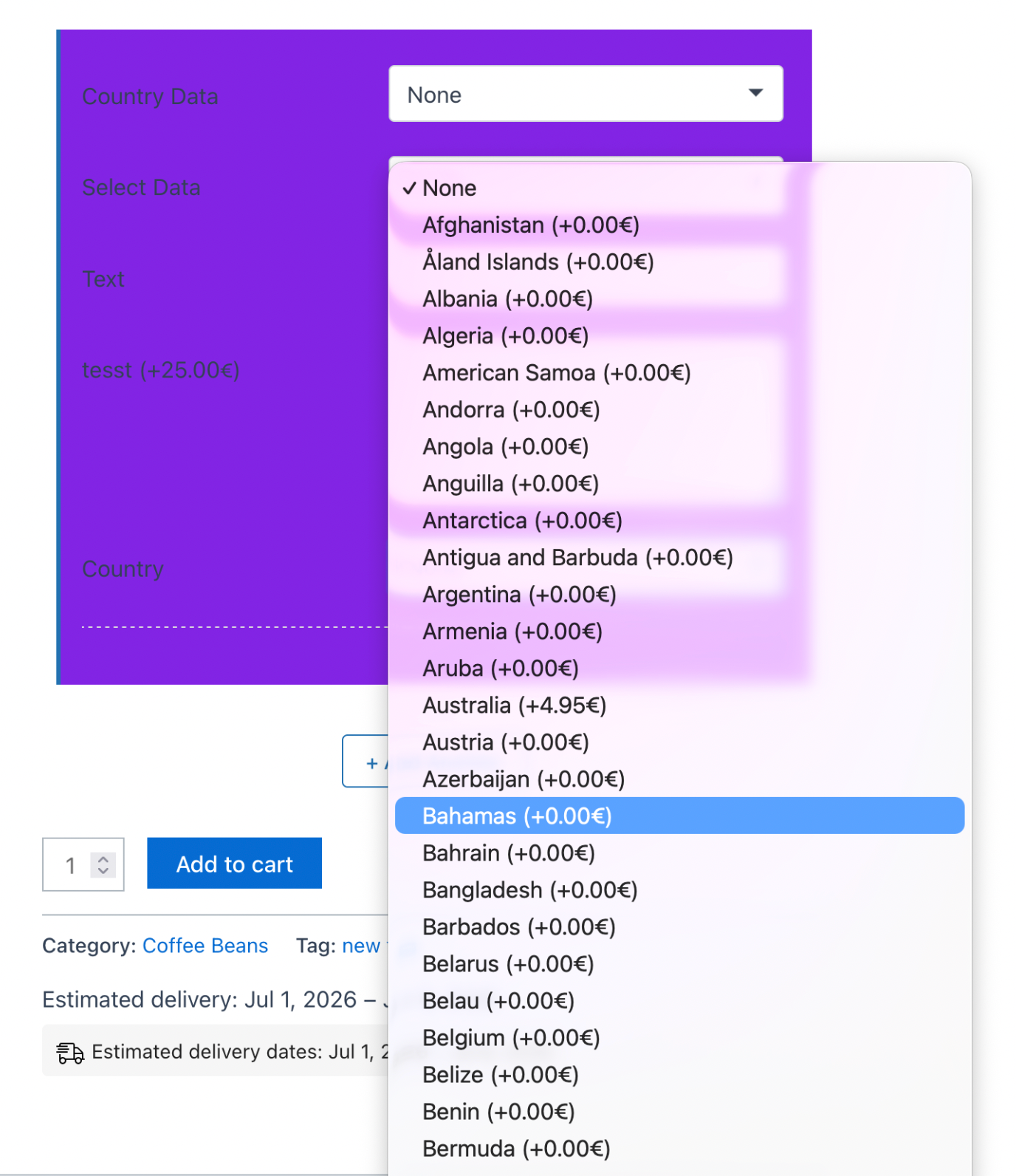
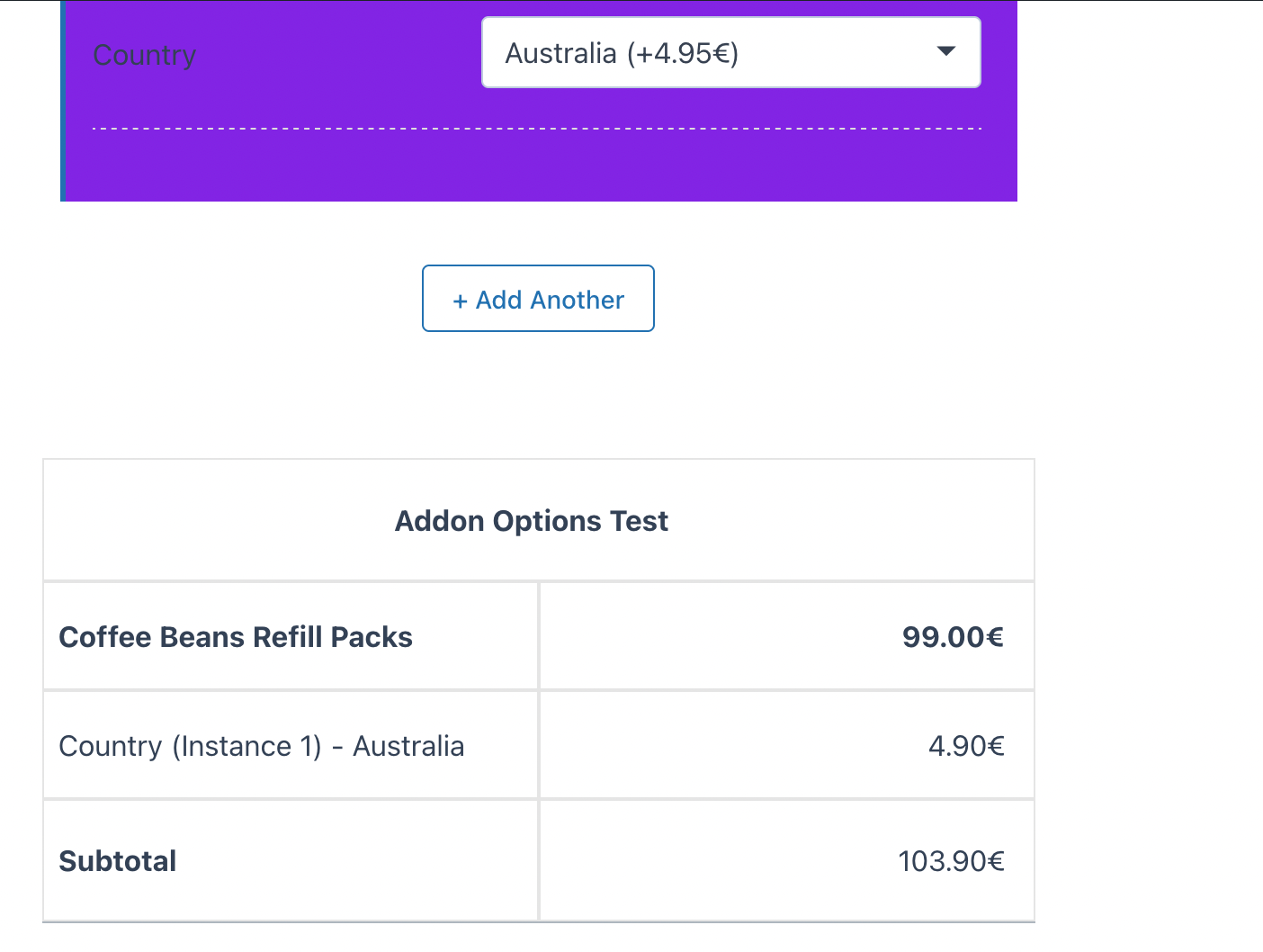
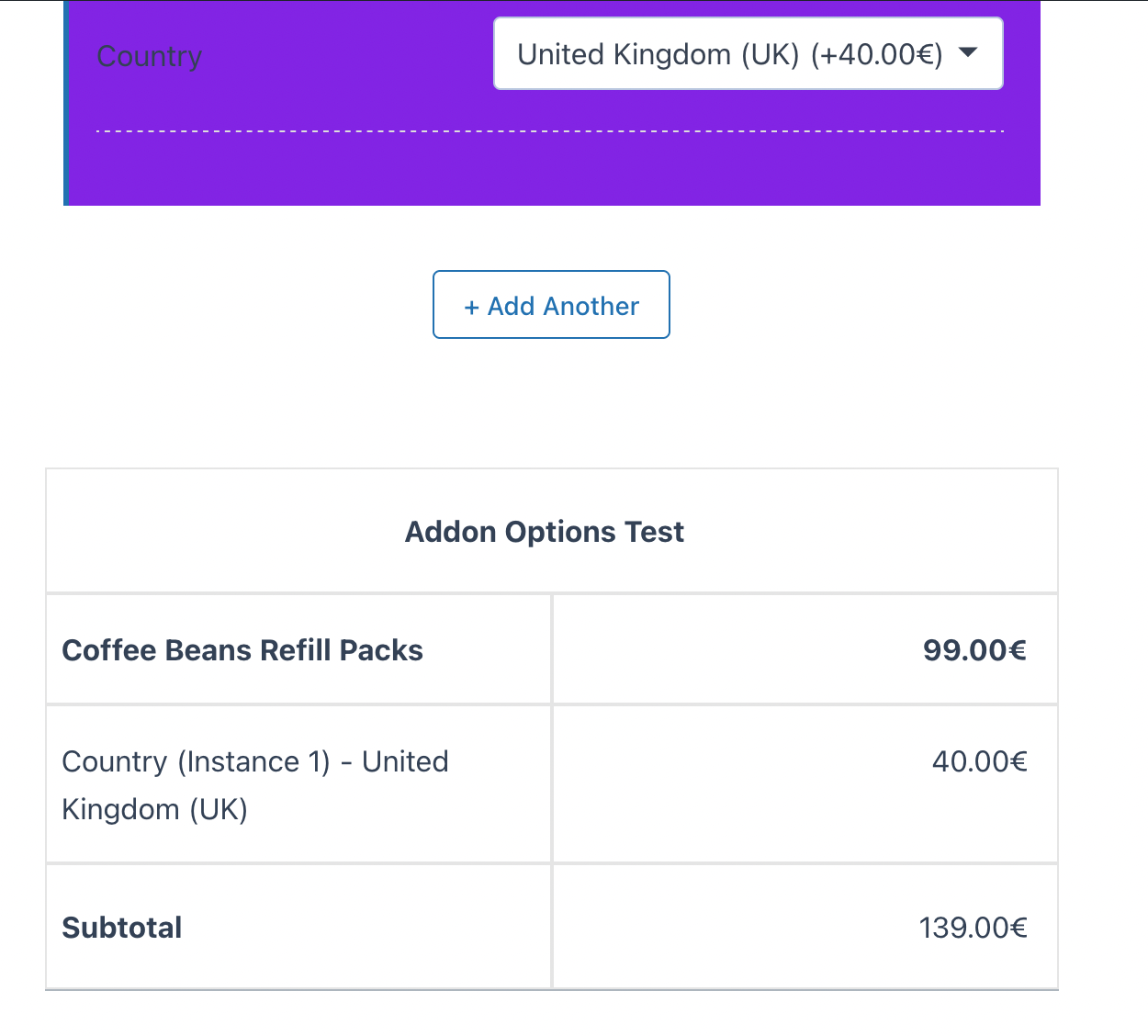
Front Behaviour
Best Practices
- Only add rows for countries that actually need a surcharge; the rest stay free.
- Use a clear label so customers know why their country is requested.
- Combine with Price Rules to adjust other fields based on the chosen country.
Troubleshooting
Country price is not added to the total
- Confirm pricing is enabled and the selected country has a price row.
- Clear caching so the latest scripts load.
Two country fields interfere with each other
- Each field tracks its own selection; make sure both fields have distinct labels and re-test after clearing cache.
Conclusion
The Country Selector makes regional pricing and destination capture simple, and pairs perfectly with Price Rules for country-driven pricing across your product options.
Related Resources
Frequently Asked Questions
Find answers to commonly asked questions about the Country Selector field.
Still have a question?
If you have any other queries, feel free to reach out to us. Our knowledgeable team is here to help!
Try Extra Product Options
Free version on WordPress.org · 7-day money-back guarantee on Pro.