
Introduction
The Star Rating field lets customers pick a quality level using stars (1 to 10) right on the product page.
You can use it as a simple rating input, or attach pricing so each star value adds a different amount — perfect for service tiers, quality grades, and upgrade levels.
This guide is customer-focused and explains each setting in simple language, with practical pricing examples that cover Base Price, per-star pricing, and Price Rules together.
What Is the Star Rating Field?
Star Rating is a field type in Extra Product Options for WooCommerce that displays clickable stars. The customer selects a number of stars, and that selection can optionally change the product price.
Customers can:
- select a star value from 1 up to your configured maximum (max 10)
- see the price for their selection added to the total instantly
- combine the rating with other fields through Price Rules
Common use cases:
- service quality tiers (Standard / Premium / Deluxe)
- priority/speed levels
- experience or difficulty grades
- satisfaction-guarantee upgrades
Where to Configure the Rating Field
Go to: WP Admin -> WooCommerce -> Extra Product Options -> Addons Builder
Then open/create an addon and add a Rating field.
Quick Setup (Step by Step)
- Open your addon in the builder.
- Add a Rating field.
- In General Settings, set the field Label and mark it Required if needed.
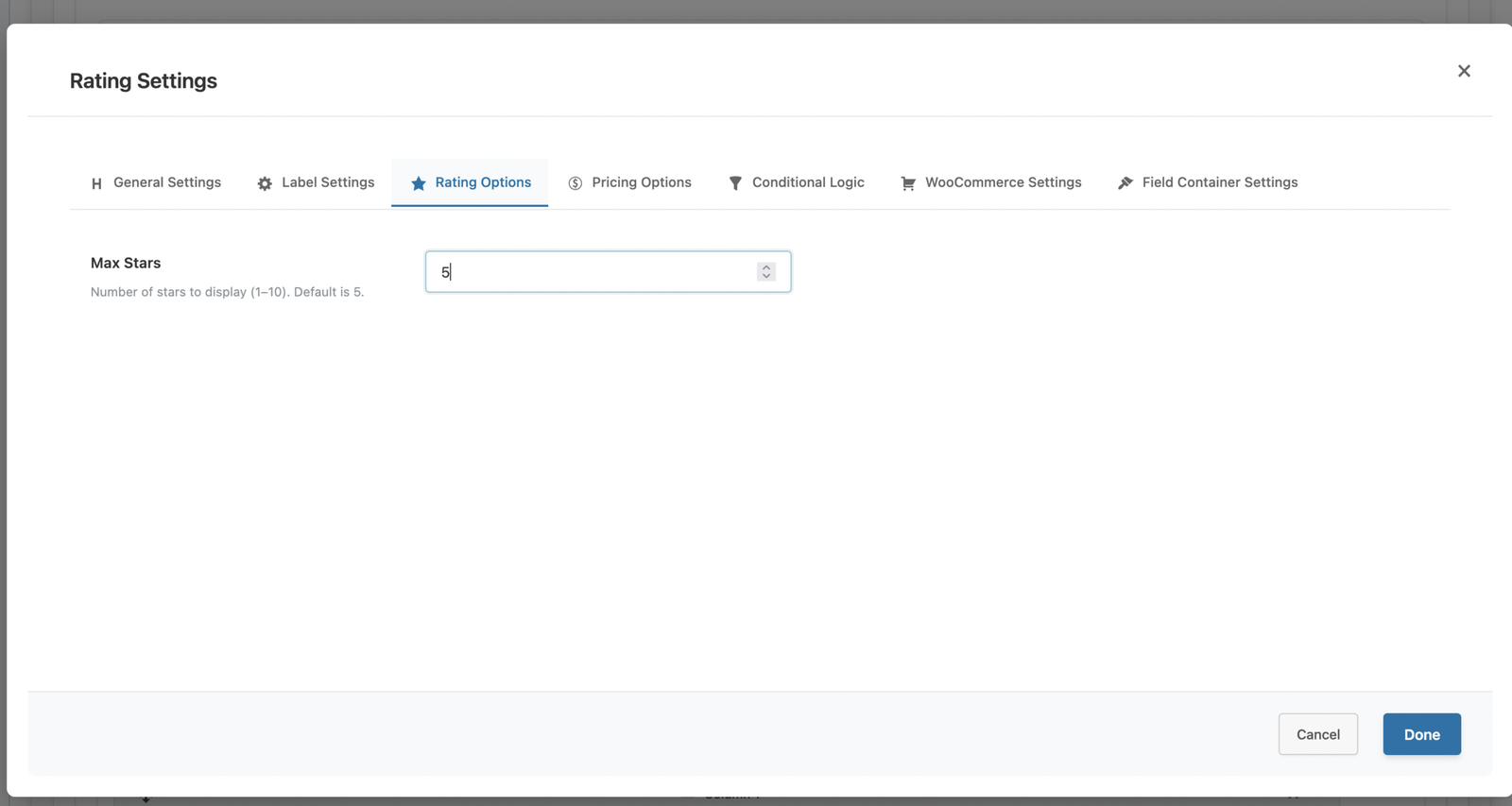
- Open the Rating Options tab and set Max Stars (1–10).
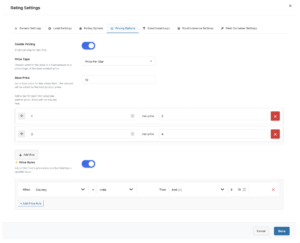
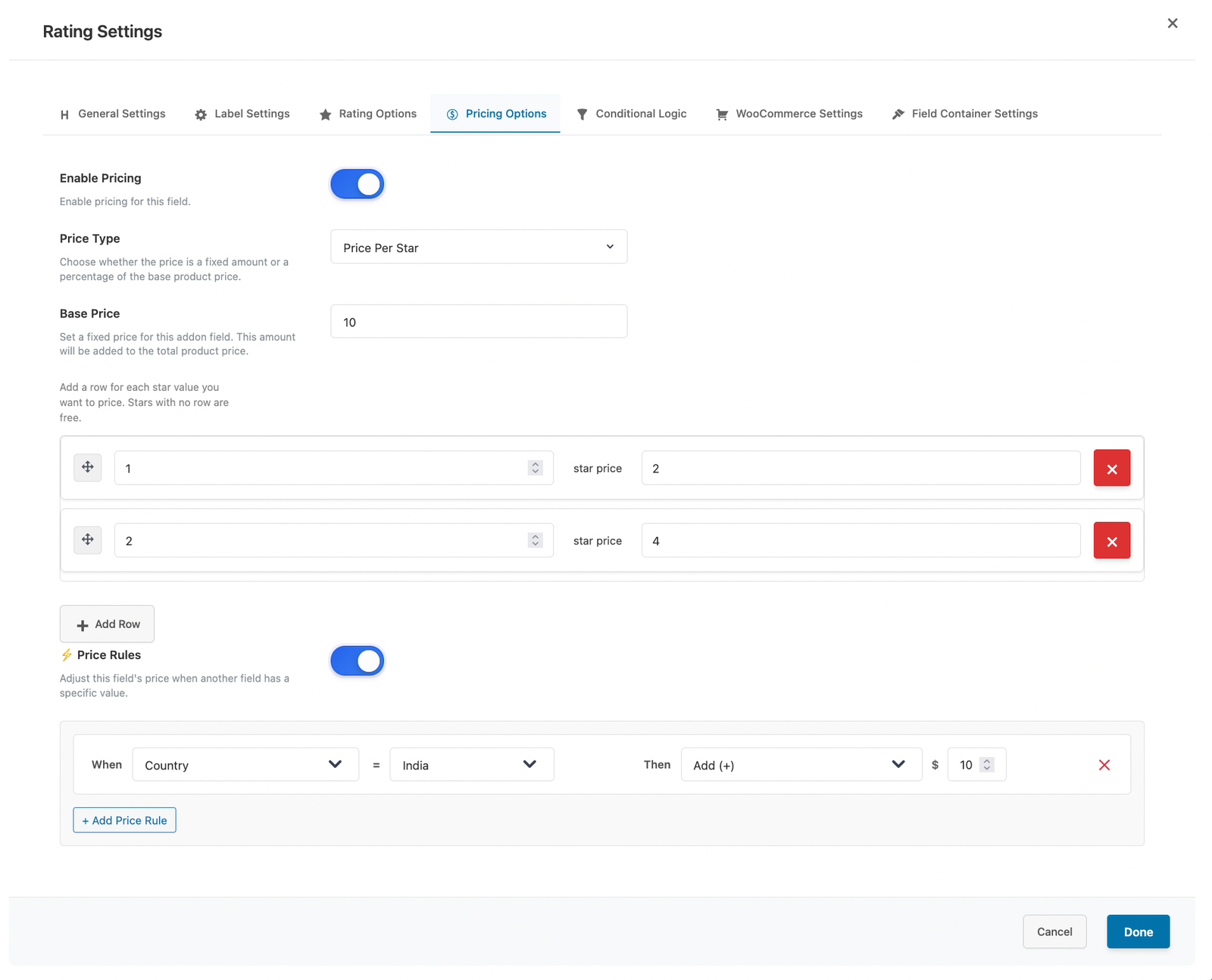
- Open the Pricing Options tab, enable pricing, and choose a Price Type.
- For per-star pricing, choose Price Per Star and add rows for the stars you want to price.
- Save addon and test on frontend.
Pricing Types Explained
On the Pricing Options tab you first set a Base Price and a Price Type:
- Base Price: a fixed amount that is added to the product whenever a star is selected.
- Fixed / Percentage: a single price for the field, regardless of the star chosen.
- Price Per Star: set a different price for individual star values using the rows grid. Stars without a row add nothing extra (they are “free” for the per-star part).
When you choose Price Per Star, you will see a repeatable grid with the helper text: “Add a row for each star value you want to price. Stars with no row are free.” Each row is Star # → Price.
How the Price Is Calculated
The rating field’s price is built in this exact order:
Rating price = Base Price (always added if set)
             + Per-Star price for the selected star (0 if that star has no row)
             ──────────────────────────────────────────────
             then any Price Rules are applied to that subtotal
             ──────────────────────────────────────────────
             final price is never less than 0
The same calculation is used for the product page preview and for the cart/checkout, so the amounts always match.
Real Examples
Example 1: Base Price only
- Base Price: 20
- Per-star rows: none
Any star selection → 20 (the Base Price is always added).
Example 2: Per-Star price only (no Base Price)
- Base Price: empty (0)
- Per-star rows: ★1 = 2, ★2 = 4, ★3 = 5
Select ★1 → 2 | ★2 → 4 | ★3 → 5 | ★4 (no row) → 0 (free)
Example 3: Base Price + Per-Star (additive)
- Base Price: 20
- Per-star rows: ★1 = 2, ★2 = 3
Select ★1 → 20 + 2 = 22 | ★2 → 20 + 3 = 23 | ★4 (no row) → 20 + 0 = 20 (Base Price still applies).
Example 4: Base Price + Per-Star + Price Rule
Settings: Base Price = 20, row ★2 = 3, and a Price Rule on the Rating field: When Country = India, Subtract 10.
- ★2, Country = (none) → 20 + 3 = 23
- ★2, Country = India → 20 + 3 − 10 = 13
- ★4 (no row), Country = India → 20 + 0 − 10 = 10
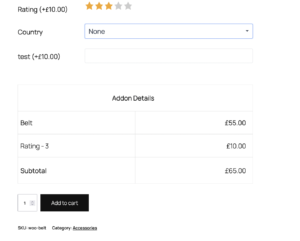
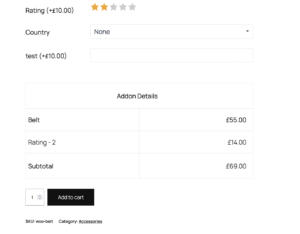
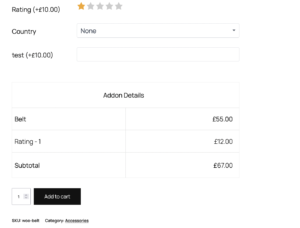
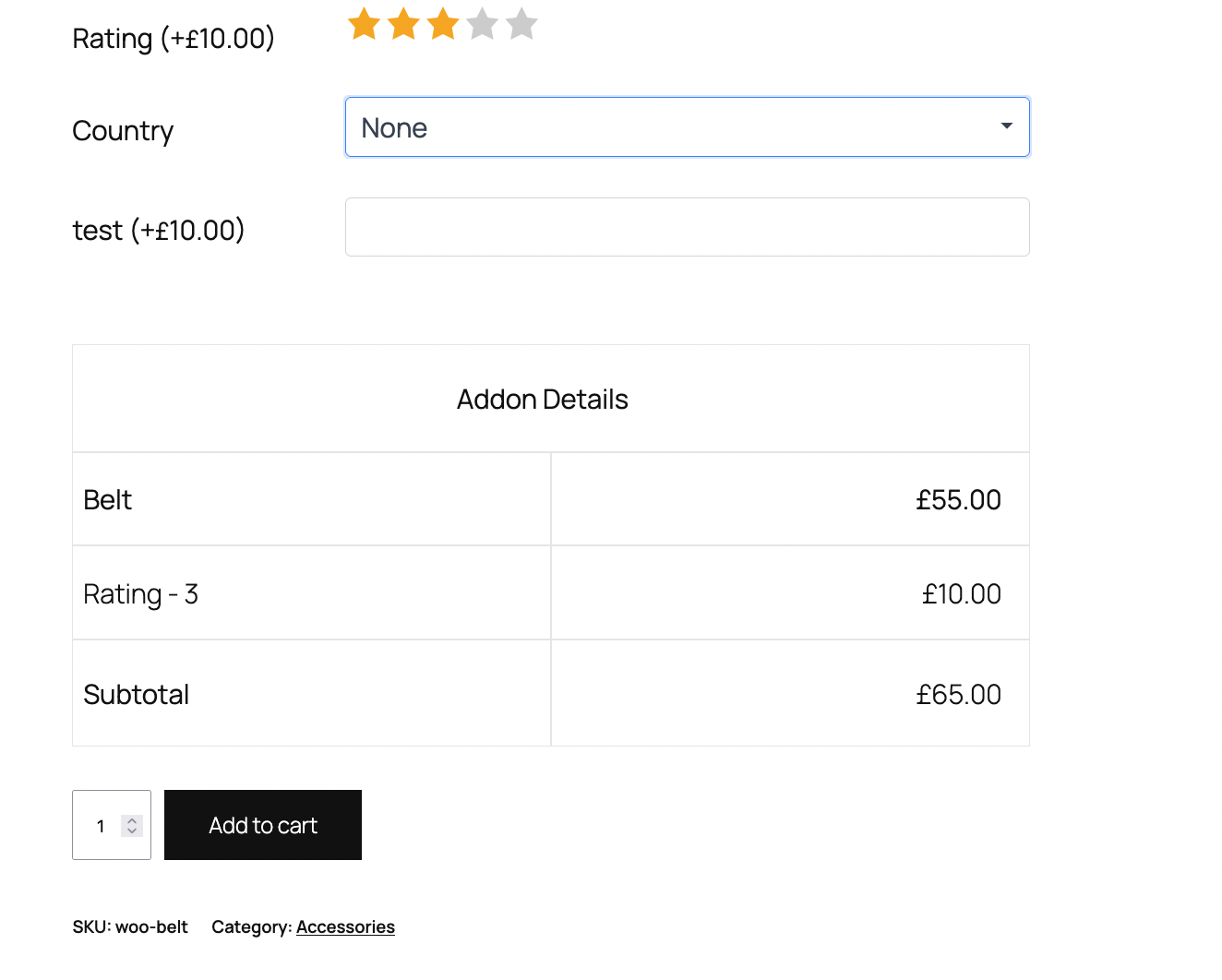
Frontend Customer Experience
Customers will see:
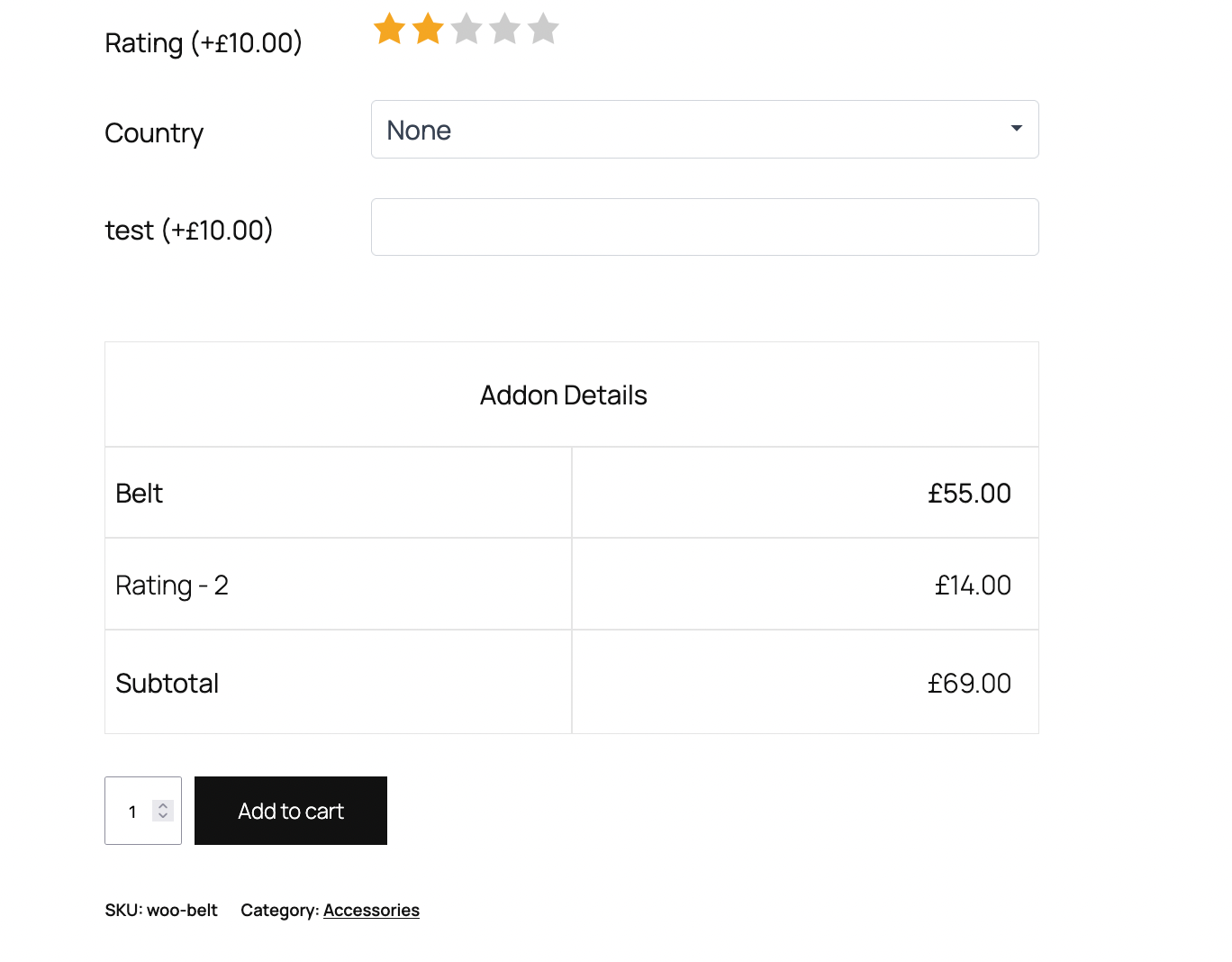
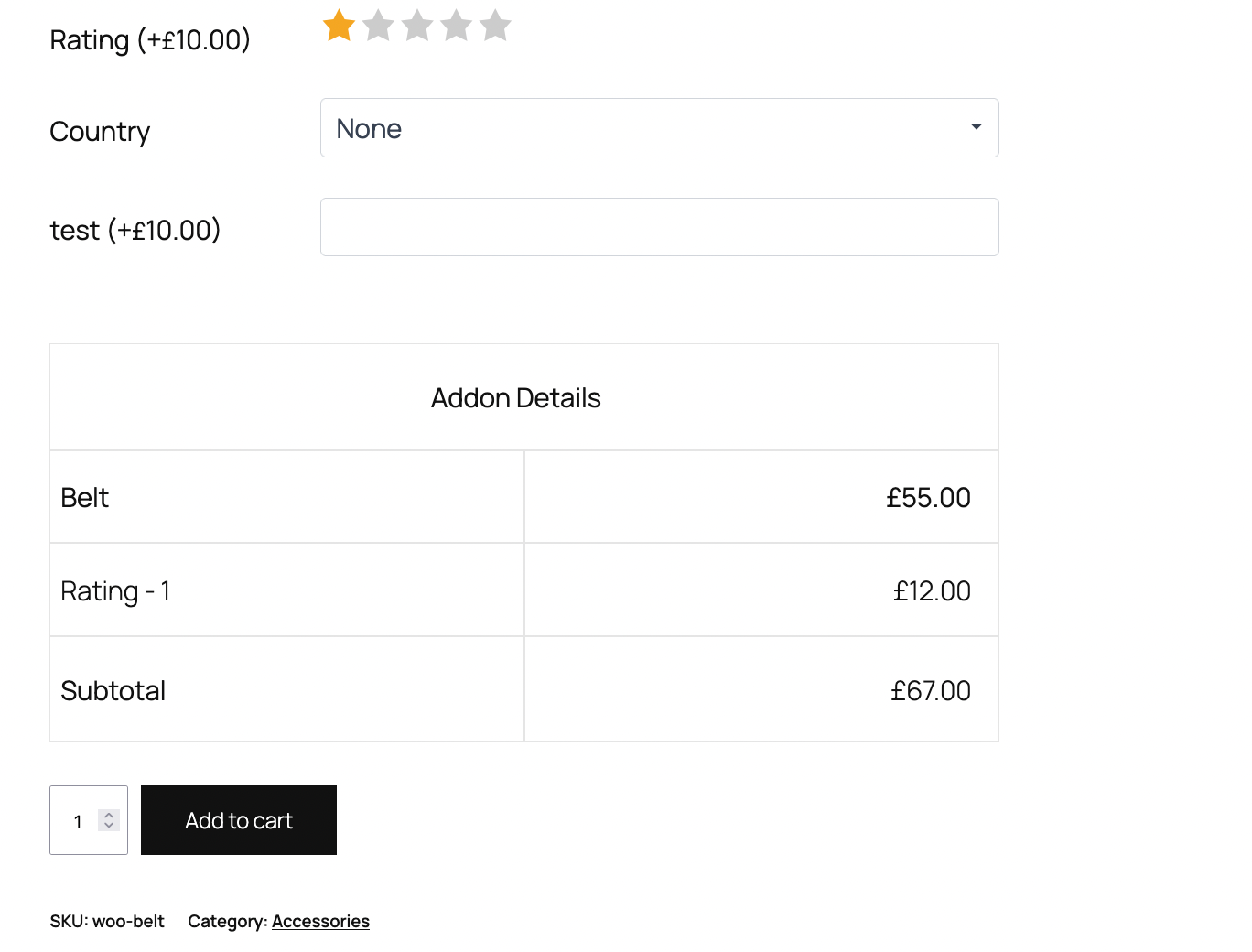
- clickable stars (with the field label and current price next to it)
- the selected rating and its price added to the Addon Details table
- the product subtotal update instantly as they change their selection
Admin Setting
Front Behaviour
Best Practices
- Use Base Price for a fixed charge and per-star rows for tier upgrades.
- Only add rows for the star values you actually want to price; the rest stay free.
- Keep Max Stars small (3–5) for clear, quick choices.
- Test the cart total after selecting different stars to confirm pricing.
Troubleshooting
Per-star prices are not saving
- Make sure Price Type is set to Price Per Star (this enables pricing and shows the rows grid).
- Enter a Star # and a Price in each row before saving.
Selecting a star shows 0.00
- That star has no row and no Base Price is set — add a row for it or set a Base Price.
Product page price and cart price differ
- Clear any caching plugin/CDN so the latest scripts load; both use the same calculation.
Developer Notes
Render hooks
The action hooks epofw_before_addon_field_rating and epofw_after_addon_field_rating fire around the field, so conditional logic (show/hide based on other fields) applies fully.
Server-side pricing
The Base Price + per-star + Price Rules calculation is enforced again on the server at add-to-cart, so the cart total always matches the product page preview.
Conclusion
The Star Rating field turns a simple rating into a flexible pricing control. By combining Base Price, per-star rows, and Price Rules, you can model service tiers and upgrades with a clean, instant customer experience.
Related Resources
Frequently Asked Questions
Find answers to commonly asked questions about the Star Rating field.
Still have a question?
If you have any other queries, feel free to reach out to us. Our knowledgeable team is here to help!
Try Extra Product Options
Free version on WordPress.org · 7-day money-back guarantee on Pro.