
Introduction
The Product Group field helps you sell related products as add-ons on a single product page.
Instead of sending customers to multiple product pages, you can let them pick addon products directly while buying the main product.
This guide is customer-focused and explains each setting in simple language, with practical examples.
What Is Product Group?
Product Group is a field type in Extra Product Options for WooCommerce that displays a list of WooCommerce products as selectable add-ons.
Customers can:
- select one or more addon products
- set quantity per addon product (if enabled)
- see addon cost included in total
Common use cases:
- accessory bundles
- gift add-ons
- premium upgrades
- optional product kits
Where to Configure Product Group
Go to: WP Admin -> WooCommerce -> Extra Product Options -> Addons Builder
Then open/create an addon and add a Product Group field.
Quick Setup (Step by Step)
- Open your addon in the builder.
- Add a Product Group field.
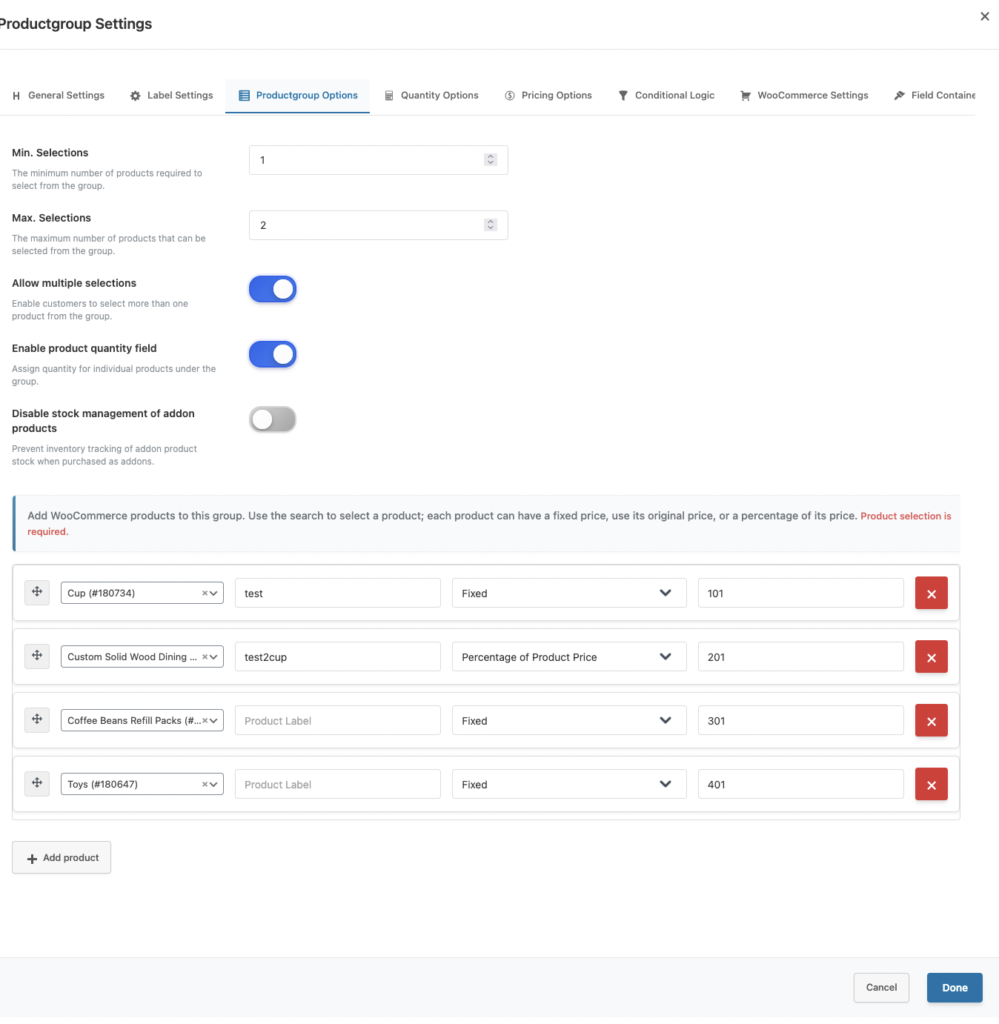
- Go to Productgroup Options tab.
- Add products to the group.
- Set price type and price for each row.
- Configure Min/Max, Multiple, Quantity, and Stock options.
- Save addon and test on frontend.
Productgroup Options Explained
Min. Selections
Minimum number of products customer must select.
- Example: Min =
1means customer must choose at least one addon product.
Max. Selections
Maximum number of products customer can select.
- Example: Max =
2means customer can choose up to two addon products.
Allow multiple selections
- ON: customer can select multiple products (up to Max).
- OFF: customer can select only one product.
Enable product quantity field
- ON: quantity input appears for each addon product.
- OFF: simple selection (checkbox style).
Disable stock management of addon products
- ON: stock checks/tracking are skipped for Product Group selections.
- OFF: stock checks are active and can block invalid quantities.
Pricing Types Explained
Each addon product row supports:
- Fixed: use a fixed addon price
- Original Price of this product: use selected addon product price
- % of Original product price: calculate addon price as percentage of addon product price
Frontend Customer Experience
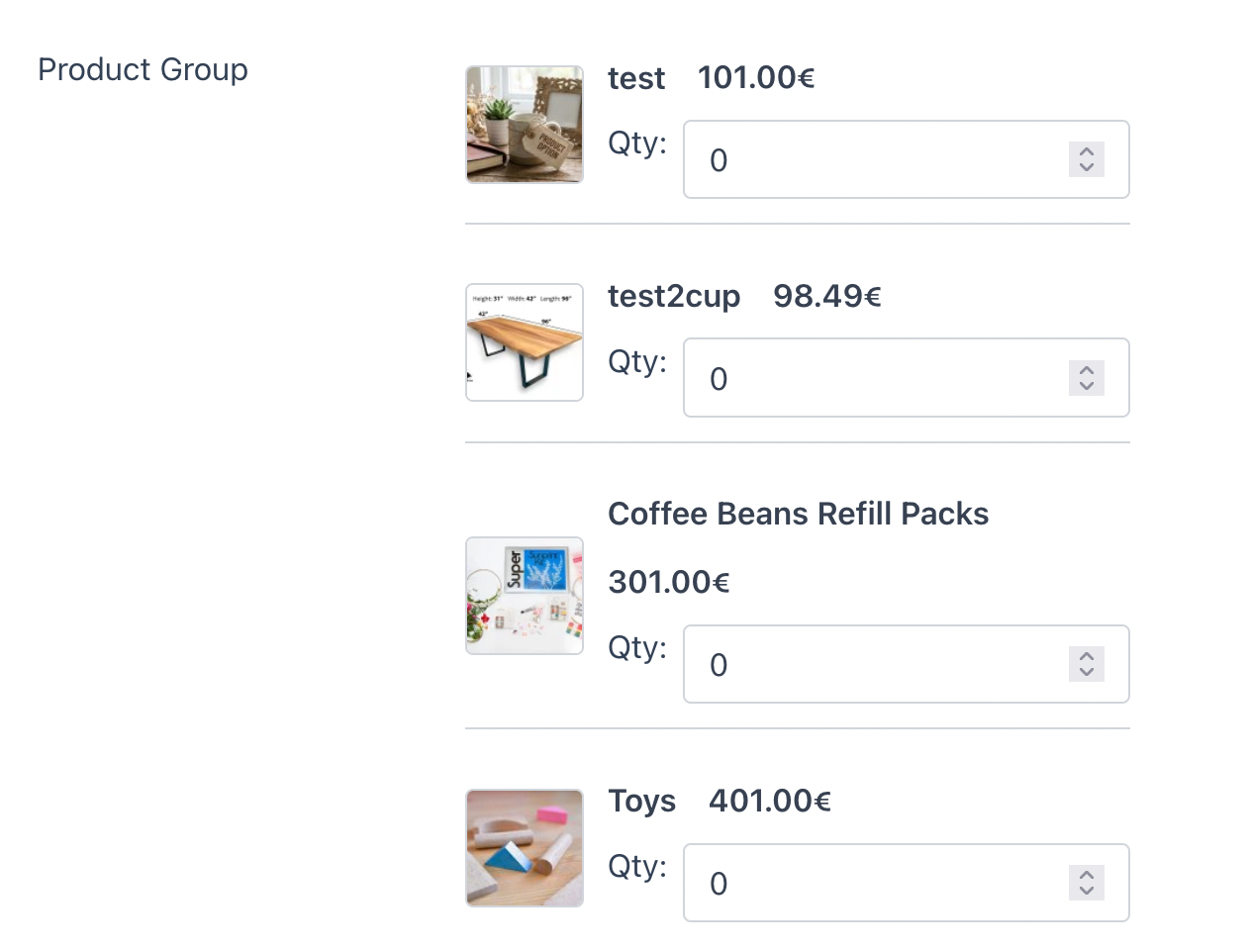
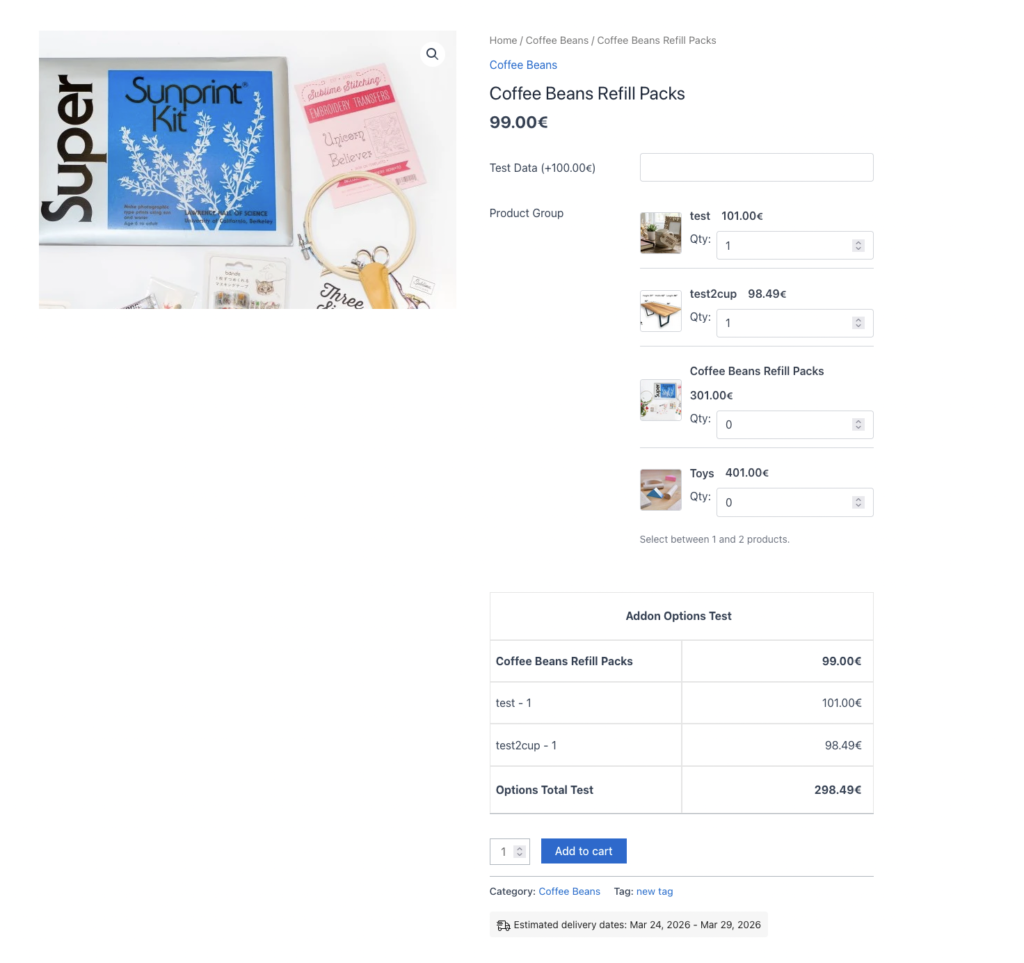
Customers will see:
- addon product image
- addon product title
- addon product price
- qty input (if enabled)
They will also see instant validation messages if something is invalid (for example, max limit or stock issue).
When Min and/or Max Selections are configured, customers see a help message below the product list — for example: “Select between 1 and 3 products.” or “Select at least 2 product(s).”
Validation Behavior (Selection + Stock)
Selection validation
- Min/Max validation runs instantly while customer changes selection.
- Rules are based on selected products.
Stock validation
When Disable stock management of addon products is OFF:
- out-of-stock addon product is blocked
- qty above available stock is blocked
- Backorders: If an addon product allows backorders, quantity limits are not enforced — only out-of-stock blocking applies.
Server-side validation also runs on Add to cart for security and data integrity.
Real Examples
Example 1: Accessories Bundle
- Min: 1
- Max: 2
- Allow multiple: ON
- Quantity: ON
Customer can select up to 2 accessories and set qty for each.
Example 2: Single Premium Upgrade
- Min: 1
- Max: 1
- Allow multiple: OFF
- Quantity: OFF
Customer must choose exactly one option.
Example 3: Service Addon (No stock tracking)
- Disable stock management: ON
Useful for warranty, setup service, engraving service, or digital add-ons.
Admin Setting
Front Behaviour
Best Practices
- Use clear labels so customers understand each addon option.
- Keep Max Selections realistic to avoid decision overload.
- Enable quantity only when it is truly needed.
- Keep stock validation ON for physical stock-controlled addon products.
- Test with real stock quantities before going live.
Troubleshooting
Customer cannot select second product
- Ensure Allow multiple selections is ON.
- Ensure Max. Selections is greater than 1.
Customer sees stock error
- Check addon product stock in WooCommerce.
- Check if backorders are disabled — if backorders are allowed on the addon product, quantity limits are not enforced.
- Confirm Disable stock management is OFF.
Add to cart fails even though UI looks fine
- Read the inline validation message.
- Re-check Min/Max and stock settings.
Addon product does not appear in the frontend list
- Check the product’s WooCommerce catalog visibility — products set to Hidden are automatically excluded from the Product Group list.
Developer Notes
Variable product / variation support
You can add specific product variations as addon options — select the variation directly in the product search inside the builder. Stock checks, pricing, and display all use the variation’s own values.
Hidden products auto-excluded
Products with WooCommerce catalog visibility set to Hidden are automatically excluded from the frontend Product Group list. No additional configuration is needed.
Conditional logic support
Product Group participates in the standard addon render pipeline — epofw_before_addon_field_productgroup and epofw_after_addon_field_productgroup action hooks fire around the field. This means conditional logic rules (show/hide based on other fields) fully apply to Product Group fields.
Template override
Theme developers can override the frontend template by copying it to:
yourtheme/eopfw-templates/epofw-productgroup__premium_only.phpConclusion
Product Group is a powerful way to sell related products directly on the main product page.
By correctly configuring Min/Max, quantity, and stock options, you can improve upsells while keeping a clean customer experience.
Frequently Asked Questions
Find answers to commonly asked questions about our products and services.
Still have a question?
If you have any other queries, feel free to reach out to us. Our knowledgeable team is here to help!
Try Extra Product Options
Free version on WordPress.org · 7-day money-back guarantee on Pro.

