
Quantity bands give one option a different price at different quantities. Rows that share a label are one option, and each row is one band of it.
Premium feature, new in 4.4.9.4. In the free version the controls appear with a PRO badge and are disabled.
What it is for
A print shop sells a garment with a “Decoration technique” dropdown. Each technique costs a different amount, and each gets cheaper in volume by a different amount:
| Quantity | Screen print | Embroidery | Laser |
|---|---|---|---|
| 1–49 | 2.00 | 3.50 | 4.00 |
| 50–99 | 1.60 | 3.10 | 3.70 |
| 100+ | 1.20 | 2.90 | 3.40 |
This could not be expressed before. Quantity breaks were stored once for the whole field, so every option had to share the same breaks.
How it differs from Quantity-Based Pricing
Both price by quantity and both use From / To / price. The difference is what the discount applies to.
| Applies to | Use it when | |
|---|---|---|
| Quantity-Based Pricing (Pricing Options tab) | the field — one set of breaks for every option | every option discounts the same way |
| Quantity bands (Options tab) | each option separately | each option has its own prices and its own breaks |
Both can be on at once. A band always wins for the option it covers; an option with no band still gets the field tier.
Where it is
WooCommerce → Extra Product Addons → edit the addon → edit the field → the Options tab → Price by quantity.
Available on Select, Radio, Colour Switcher, Text Switcher and Image Switcher. Not on Checkbox, Checkbox Group or Multiselect, where more than one option can be chosen at once so “the price of the selected option” has no single answer; and not on Country, whose ~200 options would be unusable this way.
What the Options tab looks like
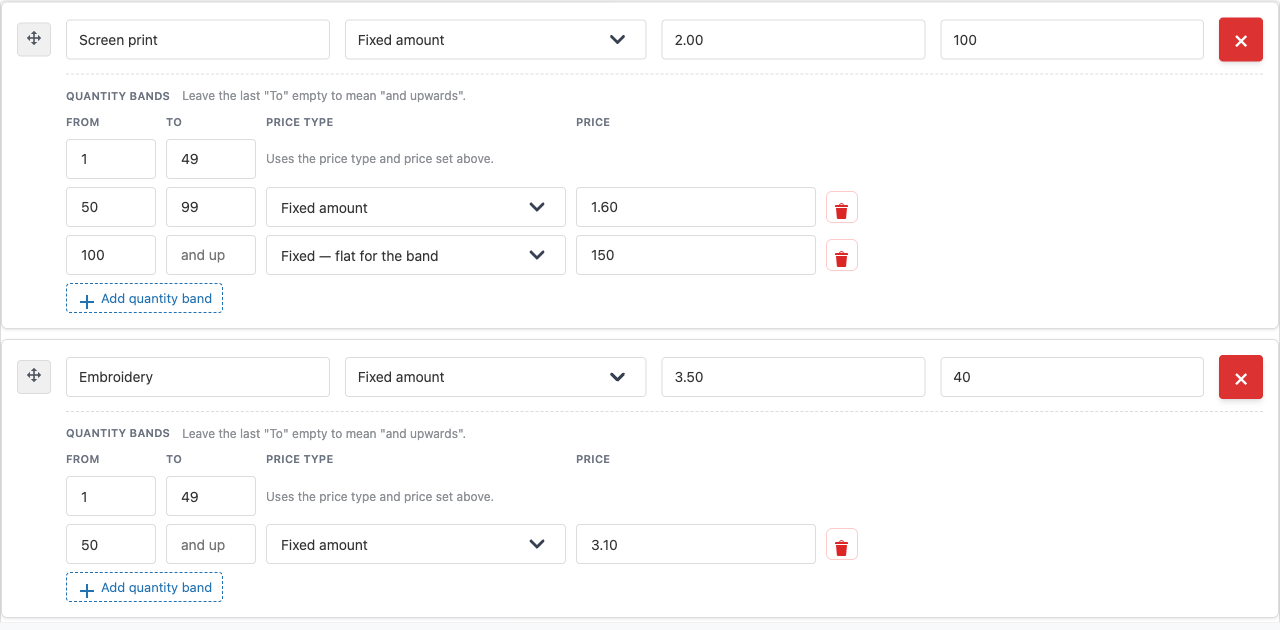
With Price by quantity on, each option becomes a card: its label, price and stock stay in the header, and its quantity bands sit underneath. The drag handle moves the whole card, bands included, so a band can never be separated from the option it belongs to.
The first line of the band list has no price of its own — it reads “Uses the price type and price set above”, because that first band is the option’s own price, typed once in the card header. Later bands carry their own type and price.
Setting it up
- Open the field’s Options tab.
- Switch Price by quantity on. Each option gains a Quantity bands section.
- Fill in the option as usual — label, price type, price, stock — then set the first band’s From to
1and To to the end of that break. That band charges the price you typed in the header. - Click + Add quantity band. Enter the next break: From, To, price type and price.
- For the top break, enter From and leave To empty — empty means “and upwards”.
- Repeat for the next option, then Done and Save Changes.
Reopen the field afterwards to confirm the toggle is still on and your bands came back.
The rules the fields follow
- From is required. A row with no From is the option’s ordinary price, not a band.
- To may be empty on the last band, meaning no upper limit.
- A row whose To is below its From is dropped on save — no quantity could ever reach it, so it disappears rather than sitting there looking effective.
- Stock belongs to the option, not to a band. It is typed once, in the card header.
- Two options of one field cannot share a label. The cart identifies an option by its label, so same-label rows are by definition one option.
How the price is decided
When more than one thing could price an option, the first of these that applies wins:
- A quantity band of that option covering this quantity.
- A Quantity-Based Pricing tier covering this quantity.
- The option’s own price.
Price Rules run last and adjust whatever those produced.
Quantities no band covers
If the quantity falls outside every band of that option, the option’s own price is used — which is the price on its first row. With bands of 1–5 at 10.00, 6–10 at 20.00 and 11–20 at 30.00:
| Quantity | Charged | Why |
|---|---|---|
| 1–5 | 10.00 | first band |
| 6–10 | 20.00 | second band |
| 11–20 | 30.00 | third band |
| 21+ | 10.00 | no band covers 21, so the option’s own price |
To price everything above your last break, leave that band’s To empty. That is the normal way to set it up.
Price types in a band
- Fixed amount — this much per unit while the quantity is in the band.
- Fixed — flat for the band — this much once for the whole order line, however many units. A band of 1–100 set to 150.00 flat charges 150.00 whether the customer orders ten or a hundred, which is how a setup or origination charge works.
Percentage bands are not available yet. A percentage would be worked out from a different product price on the product page than in the cart under some tax settings, so it would preview wrong by the tax rate. If a band is left on another price type, the band stands down and the option’s own price applies rather than charging a percentage figure as a flat amount.
Bands follow: product or field quantity
- Product quantity (the default) — the product’s own quantity box.
- Field quantity — the quantity box belonging to this field.
Field quantity needs that field’s own Quantity option switched on. Until it is, the choice is greyed out and reads “Field quantity (enable it in Quantity Options)”, with a link straight to that tab, so you cannot set something that would not apply. Switch Enable Quantity on and it becomes available immediately, without reloading.
If a field was saved with “Field quantity” before its Quantity option was turned off, the tab says so and bands follow the product quantity until you turn it back on. The same rule applies to the Tier basis of Quantity-Based Pricing.

Switchers
Bands work the same way. Rows sharing a label are one option — so for a Colour Switcher, give each band row the same label and the same colour.
What an existing store sees
Nothing changes until you switch it on for a field. No data is converted, existing Quantity-Based Pricing setups are untouched, and no price a customer currently pays changes.
Limitations
- No percentage bands yet.
- The cart line’s option note shows the option’s own price, not the band price. The amount charged is correct — the line total and the order are right — but the small “(10.00)” beside the option name shows the figure before the band applied. This affects Quantity-Based Pricing, Price Rules and the Rating field in the same way, and is logged to be corrected for all of them together.
- A struck-through price and an invented “saving” can appear in the cart, because WooCommerce reads the option’s own price as a regular price and the band’s as a sale. With a flat band the figures can look badly wrong — a line correctly charging 326.00 was seen advertising “Previous price 120.00 / Save 513.94”. The line total and the order total are the authoritative figures.
- No CSV import for bands yet.
- Two options cannot share a label on a band-enabled field — the cart identifies an option by its label, so same-label rows are by definition one option.
Troubleshooting
I set bands up and nothing happened
Check Price by quantity is still on after saving, and that every band row has a From. A row with no From is not a band.
The first band’s price is charged at high quantities
Your top band has a To. Clear it so it means “and upwards”.
My option appears several times in the dropdown
The rows are not being read as one option. Make the labels identical — including trailing spaces — and for switchers, the colour or image too.
The price does not change with the quantity
Check Bands follow. If you cannot select “Field quantity”, that field’s own Quantity option is off — the control says so and links to the tab that turns it on.
A band row vanished when I saved
Its To was below its From, so no quantity could reach it. Re-enter it the right way round.
Related
- Volume / tiered pricing — one set of breaks for a whole field
- Product addon pricing — every price type
- Price rules — change a price based on another field
- Per-option stock