Date Picker to WooCommerce Products
Introduction
Many WooCommerce stores sell products or services that require customers to select a specific date. Whether you offer delivery scheduling, appointment booking, event registration, or rental services, a WooCommerce date picker field allows customers to choose their preferred date directly on the product page.
In this guide, we will explain what a WooCommerce date picker is, explore common use cases, and show you how to configure date selection fields with restrictions, formatting options, and date-based pricing.
What Is a WooCommerce Date Picker?
A WooCommerce date picker is a custom field that displays a calendar interface, allowing customers to select a specific date when ordering a product. Instead of typing dates manually, customers click on a visual calendar to choose their preferred date, reducing errors and improving the ordering experience.
Key characteristics of WooCommerce date picker fields:
- Visual calendar popup for easy date selection
- Configurable date formats to match regional preferences
- Ability to restrict available dates (minimum, maximum, disabled dates)
- Option to block weekends or specific dates
- Support for date-based pricing adjustments
WooCommerce date pickers transform date collection from a potential source of confusion into a smooth, user-friendly interaction.
Why Your Store Needs a Date Picker Field
- Accurate Date Collection – When customers type dates manually, formatting errors are common. “5/12/2026” could mean May 12th or December 5th depending on the customer’s location. A WooCommerce date picker eliminates this ambiguity by presenting a clear calendar interface.
- Reduced Order Errors – Manual date entry leads to typos and invalid dates. A WooCommerce date picker ensures customers can only select valid dates within your accepted range, preventing impossible delivery dates or scheduling conflicts.
- Better Customer Experience – Clicking on a calendar is faster and easier than typing a date. Customers appreciate the visual interface, especially on mobile devices where typing is more cumbersome.
- Business Rule Enforcement – WooCommerce date pickers allow you to enforce business rules automatically. Need two days for order preparation? Set the minimum date to two days from today. Closed on weekends? Disable Saturday and Sunday selections.
- Scheduling Efficiency – When customers select dates from predefined options, your fulfillment team receives consistent, properly formatted date information, making scheduling and planning more efficient.
Common Use Cases for Date Pickers
Delivery Scheduling – Allow customers to choose their preferred delivery date for products that require scheduled delivery.
- Furniture delivery
- Large appliance installation
- Grocery delivery
- Flower delivery
Appointment Booking – Service-based businesses use WooCommerce date pickers to let customers schedule appointments or consultations.
- Salon appointments
- Consulting sessions
- Photography sessions
- Home services
Event Registration – For products tied to specific event dates, WooCommerce date pickers help customers select which event they want to attend.
- Workshop registration
- Class enrollment
- Tour bookings
- Ticket reservations
Rental Services – Rental businesses need customers to specify pickup or return dates for rented items.
- Equipment rental
- Vehicle rental
- Costume rental
- Tool rental
Custom Orders with Deadlines – Products requiring production time need customers to specify when they need the item delivered.
- Custom cakes with event dates
- Personalized gifts with occasion dates
- Print products with deadline dates
- Catering orders
Subscription Start Dates – Allow customers to choose when their subscription or recurring service should begin.
Date Picker Features Overview
| Feature | Free | Premium |
|---|---|---|
| Date Selection Calendar | ✅ | ✅ |
| Default Date | ✅ | ✅ |
| Placeholder Text | ✅ | ✅ |
| Readonly Field | ✅ | ✅ |
| Fixed Price Adjustments | ✅ | ✅ |
| Date Format Options | ❌ | ✅ |
| Minimum Date (Dynamic) | ❌ | ✅ |
| Maximum Date (Dynamic) | ❌ | ✅ |
| Disable Weekends | ❌ | ✅ |
| Disable Custom Dates | ❌ | ✅ |
| Date Range Pricing | ❌ | ✅ |
| Weekday-Based Pricing | ❌ | ✅ |
| Custom Price Formula | ❌ | ✅ |
How to Set Up a Date Picker in WooCommerce
Follow these steps to add a WooCommerce date picker field to your products:
- Step 1: Create a New Product Addon
- Navigate to WooCommerce > Products > Extra Product Addons and create a new addon or edit an existing one.
- Step 2: Add a Date Picker Field
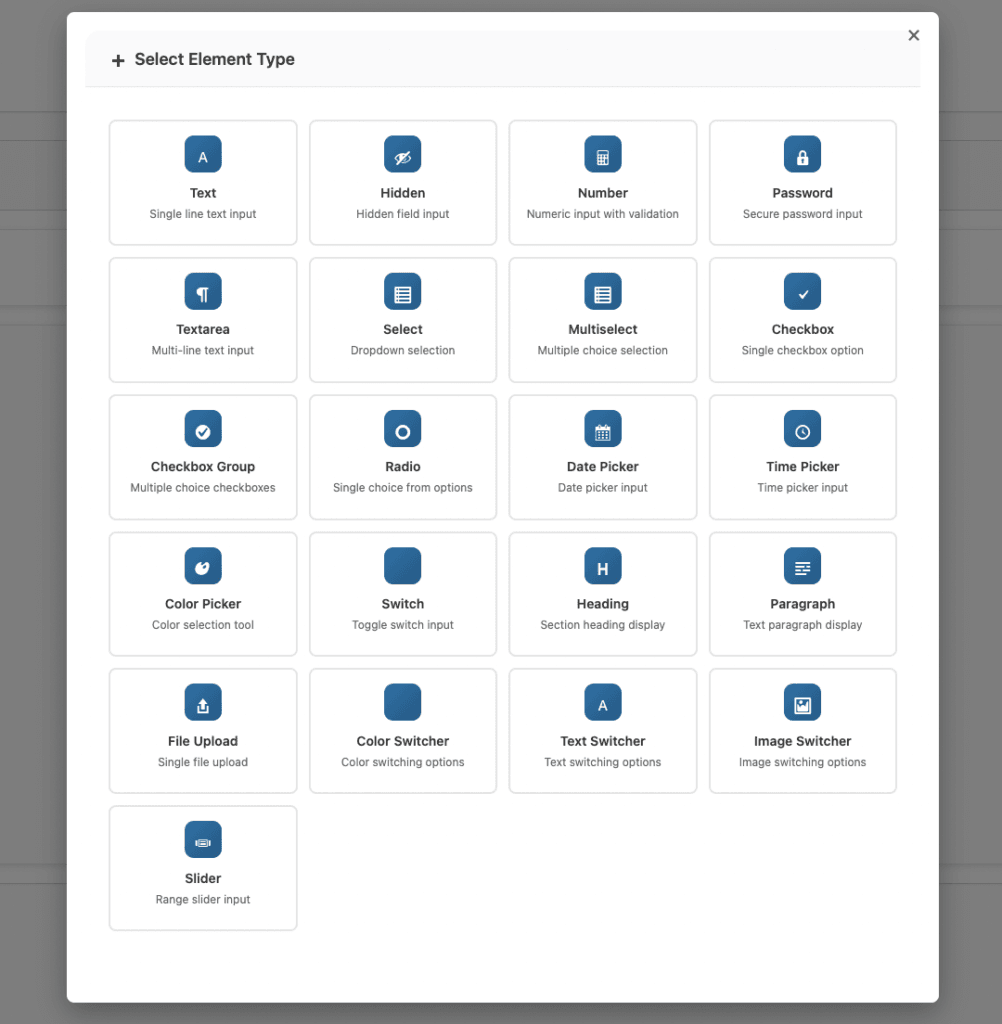
- Click “Add Element” and select “Date Picker” from the available field types.
- Step 3: Configure General Settings
- Field Status: Enable the field
- Field Name: Set a unique identifier
- Field ID: Assign an ID for styling/scripting
- Required: Make the field mandatory if needed
- Step 4: Configure Date Picker Options
- Default Date: Pre-select a date if desired (e.g., tomorrow’s date)
- Placeholder Text: Add helpful text like “Select delivery date”
- Readonly: Enable if you want display-only mode
- Step 5: Set Date Restrictions (Premium)
- Date Format: Choose your preferred format (dd-mm-yy, mm-dd-yy, etc.)
- Minimum Date: Set the earliest selectable date
- Maximum Date: Set the latest selectable date
- Disable Weekends: Block Saturday and Sunday
- Disable Custom Dates: Enter specific dates to block (holidays, etc.)
- Step 6: Configure Pricing (Optional)
- Add fixed pricing or configure date-based pricing rules.
- Step 7: Test the Field
- Visit the product page and verify the WooCommerce date picker works correctly with all restrictions applied.
Configuring Date Restrictions (Premium)
Premium users can configure advanced date restrictions to match business requirements:
- Date Format Options
- Choose from six standard date formats:
- dd-mm-yy (e.g., 25-12-2026)
- mm-dd-yy (e.g., 12-25-2026)
- dd/mm/yy (e.g., 25/12/2026)
- mm/dd/yy (e.g., 12/25/2026)
- yy-mm-dd (e.g., 2026-12-25)
- yy/mm/dd (e.g., 2026/12/25)
- Choose from six standard date formats:
- Minimum Date with Dynamic Formats
- Set the earliest date customers can select using dynamic formats:
{currentDate}– Today’s date{currentDate}{+1d}– Tomorrow{currentDate}{+2d}– Two days from now{currentDate}{+7d}– One week from now{15-05-2026}– Specific date{15-05-2026}{+1d}– Day after specific date
- Example: For a bakery needing 3 days preparation time, set minimum date to
{currentDate}{+3d}.
- Set the earliest date customers can select using dynamic formats:
- Maximum Date
- Limit how far in advance customers can book using the same dynamic format options.
- Example: To allow bookings only within the next 30 days, set maximum date to
{currentDate}{+30d}.
- Disable Weekends
- Enable this option to prevent customers from selecting Saturday or Sunday. Useful for businesses that only operate on weekdays or don’t offer weekend delivery.
- Disable Custom Dates
- Enter specific dates that should be unavailable for selection. Separate multiple dates with commas.
- Example:
25-12-2026, 26-12-2026, 01-01-2027blocks Christmas and New Year’s Day. - Use this feature for:
- Public holidays
- Company closure dates
- Fully booked dates
- Maintenance periods
Date-Based Pricing Options (Premium)
Premium users can configure pricing that changes based on the selected date:
- Fixed Pricing
- Add a fixed fee for the WooCommerce date picker field regardless of which date is selected.
- Date Range Pricing
- Set different prices for different date ranges. This allows you to:
- Charge more during peak seasons
- Offer discounts for off-peak dates
- Implement holiday surcharges
- Example Configuration:
- December 20-31: +$25 (holiday rush)
- January 1-15: +$10 (post-holiday period)
- Regular dates: No additional charge
- Set different prices for different date ranges. This allows you to:
- Weekday-Based Pricing
- Charge different amounts based on which day of the week customers select.
- Example:
- Monday-Thursday: Standard price
- Friday: +$10
- Saturday-Sunday: +$20
- Example:
- This is useful for businesses with varying operational costs on different days.
- Charge different amounts based on which day of the week customers select.
- Custom Price Formula
- Use formula-based pricing with the WooCommerce date picker for advanced scenarios. Combine date selection with other field values for complex pricing calculations.
Best Practices for Date Picker Fields
- Set Reasonable Date Ranges – Configure minimum and maximum dates that reflect your actual capabilities. Do not allow customers to select dates you cannot fulfill.
- Account for Processing Time – If you need preparation time, set the minimum date accordingly. A bakery might need 3 days; a furniture store might need 2 weeks.
- Block Unavailable Dates – Proactively disable dates when you are closed, fully booked, or unavailable. This prevents customer disappointment and scheduling conflicts.
- Use Clear Labels – Write descriptive labels that explain what date customers are selecting. “Preferred Delivery Date” is clearer than just “Date.”
- Choose Appropriate Date Formats – Select a date format familiar to your target audience. US customers expect mm-dd-yy while European customers expect dd-mm-yy.
- Provide Helpful Placeholder Text – Use placeholder text to guide customers, such as “Select your preferred delivery date” or “Choose appointment date.”
- Consider Time Zones – If you serve customers across time zones, be clear about which time zone dates reference.
Conclusion
A WooCommerce date picker field transforms date collection from a potential source of errors into a smooth, professional experience. Whether you need delivery scheduling, appointment booking, or event registration, WooCommerce date pickers ensure customers select valid dates while enforcing your business rules automatically.
Start with the basic WooCommerce date picker in the free version, then explore premium features like date restrictions, weekend blocking, and date-based pricing as your needs grow. Properly configured WooCommerce date pickers reduce scheduling conflicts, improve customer satisfaction, and streamline your order fulfillment process.
Related Resources
Frequently Asked Questions
Find answers to commonly asked questions about our products and services.
Still have a question?
If you have any other queries, feel free to reach out to us. Our knowledgeable team is here to help!