


WooCommerce Settings
Fine-tune how your extra product options appear and behave across product pages, cart, checkout, orders, and emails. Control pricing visibility, tax settings, and customer-facing information at every step of the purchase journey.
WooCommerce Settings give you granular control over how addon fields display and behave throughout the entire shopping experience. From the product page where customers first see your options, through cart and checkout, to order confirmations and admin order management — you control what customers see and when.
These settings help you:
- Control pricing visibility — Show or hide prices at different stages
- Manage tax settings — Configure tax behavior for individual addon fields
- Customize order display — Control what appears in cart, orders, and emails
- Enhance user experience — Create cleaner, more focused shopping flows
Core Capabilities
- Price Visibility Control – Hide prices on product pages, in cart, or in order details. Perfect for surprise pricing, gift options, or B2B scenarios where pricing is negotiated separately.
- Cart & Order Customization – Control exactly what addon information appears in the cart, checkout, order confirmations, and admin order pages. Show options without prices, or hide options entirely.
- Tax Configuration – Set individual tax settings for each addon field. Override product tax settings, apply specific tax rates, or follow product tax configuration.
- Flexible Display Options – Different settings for different stages of the purchase journey. Show full details on product pages, hide prices in cart, show options but hide prices in orders.
How It Works
WooCommerce Settings work at the field level, allowing you to configure each addon field independently. Settings are applied automatically throughout the WooCommerce shopping flow.
Product Page → Cart → Checkout → Order → Email
Each stage can have different visibility settings, giving you complete control over the customer experience.
Simple Example
Imagine a gift wrapping addon:
- Product Page: Customer sees “Add Gift Wrapping (+$5.00)” with price visible
- Cart: Price is hidden (surprise element for recipient)
- Order Details: Option is shown but price is hidden (gift pricing discretion)
- Admin Order: Full details visible for fulfillment
This creates a seamless experience where pricing information is shown or hidden based on context.
Quick Start Guide
Configure WooCommerce settings for your addon fields in 3 minutes.
- Step 1: Access Field Settings – Navigate to WooCommerce → Products → Extra Product Addons in your WordPress admin. Open the addon containing the field you want to configure, or create a new addon.
- Step 2: Select the Field – Click on the field you want to configure. The field settings modal will open.
- Step 3: Open WooCommerce Settings Tab -In the field settings popup, click the “WooCommerce Settings” tab. This tab is only available in the Premium version.
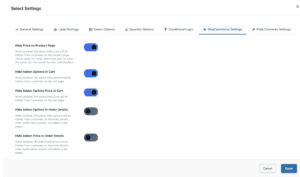
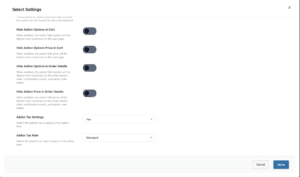
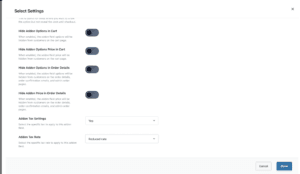
- Step 4: Configure Settings – Toggle or select the settings you need:
- Hide Price on Product Page — Toggle ON/OFF
- Hide Addon Options in Cart — Toggle ON/OFF
- Hide Addon Options Price in Cart — Toggle ON/OFF
- Hide Addon Options in Order Details — Toggle ON/OFF
- Hide Addon Price in Order Details — Toggle ON/OFF
- Addon Tax Settings — Select from dropdown
- Addon Tax Rate — Select from dropdown
- Step 5: Save and Test
- Click “Done” to close the field settings. Click “Save” to save your addon. Visit your product page, add the product to cart, and check the cart, checkout, and order pages to verify the settings work as expected.
- Pro Tip: Test the complete flow — product page → cart → checkout → order confirmation — to ensure all settings work correctly.
Settings Reference
- Hide Price on Product Page – Hide the addon field price from customers on the product page.
- When to Use:
- Surprise pricing scenarios
- Gift options where pricing should be discreet
- B2B stores where pricing is negotiated
- Fields where you want to show options without revealing costs upfront
- How It Works:
- Field label and options remain visible
- Price information is completely hidden
- Price still calculates in the background
- Total price updates correctly when field is selected
- Example:
- Before: “Premium Engraving (+$25.00)”
- After: “Premium Engraving” (price hidden)
- When to Use:
- Hide Addon Options in Cart – Completely hide addon field options from the cart page.
- When to Use:
- Internal tracking fields that customers don’t need to see
- Administrative fields for order processing
- Fields used for calculations but not customer-facing
- Simplifying cart display for cleaner checkout flow
- How It Works:
- Addon field options are completely removed from cart display
- Price is also hidden (since options aren’t shown)
- Field data is still saved with the order
- Admin can see the data in order details
- Example:
- Before: Cart shows “Engraving Text: Happy Birthday”
- After: Cart shows no engraving information (hidden)
- When to Use:
- Hide Addon Options Price in Cart – Show addon options in cart but hide their prices.
- When to Use:
- Gift scenarios where you want to show what was selected but hide pricing
- B2B orders where item details are shown but pricing is confidential
- Creating cleaner cart displays while maintaining option visibility
- Surprise pricing where options are visible but costs are hidden
- How It Works:
- Addon field options remain visible in cart
- Price information is hidden
- Options are still selectable and functional
- Total price still includes the hidden addon prices
- Example:
- Before: “Gift Wrap: Premium (+$10.00)”
- After: “Gift Wrap: Premium” (price hidden)
- When to Use:
- Hide Addon Options in Order Details – Hide addon field options from order details, order confirmation emails, and admin order pages.
- When to Use:
- Internal tracking that shouldn’t appear in customer-facing order details
- Administrative fields for fulfillment
- Fields used for calculations but not order documentation
- Simplifying order confirmation emails
- How It Works:
- Options are hidden in:
- Customer order confirmation emails
- Order details page (My Account)
- Admin order edit pages
- Field data is still stored in the database
- Can be accessed programmatically if needed
- Options are hidden in:
- Example:
- Before: Order email shows “Special Instructions: Handle with care”
- After: Order email shows no special instructions (hidden)
- When to Use:
- Hide Addon Price in Order Details – Show addon options in order details but hide their prices.
- When to Use:
- Gift orders where you want to show selections but hide pricing
- B2B scenarios where item details are needed but pricing is confidential
- Creating cleaner order confirmations while maintaining option visibility
- Surprise pricing in order documentation
- How It Works:
- Addon field options remain visible in:
- Customer order confirmation emails
- Order details page (My Account)
- Admin order edit pages
- Price information is hidden
- Options are still documented for fulfillment
- Addon field options remain visible in:
- Example:
- Before: “Engraving: Custom Text (+$15.00)”
- After: “Engraving: Custom Text” (price hidden)
- When to Use:
- Addon Tax Settings – Control whether tax is applied to this specific addon field.
- Options:
- Based on product setting — Follows the tax settings of the main product
- Yes — Tax is always applied to this addon field
- No — Tax is never applied to this addon field
- When to Use:
- Based on product setting: Default behavior, works for most scenarios
- Yes: For taxable addons when product might be tax-exempt
- No: For tax-exempt addons (gift wrapping, shipping insurance, etc.)
- How It Works:
- Overrides product-level tax settings for this specific field
- Works in conjunction with tax rate settings
- Respects WooCommerce tax configuration
- Applies to all pricing calculations for this field
- Example Scenarios:
- Gift Wrapping: Set to “No” (often tax-exempt service)
- Engraving: Set to “Yes” (taxable customization service)
- Standard Addon: Set to “Based on product setting” (follows product tax)
- Options:
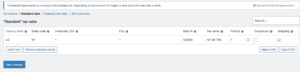
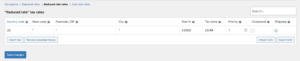
- Addon Tax Rate – Select the specific tax rate to apply to this addon field.
- Options:
- Based on product setting — Uses the tax rate of the main product
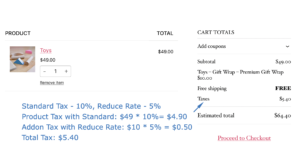
- Standard — Applies standard tax rate
- Reduced rate — Applies reduced tax rate
- Zero rate — Applies zero tax rate (tax-exempt)
- When to Use:
- Based on product setting: Default behavior, follows product tax rate
- Standard: For addons that should use standard tax rate regardless of product
- Reduced rate: For addons eligible for reduced tax rates
- Zero rate: For tax-exempt addons (charitable donations, certain services)
- How It Works:
- Works with “Addon Tax Settings” — both must be configured
- Overrides product-level tax rate for this specific field
- Respects WooCommerce tax configuration
- Applies to all pricing calculations for this field
- Example Scenarios:
- Digital Addon: Set to “Zero rate” (digital products often tax-exempt)
- Service Addon: Set to “Standard” (services typically use standard rate)
- Charity Donation: Set to “Zero rate” (charitable contributions tax-exempt)
- Options:
Real-World Examples
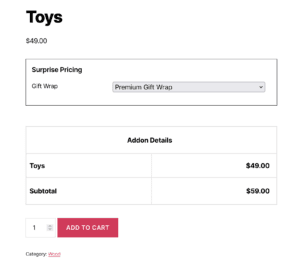
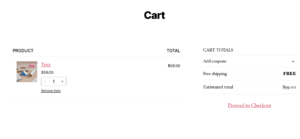
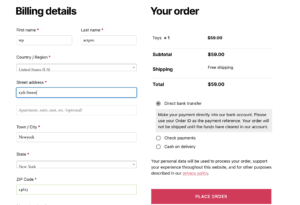
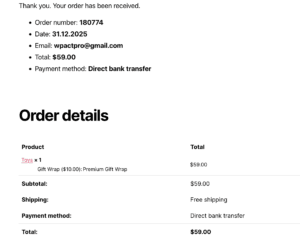
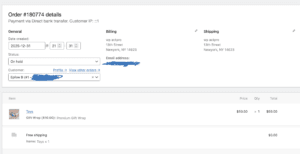
Gift Shop: Surprise Pricing
Scenario: Hide gift wrapping prices until checkout to create a surprise element.
Configuration:
- Hide Price on Product Page: ON
- Hide Addon Options in Cart: ON
- Hide Addon Options Price in Cart: ON
- Hide Addon Options in Order Details: OFF
- Hide Addon Price in Order Details: OFF
Customer Experience:
- Product Page: “Add Gift Wrapping” (no price shown)
- Cart: “Gift Wrapping: Premium” (no price shown)
- Checkout: Price appears in total
- Order: “Gift Wrapping: Premium” (no price in email)
Results: Recipient sees the gift option but not the cost, maintaining the surprise element.
Service Business: Tax-Exempt Addons
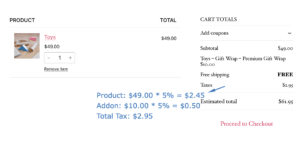
Scenario: Gift wrapping is a service and should be tax-exempt, while engraving is taxable.
Configuration for Gift Wrapping:
- Addon Tax Settings: No
- Addon Tax Rate: Zero rate
Configuration for Engraving:
- Addon Tax Settings: Yes
- Addon Tax Rate: Standard
Result: Gift wrapping has no tax applied, while engraving uses standard tax rate, regardless of product tax settings.

Best Practices
- Do This
- Test the complete flow. Always test product page → cart → checkout → order confirmation to ensure settings work as expected at each stage.
- Use consistent naming. If hiding prices, use clear field labels so customers understand what they’re selecting even without price information.
- Consider the customer journey. Think about what information customers need at each stage and configure visibility accordingly.
- Document tax settings. Keep notes on which addons are taxable/exempt and why, for future reference and tax compliance.
- Use field-level control. Different addon fields can have different settings — customize each field based on its purpose.
- Test with real orders. Create test orders to verify settings work correctly in actual order confirmations and admin views.
- Avoid This
- Don’t hide critical information. Ensure customers can see what they’re ordering, even if prices are hidden.
- Don’t create confusion. If hiding prices, make sure the total price still updates correctly so customers aren’t surprised at checkout.
- Don’t forget tax compliance. Ensure tax settings comply with your local tax regulations and WooCommerce tax configuration.
- Don’t hide everything. Balance privacy with transparency — customers need to see what they’re purchasing.
- Don’t ignore admin needs. If hiding options from customers, ensure admin/fulfillment team can still access necessary information.
- Don’t mix conflicting settings. For example, don’t hide options in cart but show prices — that creates an inconsistent experience.
Troubleshooting
Prices Still Showing When Hidden
- Check field-level settings. Ensure the “Hide Price” setting is enabled for the specific field you’re checking.
- Clear all caches. Browser cache, WordPress cache, and WooCommerce cache can all cause stale displays.
- Verify you’re checking the right page. “Hide Price on Product Page” only affects product pages, not cart or checkout.
- Check for theme overrides. Some themes may override WooCommerce template files and display prices regardless of settings.
- Verify Premium version. WooCommerce Settings are Premium-only features. Ensure you’re using the Premium version.
Options Still Showing When Hidden
- Check the specific setting. “Hide Addon Options in Cart” is different from “Hide Addon Options Price in Cart” — verify you enabled the correct one.
- Clear WooCommerce cache. WooCommerce caches cart and order displays — clear cache after changing settings.
- Check order status. Some settings only apply to new orders — existing orders may still show old display settings.
- Verify field is saved. Ensure you clicked “Done” and “Save” after changing settings.
Tax Not Applying Correctly
- Check both tax settings. Both “Addon Tax Settings” and “Addon Tax Rate” must be configured correctly.
- Verify WooCommerce tax setup. Ensure WooCommerce tax is properly configured in WooCommerce → Settings → Tax.
- Check product tax settings. If using “Based on product setting,” verify the product’s tax configuration.
- Test with different products. Tax behavior may vary based on product tax settings when using “Based on product setting.”
- Review tax calculations. Check WooCommerce tax reports to verify tax is being calculated correctly.
Settings Not Saving
- Check Premium version. WooCommerce Settings require Premium version — free version doesn’t include these options.
- Verify field is saved. Click “Done” to close field settings, then “Save” to save the addon.
- Check for JavaScript errors. Open browser console and look for errors that might prevent saving.
- Try refreshing. Sometimes a page refresh and re-saving resolves temporary save issues.
Frequently Asked Questions
Find answers to commonly asked questions about our products and services.
Still have a question?
If you have any other queries, feel free to reach out to us. Our knowledgeable team is here to help!
Conclusion
WooCommerce Settings give you precise control over how addon information displays throughout the entire shopping journey. By configuring visibility at each stage — product page, cart, checkout, orders, and emails — you create seamless, professional shopping experiences tailored to your business needs. Flexible tax configuration, price visibility controls, and stage-specific display options make WooCommerce Settings essential for any store requiring granular control over addon presentation.
WPActPro enables merchants to customize exactly what customers see at every step of the purchase process, from product selection to order confirmation.
Related Resources
- Section Settings Documentation – Configure section layout, styling, display rules, and organization for your product addons.
- Field Types Overview – Complete guide to all available field types and their configuration options.